
Instalación y configuración de Matrix Synapse en un VPS: servidor propio para Element y chats federados
TL;DR
En esta guía detallada, configuraremos paso a paso nuestro propio servidor Matrix Synapse en un servidor privado virtual (VPS) con Ubuntu 24.04 LTS. Aprenderá a instalar todos los componentes necesarios, incluyendo la base de datos PostgreSQL y el servidor web Caddy para la gestión automática de HTTPS, así como a configurar Synapse para garantizar una comunicación segura y federada. Al final, tendrá un servidor Matrix completamente funcional que le permitirá a usted y a su equipo usar clientes como Element para chats privados y grupales, e interactuar con otros servidores Matrix en todo el mundo.
- Configuración de Matrix Synapse en Ubuntu 24.04 LTS utilizando PostgreSQL.
- Obtención y gestión automática de certificados TLS a través de Caddy.
- Instrucciones detalladas para configurar el servidor para la federación y el registro de usuarios.
- Recomendaciones para la elección de la configuración del VPS y la seguridad.
- Scripts para la copia de seguridad y el mantenimiento del servidor.
Qué configuramos y por qué
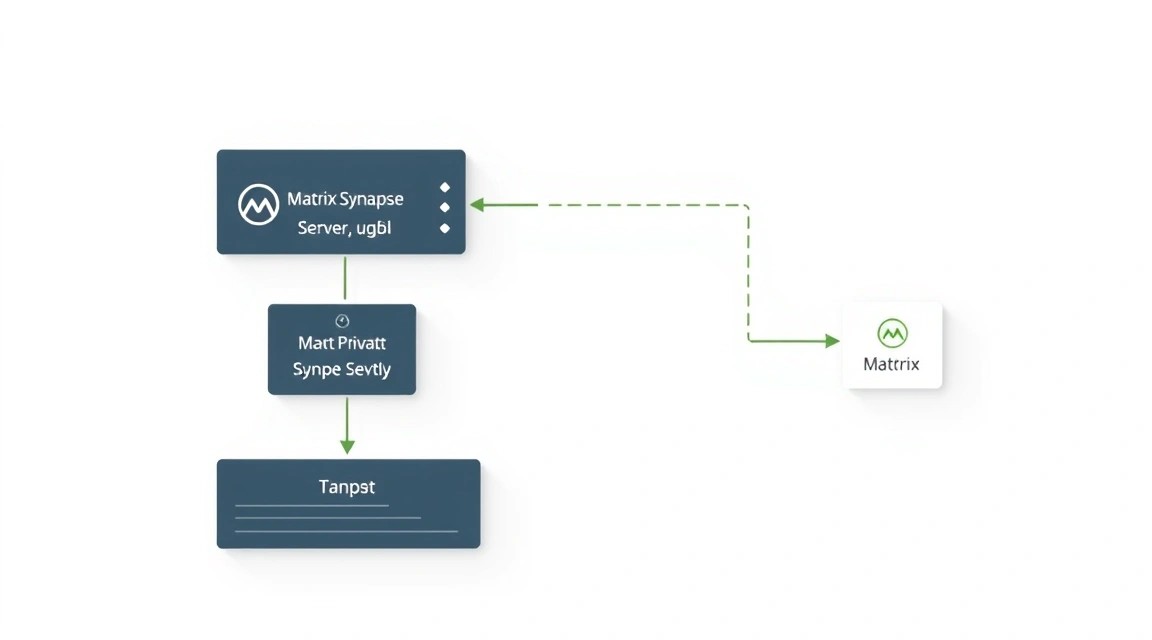
En este tutorial, nos ocuparemos de la instalación y configuración de Matrix Synapse, la implementación de referencia del servidor Matrix. Matrix es un protocolo abierto para la comunicación descentralizada y federada en tiempo real. En pocas palabras, es como el correo electrónico, pero para mensajes instantáneos: puede comunicarse con personas que usan otros servidores Matrix, de la misma manera que envía correos electrónicos a diferentes dominios de correo.
Matrix Synapse es el corazón de su plataforma de comunicación. Procesará todos los mensajes, gestionará usuarios y salas, y garantizará una conexión segura y la federación con otros servidores Matrix. Como cliente para interactuar con su servidor, se utiliza con mayor frecuencia Element, disponible en todas las plataformas (web, escritorio, dispositivos móviles). Podrá conectar Element a su propio servidor Matrix Synapse.
¿Qué obtendrá al final? Se convertirá en el propietario de su propia plataforma de mensajería, totalmente controlada y privada. Es la solución ideal para equipos, familias o comunidades que valoran la privacidad y no desean confiar su correspondencia a servicios comerciales de terceros. Podrá crear chats privados, salas de grupo, intercambiar archivos, realizar llamadas de voz y videollamadas, todo bajo su control total.
Existen alternativas, como los servicios Matrix gestionados en la nube (por ejemplo, Element Matrix Services) o soluciones propietarias como Slack, Discord, Telegram. Los servicios en la nube son convenientes porque no requieren conocimientos técnicos para su configuración y mantenimiento, pero se pierde parte del control sobre los datos y se paga una suscripción. Las soluciones propietarias ofrecen una rica funcionalidad, pero están completamente centralizadas y no le dan ningún control sobre su información.
¿Por qué autoalojado en un VPS? Elegir su propio VPS para Matrix Synapse le otorga el máximo control sobre los datos y la infraestructura. Usted decide dónde se almacenan los datos, quién tiene acceso a ellos y qué reglas de seguridad se aplican. Es económicamente ventajoso a largo plazo, especialmente para equipos pequeños y medianos, y ofrece flexibilidad para la integración con otros de sus servicios. Se vuelve independiente de las políticas y precios de los proveedores externos, obteniendo total libertad en la gestión de su plataforma de comunicación.
Qué configuración de VPS se necesita para esta tarea
La elección de un VPS adecuado es crucial para el funcionamiento estable de Matrix Synapse. Los requisitos de recursos dependen del número de usuarios activos, el volumen de mensajes y archivos multimedia almacenados, así como de la intensidad del uso de la federación.
Requisitos mínimos (hasta 10 usuarios activos):
- CPU: 1-2 vCPU (Intel Xeon o AMD EPYC modernos). Synapse es principalmente de un solo hilo, pero las tareas en segundo plano pueden utilizar núcleos adicionales.
- RAM: 2 GB. Esto es suficiente para ejecutar Synapse, PostgreSQL y el sistema operativo.
- Disco: 40-60 GB NVMe SSD. SSD acelera significativamente el rendimiento de la base de datos. NVMe es preferible a SATA SSD.
- Red: 100 Mbps o 1 Gbps. No es crítico para chats de texto, pero para llamadas de voz/video y federación activa, se desea un buen ancho de banda.
Plan de VPS recomendado (hasta 50-100 usuarios activos):
Para un funcionamiento cómodo y la posibilidad de expansión, especialmente si se planean llamadas de voz/video activas o un historial de chat extenso, se recomienda la siguiente configuración:
- CPU: 2-4 vCPU.
- RAM: 4-8 GB.
- Disco: 80-160 GB NVMe SSD.
- Red: 1 Gbps.
Para esta configuración, puede considerar un VPS con las características indicadas. Es importante asegurarse de que el subsistema de disco utilice NVMe SSD para obtener el máximo rendimiento de la base de datos.
Cuándo se necesita un dedicado y no un VPS
Un servidor dedicado (dedicated server) se vuelve necesario cuando el número de usuarios activos supera varios cientos, o cuando planea almacenar un volumen muy grande de archivos multimedia, así como si requiere el máximo rendimiento y aislamiento de recursos. Los servidores dedicados ofrecen un rendimiento predecible, ya que todos los recursos de hardware (CPU, RAM, disco) están completamente disponibles solo para usted. Si planea implementar una instancia de Matrix corporativa a gran escala que atenderá a miles de usuarios, o si tiene requisitos estrictos de seguridad y ubicación física del equipo, entonces un dedicado adecuado será una opción más razonable.
Ubicación: en qué influye
La elección de la ubicación del VPS influye en varios factores:
- Latencia (Latency): Cuanto más cerca esté el servidor de sus usuarios principales, menor será la latencia. Esto es especialmente crítico para las llamadas de voz y video.
- Legislación: Elija una ubicación cuya legislación cumpla con sus requisitos de almacenamiento de datos y privacidad.
- Disponibilidad: Algunas regiones pueden tener mejor conectividad con ciertas partes del mundo.
Generalmente se recomienda elegir un centro de datos ubicado geográficamente cerca de la mayoría de sus usuarios para garantizar la mejor experiencia de usuario.
Preparación del servidor
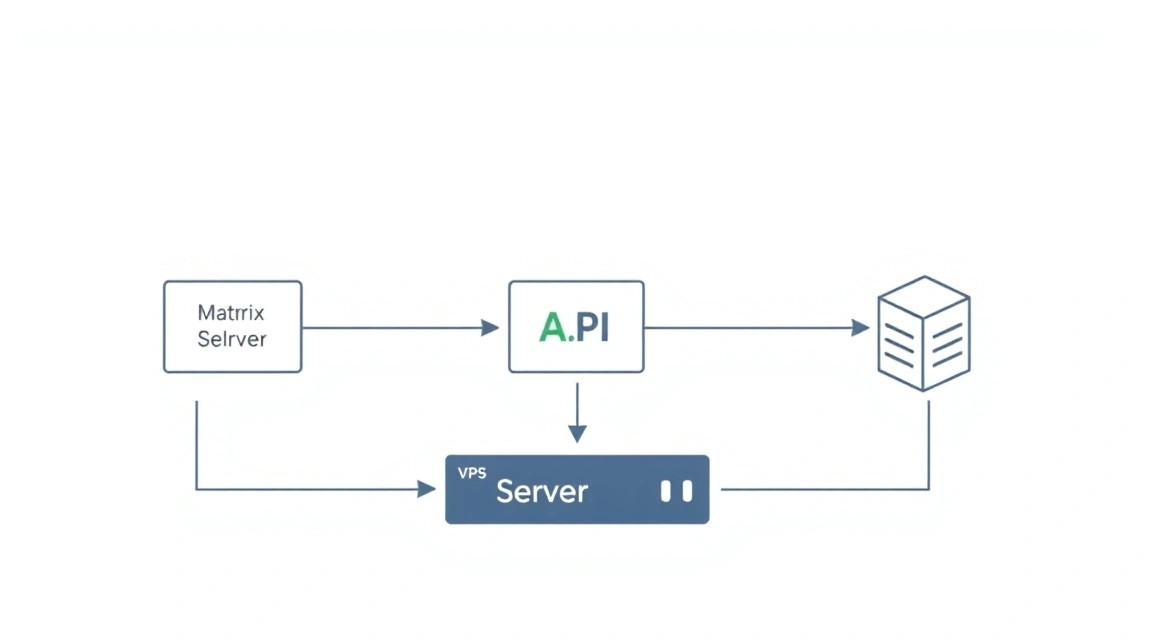
Después de obtener acceso a su nuevo VPS (se asume que está utilizando Ubuntu 24.04 LTS), es necesario realizar una serie de configuraciones básicas para mejorar la seguridad y la facilidad de gestión.
1. Conexión por SSH
Conéctese al servidor como usuario root o el usuario que se le proporcionó:
ssh root@ВАШ_IP_АДРЕС
Reemplace ВАШ_IP_АДРЕС con la dirección IP de su VPS.
2. Creación de un nuevo usuario y concesión de permisos sudo
Trabajar como root no es seguro. Crearemos un nuevo usuario y le otorgaremos permisos sudo.
adduser matrixuser # Creamos un nuevo usuario con el nombre matrixuser
usermod -aG sudo matrixuser # Añadimos el usuario al grupo sudo
Ahora salga de la sesión actual de root y acceda con el nuevo usuario.
exit # Salir de root
ssh matrixuser@ВАШ_IP_АДРЕС # Acceder con el nuevo usuario
3. Configuración de claves SSH (recomendado)
Para un acceso seguro y conveniente, configure las claves SSH. Genérelas en su máquina local (si aún no lo ha hecho):
ssh-keygen -t rsa -b 4096 # Generamos una nueva clave SSH
Luego, copie la clave pública al servidor:
ssh-copy-id matrixuser@ВАШ_IP_АДРЕС # Copiamos la clave pública al servidor
Después de esto, puede deshabilitar la autenticación por contraseña para SSH (recomendado). Edite el archivo /etc/ssh/sshd_config:
sudo nano /etc/ssh/sshd_config
Encuentre y modifique las siguientes líneas:
PasswordAuthentication no
PermitRootLogin no # Deshabilitamos el inicio de sesión directo para root por SSH
Reinicie el servicio SSH:
sudo systemctl restart sshd
4. Actualización del sistema
Siempre comience actualizando la base de paquetes y los paquetes instalados.
sudo apt update # Actualizamos la lista de paquetes disponibles
sudo apt upgrade -y # Actualizamos los paquetes instalados a las últimas versiones
sudo apt autoremove -y # Eliminamos dependencias innecesarias
5. Instalación de utilidades básicas
Instalaremos algunas utilidades útiles que serán de ayuda durante el proceso.
sudo apt install -y curl wget git nano htop ufw fail2ban
curl,wget: Para descargar archivos.git: Para trabajar con repositorios.nano: Un editor de texto simple.htop: Un monitor de procesos interactivo.ufw: Un firewall fácil de usar.fail2ban: Protección contra ataques de fuerza bruta.
6. Configuración del firewall (UFW)
Configuraremos UFW para permitir solo los puertos necesarios.
sudo ufw allow ssh # Permitimos SSH (puerto 22 por defecto)
sudo ufw allow http # Permitimos HTTP (puerto 80)
sudo ufw allow https # Permitimos HTTPS (puerto 443)
sudo ufw allow 8448/tcp # Puerto para la federación de Matrix
sudo ufw enable # Habilitamos el firewall
sudo ufw status # Verificamos el estado del firewall
Asegúrese de que SSH esté permitido antes de habilitar el firewall, de lo contrario, podría perder el acceso al servidor.
7. Configuración de Fail2Ban
Fail2Ban ya está instalado. Está configurado automáticamente para proteger SSH. Puede verificar su estado:
sudo systemctl status fail2ban
Si es necesario, se pueden añadir reglas adicionales, pero para empezar, la configuración estándar es suficiente.
Instalación de software — paso a paso
Ahora que el servidor está preparado, procederemos a instalar el software necesario: PostgreSQL (base de datos para Synapse), Python y sus dependencias, y finalmente, el propio Matrix Synapse.
1. Instalación de PostgreSQL 16
Matrix Synapse recomienda encarecidamente utilizar PostgreSQL para el almacenamiento de datos debido a su rendimiento y fiabilidad. En Ubuntu 24.04 LTS está disponible la versión actual de PostgreSQL.
sudo apt install -y postgresql postgresql-contrib # Instalamos PostgreSQL y utilidades adicionales
Después de la instalación, crearemos un usuario y una base de datos para Synapse.
sudo -u postgres psql # Entramos a la consola de PostgreSQL como el usuario postgres
Dentro de la consola de PostgreSQL, ejecute los siguientes comandos:
CREATE USER synapse_user WITH PASSWORD 'TU_CONTRASEÑA_COMPLEJA'; -- Creamos un usuario para Synapse, ¡reemplace la contraseña!
CREATE DATABASE synapse_db WITH OWNER synapse_user ENCODING 'UTF8' LC_COLLATE 'C' LC_CTYPE 'C' TEMPLATE template0; -- Creamos la base de datos
\q -- Salimos de la consola de PostgreSQL
Reemplace TU_CONTRASEÑA_COMPLEJA por una contraseña segura. Anótela, la necesitará al configurar Synapse.
2. Instalación de Python 3 y dependencias
Synapse está escrito en Python. Ubuntu 24.04 LTS viene con Python 3.12, que es una versión actual para 2026.
sudo apt install -y python3 python3-pip python3-venv python3-dev libffi-dev libssl-dev # Instalamos Python 3, pip, venv y las librerías necesarias
3. Instalación de Matrix Synapse
Instalaremos Synapse desde el repositorio oficial de Matrix para Ubuntu, lo que garantizará actualizaciones más sencillas.
sudo apt install -y lsb-release wget apt-transport-https # Instalamos utilidades para trabajar con repositorios
sudo wget -O /usr/share/keyrings/matrix-org-archive-keyring.gpg https://packages.matrix.org/debian/matrix-org-archive-keyring.gpg # Agregamos la clave GPG del repositorio
echo "deb [signed-by=/usr/share/keyrings/matrix-org-archive-keyring.gpg] https://packages.matrix.org/debian/ $(lsb_release -cs) main" | sudo tee /etc/apt/sources.list.d/matrix-org.list # Agregamos el repositorio de Matrix
sudo apt update # Actualizamos la lista de paquetes teniendo en cuenta el nuevo repositorio
sudo apt install -y matrix-synapse # Instalamos Matrix Synapse (versión actual 1.100.0+ para 2026)
Durante la instalación se le preguntará por el Server Name. Introduzca aquí su dominio, por ejemplo, matrix.yourdomain.com. Este será el nombre público de su servidor Matrix. También se le preguntará si desea usar PostgreSQL. Seleccione "Yes" e indique los parámetros que creó anteriormente: nombre de usuario synapse_user, nombre de la base de datos synapse_db y contraseña.
4. Instalación del servidor web Caddy
Caddy es un servidor web moderno que obtiene y renueva automáticamente certificados TLS (HTTPS) de Let's Encrypt. Esto simplifica significativamente la configuración de HTTPS en comparación con Nginx y Certbot.
sudo apt install -y debian-keyring debian-archive-keyring apt-transport-https # Instalamos paquetes base
curl -1sLf 'https://dl.cloudsmith.io/public/caddy/stable/gpg.key' | sudo gpg --dearmor -o /usr/share/keyrings/caddy-stable-archive-keyring.gpg # Agregamos la clave GPG de Caddy
curl -1sLf 'https://dl.cloudsmith.io/public/caddy/stable/debian.deb.txt' | sudo tee /etc/apt/sources.list.d/caddy-stable.list # Agregamos el repositorio de Caddy
sudo apt update # Actualizamos la lista de paquetes
sudo apt install -y caddy # Instalamos Caddy
Caddy se utilizará como proxy inverso para Synapse, manejando todo el tráfico entrante y proporcionando HTTPS.
Configuración
Después de instalar todos los componentes, procedemos a su configuración. Esta es la etapa más importante, donde uniremos todo.
1. Configuración de registros DNS
Antes de que Synapse y Caddy puedan funcionar, debe configurar los registros DNS para su dominio (por ejemplo, yourdomain.com). Necesitará:
- Registro A:
matrix.yourdomain.com, apuntando a la dirección IP de su VPS. - Registros SRV: Para el descubrimiento automático por parte de los clientes Matrix.
Agregue los siguientes registros en el panel de control DNS de su dominio:
- Registro
A:matrix.yourdomain.com->SU_DIRECCIÓN_IP_VPS - Registro
SRV:_matrix._tcp.yourdomain.com->0 5 8448 matrix.yourdomain.com - Registro
SRV:_matrix-federation._tcp.yourdomain.com->0 5 8448 matrix.yourdomain.com
Espere un tiempo hasta que los registros DNS se propaguen (normalmente de unos minutos a una hora).
2. Configuración básica de Matrix Synapse (homeserver.yaml)
El archivo de configuración principal de Synapse se encuentra en /etc/matrix-synapse/homeserver.yaml.
sudo nano /etc/matrix-synapse/homeserver.yaml
Busque y modifique (o asegúrese de que estén configurados correctamente) los siguientes parámetros:
server_name: Asegúrese de que sea su dominio (por ejemplo,matrix.yourdomain.com).database: Asegúrese de que aquí se especifiquen los parámetros de su base de datos PostgreSQL.public_baseurl: Establezcahttps://matrix.yourdomain.com/.enable_registration: Establezcatruesi desea permitir el registro libre. Para servidores privados, es mejorfalsey registrar usuarios manualmente.listeners: Asegúrese de que Synapse esté escuchando en el puerto 8008 (o en otro, si lo ha cambiado).
Ejemplo de una parte del archivo homeserver.yaml:
# /etc/matrix-synapse/homeserver.yaml

server_name: "matrix.yourdomain.com" # Reemplace con su dominio

database:
  name: "psycopg2"
  args:
    user: "synapse_user"
    password: "TU_CONTRASEÑA_COMPLEJA" # Su contraseña de usuario de PostgreSQL
    database: "synapse_db"
    host: "localhost"
    cp_min: 5
    cp_max: 10

public_baseurl: "https://matrix.yourdomain.com/"

listeners:
  - port: 8008
    tls: false
    type: http
    x_forwarded_for: true
    bind_addresses: ['127.0.0.1'] # Escuchamos solo localmente
    resources:
      - names: [client, federation]
        compress: false

enable_registration: true # Cambie a false para registro cerrado
Después de realizar los cambios, reinicie Synapse:
sudo systemctl restart matrix-synapse
sudo systemctl enable matrix-synapse # Nos aseguramos de que Synapse se inicie al arrancar el sistema
3. Configuración de Caddy para Matrix Synapse
Ahora configuraremos Caddy para que funcione como proxy inverso para Synapse y proporcione HTTPS.
sudo nano /etc/caddy/Caddyfile
Elimine todo el contenido del archivo e inserte lo siguiente, reemplazando matrix.yourdomain.com con su dominio:
# /etc/caddy/Caddyfile

matrix.yourdomain.com {
    # Para clientes (Element)
    reverse_proxy /_matrix/ localhost:8008

    # Para federación
    reverse_proxy /_matrix/federation/ localhost:8008

    # Para .well-known (autodescubrimiento)
    # Si su dominio raíz es yourdomain.com, y Synapse está en matrix.yourdomain.com
    # entonces necesita configurar una redirección o proxy para .well-known en el dominio raíz
    # Este es un ejemplo para el caso en que tanto Matrix como .well-known están en el mismo dominio
    # Si .well-known está en el dominio raíz yourdomain.com:
    # reverse_proxy /.well-known/matrix/ matrix.yourdomain.com:8008
    # Si Synapse y .well-known están en matrix.yourdomain.com:
    redir /.well-known/matrix/server /_matrix/federation/v1/well-known/matrix/server 301
    redir /.well-known/matrix/client /_matrix/client/v1/well-known/matrix/client 301
}

# Si desea que los clientes puedan conectarse a su dominio raíz,
# y Synapse está en un subdominio, debe configurar la redirección de .well-known
# en el dominio raíz yourdomain.com.
# En este caso, si su "Server Name" en Synapse es yourdomain.com,
# pero Synapse funciona en matrix.yourdomain.com, debe agregar:
# yourdomain.com {
#     redir /.well-known/matrix/server /_matrix/federation/v1/well-known/matrix/server 301
#     redir /.well-known/matrix/client /_matrix/client/v1/well-known/matrix/client 301
#     # Posiblemente también necesite proxy o redirigir a matrix.yourdomain.com
#     # reverse_proxy matrix.yourdomain.com {
#     #     header_up Host {host}
#     # }
# }
Nota importante sobre .well-known: Los clientes de Matrix buscan el archivo .well-known/matrix/server para determinar el servidor. Si su server_name en Synapse (por ejemplo, yourdomain.com) difiere del dominio en el que Synapse realmente funciona (por ejemplo, matrix.yourdomain.com), entonces necesita configurar una redirección de .well-known en el dominio raíz. En nuestro ejemplo, asumimos que el server_name coincide con el dominio en el que Caddy está funcionando (matrix.yourdomain.com). Si este no es el caso, deberá crear un bloque separado para yourdomain.com en el Caddyfile y configurar las redirecciones allí.
Verifique la configuración de Caddy y reinícielo:
sudo caddy validate --config /etc/caddy/Caddyfile # Verificamos la sintaxis de Caddyfile
sudo systemctl restart caddy # Reiniciamos Caddy
sudo systemctl enable caddy # Nos aseguramos de que Caddy se inicie al arrancar el sistema
Caddy obtendrá y configurará automáticamente los certificados SSL/TLS para su dominio.
4. Verificación de la operatividad
Después de todas las configuraciones, verificaremos que todo funciona correctamente.
- Verificación de Caddy y HTTPS:
curl -v https://matrix.yourdomain.com/ # Asegúrese de que la solicitud se realice a través de HTTPS
Debería ver una respuesta exitosa (posiblemente 404, pero con un certificado TLS correcto). Verifique el certificado en el navegador.
curl -v https://matrix.yourdomain.com/_matrix/client/versions # Debería devolver un JSON con las versiones de la API
curl -v https://matrix.yourdomain.com/_matrix/federation/v1/version # Debería devolver un JSON con la versión del servidor
dig SRV _matrix._tcp.yourdomain.com # Debería mostrar su registro SRV
dig SRV _matrix-federation._tcp.yourdomain.com # Debería mostrar su registro SRV
Si todas las verificaciones fueron exitosas, ¡su servidor Matrix Synapse está listo para funcionar! Ahora puede conectarse a él utilizando el cliente Element (o cualquier otro cliente Matrix), especificando matrix.yourdomain.com como servidor de inicio.
5. Registro del primer usuario
Si ha configurado enable_registration: false, deberá registrar al primer usuario manualmente.
sudo register_new_matrix_user -c /etc/matrix-synapse/homeserver.yaml https://localhost:8008 # Ejecutamos la utilidad de registro
Siga las instrucciones para crear un nombre de usuario y una contraseña. Puede convertir al primer usuario en administrador, lo cual es muy útil para la gestión del servidor.
Después de esto, puede iniciar sesión en Element utilizando las credenciales creadas y comenzar a usar su propio servidor Matrix.
Copias de seguridad y mantenimiento
Las copias de seguridad fiables y el mantenimiento regular son la clave para la estabilidad y longevidad de su servidor Matrix.
¿Qué respaldar?
Para una recuperación completa de Matrix Synapse, necesitará:
- Base de datos PostgreSQL: Contiene todos los mensajes, metadatos, usuarios y salas. Es el componente más crítico.
- Almacén de medios de Synapse: Directorio donde Synapse almacena todos los archivos subidos por los usuarios (imágenes, videos, documentos). Normalmente es
/var/lib/matrix-synapse/media_store. - Archivo de configuración de Synapse:
/etc/matrix-synapse/homeserver.yamly otros archivos en este directorio (por ejemplo,log.yaml). - Configuración de Caddy:
/etc/caddy/Caddyfiley certificados (aunque Caddy los restaurará por sí mismo).
Script simple de copia de seguridad automática
Crearemos un script simple para la copia de seguridad automática. Usaremos pg_dump para la base de datos y tar para los archivos.
sudo mkdir -p /opt/backups/matrix # Creamos el directorio para las copias de seguridad
sudo chown matrixuser:matrixuser /opt/backups/matrix # Damos permisos a nuestro usuario
nano /opt/backups/matrix/backup_matrix.sh
Inserte el siguiente contenido en el archivo backup_matrix.sh:
#!/bin/bash

# Configuración
BACKUP_DIR="/opt/backups/matrix"
DATE=$(date +%Y%m%d%H%M%S)
DB_USER="synapse_user"
DB_NAME="synapse_db"
DB_PASSWORD="ВАШ_СЛОЖНЫЙ_ПАРОЛЬ" # Utilice la misma contraseña que al configurar PostgreSQL
SYNAPSE_CONFIG_DIR="/etc/matrix-synapse"
SYNAPSE_MEDIA_DIR="/var/lib/matrix-synapse/media_store"
CADDY_CONFIG_DIR="/etc/caddy"

# Detener Synapse para una copia de seguridad consistente de la BD (opcional, pero recomendado para bases de datos grandes)
# sudo systemctl stop matrix-synapse

# Copia de seguridad de la base de datos PostgreSQL
echo "Volcando la base de datos PostgreSQL..."
PGPASSWORD="${DB_PASSWORD}" pg_dump -U "${DB_USER}" -h localhost "${DB_NAME}" > "${BACKUP_DIR}/synapse_db_${DATE}.sql"
if [ $? -eq 0 ]; then
    echo "Copia de seguridad de la base de datos exitosa: ${BACKUP_DIR}/synapse_db_${DATE}.sql"
else
    echo "¡La copia de seguridad de la base de datos falló!"
    exit 1
fi

# Copia de seguridad del almacén de medios y configuraciones
echo "Archivando almacén de medios y configuraciones..."
tar -czf "${BACKUP_DIR}/synapse_data_config_${DATE}.tar.gz" "${SYNAPSE_MEDIA_DIR}" "${SYNAPSE_CONFIG_DIR}" "${CADDY_CONFIG_DIR}"
if [ $? -eq 0 ]; then
    echo "Copia de seguridad de datos y configuración exitosa: ${BACKUP_DIR}/synapse_data_config_${DATE}.tar.gz"
else
    echo "¡La copia de seguridad de datos y configuración falló!"
    exit 1
fi

# Iniciar Synapse de nuevo
# sudo systemctl start matrix-synapse

# Eliminar copias de seguridad antiguas (guardamos 7 días)
find "${BACKUP_DIR}" -type f -name "*.sql" -mtime +7 -delete
find "${BACKUP_DIR}" -type f -name "*.tar.gz" -mtime +7 -delete

echo "Proceso de copia de seguridad finalizado."
Haga el script ejecutable:
chmod +x /opt/backups/matrix/backup_matrix.sh
Para el inicio automático, añádalo a cron. Ejecute el comando como el usuario matrixuser:
crontab -e
Añada la siguiente línea para una copia de seguridad diaria a las 3 de la mañana:
0 3 * * * /opt/backups/matrix/backup_matrix.sh > /dev/null 2>&1
Dónde almacenar las copias de seguridad
Almacenar las copias de seguridad en el mismo servidor que los datos originales es altamente desaconsejable. En caso de fallo de hardware o compromiso del servidor, perderá todo. Se recomienda utilizar:
- Almacenamiento externo compatible con S3: Por ejemplo, AWS S3, Backblaze B2 o MinIO. Para esto, puede usar utilidades como
s3cmdorcloneen su script. - VPS separado: Puede configurar un segundo VPS pequeño y usar
rsyncoscppara copiar las copias de seguridad allí. - Almacenamiento local en su máquina: Si el servidor no es crítico y puede realizar copias manuales.
Para copias de seguridad más avanzadas, considere herramientas como Restic o BorgBackup, que admiten deduplicación, cifrado y varios tipos de almacenamiento.
Actualizaciones: rolling vs. ventana de mantenimiento
- Actualizaciones continuas (Rolling updates): Para Matrix Synapse, normalmente se utilizan "rolling updates" (actualizaciones continuas), es decir, simplemente actualiza los paquetes y reinicia el servicio. Synapse está diseñado para ser bastante resistente a este tipo de actualizaciones.
- Ventana de mantenimiento: Para actualizaciones importantes de PostgreSQL o del sistema operativo, así como para la migración de la base de datos de Synapse (lo cual es raro), se recomienda planificar una "ventana de mantenimiento" durante la cual el servidor no estará disponible. Avise a los usuarios con antelación.
Se recomienda actualizar el sistema regularmente (una vez al mes):
sudo apt update && sudo apt upgrade -y
sudo apt autoremove -y
sudo systemctl restart matrix-synapse # Reiniciar Synapse después de actualizar las bibliotecas del sistema
sudo systemctl restart caddy # Reiniciar Caddy si hubo actualizaciones
También esté atento a las noticias del proyecto Matrix Synapse para obtener información sobre actualizaciones críticas y nuevas versiones.
Solución de problemas + Preguntas frecuentes
En esta sección, abordaremos problemas comunes que pueden surgir al configurar Matrix Synapse y proporcionaremos respuestas a preguntas frecuentes.
La federación no funciona (no puedo comunicarme con otros servidores)
Qué verificar:
- Registros DNS SRV: Asegúrese de que
_matrix._tcp.yourdomain.comy_matrix-federation._tcp.yourdomain.comapuntan correctamente a su servidor y al puerto 8448. Usedig SRV _matrix._tcp.yourdomain.com. - Cortafuegos (UFW): Asegúrese de que el puerto 8448 esté abierto para conexiones entrantes:
sudo ufw status. - Caddy/Nginx: Verifique los registros del servidor web. Asegúrese de que proxy correctamente las solicitudes a
/_matrix/federation/a Synapse (puerto 8008). - Registros de Synapse: Verifique los registros de Synapse en busca de errores de federación:
sudo journalctl -u matrix-synapse -f. Busque mensajes relacionados con "federation" o "remote server". - Archivos .well-known: Asegúrese de que
https://yourdomain.com/.well-known/matrix/serveryhttps://yourdomain.com/.well-known/matrix/clientestén accesibles y devuelvan un JSON correcto que apunte a suserver_name.
Cómo solucionarlo: Corrija los registros DNS, abra los puertos en el cortafuegos, verifique la configuración de Caddy/Nginx en busca de errores de proxy. Para los archivos .well-known, si su server_name difiere del dominio raíz, asegúrese de que su servidor web redirige correctamente las solicitudes a estas rutas al dominio donde está instalado Synapse.
Los clientes no pueden conectarse al servidor
Qué verificar:
- HTTPS: Asegúrese de que su dominio sea accesible a través de HTTPS (puerto 443) y que el certificado sea válido. Verifique a través del navegador o
curl -v https://matrix.yourdomain.com/. - Caddy/Nginx: Verifique los registros del servidor web. Asegúrese de que las solicitudes a
/_matrix/client/se proxy a Synapse. - Registros de Synapse: Busque errores relacionados con "client" o "connection".
- Puerto 8008: Asegúrese de que Synapse esté escuchando en el puerto 8008 (o en otro, si lo cambió) y sea accesible para el servidor web (
netstat -tulnp | grep 8008).
Cómo solucionarlo: Solucione los problemas de HTTPS (posiblemente Caddy no pudo obtener el certificado), verifique las reglas de proxy en Caddyfile, asegúrese de que Synapse esté funcionando y escuchando en el puerto correcto. Si cambió el server_name en homeserver.yaml, asegúrese de que coincida con el dominio al que los clientes intentan conectarse.
No puedo registrar un nuevo usuario
Qué verificar:
enable_registration: Verifique que en/etc/matrix-synapse/homeserver.yamlel parámetroenable_registrationesté configurado entrue. Después de cambiarlo, no olvide reiniciar Synapse.- Registros de Synapse: Revise los registros en busca de errores de registro.
- Protección contra spam: Synapse tiene mecanismos de protección contra spam incorporados que pueden bloquear el registro. Verifique la configuración correspondiente.
Cómo solucionarlo: Establezca enable_registration: true y reinicie Synapse. Si el problema persiste, desactive temporalmente cualquier protección contra spam en la configuración para verificar si esa es la causa.
¿Qué configuración mínima de VPS es adecuada?
Para un servidor Matrix Synapse personal o familiar pequeño (hasta 10 usuarios activos), se requerirá un mínimo de 1-2 vCPU, 2 GB de RAM y un disco SSD NVMe de 40-60 GB. Esta configuración será suficiente para las funciones básicas de chat y una pequeña cantidad de archivos multimedia. Sin embargo, si planea un uso activo de llamadas de voz/video o un gran volumen de historial de mensajes, se recomienda aumentar los recursos a 4 GB de RAM y 80 GB de SSD para un funcionamiento más estable.
¿Qué elegir: VPS o dedicado para esta tarea?
La elección entre un VPS y un servidor dedicado depende de la escala de su proyecto y de los requisitos de rendimiento. Para la mayoría de las implementaciones personales, familiares o de equipos pequeños (hasta varios cientos de usuarios), un VPS será una solución óptima y rentable. Ofrece suficiente flexibilidad y rendimiento. Un servidor dedicado se vuelve necesario si planea atender a miles de usuarios, almacenar terabytes de datos, o si tiene requisitos muy estrictos de aislamiento de recursos, rendimiento, seguridad y cumplimiento normativo. Los servidores dedicados proporcionan el máximo control sobre el hardware, pero conllevan mayores costos y complejidad de gestión.
El servidor funciona lento o se congela
Qué verificar:
- Uso de recursos: Use
htopotoppara monitorear la CPU y la RAM. Si Synapse o PostgreSQL consumen demasiados recursos, es posible que le falte RAM o CPU. - Registros de Synapse: Verifique los registros en busca de advertencias o errores que indiquen problemas de rendimiento (por ejemplo, consultas lentas a la BD).
- Subsistema de disco: Un disco lento (especialmente HDD o un SSD SATA lento) puede ser un cuello de botella. Asegúrese de tener un SSD NVMe.
- Índices de PostgreSQL: Para bases de datos grandes, asegúrese de que los índices estén creados y se utilicen de manera eficiente. Synapse generalmente los crea por sí mismo, pero a veces puede ser necesaria una optimización manual.
Cómo solucionarlo: Si le falta RAM o CPU, considere actualizar su VPS. Si el problema es el disco, asegúrese de usar un SSD NVMe. Verifique la configuración de PostgreSQL y Synapse en busca de ajustes ineficientes. Es posible que deba limpiar archivos multimedia antiguos o el historial de chat si ocupan demasiado espacio.
Conclusiones y próximos pasos
¡Felicidades! Ha instalado y configurado con éxito su propio servidor Matrix Synapse en un VPS. Ahora tiene una plataforma de comunicación totalmente controlada y privada que proporciona comunicación segura para usted y sus usuarios, y también le permite interactuar con otros servidores Matrix en todo el mundo. Ha adquirido una valiosa experiencia en la implementación y gestión de servicios de red complejos.
¿Hacia dónde avanzar?
- Integración con otros servicios: Explore los puentes de Matrix (Matrix Bridges) para conectarse a otras plataformas de chat como Telegram, Discord, IRC, Slack. Esto permitirá a sus usuarios comunicarse con personas en esas plataformas directamente desde su servidor Matrix.
- Optimización del rendimiento: Para instalaciones grandes, considere usar Prometheus y Grafana para monitorear los recursos del servidor y el rendimiento de Synapse. Optimice la configuración de PostgreSQL y Synapse para mejorar la velocidad de operación.
- Funciones adicionales: Explore la posibilidad de añadir llamadas de voz/video a través de sus propios servidores STUN/TURN (por ejemplo, Coturn) para mejorar la calidad de la comunicación, especialmente si los usuarios están detrás de un NAT.