
Palworld Server: Player Requirements and Setup on Linux
TL;DR
In this guide, you will deploy a dedicated Palworld server on Ubuntu Server 24.04 LTS: prepare a secure VPS or dedicated server, install SteamCMD, configure the world, automatic startup through systemd, backups, and updates. A self-hosted server lets you play without relying on public rooms, set the player limit and world rules, and control saves.
- For 4–8 players, 4 vCPU, 16 GB of RAM, and an NVMe disk of at least 50 GB are sufficient.
- For 16–32 players, you need a processor with high per-core performance, 32 GB of RAM, and preferably a dedicated server.
- The main Palworld game port is UDP 8211; UDP 27015 and TCP 25575 may be required for public listing and RCON.
- The server is installed through SteamCMD using application ID
2394010. - World settings are stored in the
PalWorldSettings.inifile, while saves are stored in theSaved/SaveGamesdirectory. - For stable operation, use systemd, daily backups, and a maintenance window before game updates.
What We Are Setting Up and Why
Palworld is an open-world game featuring base building, survival, and cooperative gameplay. The built-in co-op mode is convenient for a small session, but it is tied to the host's computer: the world is available only while it is running. A dedicated Palworld server runs around the clock on a Linux machine with a public IP address, allowing players to connect independently of the world owner.
Once setup is complete, you will have a separate PalServer-Linux-Shipping game process running under an unprivileged user. It will start automatically after a server reboot, listen on the game UDP port, save the world to a local NVMe disk, and create archived save copies on a schedule.
What the server owner gets
- A persistent world accessible by IP address and port.
- Configuration of difficulty, day speed, item drops, raids, character death, and Pals.
- A player limit, server password, and administrator password.
- Access to the RCON console for administration without an SSH connection.
- Control over saves, the ability to restore the world, and migration to another server.
- Independence from home NAT, home computer shutdowns, and host co-op limitations.
Self-hosted, game hosting, or a local computer
| Option | Advantages | Limitations |
|---|---|---|
| Local host co-op | Does not require a separate machine, quick to start | The world depends on the host computer, usually with fewer administration options |
| Managed game hosting | Control panel, ready-made backups, minimal Linux administration | Limited resources, no system access, pricing depends on slots |
| Your own server on a VPS | Full control, fixed infrastructure, ability to run monitoring and custom scripts | You need to update the game yourself, secure SSH, and monitor backups |
| Dedicated server | Dedicated CPUs, high stability with 16–32 players | More expensive and excessive for a small group |
A VPS is particularly convenient for a group of 4–12 friends. It allows you to isolate Palworld from the home network, use disk snapshots before major updates, and quickly move the server to another location. For a large public community, stable single-core performance, the absence of aggressive overselling, and fast NVMe storage matter more than the nominal number of vCPUs.
A server's public IP address is not a secret. The administrator password, SSH keys, RCON password, and backups are confidential data. Do not publish them in Discord, repositories, or configuration screenshots.
Which VPS Configuration Is Needed for This Task
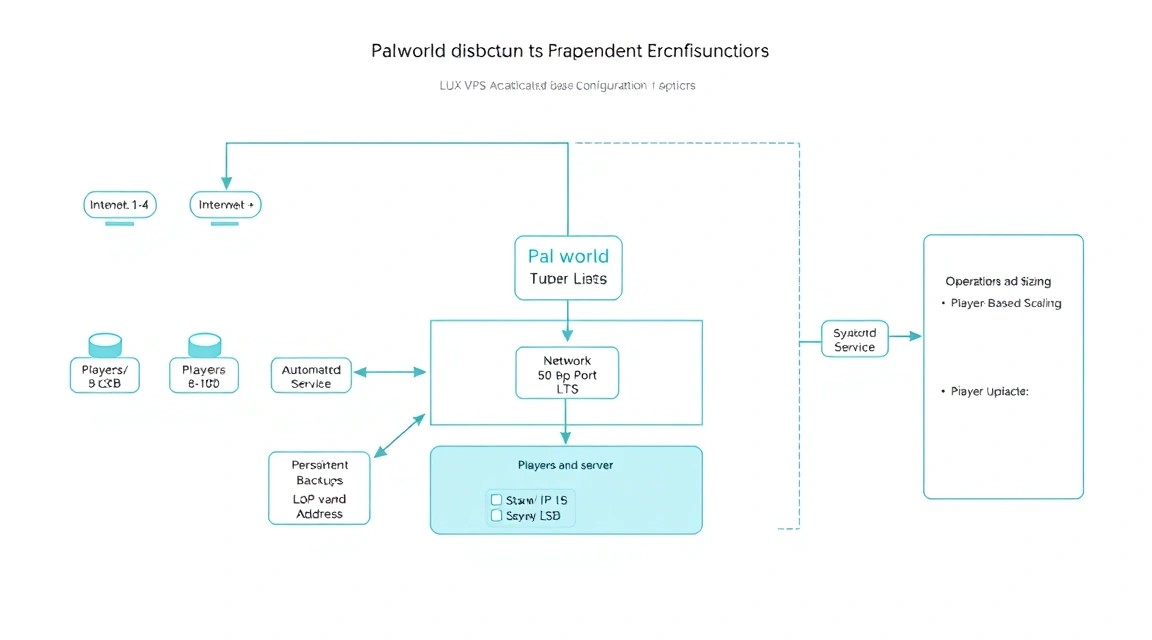
Palworld is sensitive to memory, disk speed, and CPU performance during autosaves, loading new areas, raids, and active simulation of large numbers of Pals at bases. The number of connected players is not the only metric: eight players with large bases and dozens of working Pals can create more load than sixteen players who are only exploring the map.
| Scenario | Players | CPU | RAM | Disk | Network |
|---|---|---|---|---|---|
| Test or private world | 1–4 | 2 modern vCPUs | 8–12 GB | 40 GB NVMe | 100 Mbps |
| Small group | 4–8 | 4 high-frequency vCPUs | 16 GB | 50–80 GB NVMe | 100 Mbps or higher |
| Active private server | 8–16 | 6–8 vCPUs | 24–32 GB | 100 GB NVMe | 1 Gbps |
| Public server | 16–32 | 8 fast dedicated cores | 32–64 GB | 150 GB NVMe and backup storage | 1 Gbps, DDoS protection |
For a typical server for 6–10 friends, a practical starting configuration is 4 vCPU, 16 GB of RAM, 80 GB NVMe, and a 1 Gbps port. As one option, you can choose a VPS with the specified characteristics, then increase resources if monitoring shows persistent RAM shortages or high CPU load.
Why you should not choose 4 GB of RAM
The game server itself may start with less memory, but Linux uses a file cache, SteamCMD unpacks updates, and the world grows as you play. If memory is insufficient, the kernel will actively use swap, save latency will increase, and the process may be terminated by the OOM-killer. For a persistent world, 16 GB is a safe lower limit for a small group.
When a VPS is sufficient
A VPS is suitable if the server is private, online player counts usually do not exceed 8–12, and the provider offers a modern CPU and NVMe storage. Measure the actual load during evening peak hours. If the average load of one core is consistently close to 100% and players experience lag when loading the world, adding RAM will not solve the problem: you need a faster CPU or a dedicated machine.
When a dedicated server is needed
A dedicated server is justified for 16–32 constantly active players, a public community, multiple Palworld worlds on one machine, or the simultaneous operation of other demanding services. It is also preferable if predictable peak-hour performance and protection from virtualization “noisy neighbors” are required. Choose a CPU with strong single-threaded performance, not simply a large number of older cores.
How to choose a location
Place the server closer to most players. For dynamic gameplay, the difference between 20 and 120 ms is noticeable during battles and movement. You can check latency using the ping command against the provider's test IP. If half the team is in Europe and the other half is in Central Asia, a European location with good routes is usually chosen, and RTT is checked for several players before paying for a long period.
Before launch, verify that a public IPv4 address is available and that inbound UDP port 8211 can be opened. IPv6 is useful as an additional option, but it should not be the only connection method: some players and home networks still use IPv4 only.
Server Preparation
Ubuntu Server 24.04 LTS x86_64 is used below—a long-term supported version that is suitable for a game server in 2026. Commands must be run by a user with sudo privileges. Do not run Palworld as root: the game process should not have permission to modify system files.
Update the Base System
First, connect to the server via SSH as the user provided after provisioning and install security fixes.
sudo apt update && sudo apt full-upgrade -y
sudo reboot
The first line updates the package list and installs available updates; the reboot applies the new kernel if one was installed.
Create a Separate Administrator
If you are logged in as root, create a regular user. Replace admin with your own name. Going forward, the administrator will use sudo, while the game will run under a separate palworld account.
adduser admin
usermod -aG sudo admin
mkdir -p /home/admin/.ssh
chmod 700 /home/admin/.ssh
These commands create a user, grant sudo access, and prepare a directory for the public SSH key.
nano /home/admin/.ssh/authorized_keys
chmod 600 /home/admin/.ssh/authorized_keys
chown -R admin:admin /home/admin/.ssh
Paste the contents of your public key into the file, for example a line beginning with ssh-ed25519. Open a second SSH session and make sure key-based login works before disabling password login.
Install Basic Tools and SSH Protection
sudo apt install -y curl wget nano tmux htop unzip ca-certificates \
  fail2ban ufw jq rsync cron
This command installs an editor, diagnostic utilities, a firewall, brute-force protection, and backup tools.
sudo nano /etc/ssh/sshd_config.d/99-hardening.confCreate a separate file with secure SSH settings instead of editing the main configuration.
PermitRootLogin no
PasswordAuthentication no
KbdInteractiveAuthentication no
PubkeyAuthentication yes
X11Forwarding no
MaxAuthTries 3
sudo sshd -t && sudo systemctl reload sshThe command first checks the configuration syntax. If there are no errors, SSH reloads the settings without interrupting the current connection.
Configure the Firewall
Do not open “all ports just in case.” Palworld uses UDP, so a TCP 8211 rule will not help players connect. Replace ВАШ_БЕЛЫЙ_IP with your own external IP if it is static. If your IP is dynamic, temporarily allow SSH from any network and make sure to use keys.
sudo ufw default deny incoming
sudo ufw default allow outgoing
sudo ufw allow from ВАШ_БЕЛЫЙ_IP to any port 22 proto tcp
sudo ufw allow 8211/udp
sudo ufw allow 27015/udp
sudo ufw enable
sudo ufw status verbose
Port 8211 is required for game traffic. UDP 27015 is useful for Steam queries and displaying the server in lists; you do not need to open it if players always connect directly by IP. RCON should not be exposed to the entire internet: it will later be bound to 127.0.0.1 or restricted by a separate rule.
sudo systemctl enable --now fail2ban
sudo fail2ban-client status sshd
Fail2ban monitors failed SSH login attempts and temporarily blocks brute-force sources.
Create the Game User and Working Directories
sudo adduser --system --group --home /opt/palworld palworld
sudo install -d -o palworld -g palworld /opt/palworld/server
sudo install -d -o palworld -g palworld /var/backups/palworld
The system user without an interactive password will own the game files. The backup directory is separated from the working directory, which simplifies archiving and data migration.
Software Installation — Step by Step
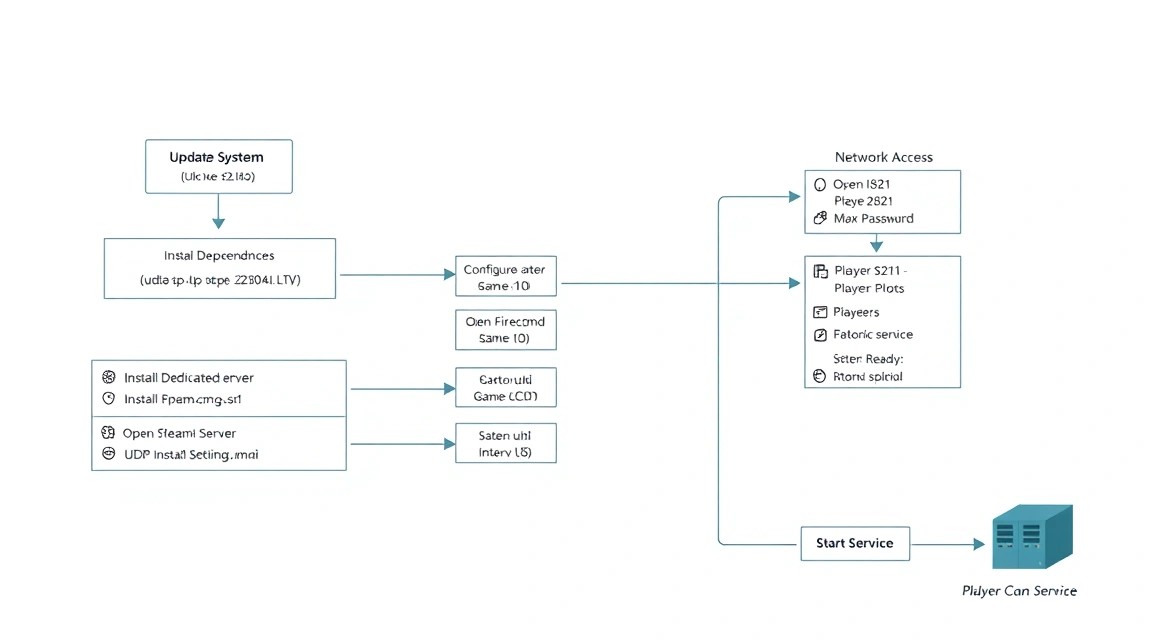
The official Palworld Linux dedicated server is distributed through SteamCMD. As of 2026, the game receives regular updates, so do not pin the version number manually: SteamCMD will download the current stable build of server application 2394010. It is convenient to verify the installed build version using the SteamCMD log and file modification times.
Install SteamCMD Dependencies
sudo dpkg --add-architecture i386
sudo apt update
sudo apt install -y steamcmd lib32gcc-s1 lib32stdc++6
SteamCMD and some game server components require 32-bit libraries even on 64-bit Ubuntu. During installation, Steam may ask you to accept the license agreement—confirm it.
Download the Palworld Dedicated Server
sudo -u palworld steamcmd \
  +force_install_dir /opt/palworld/server \
  +login anonymous \
  +app_update 2394010 validate \
  +quit
The command runs SteamCMD as the palworld user, downloads the server to /opt/palworld/server, and verifies file integrity. Anonymous login is sufficient; a Steam account and Steam Guard are not required.
sudo -u palworld find /opt/palworld/server -maxdepth 3 -type f \
  -name 'PalServer.sh' -o -name 'PalServer-Linux-Shipping'
Verify that the startup script PalServer.sh and the server executable are found after downloading.
Perform a Test Run in tmux
The first run is required to create configuration and save directories. Use a temporary tmux session: it will not terminate when SSH disconnects.
sudo -u palworld tmux new-session -d -s palworld-test \
  'cd /opt/palworld/server && ./PalServer.sh \
  -useperfthreads -NoAsyncLoadingThread -UseMultithreadForDS'
These options enable multithreaded processing and are usually useful on modern Linux servers. They do not replace sufficient CPU and RAM capacity, but may reduce latency under load.
sleep 30
sudo -u palworld tmux capture-pane -pt palworld-test | tail -n 40
sudo -u palworld tmux send-keys -t palworld-test C-c
sudo -u palworld tmux kill-session -t palworld-test
Wait about 30 seconds, review the last log lines, and stop the test process properly. The Pal/Saved/Config/LinuxServer directory should appear afterward.
Check the Configuration Path
sudo -u palworld find /opt/palworld/server/Pal/Saved \
  -type f -name 'PalWorldSettings.ini' -o -name 'GameUserSettings.ini'
On Linux, the main settings file is usually located at /opt/palworld/server/Pal/Saved/Config/LinuxServer/PalWorldSettings.ini. If the file is missing, copy the template from DefaultPalWorldSettings.ini, as shown in the next section.
Create a systemd Service
Systemd will restart the server after a failure and bring it up after a VPS reboot. Before creating the service, make sure the test tmux session is stopped: two instances must not use the same world and UDP port.
sudo nano /etc/systemd/system/palworld.servicePaste the service configuration from the “Configuration” section, then enable it.
sudo systemctl daemon-reload
sudo systemctl enable --now palworld
sudo systemctl status palworld --no-pager
These commands reload unit files, enable autostart, launch Palworld, and display the current process status.
View Logs Without Searching for Files Manually
sudo journalctl -u palworld -fThis command displays the service log in real time. Press Ctrl+C to exit. After game updates and when diagnosing issues, this is the primary source of information.
Configuration
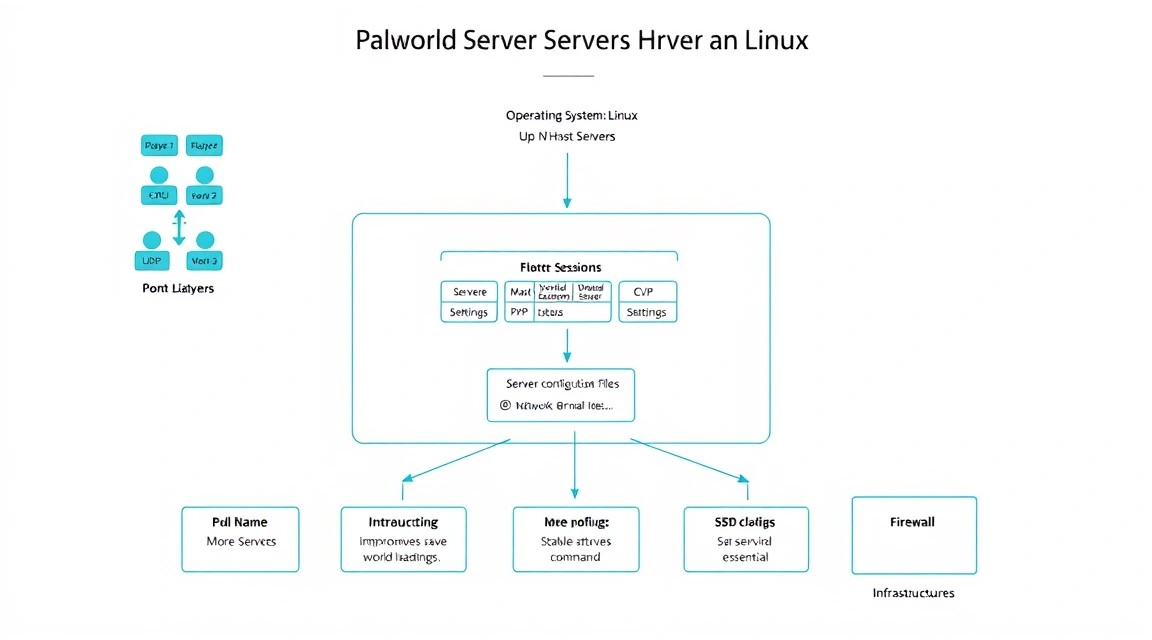
Palworld uses Unreal Engine INI files. Do not edit files inside Pal/Content: they will be overwritten by an update. Server settings are stored in the Pal/Saved/Config/LinuxServer directory, while the worlds themselves are in Pal/Saved/SaveGames.
Configure world settings
If the settings file has not yet been created, copy the official template. Then modify the values. Stop the service before editing to avoid losing changes when the world is saved.
sudo systemctl stop palworld
sudo -u palworld cp -n \
  /opt/palworld/server/DefaultPalWorldSettings.ini \
  /opt/palworld/server/Pal/Saved/Config/LinuxServer/PalWorldSettings.ini
sudo -u palworld nano \
  /opt/palworld/server/Pal/Saved/Config/LinuxServer/PalWorldSettings.ini
The -n option will not overwrite an existing file. Below is an example for a private 8-player server. Palworld expects one long line in the [/Script/Pal.PalGameWorldSettings] section; line breaks within the line may break parameter parsing.
[/Script/Pal.PalGameWorldSettings]
OptionSettings=(Difficulty=None,DayTimeSpeedRate=1.000000,NightTimeSpeedRate=1.000000,ExpRate=1.500000,PalCaptureRate=1.000000,PalSpawnNumRate=1.000000,PalDamageRateAttack=1.000000,PalDamageRateDefense=1.000000,PlayerDamageRateAttack=1.000000,PlayerDamageRateDefense=1.000000,PlayerStomachDecreaceRate=1.000000,PlayerStaminaDecreaceRate=1.000000,PlayerAutoHPRegeneRate=1.000000,PlayerAutoHpRegeneRateInSleep=1.000000,PalStomachDecreaceRate=1.000000,PalStaminaDecreaceRate=1.000000,PalAutoHPRegeneRate=1.000000,PalAutoHpRegeneRateInSleep=1.000000,BuildObjectDamageRate=1.000000,BuildObjectDeteriorationDamageRate=1.000000,CollectionDropRate=1.000000,CollectionObjectHpRate=1.000000,CollectionObjectRespawnSpeedRate=1.000000,EnemyDropItemRate=1.000000,DeathPenalty=All,EnablePlayerToPlayerDamage=False,EnableFriendlyFire=False,EnableInvaderEnemy=True,ActiveUNKO=False,EnableAimAssistPad=True,EnableAimAssistKeyboard=False,DropItemMaxNum=3000,DropItemAliveMaxHours=1.000000,bAutoResetGuildNoOnlinePlayers=False,AutoResetGuildTimeNoOnlinePlayers=72.000000,GuildPlayerMaxNum=20,PalEggDefaultHatchingTime=72.000000,ServerPlayerMaxNum=8,ServerName="Palworld Friends RU",ServerDescription="Private Linux server",AdminPassword="CHANGE_THIS_ADMIN_SECRET",ServerPassword="CHANGE_THIS_JOIN_SECRET",PublicPort=8211,PublicIP="",RCONEnabled=True,RCONPort=25575,Region="EU",bUseAuth=True,BanListURL="https://api.palworldgame.com/api/banlist.txt")
Replace both passwords with long, unique values. The administrator password provides full access to server commands; do not use your Steam, email, or SSH password here. The PublicIP field can usually be left empty: the server will detect the address automatically. If the server is behind complex NAT or has multiple addresses, specify its public IPv4.
Choose rules that affect load
| Parameter | Value | Practical effect |
|---|---|---|
ServerPlayerMaxNum |
4–32 | Maximum connections; do not set it to 32 if resources are sized for 8 players |
PalSpawnNumRate |
1.0 by default | Increasing it raises the number of creatures and simulation load |
DropItemMaxNum |
1000–3000 | Too many items in the world increase load and save size |
GuildPlayerMaxNum |
10–20 | Guild member limit; does not determine overall server capacity |
EnableInvaderEnemy |
True/False | Disabling raids can reduce difficulty and peak load on bases |
DeathPenalty |
None, Item, ItemAndEquipment, All | Rule for item loss after death |
Do not increase Pal spawn rate, the number of dropped items, and the player limit at the same time. First change one parameter, monitor the load for 1–2 gaming evenings, and only then change the next one. This makes it easier to identify the cause of lag.
Environment variables for secrets
Palworld itself reads passwords from the INI file, so secrets cannot be fully moved to environment variables without an additional templating tool. To avoid storing them in the unit file and passing them on the command line, use a protected environment file for service parameters and restrict permissions on the INI file.
sudo install -m 600 -o root -g root /dev/null /etc/palworld.env
sudo nano /etc/palworld.env
sudo chmod 600 /opt/palworld/server/Pal/Saved/Config/LinuxServer/PalWorldSettings.ini
PALWORLD_PORT=8211
PALWORLD_QUERY_PORT=27015
PALWORLD_RCON_PORT=25575In this example, the environment file stores not secrets but changeable network values. Secrets remain in the INI file, whose permissions are restricted to the palworld user. Do not add this file or the saves directory to Git.
systemd file
[Unit]
Description=Palworld Dedicated Server
Wants=network-online.target
After=network-online.target

[Service]
Type=simple
User=palworld
Group=palworld
WorkingDirectory=/opt/palworld/server
EnvironmentFile=/etc/palworld.env
ExecStart=/opt/palworld/server/PalServer.sh -port=${PALWORLD_PORT} -queryport=${PALWORLD_QUERY_PORT} -useperfthreads -NoAsyncLoadingThread -UseMultithreadForDS
Restart=on-failure
RestartSec=15
TimeoutStopSec=120
KillSignal=SIGINT
LimitNOFILE=100000
NoNewPrivileges=true
PrivateTmp=true

[Install]
WantedBy=multi-user.target
The KillSignal=SIGINT parameter allows the server to shut down cleanly and save the world. Do not use kill -9 for normal shutdown. After adding the unit file, apply it and verify startup.
sudo systemctl daemon-reload
sudo systemctl start palworld
sudo systemctl is-active palworld
sudo ss -lunp | grep -E '8211|27015'
The expected result of the first check is active. The ss output should contain Palworld UDP sockets. Depending on the server version, the query port may appear only after full initialization.
Connection check
From a Linux client, UDP reachability can only be checked indirectly: UDP does not have a full handshake like TCP. Make sure the service is running, the firewall contains a rule, and a player can connect from the game through “Join Multiplayer Game” at PUBLIC_IP:8211.
curl -4 https://ifconfig.me
sudo ufw status numbered
sudo journalctl -u palworld -n 100 --no-pager
The first command shows the external IPv4, the second shows firewall rules, and the third shows the last 100 log lines. To test from an external Linux machine, you can use nmap -sU -p 8211 YOUR_IP, but the UDP scan result will often be open|filtered; the final test is an actual game client connection.
TLS/HTTPS and Palworld
The Palworld game server does not provide a web interface and does not use HTTP for game connections, so Caddy and Certbot are not needed here. You cannot “secure” UDP 8211 with a Let’s Encrypt certificate. If you later install a separate web panel, status page, or monitoring tool with an HTTP interface, place them behind Caddy and expose only HTTPS 443 externally. Do not publish RCON through a reverse proxy: it is not an HTTP protocol.
Backups and Maintenance
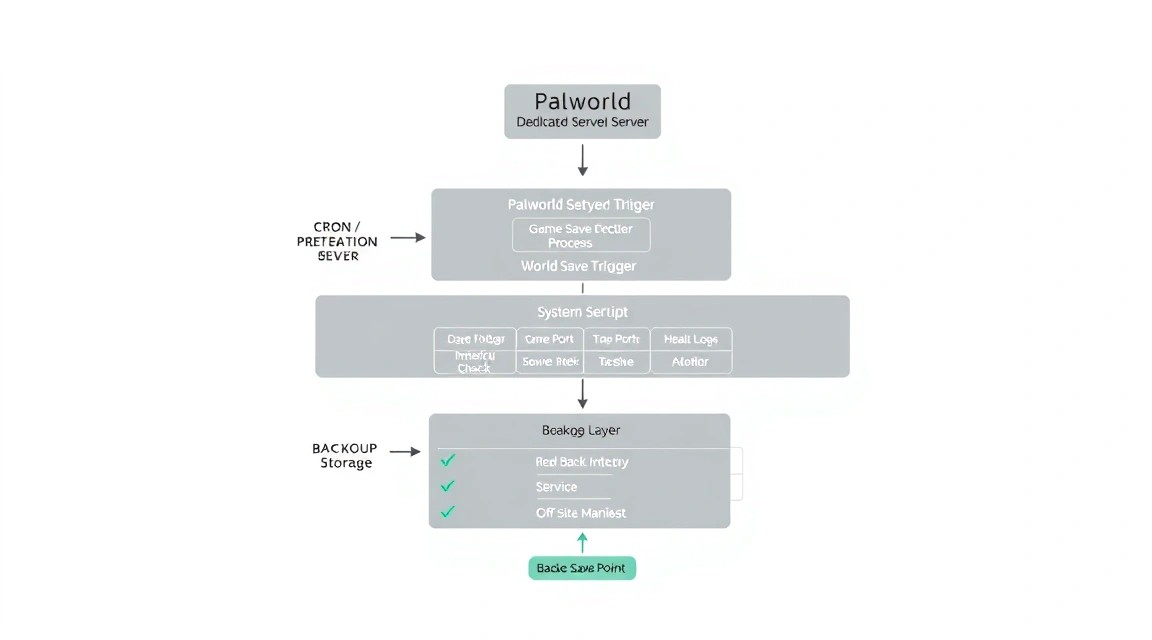
The most valuable part of a Palworld server is not the SteamCMD installation files, but the world data. The server can be downloaded again in a few minutes, but lost bases, characters, and player progress cannot be restored without a backup. The backup must be located outside the primary VPS: a local archive will not help if the disk is deleted, the provider makes an error, or the server is compromised.
What needs to be saved
/opt/palworld/server/Pal/Saved/SaveGames/— worlds, characters, and guilds./opt/palworld/server/Pal/Saved/Config/LinuxServer/— world and server settings./etc/systemd/system/palworld.service— the autostart unit file./etc/palworld.env— service network variables./etc/ufw/if you need to transfer the entire network configuration.
You do not need to archive the entire /opt/palworld/server directory every day: it can be restored through SteamCMD. However, before a major update, it is useful to create a disk snapshot or a full archive to quickly roll back an unsuccessful modification.
Simple local archive before sending it offsite
sudo nano /usr/local/sbin/palworld-backup.sh
sudo chmod 750 /usr/local/sbin/palworld-backup.sh
#!/usr/bin/env bash
set -euo pipefail
DATE=$(date +%F_%H-%M-%S)
BACKUP_DIR=/var/backups/palworld
SOURCE=/opt/palworld/server
ARCHIVE="$BACKUP_DIR/palworld_$DATE.tar.gz"
systemctl stop palworld
tar -C "$SOURCE" -czf "$ARCHIVE" \
Pal/Saved/SaveGames \
Pal/Saved/Config/LinuxServer
systemctl start palworld
find "$BACKUP_DIR" -type f -name 'palworld_.tar.gz' -mtime +7 -deleteThe script stops the server, archives saves and configuration, starts the service again, and deletes local archives older than seven days. Stopping it makes the copy consistent: it will not contain files that are being modified simultaneously by the game process. For a small group world, the pause usually takes seconds or a few minutes, but notify players in advance.
Sending to S3-compatible storage with restic
Restic encrypts data on the server side before uploading. An S3-compatible object storage service, a separate server with SFTP, or another remote backend supported by restic will work. Do not store the repository password in the script itself.
sudo apt install -y restic
sudo install -d -m 700 /root/.config/restic
sudo nano /root/.config/restic/palworld.env
export RESTIC_REPOSITORY="s3:https://s3.example.net/palworld-backups"
export RESTIC_PASSWORD="REPLACE_WITH_LONG_UNIQUE_RESTIC_PASSWORD"
export AWS_ACCESS_KEY_ID="REPLACE_WITH_S3_ACCESS_KEY"
export AWS_SECRET_ACCESS_KEY="REPLACE_WITH_S3_SECRET_KEY"sudo chmod 600 /root/.config/restic/palworld.env
sudo bash -c 'source /root/.config/restic/palworld.env && restic init'Initialization creates an encrypted repository. Store the restic password outside the VPS—for example, in a password manager. Without it, the backup contents cannot be restored.
sudo nano /usr/local/sbin/palworld-restic.sh
sudo chmod 750 /usr/local/sbin/palworld-restic.sh
#!/usr/bin/env bash
set -euo pipefail
source /root/.config/restic/palworld.env
/usr/local/sbin/palworld-backup.sh
restic backup /var/backups/palworld \
/etc/systemd/system/palworld.service \
/etc/palworld.env
restic forget --keep-daily 7 --keep-weekly 4 --keep-monthly 6 --prune
restic checkThis script creates a local archive, sends it to external storage, retains seven daily, four weekly, and six monthly restore points, then checks the repository. For large archives, the restic check command can be run once a week to avoid increasing daily traffic.
Add a cron schedule
sudo crontab -e20 5 /usr/local/sbin/palworld-restic.sh >> /var/log/palworld-backup.log 2>&1The backup will run every day at 05:20 server time. Choose a time with the lowest player activity. Periodically check the /var/log/palworld-backup.log log and test restoration to a separate directory.
sudo bash -c 'source /root/.config/restic/palworld.env && restic snapshots'
sudo bash -c 'source /root/.config/restic/palworld.env && restic restore latest --target /tmp/palworld-restore-test'
The first command displays restore points, while the second restores the latest copy to a test directory. A backup is considered valid only after a successful restoration test.
Palworld and Linux updates
Palworld does not support rolling updates in the sense of web applications: two instances cannot safely serve the same world. Perform updates during a maintenance window. Notify players, stop the server, create a backup, update the files through SteamCMD, then start the process and check the log.
sudo systemctl stop palworld
sudo /usr/local/sbin/palworld-backup.sh
sudo -u palworld steamcmd \
  +force_install_dir /opt/palworld/server \
  +login anonymous \
  +app_update 2394010 validate \
  +quit
sudo systemctl start palworld
sudo journalctl -u palworld -n 80 --no-pager
After major patches, do not delete the old backup for at least several days. If the new version changes the world format or causes issues, having a point from before the update will allow you to restore the data. Install Ubuntu updates separately from game updates so that it is easier to identify the source of a potential issue.
Troubleshooting + FAQ
What is the minimum suitable VPS configuration?
For a test world with 1–4 players, a reasonable minimum is 2 modern vCPUs, 8–12 GB RAM, and 40 GB NVMe. For regular play by a small group, it is better to choose 4 vCPUs, 16 GB RAM, and 50–80 GB NVMe right away: this provides headroom for saves, updates, and file cache. Do not rely solely on the number of slots. Large bases, working Pals, raids, and a high spawn setting significantly increase resource consumption.
What should I choose for this task: VPS or dedicated?
For a private server with 4–12 players, a VPS with a fast CPU and NVMe is usually sufficient. Choose dedicated hosting for a constant online presence of 16–32 players, running multiple game worlds, predictable performance requirements, or a public community. If a VPS regularly freezes when one core is fully loaded while RAM is available, moving to a dedicated server with a powerful processor will be more useful than simply increasing memory.
Players cannot connect to IP:8211. What should I check?
First, make sure the service is active: run sudo systemctl status palworld. Then check the socket with sudo ss -lunp | grep 8211 and the rule with sudo ufw status. The port must be open specifically over UDP, not TCP. Also check the firewall in the provider control panel: cloud security groups can block traffic independently of UFW. The connection should be tested from an external network, not from the same VPS.
The server stops immediately or systemd keeps restarting it. How can I fix this?
View the exact error with sudo journalctl -u palworld -n 150 --no-pager. Common causes include an incorrect path in ExecStart, corrupted files after an update, missing lib32gcc-s1 libraries, or port 8211 already being in use. Run SteamCMD with app_update 2394010 validate, check the directory owner with sudo chown -R palworld:palworld /opt/palworld/server, and make sure another game instance is not running in tmux.
Why does the server lag when CPU usage is only 30%?
Average usage across all cores can hide overload on a single main thread. Check htop by core, disk latency with iostat from the sysstat package, and swap usage with free -h. Too many Pals at bases, a high PalSpawnNumRate, thousands of items on the ground, or insufficient VPS CPU performance can also be the cause. Reduce world limits, clean up unnecessary objects, and check the server during peak hours.
After a SteamCMD update, settings or the world do not load. What should I do?
Do not delete the Pal/Saved directory: this is where the world data is stored. First stop the service and make a copy of the current state. Check that PalWorldSettings.ini is located in Pal/Saved/Config/LinuxServer, not in the templates directory. Then run app_update 2394010 validate and review the startup log. If the issue appeared immediately after a patch, restore a verified backup on a test copy of the server rather than blindly overwriting working files.
Do I need to open RCON port 25575 to the internet?
No, RCON is not needed by players for normal gameplay. An open RCON increases the risk of password guessing and should not be accessible from all addresses. If you use an RCON client from your home IP, add a narrow UFW rule: sudo ufw allow from ВАШ_IP to any port 25575 proto tcp. It is even safer to connect through an SSH tunnel and not create a public firewall rule. Use a long, unique AdminPassword.
How can I find out how much space the world uses and when it is time to increase disk capacity?
Check the total size with sudo du -sh /opt/palworld/server/Pal/Saved/SaveGames and free space with df -h /opt. Try to keep at least 20–30% of the disk free: SteamCMD needs headroom when unpacking updates, and the file system needs it for normal operation. If backup archives are stored locally, they also consume disk space. It is better to send them to external storage and delete local copies according to the retention policy.
Do I need to configure Caddy, a domain, and HTTPS for the game server?
No. Palworld clients connect through the game UDP protocol to the IP address and port 8211, and a TLS certificate is not used for this. A domain can be used as a convenient name by creating an A record for the server's IPv4 address, but it does not replace UDP port configuration. Caddy or Certbot are only needed if you additionally deploy a web panel, status page, or monitoring with an HTTP interface. Do not attempt to proxy game UDP traffic through a standard HTTPS reverse proxy.
Conclusions and Next Steps
You now have a Palworld server on Linux with a separate system user, firewall, systemd autostart, a configurable world, and external backups. For a small group, start with 4 vCPUs and 16 GB RAM, and make scaling decisions based on actual load rather than only the number of slots.
- Hold a test game session, review
htop, the systemd log, and the size of saves. - Configure notifications for failed backups and monitor available NVMe space.
- Before every major patch, create a restore point and update the server only during an announced maintenance window.