Розгортання Jitsi Meet на VPS: безпечні відеоконференції з SSL та TURN-сервером
TL;DR
У цьому докладному посібнику ми крок за кроком налаштуємо власний сервер відеоконференцій Jitsi Meet на віртуальному приватному сервері (VPS) під керуванням Ubuntu 24.04 LTS. Ми забезпечимо повну безпеку з'єднання за допомогою SSL-сертифікатів від Let's Encrypt та налаштуємо TURN-сервер для надійної роботи у складних мережевих середовищах, щоб ви могли проводити приватні та захищені відеозустрічі для своєї команди або спільноти.
- Встановлення та базове налаштування операційної системи Ubuntu 24.04 LTS.
- Розгортання всіх компонентів Jitsi Meet (Jitsi Videobridge, Jitsi Meet Web, Prosody, Jicofo).
- Автоматичне налаштування SSL-сертифікатів Let's Encrypt для безпечного HTTPS-з'єднання.
- Конфігурація TURN/STUN сервера (Coturn) для обходу NAT та фаєрволів.
- Забезпечення базової безпеки сервера та рекомендації щодо резервного копіювання та обслуговування.
Що ми налаштовуємо і навіщо
У сучасному світі віддаленої роботи та розподілених команд надійні та безпечні засоби комунікації стали критично важливими. Jitsi Meet — це повністю безкоштовна платформа з відкритим вихідним кодом для відеоконференцій, яка дозволяє створювати високоякісні відеозустрічі прямо в браузері, без необхідності встановлювати додаткові додатки. На відміну від пропрієтарних рішень, таких як Zoom або Google Meet, Jitsi Meet дає повний контроль над даними та конфіденційністю, оскільки ви розміщуєте його на своєму власному сервері.
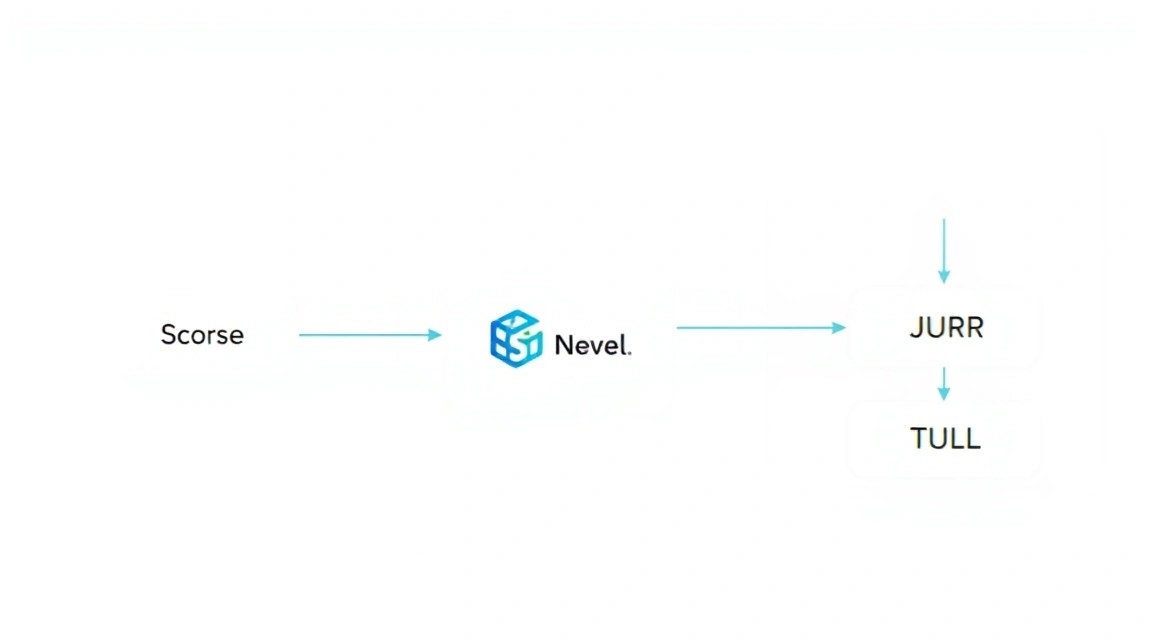
Ми налаштуємо повний стек Jitsi Meet, який включає в себе: Jitsi Videobridge (маршрутизує відео- та аудіопотоки), Jitsi Meet Web (веб-інтерфейс), Prosody (сервер XMPP для сигналізації) та Jicofo (керує конференціями). Ключовим елементом нашого налаштування буде забезпечення безпеки за допомогою SSL-сертифікатів від Let's Encrypt, що гарантує шифрування всього трафіку між клієнтами та сервером. Це критично для захисту вашої конфіденційної інформації від перехоплення.
Крім того, ми розгорнемо та сконфігуруємо TURN-сервер (Coturn). TURN (Traversal Using Relays around NAT) — це протокол, який дозволяє медіапотокам проходити через складні мережеві середовища, такі як корпоративні фаєрволи та мережі з симетричним NAT, де пряме P2P-з'єднання між учасниками конференції неможливе. Без TURN-сервера багато користувачів зіткнуться з проблемами підключення, особливо при спробі приєднатися до конференції з офісних мереж або мереж з обмеженим доступом. Наявність власного TURN-сервера значно підвищує надійність та доступність вашої Jitsi Meet платформи, забезпечуючи безперебійний зв'язок для всіх учасників.
У підсумку, після завершення цього посібника, ви отримаєте повністю функціональну, безпечну та надійну платформу Jitsi Meet, готову до використання для вашої команди, клієнтів або особистих потреб. Ви зможете проводити відеоконференції, обмінюватися екраном, використовувати чат та інші функції, знаючи, що всі дані знаходяться під вашим контролем.
Альтернативи Jitsi Meet на VPS включають такі рішення, як BigBlueButton або Nextcloud Talk. Однак Jitsi Meet виділяється простотою розгортання та легким клієнтським досвідом, що не вимагає встановлення. Вибір self-hosted рішення на VPS замість cloud-managed сервісів обумовлений кількома факторами: повний контроль над даними, відсутність обмежень щодо кількості учасників або тривалості дзвінків (що залежить лише від потужності вашого сервера), можливість кастомізації та, часто, нижча вартість у довгостроковій перспективі порівняно з платними підписками на комерційні сервіси.
Який VPS-конфіг потрібен для цього завдання
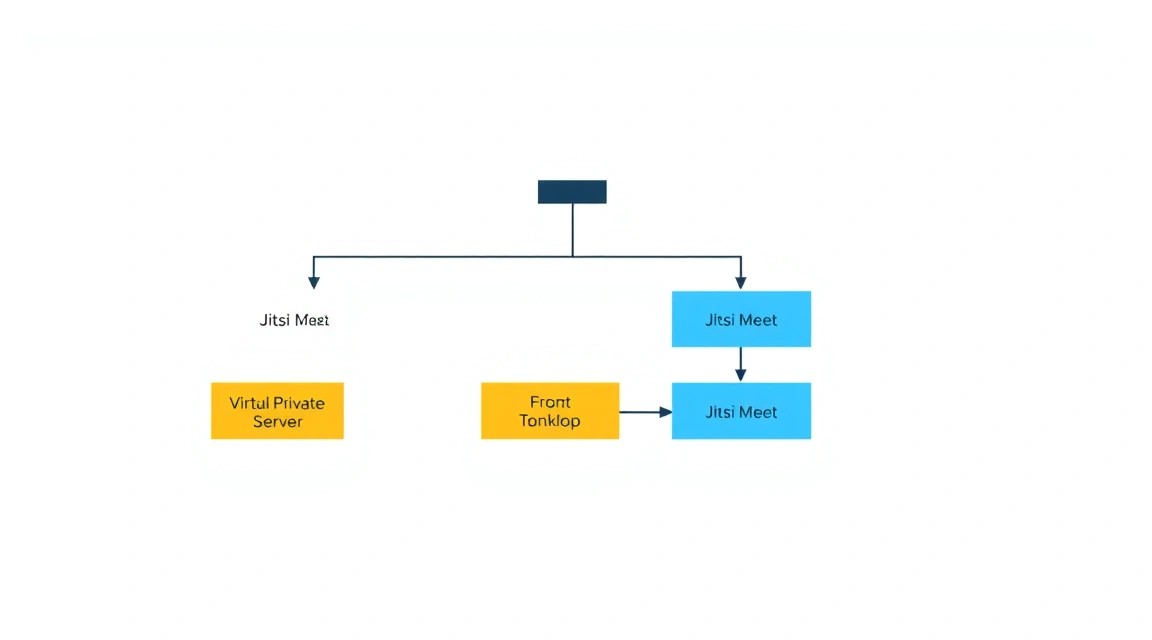
Вибір відповідного VPS-конфігу для Jitsi Meet критичний для стабільної роботи та якості відеоконференцій. Вимоги до ресурсів сильно залежать від очікуваної кількості одночасних учасників та інтенсивності використання.
Мінімальні вимоги для невеликої команди (до 10-15 одночасних учасників):
- Процесор (CPU): 2 ядра x86-64, бажано з тактовою частотою від 2.5 ГГц. Jitsi Videobridge активно використовує CPU для маршрутизації медіапотоків.
- Оперативна пам'ять (RAM): 4 ГБ. Цього достатньо для роботи операційної системи та всіх компонентів Jitsi.
- Дисковий простір: 50 ГБ SSD. SSD забезпечує швидке завантаження та роботу всіх компонентів.
- Мережа: Стабільне підключення від 200 Мбіт/с. Дуже важливий хороший вхідний та вихідний канал.
Рекомендований VPS-план для середніх навантажень (до 25-30 одночасних учасників):
Для більш комфортної роботи та можливості масштабування, особливо якщо плануються конференції з великою кількістю учасників, спільним використанням екрана та записом, рекомендується наступний конфіг:
- Процесор (CPU): 4 ядра x86-64, від 3.0 ГГц.
- Оперативна пам'ять (RAM): 8 ГБ DDR4.
- Дисковий простір: 100 ГБ SSD.
- Мережа: 1 Гбіт/с симетричний канал.
VPS з такими характеристиками можна взяти, наприклад, VPS з указаними характеристиками. Важливо переконатися, що обраний провайдер пропонує надійну мережу та достатню пропускну здатність, оскільки Jitsi Meet дуже чутливий до затримок та якості каналу.
Коли потрібен dedicated, а не VPS
Якщо ви плануєте регулярно проводити конференції з 50 і більше одночасними учасниками, або якщо вам потрібна можливість запису багатьох конференцій одночасно (з використанням Jibri), тоді варто розглянути оренду виділеного сервера (dedicated server). Виділений сервер надасть вам ексклюзивний доступ до всіх фізичних ресурсів, що виключить вплив "сусідів" по VPS на продуктивність. Для таких сценаріїв знадобиться dedicated сервер з 8+ ядрами CPU, 16+ ГБ RAM та високошвидкісним диском NVMe, а також гарантованим каналом 1 Гбіт/с. Відповідний dedicated можна знайти серед пропозицій відповідний dedicated.
Локація: на що впливає
Розташування вашого VPS або dedicated сервера безпосередньо впливає на затримку (latency) для учасників конференції. Чим ближче сервер знаходиться до більшості ваших користувачів, тим нижчою буде затримка, і тим кращою буде якість відео та звуку. Вибирайте дата-центр, розташований географічно близько до вашої основної аудиторії. Наприклад, якщо ваша команда знаходиться в Європі, вибирайте сервер в європейському дата-центрі. Висока затримка може призвести до "лагів", розсинхронізації аудіо та відео, та загального погіршення користувацького досвіду.
Підготовка сервера
Перед встановленням Jitsi Meet необхідно виконати базову підготовку сервера. Ми будемо використовувати Ubuntu Server 24.04 LTS, оскільки це актуальна та підтримувана версія на 2026 рік. Усі команди виконуються від імені користувача з правами sudo.
1. Оновлення системи
Насамперед оновимо список пакетів та встановлені пакети до останніх версій:
sudo apt update -y         # Оновлюємо список доступних пакетів
sudo apt upgrade -y        # Оновлюємо всі встановлені пакети
sudo apt autoremove -y     # Видаляємо непотрібні пакети
2. Встановлення базових утиліт
Переконаємося, що встановлені необхідні утиліти, які можуть знадобитися в процесі налаштування:
sudo apt install -y curl wget git net-tools apt-transport-https ca-certificates software-properties-common
3. Налаштування імені хоста та DNS
Для Jitsi Meet критично правильно налаштоване ім'я хоста (hostname) та відповідні DNS-записи. Виберіть доменне ім'я, наприклад, meet.yourdomain.com. Переконайтеся, що для цього домену у вашому DNS-провайдері створено A-запис, що вказує на публічну IP-адресу вашого VPS.
Встановимо ім'я хоста на сервері:
sudo hostnamectl set-hostname meet.yourdomain.com       # Встановлюємо ім'я хоста
echo "127.0.0.1 meet.yourdomain.com" | sudo tee -a /etc/hosts # Додаємо запис до /etc/hosts
Замініть meet.yourdomain.com на ваше реальне доменне ім'я.
4. Налаштування фаєрволу (UFW)
Налаштуємо міжмережевий екран UFW (Uncomplicated Firewall) для забезпечення базової безпеки. Відкриємо лише необхідні порти:
sudo ufw allow OpenSSH                                  # Дозволяємо SSH-доступ
sudo ufw allow http                                     # Дозволяємо HTTP (для Certbot)
sudo ufw allow https                                    # Дозволяємо HTTPS
sudo ufw allow 10000/udp                                # Порт для Jitsi Videobridge (UDP)
sudo ufw allow 3478/udp                                 # Порт для STUN/TURN (UDP)
sudo ufw allow 5349/tcp                                 # Порт для TURN (TCP, якщо використовується)
sudo ufw enable                                         # Вмикаємо фаєрвол
sudo ufw status verbose                                 # Перевіряємо статус фаєрволу
У відповідь на sudo ufw enable може знадобитися підтвердження. Введіть y.
5. Встановлення Fail2ban (захист від брутфорсу)
Fail2ban допоможе захистити ваш SSH-сервер від атак перебору паролів (брутфорсу), блокуючи IP-адреси, з яких відбуваються численні невдалі спроби входу:
sudo apt install -y fail2ban                            # Встановлюємо Fail2ban
sudo systemctl enable fail2ban                          # Вмикаємо автозапуск Fail2ban
sudo systemctl start fail2ban                           # Запускаємо Fail2ban
Налаштування за замовчуванням для SSH зазвичай достатнє. Якщо хочете, можете створити файл /etc/fail2ban/jail.local для тонкого налаштування, наприклад:
sudo nano /etc/fail2ban/jail.local
Вміст файлу:
[sshd]
enabled = true
port = ssh
logpath = %(sshd_log)s
maxretry = 3
bantime = 1h
Збережіть файл (Ctrl+X, Y, Enter) та перезапустіть Fail2ban:
sudo systemctl restart fail2ban
6. Створення користувача з sudo (опціонально, але рекомендується)
Якщо ви працюєте під root, рекомендується створити нового користувача з правами sudo та працювати під ним для підвищення безпеки:
sudo adduser username                                   # Створюємо нового користувача
sudo usermod -aG sudo username                          # Додаємо користувача до групи sudo
Замініть username на бажане ім'я користувача. Після цього вийдіть з root-сесії та увійдіть під новим користувачем. Усі подальші команди, що вимагають привілеїв, виконуйте з sudo.
Сервер готовий до встановлення Jitsi Meet.
Встановлення ПЗ — покроково
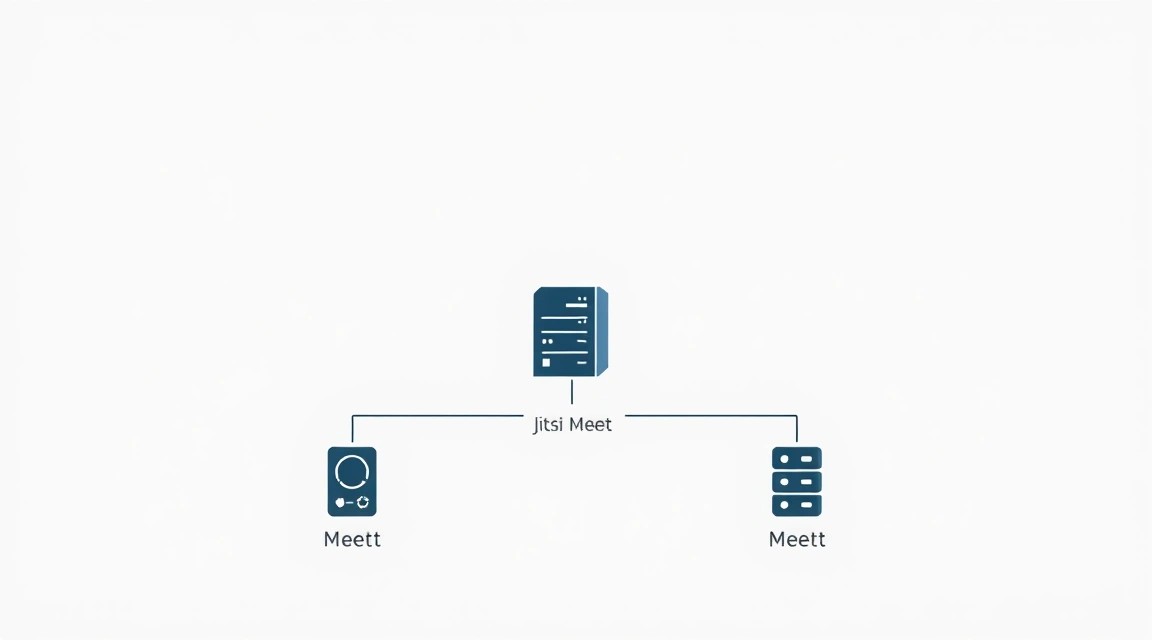
Тепер, коли сервер підготовлено, ми приступимо до встановлення Jitsi Meet та всіх його компонентів. Ми будемо використовувати офіційні репозиторії Jitsi для Ubuntu.
1. Додавання репозиторіїв Jitsi
Jitsi Meet не входить до стандартних репозиторіїв Ubuntu, тому нам потрібно додати офіційний репозиторій Jitsi та його GPG-ключ для перевірки автентичності пакетів.
# Завантажуємо GPG-ключ репозиторію Jitsi
curl https://download.jitsi.org/jitsi-key.gpg.key | sudo gpg --dearmor -o /usr/share/keyrings/jitsi-keyring.gpg

# Додаємо репозиторій Jitsi до списку джерел APT
echo "deb [signed-by=/usr/share/keyrings/jitsi-keyring.gpg] https://download.jitsi.org stable/" | sudo tee /etc/apt/sources.list.d/jitsi-stable.list > /dev/null

# Оновлюємо список пакетів, щоб APT дізнався про новий репозиторій
sudo apt update -y
Ці команди додадуть ключ і репозиторій, а потім оновлять кеш пакетів. Тепер система знає, звідки завантажувати Jitsi Meet.
2. Встановлення Jitsi Meet
Після додавання репозиторію можна встановити основний пакет jitsi-meet. Цей пакет встановить усі необхідні залежності, включно з Jitsi Videobridge, Prosody, Jicofo та Nginx (або інший веб-сервер, якщо він не встановлений).
sudo apt install -y jitsi-meet
Під час встановлення вам буде запропоновано ввести ім'я хоста для вашого екземпляра Jitsi Meet. Введіть повне доменне ім'я, яке ви налаштували раніше (наприклад, meet.yourdomain.com). Це критично важливий крок для коректної роботи Jitsi та SSL-сертифікатів.
Далі вам буде запропоновано вибрати метод налаштування SSL-сертифікатів. Виберіть опцію "Generate a new self-signed certificate (You will later get a Let's Encrypt certificate)". Це дозволить Jitsi встановити тимчасовий самопідписаний сертифікат, який ми потім замінимо на повноцінний від Let's Encrypt.
Версія Jitsi Meet, яка буде встановлена, буде актуальною "stable" версією на 2026 рік, доступною в репозиторії.
3. Налаштування SSL-сертифікатів з Let's Encrypt
Jitsi Meet постачається зі зручним скриптом для автоматичного встановлення та налаштування SSL-сертифікатів від Let's Encrypt. Це забезпечить безпечне HTTPS-з'єднання.
# Запускаємо скрипт для отримання SSL-сертифіката
sudo /usr/share/jitsi-meet/scripts/install-letsencrypt-cert.sh
Скрипт запитає вашу адресу електронної пошти. Ця адреса буде використовуватися Let's Encrypt для сповіщень про термін дії сертифіката. Введіть її та натисніть Enter. Скрипт автоматично зв'яжеться з Let's Encrypt, виконає перевірку володіння доменом (зазвичай через HTTP-01 challenge, використовуючи порт 80, який ми відкрили в UFW) та встановить сертифікати. Він також налаштує автоматичне продовження сертифікатів.
Якщо виникнуть помилки, переконайтеся, що:
- Ваше доменне ім'я (наприклад,
meet.yourdomain.com) правильно вказує на публічну IP-адресу вашого VPS. - Порти 80 і 443 відкриті у вашому файрволі (UFW).
- На сервері немає інших сервісів, що займають порт 80.
4. Встановлення та налаштування Coturn (TURN/STUN сервер)
Хоча Jitsi Meet може працювати без окремого TURN-сервера в простих мережевих конфігураціях, його наявність критично важлива для забезпечення зв'язку між учасниками, що знаходяться за складними фаєрволами або NAT. Jitsi автоматично встановлює Coturn як залежність, але його необхідно правильно сконфігурувати.
# Перевіряємо, чи встановлено Coturn (він мав встановитися з jitsi-meet)
sudo apt install -y coturn
Тепер необхідно налаштувати Coturn. Основний файл конфігурації знаходиться за адресою /etc/coturn/turnserver.conf. Ми внесемо зміни, щоб він працював коректно з Jitsi.
sudo nano /etc/coturn/turnserver.conf
Закоментуйте всі рядки у файлі (додавши # на початку кожного рядка) та додайте наступні параметри. Замініть YOUR_PUBLIC_IP на публічну IP-адресу вашого VPS, а meet.yourdomain.com на ваше доменне ім'я:
# --- Конфігурація Coturn для Jitsi Meet ---
# Порти для прослуховування TURN/STUN
listening-port=3478
tls-listening-port=5349

# Мінімальний/Максимальний порти для UDP ретрансляції
min-port=49152
max-port=65535

# Зовнішня IP-адреса вашого сервера
external-ip=YOUR_PUBLIC_IP

# Область автентифікації (використовуйте свій домен)
realm=meet.yourdomain.com

# Статичний користувач для автентифікації (замініть на надійні облікові дані)
# user=jitsi:JitsiStrongPassword123

# Використовуйте спільний секрет для автентифікації Jitsi (рекомендовано)
# Цей секрет має збігатися з тим, що налаштований у Jitsi
static-auth-secret=YOUR_JITSI_SHARED_SECRET

# Увімкнути детальне логування (необов'язково, для налагодження)
# verbose

# Вимкнути зворотні виклики
no-loopback-peers

# Вимкнути відбитки TLS (необов'язково, для сумісності)
no-tls-system-certs

# Увімкнути механізм довгострокових облікових даних для безпеки
lt-cred-mech

# Налаштувати файл журналу
log-file=/var/log/coturn.log

# Вимкнути стандартного користувача 'turnserver'
no-daemon
Важливо: Замініть YOUR_PUBLIC_IP на реальну публічну IP-адресу вашого VPS. Для static-auth-secret згенеруйте надійний секрет, наприклад, командою head /dev/urandom | tr -dc A-Za-z0-9_ | head -c 32 ; echo ''. Цей же секрет ми використовуємо пізніше в конфігурації Jitsi. Закоментуйте рядок user=jitsi:JitsiStrongPassword123, якщо використовуєте static-auth-secret, що є кращим методом для Jitsi.
Збережіть зміни та вийдіть з редактора. Тепер необхідно увімкнути Coturn і запустити його:
# Дозволяємо запуск Coturn як сервісу
sudo sed -i 's/#TURNSERVER_ENABLED=1/TURNSERVER_ENABLED=1/' /etc/default/coturn

# Перезапускаємо сервіс Coturn для застосування змін
sudo systemctl restart coturn

# Перевіряємо статус сервісу Coturn
sudo systemctl status coturn
Переконайтеся, що Coturn запущений і працює без помилок. Якщо є помилки, перевірте файл /var/log/coturn.log.
5. Перевірка встановлення
Після всіх цих кроків ваш Jitsi Meet сервер має бути встановлений та налаштований. Відкрийте веб-браузер і перейдіть за адресою вашого домену (наприклад, https://meet.yourdomain.com). Ви повинні побачити вітальну сторінку Jitsi Meet. Спробуйте створити конференцію. Якщо все працює, значить, базове встановлення пройшло успішно.