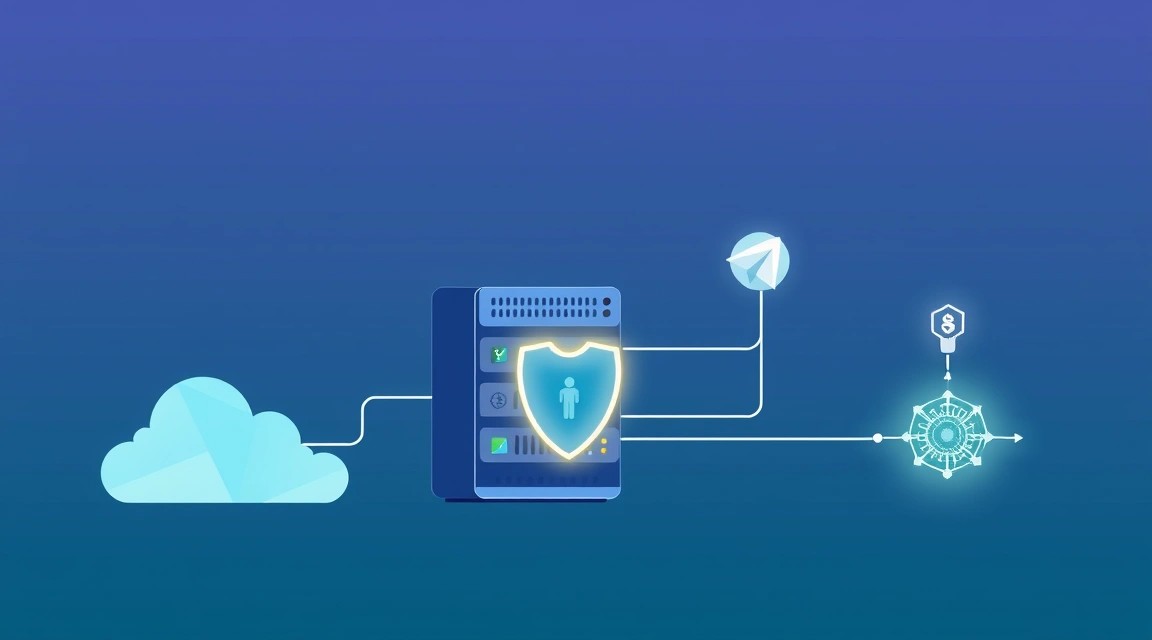
Deploying OpenClaw on a VPS: Docker, Telegram Bot, SSL, and Secure AI Agents
1. TL;DR
In this guide, we will deploy OpenClaw on a VPS in Docker, connect a Telegram bot, protect the control panel with HTTPS through Caddy, and configure a secure access model for AI agents: a separate user, SSH keys, firewall, Telegram ID allowlist, pairing, and backups.
- OpenClaw runs in Docker Compose and stores its state in a separate volume.
- The Telegram bot works through long polling and does not require a public webhook URL.
- The web interface and Gateway will be available over HTTPS through Caddy.
- Access to agents is restricted by a list of authorized Telegram users and a pairing code.
- Secrets are stored in the
.envfile, which is excluded from Git and unencrypted backups. - For a basic setup, a VPS with 2 vCPU, 4 GB RAM, and 40–60 GB of NVMe storage is sufficient.
3. What We Are Configuring and Why
OpenClaw is a self-hosted platform for running AI agents and connecting them to communication channels: Telegram, a web interface, an API, and other integrations. The agent receives user messages, sends the request to the selected language model, uses permitted tools, and returns the result to the chat.
A practical scenario looks like this: you send the Telegram bot a message such as “compile a brief summary of the logs for the last day,” “prepare a draft response to a client,” “find an error in the repository,” or “create a task in the tracker.” OpenClaw forwards the request to the AI model and, if permitted by policy, invokes tools: HTTP APIs, the file system, shell commands, Git, databases, or internal services.
The main advantage of self-hosting on a VPS is control over data and access. You decide where conversation history is stored, which models are connected, which tools are available to the agent, and who is allowed to send commands. This is especially useful for developers, small teams, SaaS owners, and users who do not want to transfer work contexts to public SaaS dashboards.
What Will Work After Setup
- OpenClaw Gateway in a separate Docker container.
- A Telegram bot that accepts private messages from authorized accounts.
- An HTTPS domain for the administrative interface or Gateway API.
- An isolated Docker network between Caddy and OpenClaw.
- Persistent storage for configuration, sessions, and working data.
- Automatic container restarts after VPS reboots.
- Nightly backups of the configuration and Docker volume to external S3-compatible storage.
Self-Hosted OpenClaw and Cloud AI Agents
| Criterion | Cloud-managed service | OpenClaw on your own VPS |
|---|---|---|
| Data control | History and settings are held by the service provider | Configs, logs, and history are stored on your server |
| Model connections | Usually limited to the provider's list | You can choose an API provider or a compatible local endpoint |
| Tool access | Predefined integrations | Flexible policies, internal APIs, and custom tools |
| Security | Depends on the SaaS platform's policies | You control the firewall, network, allowlist, and auditing |
| Support | Maintenance is handled by the provider | You handle updates, backups, and monitoring |
| Cost | Subscription plus usage limits | VPS, model API, and backup storage |
Self-hosted does not mean the model must run on the same server. In most cases, the VPS runs OpenClaw and integrations, while generation is performed through a model API. This is more economical: LLM inference on a CPU requires significantly more resources, and sometimes a GPU. If data cannot be sent to an external API, the model can be connected to a separate server with Ollama, vLLM, or another OpenAI-compatible endpoint.
Threat Model for an AI Agent
An AI agent is more dangerous than an ordinary chat bot if it has access to the shell, files, or third-party service tokens. Do not give the agent root access, do not connect the Docker socket unless necessary, and do not expose the Gateway directly to the internet without HTTPS and authentication. A user's Telegram ID should not be considered a secret, but it is useful as an additional allowlist barrier.
A secure starting principle: the agent responds only to the owner in private messages, runs as an unprivileged user, has no access to the Docker socket, and its working directory is separate from the server configuration.
4. What VPS Configuration Is Needed for This Task
OpenClaw itself does not require a GPU if you use external language model APIs. The load depends on the number of simultaneous conversations, the amount of history, the number of connected tools, browser automation, and local services such as PostgreSQL, Redis, or a vector database.
| Scenario | CPU | RAM | Disk | Suitable for |
|---|---|---|---|---|
| Minimum | 2 vCPU | 2 GB | 30 GB NVMe | One Telegram bot, 1–2 users, external model API |
| Recommended | 2–4 vCPU | 4 GB | 60 GB NVMe | Personal automation, several tools, Caddy, and a backup client |
| Team | 4 vCPU | 8 GB | 100 GB NVMe | Multiple agents, task queue, PostgreSQL, Redis, auditing |
| Advanced | 8 vCPU | 16 GB+ | 200 GB+ | Vector search, headless browser, local services, and many integrations |
For an initial production deployment, it is sensible to choose 4 vCPU, 4 GB RAM, 60 GB NVMe, and a connection of at least 100 Mbps. This capacity will allow you to run Docker, Caddy, OpenClaw, a backup scheduler, and several auxiliary containers without issues. For example, you can choose a VPS with the specified characteristics and then increase resources as the load grows.
Why 2 GB of RAM May Not Be Enough
Docker containers, Node.js processes, the Linux system cache, and Caddy consume memory even with low traffic. If you add Chromium for browser automation, PostgreSQL, Redis, or an embedding service, 2 GB will quickly stop being a comfortable minimum. When memory is insufficient, the kernel will start terminating processes through the OOM Killer, and the bot will periodically go offline.
When a Dedicated Server Is Needed
A dedicated server is justified not for a single Telegram bot, but for predictably high load or special isolation requirements. Choose a dedicated server if you run local models on a CPU or GPU, store a large volume of documents for RAG, serve dozens of active users, process internal company data, or want to isolate AI infrastructure from other projects.
A dedicated server is also convenient when you need 32–128 GB of RAM, fast local NVMe arrays, GPU passthrough, or stable performance without interference from virtualization neighbors. For typical OpenClaw operation with cloud LLM APIs, a VPS is cheaper, easier to maintain, and usually fully sufficient.
Choosing a Location
- Choose a region close to you and your team if you frequently open the web interface.
- Consider legal requirements for storing personal and work data.
- Check whether the selected AI provider's API is available from the VPS region.
- For Telegram long polling, stable outbound connectivity is critical, not minimum latency.
- For a domain and TLS, you need inbound access to at least ports 80 and 443.
5. Server Preparation
Ubuntu Server 24.04 LTS is used below. As of 2026, it is a practical choice for Docker hosts: the system receives long-term security updates, includes current packages, and is well documented. Run commands as root only during the initial setup; afterward, work as a separate user.
System Updates and Basic Utilities
Connect to the server via SSH as root, using the password issued after creating the VPS. Immediately update the system and install the basic tools.
apt update && apt full-upgrade -y
apt install -y ca-certificates curl gnupg git jq ufw fail2ban unattended-upgrades
The first command installs current security updates. The second adds utilities for working with HTTPS repositories, the firewall, Fail2ban, Git, and automatic updates.
Creating an Unprivileged User
We will create the openclaw user. This user will manage Docker Compose but will not receive direct root access without sudo.
adduser openclaw
usermod -aG sudo openclaw
mkdir -p /home/openclaw/.ssh
chmod 700 /home/openclaw/.ssh
chown -R openclaw:openclaw /home/openclaw/.ssh
Generate an SSH key on your local computer if you do not already have one. Do not create a private key on the VPS or send it through messengers.
ssh-keygen -t ed25519 -a 100 -C "openclaw-admin"Add the contents of the local ~/.ssh/id_ed25519.pub file to the /home/openclaw/.ssh/authorized_keys file on the server. The most convenient way is to do this with a command from your local computer.
ssh-copy-id -i ~/.ssh/id_ed25519.pub openclaw@SERVER_IPVerify login in a separate terminal before disabling password authentication:
ssh openclaw@SERVER_IPSecuring SSH
After successfully verifying the key, disable root login and password authentication. This reduces the risk of password brute-force attacks by bots.
sudo nano /etc/ssh/sshd_config.d/99-hardening.confInsert the following parameters.
PermitRootLogin no
PasswordAuthentication no
KbdInteractiveAuthentication no
PubkeyAuthentication yes
X11Forwarding no
MaxAuthTries 3
AllowUsers openclaw
Check the syntax and restart SSH. Do not close the current session until you confirm login in a second terminal window.
sudo sshd -t && sudo systemctl restart sshFirewall and Fail2ban
We will open only SSH, HTTP, and HTTPS. If you use a non-standard SSH port, replace 22 before enabling UFW.
sudo ufw default deny incoming
sudo ufw default allow outgoing
sudo ufw allow 22/tcp comment "SSH"
sudo ufw allow 80/tcp comment "HTTP for ACME"
sudo ufw allow 443/tcp comment "HTTPS"
sudo ufw enable
sudo ufw status verbose
We will configure Fail2ban for SSH. On Ubuntu, the basic jail is usually already present, but explicit configuration makes its behavior predictable.
sudo tee /etc/fail2ban/jail.d/sshd.local > /dev/null <<'EOF'
[sshd]
enabled = true
maxretry = 5
findtime = 10m
bantime = 1h
EOF
sudo systemctl enable --now fail2ban
sudo fail2ban-client status sshd
Automatic Security Updates
Install OS security updates automatically, but update OpenClaw Docker images in a controlled manner after creating a backup. These processes should not be mixed.
sudo dpkg-reconfigure --priority=low unattended-upgrades
sudo systemctl enable --now unattended-upgrades
6. Software Installation — Step by Step
Next, we will install Docker Engine from the official Docker repository, Docker Compose Plugin, and create the directory structure. At the time of preparing this guide, use Docker Engine 27 or newer and Docker Compose v2. Always check the current OpenClaw tag against the official image registry or release page before a production update.
Installing Docker Engine and Compose Plugin
Remove any old Docker packages from the Ubuntu system repository to avoid version conflicts.
sudo apt remove -y docker.io docker-compose docker-compose-v2 podman-docker containerd runc || trueAdd the official Docker GPG key and repository for Ubuntu 24.04.
sudo install -m 0755 -d /etc/apt/keyrings
curl -fsSL https://download.docker.com/linux/ubuntu/gpg | sudo gpg --dearmor -o /etc/apt/keyrings/docker.gpg
sudo chmod a+r /etc/apt/keyrings/docker.gpg
echo \
"deb [arch=$(dpkg --print-architecture) signed-by=/etc/apt/keyrings/docker.gpg] https://download.docker.com/linux/ubuntu \
$(. /etc/os-release && echo "$VERSION_CODENAME") stable" | \
sudo tee /etc/apt/sources.list.d/docker.list > /dev/null
sudo apt updateInstall Docker Engine, CLI, containerd, and Compose Plugin.
sudo apt install -y docker-ce docker-ce-cli containerd.io docker-buildx-plugin docker-compose-plugin
sudo systemctl enable --now docker
sudo docker version
sudo docker compose version
Add the openclaw user to the Docker group. Note that membership in this group effectively grants extended privileges on the server: the user can run privileged containers. Do not add other users to it unless necessary.
sudo usermod -aG docker openclaw
newgrp docker
docker run --rm hello-world
Creating the Project Structure
We will place all application files in /opt/openclaw. Docker volumes will be stored separately from the Compose configuration, which simplifies backup and migration.
sudo mkdir -p /opt/openclaw/{caddy,data,backups}
sudo chown -R openclaw:openclaw /opt/openclaw
cd /opt/openclaw
umask 077
Verify that the user can access the Docker daemon after a new SSH login. If the command returns a permission denied error, exit the session and reconnect.
docker psObtaining the Telegram Bot Token
In Telegram, open the official BotFather bot, run the /newbot command, and set a name and username ending in bot. BotFather will issue a token in the form 123456789:AA.... Save it immediately in a password manager: the token allows full control of the bot.
Find out your numeric Telegram ID. You can temporarily use a trusted service bot, your own Telegram API client, or view an incoming update through the Bot API. Do not use a username as a security allowlist: usernames can change. The configuration requires the numeric ID specifically, for example 123456789.
Preparing the Domain
Create an A record for a subdomain, for example claw.example.com, and point it to the public IPv4 address of the VPS. If you use IPv6, add an AAAA record only after verifying routing and the firewall.
dig +short A claw.example.com
curl -4 ifconfig.me
The IP from the first command must match the public IPv4 address of your server. Do not start Caddy before DNS propagation: otherwise, Let's Encrypt certificate issuance may fail domain validation.
Choosing the OpenClaw Image
In production, do not use the latest tag without control. Pin a verified release tag, for example 2026.3.0, after checking it against the official OpenClaw release list. In the example below, the value is placed in .env, so updating requires changing one line and restarting Compose.
cd /opt/openclaw
touch .env
chmod 600 .env
nano .env
7. OpenClaw, Telegram, and SSL Configuration
In this section, we will create a secrets file, Docker Compose configuration, Caddyfile, and basic OpenClaw configuration. The architecture will be simple: Caddy accepts HTTPS traffic on port 443 and proxies it through the internal Docker network to the Gateway. OpenClaw itself does not publish a port directly to the host.
.env Secrets File
Open /opt/openclaw/.env and replace all example values. Do not commit this file to Git, do not place tokens in the Compose file, and do not expose them in logs or screenshots.
OPENCLAW_IMAGE=ghcr.io/openclaw/openclaw:2026.3.0
OPENCLAW_DOMAIN=claw.example.com

TELEGRAM_BOT_TOKEN=123456789:REPLACE_WITH_REAL_TOKEN
TELEGRAM_ALLOWED_USER_ID=123456789

OPENAI_API_KEY=sk-replace-with-real-key
OPENAI_BASE_URL=https://api.openai.com/v1
OPENAI_MODEL=gpt-4.1-mini

OPENCLAW_GATEWAY_TOKEN=replace-with-a-long-random-token
Create a strong Gateway token. This is an additional secret for administrative requests and API access. Use at least 32 random bytes.
openssl rand -hex 32Paste the result into OPENCLAW_GATEWAY_TOKEN. If you are connecting an OpenAI-compatible endpoint other than OpenAI, change OPENAI_BASE_URL, the key, and the model identifier. Do not store the provider API key in the agent configuration in plain text.
Docker Compose
Create the file /opt/openclaw/compose.yml. The image, variable format, and available OpenClaw commands may change between releases, so before the first launch, compare the command parameter with the documentation for the pinned version. Below is a typical Gateway stack for a containerized deployment.
services:
  openclaw:
    image: ${OPENCLAW_IMAGE}
    container_name: openclaw
    restart: unless-stopped
    env_file:
      - .env
    environment:
      HOME: /home/node
      OPENCLAW_CONFIG_PATH: /home/node/.openclaw/openclaw.json
      OPENCLAW_GATEWAY_BIND: 0.0.0.0
      OPENCLAW_GATEWAY_PORT: 18789
    volumes:
      - ./data:/home/node/.openclaw
      - /etc/localtime:/etc/localtime:ro
    expose:
      - "18789"
    networks:
      - internal
    security_opt:
      - no-new-privileges:true
    cap_drop:
      - ALL
    read_only: false
    tmpfs:
      - /tmp:size=256m,mode=1777
    healthcheck:
      test: ["CMD-SHELL", "wget -qO- http://127.0.0.1:18789/health || exit 1"]
      interval: 30s
      timeout: 10s
      retries: 5
      start_period: 40s

  caddy:
    image: caddy:2.8-alpine
    container_name: openclaw-caddy
    restart: unless-stopped
    env_file:
      - .env
    ports:
      - "80:80"
      - "443:443"
      - "443:443/udp"
    volumes:
      - ./caddy/Caddyfile:/etc/caddy/Caddyfile:ro
      - caddy_data:/data
      - caddy_config:/config
    networks:
      - internal
    depends_on:
      openclaw:
        condition: service_started
    security_opt:
      - no-new-privileges:true

networks:
  internal:
    driver: bridge

volumes:
  caddy_data:
  caddy_config:
The cap_drop: ALL parameter removes Linux capabilities that the application does not need. The OpenClaw container does not receive privileged: true, does not mount /var/run/docker.sock, and has no access to the administrator's home directory. This is more important than running the agent in a “convenient” but overly privileged container.
OpenClaw Configuration
Create the configuration directory and the openclaw.json file. Some OpenClaw releases include an interactive onboarding command; you can use it to generate the initial file. However, before starting, manually verify that Telegram is enabled, direct message mode is restricted, and the list of allowed users is explicitly defined.
cd /opt/openclaw
mkdir -p data
chmod 700 data
nano data/openclaw.json
{
"gateway": {
"host": "0.0.0.0",
"port": 18789,
"auth": {
"mode": "token",
"token": "${OPENCLAW_GATEWAY_TOKEN}"
}
},
"channels": {
"telegram": {
"enabled": true,
"botToken": "${TELEGRAM_BOT_TOKEN}",
"dmPolicy": "allowlist",
"allowFrom": [
"${TELEGRAM_ALLOWED_USER_ID}"
],
"groupPolicy": "disabled"
}
},
"models": {
"default": {
"provider": "openai-compatible",
"baseUrl": "${OPENAI_BASE_URL}",
"apiKey": "${OPENAI_API_KEY}",
"model": "${OPENAI_MODEL}"
}
},
"agents": {
"default": {
"workspace": "/home/node/.openclaw/workspace",
"tools": {
"shell": false,
"filesystem": true,
"http": true
}
}
}
}Parameter names may differ in a specific OpenClaw version. If your release does not support ${VARIABLE} substitution inside JSON, do not insert secrets into the file: use the built-in environment variables mechanism or run the official onboarding inside the container. After generating the configuration, make sure file permissions are restricted.
chmod 600 /opt/openclaw/data/openclaw.json
mkdir -p /opt/openclaw/data/workspace
chmod 700 /opt/openclaw/data/workspace
In the initial configuration, the shell tool is disabled. Enable it only after a separate risk assessment. An agent capable of executing arbitrary commands from Telegram may be attacked through prompt injection: for example, malicious text in an email, document, or web page may attempt to make the model perform a dangerous action.
Configuring HTTPS with Caddy
Create the Caddyfile. Caddy will automatically request and renew a Let's Encrypt TLS certificate when DNS records are correct and ports 80/443 are open.
nano /opt/openclaw/caddy/Caddyfile{
email [email protected]
auto_https prefer_wildcard
}
{$OPENCLAW_DOMAIN} {
encode zstd gzip
@health path /health
reverse_proxy @health openclaw:18789
reverse_proxy openclaw:18789
header {
-Server
X-Content-Type-Options "nosniff"
X-Frame-Options "DENY"
Referrer-Policy "no-referrer"
Strict-Transport-Security "max-age=31536000; includeSubDomains"
}
log {
output stdout
format console
}
}If the Gateway is not intended for continuous public use, it is better to restrict access at the Caddy level. For example, allow only your static IP or protect the administrative interface with a WireGuard VPN tunnel. The Telegram bot will continue to work because long polling uses an outbound connection to Telegram.
Example Caddy IP allowlist. Replace the IP address with your external address and add the rule before reverse_proxy.
@blocked not remote_ip 203.0.113.10
respond @blocked "Forbidden" 403
First Start and Verification
Check the Compose syntax and download the images. The command must not output secret values.
cd /opt/openclaw
docker compose config -q
docker compose pull
docker compose up -d
docker compose ps
Review the initial OpenClaw logs. A successful startup usually shows Gateway initialization and the Telegram channel connection. Do not publish these logs: depending on the version, they may contain technical session identifiers.
docker compose logs --tail=100 openclaw
docker compose logs --tail=100 caddy
Check the health endpoint locally through the Caddy container, then from an external machine over HTTPS.
docker exec openclaw-caddy wget -qO- http://openclaw:18789/health
curl -I https://claw.example.com/health
curl -sS https://claw.example.com/health
The expected result depends on the release: it may be JSON with an ok status, a 200 code, or another health endpoint document. If the endpoint requires a token, provide it only from a local shell session:
curl -sS \
  -H "Authorization: Bearer $OPENCLAW_GATEWAY_TOKEN" \
  https://claw.example.com/health
Telegram and Pairing Verification
Open a chat with the bot, click Start, and send a simple message: “Hello, reply in one sentence.” If pairing mode is enabled, OpenClaw will provide a pairing code or create a pending request. Confirm it from the administrative console according to your version's mechanism.
cd /opt/openclaw
docker compose exec openclaw openclaw doctor
docker compose exec openclaw openclaw status
If the CLI command has a different name, use the container's built-in help:
docker compose exec openclaw openclaw --help
docker compose exec openclaw openclaw gateway --help
Do not switch Telegram to “allow everyone” mode for quick diagnostics. Instead, temporarily review the logs, verify the numeric Telegram ID, and retry from an allowed account.
Safely Enabling Tools
After the basic launch, gradually add capabilities. First, allow only reading from the workspace and safe HTTP requests to known APIs. For each new tool, define a separate scope, a least-privilege token, and network restrictions.
- For Git, use a deploy key with access to only one repository.
- For GitHub or GitLab, create a token without permission to delete projects or modify users.
- For the database, create a separate read-only user.
- For HTTP integrations, use API keys with IP restrictions if the provider supports them.
- For shell commands, use a separate sandbox container, a command allowlist, and a read-only mount.
- Do not allow the agent to read
.env, SSH keys,/etc, or the Docker socket.
If the agent truly needs shell commands, run the tool in a separate non-root container, without outbound secrets, with CPU/RAM/PID limits and a short timeout. Do not add shell access to the main Gateway container.
8. Backups and Maintenance
For OpenClaw, it is not Docker images that are critical, but the state: configuration, authorized pairing sessions, workspace, databases, Caddy certificates, and secrets. The image can be downloaded again, but without the data you will need to reconnect Telegram, restore agent settings, and lose history.
What Needs to Be Backed Up
/opt/openclaw/data— OpenClaw configuration, workspace, history, and internal state./opt/openclaw/compose.yml— container definitions./opt/openclaw/caddy/Caddyfile— TLS and reverse proxy configuration./opt/openclaw/.env— secrets, only in an encrypted backup repository.- Docker volume
openclaw_caddy_data— Caddy certificates and state. - Separate PostgreSQL, Redis, or vector DB volumes if you add them later.
Do not keep the only backup copy on the same VPS. An administrator error, deletion of the virtual machine, compromise of root access, or disk corruption will destroy both the application and the local archive at the same time. Use S3-compatible object storage, a separate backup VPS, or remote storage with versioning.
Installing restic
Restic encrypts backups on the client side before sending them to remote storage. Below is an example for an S3-compatible bucket. Replace the endpoint, bucket, and key values with your storage parameters.
sudo apt install -y restic
sudo mkdir -p /etc/openclaw-backup
sudo chmod 700 /etc/openclaw-backup
sudo nano /etc/openclaw-backup/restic.env
sudo chmod 600 /etc/openclaw-backup/restic.env
RESTIC_REPOSITORY=s3:https://s3.example.net/openclaw-backups
RESTIC_PASSWORD=replace-with-a-long-unique-backup-password
AWS_ACCESS_KEY_ID=replace-with-access-key
AWS_SECRET_ACCESS_KEY=replace-with-secret-key
AWS_DEFAULT_REGION=us-east-1Initialize the repository once. The RESTIC_PASSWORD password must not match the VPS password or S3 key. Losing this password means losing access to encrypted backups.
sudo bash -c 'set -a; source /etc/openclaw-backup/restic.env; set +a; restic init'Backup Script
The script temporarily archives the Caddy volume, then sends the configuration and archive to restic. For consistency during active use, you can stop OpenClaw for a few seconds before the backup or use the built-in database export if the specific release stores data in PostgreSQL.
sudo nano /usr/local/sbin/openclaw-backup.sh
sudo chmod 700 /usr/local/sbin/openclaw-backup.sh
#!/usr/bin/env bash
set -euo pipefail
export PATH=/usr/local/sbin:/usr/local/bin:/usr/sbin:/usr/bin:/sbin:/bin
set -a
source /etc/openclaw-backup/restic.env
set +a
STAMP=$(date +%F-%H%M%S)
WORKDIR="/opt/openclaw/backups/${STAMP}"
mkdir -p "${WORKDIR}"
cd /opt/openclaw
docker run --rm \
-v openclaw_caddy_data:/source:ro \
-v "${WORKDIR}":/backup \
alpine:3.21 \
tar czf /backup/caddy-data.tar.gz -C /source .
restic backup \
/opt/openclaw/data \
/opt/openclaw/compose.yml \
/opt/openclaw/.env \
/opt/openclaw/caddy/Caddyfile \
"${WORKDIR}/caddy-data.tar.gz" \
--tag openclaw
restic forget --keep-daily 7 --keep-weekly 4 --keep-monthly 6 --prune
rm -rf "${WORKDIR}"Run the backup manually and make sure the snapshot appears. An S3 authorization error must be fixed before configuring cron.
sudo /usr/local/sbin/openclaw-backup.sh
sudo bash -c 'set -a; source /etc/openclaw-backup/restic.env; set +a; restic snapshots'
cron Schedule
Run the backup at night, for example at 03:30. Logs will be written to /var/log/openclaw-backup.log.
sudo crontab -e30 3 * /usr/local/sbin/openclaw-backup.sh >> /var/log/openclaw-backup.log 2>&1Once a month, perform a test restore into a separate temporary directory. A backup that has never been restored cannot be considered verified.
sudo mkdir -p /tmp/openclaw-restore-test
sudo bash -c 'set -a; source /etc/openclaw-backup/restic.env; set +a; restic restore latest --target /tmp/openclaw-restore-test'
sudo find /tmp/openclaw-restore-test -maxdepth 3 -type f | head
OpenClaw and Docker Image Updates
Do not automatically update a production agent using the latest tag. A new version may change the configuration format, authorization model, tool set, or data migration. The safe process is: create a backup, read the release notes, change the pinned tag, download the image, restart, and test Telegram.
cd /opt/openclaw
sudo /usr/local/sbin/openclaw-backup.sh
nano .env
docker compose pull openclaw
docker compose up -d --no-deps openclaw
docker compose logs --tail=100 openclaw
docker compose ps
For a single bot, an update usually requires a short maintenance window: Telegram messages may be delayed by a few seconds while the container restarts. A rolling update is useful only with multiple replicas, an external task queue, compatible state, and a properly configured load balancer; for a standalone OpenClaw Gateway, it more often adds complexity without noticeable benefit.
Minimum Monitoring
Regularly check container status, free disk space, memory, and recent errors. Enable alerts at least through a cron check or an external uptime monitor for the /health URL.
cd /opt/openclaw
docker compose ps
docker stats --no-stream
df -h
free -h
docker compose logs --since=24h openclaw | grep -iE "error|fatal|panic" || true
9. Troubleshooting + FAQ
Why does the Telegram bot not respond even though the container is running?
First, check the logs: docker compose logs --tail=200 openclaw. The most common causes are an invalid TELEGRAM_BOT_TOKEN, the bot was not started using the Start button, an incorrect numeric Telegram ID in the allowlist, or enabled pairing that has not yet been confirmed. Make sure the VPS has outbound HTTPS access to the Telegram API. Do not disable the allowlist for diagnostics: instead, temporarily add a second ID of your own and restart the container with docker compose up -d.
What does a 401 or 403 error mean when opening the Gateway in a browser?
Code 401 usually means that the Gateway token is missing or invalid. Check that the token in .env matches the OpenClaw authorization setting, then restart the container. Code 403 is more often related to the IP allowlist in Caddy or the access policy of OpenClaw itself. Check the Caddyfile, the client's external IP, and docker compose logs caddy. Do not remove authentication permanently: for testing, it is better to make a local request with the Authorization: Bearer header.
Why is Caddy not obtaining an SSL certificate?
Check DNS: the command dig +short A claw.example.com must return the VPS IP. Make sure UFW and the provider's external firewall allow TCP ports 80 and 443, and that another web server is not using those ports. View the Caddy logs: docker compose logs --tail=200 caddy. If the domain is proxied through a CDN, temporarily disable proxy mode or use a proper DNS challenge. Also check that the domain does not contain a local address or an incorrect AAAA record.
The OpenClaw container keeps restarting. What should I do?
Start with docker compose logs --tail=300 openclaw and docker inspect openclaw --format '{{.State.OOMKilled}}'. If OOMKilled is true, the server does not have enough memory: increase RAM to 4 GB or disable heavy tools, such as browser automation. Other causes include a JSON configuration error, an unsupported parameter after an update, an unavailable image, or an invalid command. Check the image version, the documentation for the pinned release, and run docker compose config.
What is the minimum suitable VPS configuration?
For a single personal Telegram bot using an external AI model API, 2 vCPU, 2 GB RAM, and 30 GB NVMe are sufficient at minimum. However, for stable operation it is better to choose 2–4 vCPU, 4 GB RAM, and 60 GB NVMe from the start: Docker, TLS, logs, the backup client, and future integrations require spare resources. If PostgreSQL, Redis, browser automation, or multiple agents are planned, start with 4 vCPU and 8 GB RAM.
Which should I choose for this task: a VPS or dedicated server?
For OpenClaw with external LLM APIs, a VPS is almost always sufficient: it is cheaper, faster to create, and easily scalable in CPU, RAM, and disk. A dedicated server is needed for running large models locally, GPU workloads, storing large RAG indexes, strict isolation, or sustained load from many users. Do not choose dedicated hardware just because of a Telegram bot: first measure actual CPU, RAM, and I/O through docker stats, then make a decision based on metrics.
Can I allow the agent to execute shell commands on the VPS?
Technically, yes, but the main OpenClaw container must not have direct shell access to the host. An AI model may make a mistake, misinterpret an instruction, or receive a malicious prompt through an external document. For shell tasks, create a separate sandbox container without root, without a Docker socket, with a read-only filesystem, network restrictions, a time limit, and a command allowlist. Do not pass secrets from .env, SSH keys, cloud tokens, or access to the administrator's home directory into it.
How can I safely add a second Telegram user?
Find out their numeric Telegram ID and add the value to the allowFrom array in the OpenClaw configuration. After the change, validate the JSON and restart only the application container: docker compose up -d --no-deps openclaw. For team work, it is better to create separate roles or separate bots for different functions: for example, one read-only agent for reference information and another restricted agent for operations. Do not use group chats until you configure an explicit mention policy, group allowlist, and protection against prompt injection.
How do I recover after a failed update?
First, restore the previous image tag in the .env file, then run docker compose pull and docker compose up -d. If the new version changed the data, stop the container, save the current /opt/openclaw/data directory separately, and restore a verified restic snapshot into a staging directory. Do not overwrite production data until you verify the restore structure. After the rollback, check the health endpoint, Gateway logs, and the Telegram bot response from an authorized account.
10. Conclusions and Next Steps
OpenClaw now runs on your VPS in Docker, receives messages through Telegram, is protected by HTTPS, and is restricted by a secure access policy. Configuration, data, and TLS state are regularly backed up to external storage, and the Gateway is not exposed directly without a reverse proxy.
- Add health endpoint monitoring and notifications for container unavailability.
- Connect tools one at a time: start with read-only APIs, then Git or databases with minimum permissions.
- As load grows, move PostgreSQL, Redis, the task queue, or a local LLM endpoint to separate containers or servers.
Before enabling any actions that modify data or infrastructure, create a separate sandbox, restrict tokens, and test scenarios in a non-production environment. For AI agents, access security is more important than the number of connected tools.