
Nginx Proxy Manager: SSL and Domains for All Containers on One VPS
TL;DR
Nginx Proxy Manager lets you host dozens of Docker containers on a single VPS, assign each one a separate domain or subdomain, and automatically issue Let’s Encrypt SSL certificates without manually configuring Nginx.
- One public IP address serves multiple websites, APIs, control panels, and self-hosted services.
- Nginx Proxy Manager receives HTTP/HTTPS traffic on ports 80 and 443 and forwards it to the required container within the internal Docker network.
- Let’s Encrypt SSL certificates are issued and renewed automatically through the web interface.
- The Nginx Proxy Manager admin panel must not be left open to the entire internet without additional protection.
- For a small set of services, a VPS with 2 vCPU, 2–4 GB RAM, and an SSD of at least 30 GB is usually sufficient.
- Critical data — Docker Compose files, Nginx Proxy Manager volumes, the SQLite or MariaDB database, and application backups — must be regularly exported outside the VPS.
What We Are Setting Up and Why
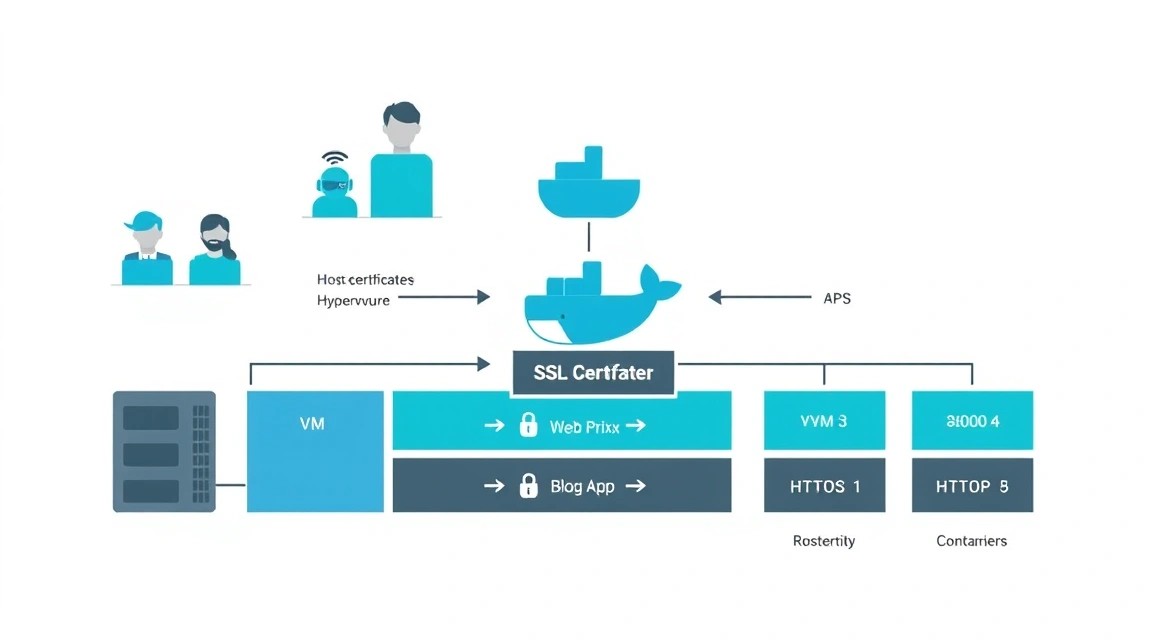
A typical VPS quickly turns into a collection of services: GitLab or Gitea, Mattermost, Vaultwarden, Nextcloud, Grafana, a homepage, application APIs, test environments, and monitoring dashboards. Each container usually listens on its own internal port: 3000, 8080, 9000, 5000, or another one. Exposing all these ports to the internet is inconvenient and insecure.
Nginx Proxy Manager, hereinafter NPM, solves this task as a reverse proxy with a web interface. It receives requests on the standard HTTP port 80 and HTTPS port 443, determines the domain from the Host header, and forwards traffic to the appropriate container. For example, a request to git.example.com is sent to Gitea, chat.example.com — to Mattermost, and status.example.com — to Uptime Kuma.
As a result, external users do not need to know which port an application actually runs on. All services are available through clear HTTPS addresses, while the VPS only needs to expose SSH, HTTP, and HTTPS. Internal application ports remain closed within the Docker network.
Final Architecture
This guide uses the following architecture:
- One VPS running Ubuntu Server 24.04 LTS.
- Docker Engine and Docker Compose Plugin.
- Nginx Proxy Manager in a separate Docker Compose project.
- A shared external Docker network
proxy. - Several applications connected to this network.
- DNS records for domains such as
app.example.compointing to the VPS IP. - Let’s Encrypt for free TLS certificates.
The request flow will look like this: a browser opens https://vault.example.com → DNS returns the VPS IP → NPM receives the request on port 443 → NPM terminates TLS → NPM forwards HTTP to the internal Vaultwarden container through the Docker network.
What You Will Get After Setup
- A single entry point for all containers on the server.
- HTTPS for every domain without manually creating Nginx configurations.
- Automatic renewal of Let’s Encrypt certificates.
- The ability to enable WebSocket, access lists, basic authentication, and redirects through the UI.
- Service isolation: applications do not need to publish ports on the VPS IP.
- Easier infrastructure migration: configuration is stored in Compose files and Docker volumes.
Available Alternatives
| Approach | Advantages | Limitations |
|---|---|---|
| Cloud-managed ingress or load balancer | High availability, managed certificates, less administration | Monthly cost, cloud dependency, often excessive for a single VPS |
| Regular Nginx configured manually | Maximum flexibility, familiar configs, high performance | You need to write virtual host configurations, set up Certbot, and manage updates yourself |
| Traefik | Convenient automation through Docker labels, suitable for a large number of services | Configuration through labels and middleware can be more difficult for beginners |
| Caddy | Simple configuration, automatic HTTPS, compact Caddyfile | Less visual management, some tasks require manual configuration work |
| Nginx Proxy Manager | Clear UI, Let’s Encrypt, access lists, proxy hosts without manual Nginx configuration | An additional control panel, administrative access must be protected |
For a solo developer, small team, or owner of a single VPS, NPM is convenient because it does not require remembering Nginx syntax when adding another service. It does not eliminate the need to understand networking, DNS, and security, but it significantly reduces the number of manual operations.
Nginx Proxy Manager does not replace a firewall. Even if a service is available only through the proxy, exposed Docker ports may bypass UFW rules. Publish application ports only on
127.0.0.1or do not publish them at all.
What VPS Configuration Is Needed for This Task
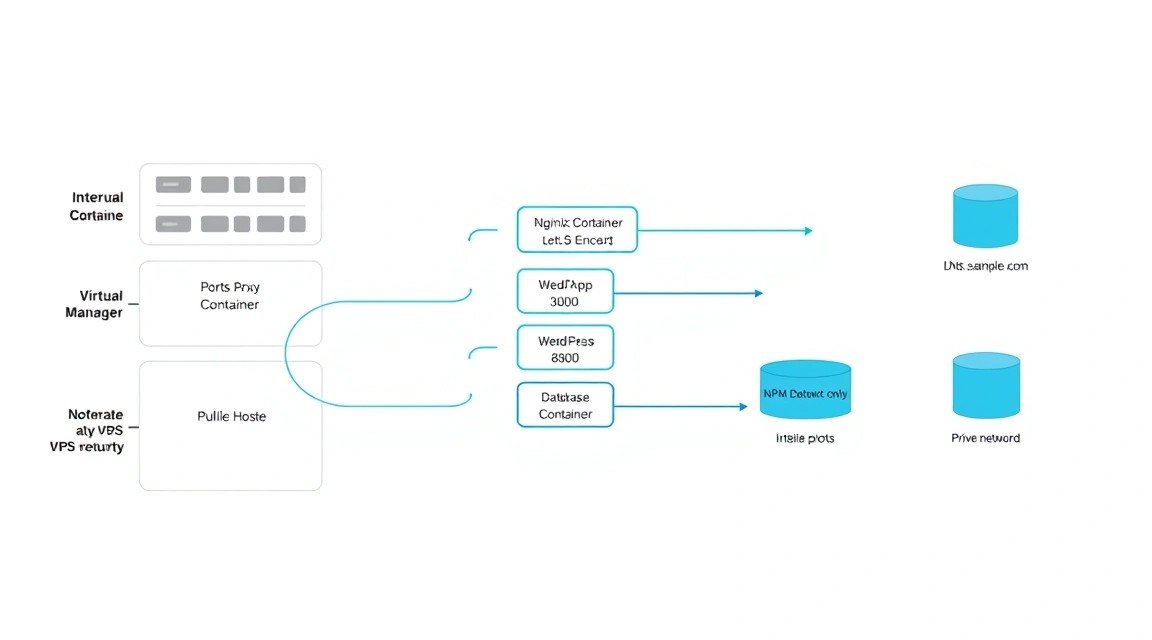
Nginx Proxy Manager itself consumes few resources. On a clean server, its container usually fits within a few hundred megabytes of RAM, and TLS operations noticeably load the CPU only when there are many new connections. Resources should primarily be selected for the applications behind the proxy: GitLab, Nextcloud, databases, game servers, and CI are much more demanding than NPM itself.
| Scenario | CPU | RAM | Disk | Network |
|---|---|---|---|---|
| NPM + 2–5 lightweight services | 2 vCPU | 2 GB | 30 GB SSD | 100 Mbps |
| NPM + Nextcloud, Gitea, Mattermost, monitoring | 2–4 vCPU | 4–8 GB | 80–160 GB NVMe | 100 Mbps or 1 Gbps |
| Many users, files, CI, databases | 4–8 vCPU | 8–16 GB | 160 GB+ NVMe | 1 Gbps |
A practical starting option for NPM, Vaultwarden, Uptime Kuma, Gitea, and a small API is 2 vCPU, 4 GB RAM, 60–80 GB NVMe, and 1 Gbps. If necessary, you can choose a VPS with these specifications or a similar plan from another provider. More important than the plan name are a dedicated public IPv4 address, stable network connectivity, SSH access, and the ability to create snapshots.
Why a Public IP Is Required
For the standard Let’s Encrypt HTTP-01 validation, the server must be accessible externally on port 80. If the VPS is behind CGNAT or has only a private IP, automatic certificate issuance through regular HTTP validation will not work. In this case, you need a public IPv4 address, public IPv6 with properly configured DNS, or a DNS-01 challenge through a DNS provider.
When You Need Dedicated Instead of a VPS
A dedicated server is not necessary for a single reverse proxy. It becomes justified when resource-intensive services run behind the proxy: a large GitLab instance with a CI runner, a file cloud with terabytes of data, video transcoding, a high-load database, tens of thousands of requests per second, or requirements for predictable disk performance.
Dedicated servers should also be considered for high network traffic, a large number of simultaneous TLS connections, requirements for multiple physical disks in RAID, and when virtualization alongside other VPS tenants is unacceptable under security policy. A high-quality VPS is usually sufficient for 5–30 internal services used by a small team.
How to Choose a Location
The VPS location affects latency, legal requirements, and initial loading speed. If your primary audience is in Europe, choose a European data center; if users are in Kazakhstan, Russia, Turkey, or the Middle East, measure ping to several locations beforehand. For admin panels, the difference between 20 and 60 ms is almost unnoticeable, but it matters more for games, voice services, APIs, and file storage.
Do not host the server solely based on proximity to yourself if the service is used by a team in another country. Also check whether the required ports are allowed, whether reverse DNS is available if email services are needed, and whether backup storage is available in another location.
Server Preparation
The following assumes a fresh server running Ubuntu Server 24.04 LTS and logged in as the root user. If you have Debian 12 or Debian 13, the logic remains the same, but individual package installation commands may differ. Before configuring domains, create A records: for example, npm.example.com, vault.example.com, and status.example.com must point to the server's public IPv4 address.
Update the system and create an administrator
Perform the initial setup via SSH. Replace admin with your own username, and replace the example public key with the key from the ~/.ssh/id_ed25519.pub file on your local computer.
apt update && apt upgrade -y
apt install -y sudo curl ca-certificates gnupg fail2ban ufw vim git
adduser admin
usermod -aG sudo admin
The command updates the system, installs basic utilities, Fail2ban, and UFW, then creates a user with sudo privileges.
install -d -m 700 -o admin -g admin /home/admin/.ssh
nano /home/admin/.ssh/authorized_keys
chmod 600 /home/admin/.ssh/authorized_keys
chown admin:admin /home/admin/.ssh/authorized_keys
This block creates the SSH directory and adds the public key. Paste the key on a single line, save the file, and do not close the current root session until you verify the new login.
ssh -i ~/.ssh/id_ed25519 admin@SERVER_IPThe command verifies that the new user can actually connect using the key. Open a separate terminal window and ensure that login works without a password.
Disable SSH password login
After successful verification, edit a separate SSH configuration file. This is safer than modifying the main /etc/ssh/sshd_config file, which may be updated by the package manager.
sudo nano /etc/ssh/sshd_config.d/99-hardening.confAdd the following parameters:
PermitRootLogin no
PasswordAuthentication no
KbdInteractiveAuthentication no
PubkeyAuthentication yes
X11Forwarding no
MaxAuthTries 3
sudo sshd -t && sudo systemctl restart sshThe command checks the configuration syntax and only then restarts SSH. If the check returns an error, do not restart the service until you fix the file.
Configure the firewall and Fail2ban
NPM must receive external connections on ports 80 and 443. It is advisable to restrict SSH to your office IP address or home VPN, but for the initial setup you can temporarily allow access from any IP. Docker has specific interactions with UFW, so the primary protection for containers is not exposing their ports externally.
sudo ufw default deny incoming
sudo ufw default allow outgoing
sudo ufw allow 22/tcp
sudo ufw allow 80/tcp
sudo ufw allow 443/tcp
sudo ufw enable
sudo ufw status verbose
The commands deny incoming traffic by default and allow only SSH, HTTP, and HTTPS. Later, you can add an SSH restriction by source IP or move access to the NPM panel behind a VPN.
sudo systemctl enable --now fail2ban
sudo fail2ban-client status sshd
This block starts Fail2ban and displays the SSH jail status. Fail2ban reduces the effect of password brute-force attempts, but it does not replace SSH keys, updates, and access restrictions.
Check DNS before issuing the certificate
A Let’s Encrypt certificate will not be issued until the DNS record points to the current server. Check the record from the VPS and, preferably, through external DNS resolvers.
getent hosts npm.example.com
curl -4 ifconfig.me
dig +short npm.example.com A @1.1.1.1
The IP returned by DNS must match the VPS public IPv4 address. If DNS is still propagating, wait for the record TTL. Do not create dozens of failed certificate requests: Let’s Encrypt applies rate limits.
Software Installation — Step by Step
For Nginx Proxy Manager, use Docker Engine from the official Docker repository rather than the outdated docker.io package from the standard Ubuntu repository. As of 2026, the current Docker Engine 29 branch supports the Compose Plugin; check the specific minor version in the official Docker documentation before installation.
Install Docker Engine and the Compose Plugin
sudo apt remove -y docker.io docker-compose docker-compose-v2 podman-docker containerd runc || true
sudo install -m 0755 -d /etc/apt/keyrings
curl -fsSL https://download.docker.com/linux/ubuntu/gpg | sudo gpg --dearmor -o /etc/apt/keyrings/docker.gpg
sudo chmod a+r /etc/apt/keyrings/docker.gpg
The commands remove conflicting old packages and add the GPG key for the official Docker repository.
echo "deb [arch=$(dpkg --print-architecture) signed-by=/etc/apt/keyrings/docker.gpg] https://download.docker.com/linux/ubuntu $(. /etc/os-release && echo "$VERSION_CODENAME") stable" | sudo tee /etc/apt/sources.list.d/docker.list > /dev/null
sudo apt update
sudo apt install -y docker-ce docker-ce-cli containerd.io docker-buildx-plugin docker-compose-plugin
This block adds the repository and installs Docker Engine, containerd, Buildx, and the modern Compose Plugin.
sudo usermod -aG docker admin
newgrp docker
docker version
docker compose version
The command adds the user to the Docker group and displays the Docker and Compose versions. Note that membership in the docker group effectively grants root-level privileges. Do not add regular application users to it.
Create a shared Docker network
Containers that NPM needs to reach via Docker's internal DNS will connect to a single external network. This is better than exposing the ports of every application on the server's public interface.
docker network create proxy
docker network inspect proxy
The commands create the proxy bridge network and display its parameters. In the future, NPM will be able to reach a container by its service name, for example vaultwarden or uptime-kuma.
Create the Nginx Proxy Manager directory
mkdir -p ~/stacks/nginx-proxy-manager
cd ~/stacks/nginx-proxy-manager
mkdir -p data letsencrypt
chmod 700 data letsencrypt
This block creates the working directory and persistent directories. NPM stores its configuration and SQLite database in data, and certificates and ACME data in letsencrypt.
Prepare the Compose file
For a small VPS, you can use the built-in SQLite database. This minimizes the number of containers and is sufficient for a single NPM instance. Larger deployments and environments with redundancy requirements typically use MariaDB, but SQLite is easier to maintain for a single reverse proxy.
nano compose.ymlPaste the configuration with the pinned NPM image from the 2.12.3 branch. Before a new deployment, check the project's GitHub Releases and changelog: do not replace the stable tag with latest without testing.
services:
  npm:
    image: jc21/nginx-proxy-manager:2.12.3
    container_name: nginx-proxy-manager
    restart: unless-stopped
    ports:
      - "80:80"
      - "443:443"
      - "127.0.0.1:81:81"
    environment:
      TZ: "Europe/Berlin"
    volumes:
      - ./data:/data
      - ./letsencrypt:/etc/letsencrypt
    networks:
      - proxy

networks:
  proxy:
    external: true
Ports 80 and 443 are exposed to the entire internet, while administrative port 81 is bound only to 127.0.0.1. This is an important secure option: the panel will not be directly accessible at http://SERVER_IP:81.
docker compose pull
docker compose up -d
docker compose ps
docker logs --tail=100 nginx-proxy-manager
The commands download the image, start the stack in the background, display the container status, and show recent logs. The status should be Up. If the container restarts, check the complete logs.
Open the administration panel through an SSH tunnel
Because port 81 is available only locally on the VPS, create a tunnel from your workstation. Run the command on your local computer, not on the server.
ssh -L 8181:127.0.0.1:81 admin@SERVER_IPWhile the SSH session is open, navigate to http://127.0.0.1:8181 in your browser. For the initial login, use the default NPM credentials: email [email protected], password changeme. Immediately after login, the interface will prompt you to change the email and password.
Do not expose port 81 using
81:81unless there is a strict need. Even with a strong password, the admin panel should not be an unnecessary public attack surface.
Configuration
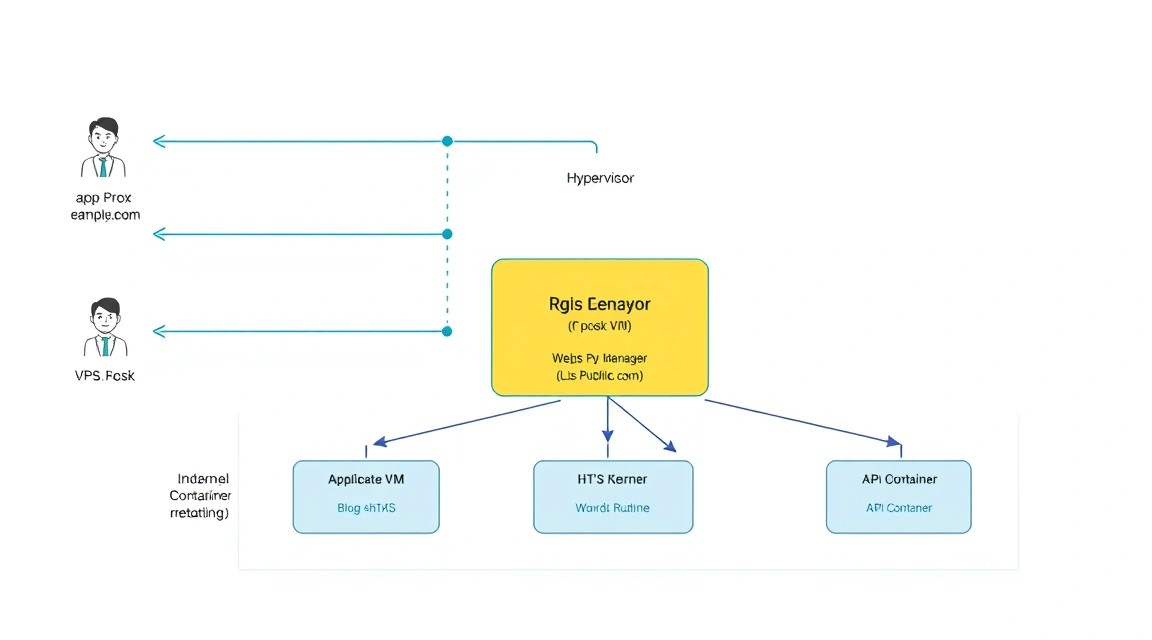
Now let's configure an example with two applications: Vaultwarden and Uptime Kuma. They will run without externally published ports. NPM will see them through the shared proxy network, and users will access them through the vault.example.com and status.example.com domains.
Deploy test containers
Create a separate Compose project. Do not store secrets in source code or publish them to Git. For Vaultwarden, use a .env file with owner-only permissions.
mkdir -p ~/stacks/apps
cd ~/stacks/apps
nano .env
chmod 600 .env
Add a long random password to the .env file. You can generate it with openssl rand -base64 48.
VAULTWARDEN_ADMIN_TOKEN=replace_with_a_long_random_secret
TZ=Europe/Berlin
nano compose.ymlservices:
vaultwarden:
image: vaultwarden/server:1.34.3
container_name: vaultwarden
restart: unless-stopped
environment:
DOMAIN: "https://vault.example.com"
WEBSOCKET_ENABLED: "true"
ADMIN_TOKEN: "${VAULTWARDEN_ADMIN_TOKEN}"
TZ: "${TZ}"
SIGNUPS_ALLOWED: "false"
volumes:
- ./vaultwarden-data:/data
networks:
- proxy
uptime-kuma:
image: louislam/uptime-kuma:1.23.16
container_name: uptime-kuma
restart: unless-stopped
volumes:
- ./uptime-kuma-data:/app/data
networks:
- proxy
networks:
proxy:
external: trueThis example has no ports section. Containers are available only to neighbors on the proxy network. If an application needs access to a database, connect the database to a separate internal network as well and do not expose its port 3306, 5432, or 6379 externally.
docker compose up -d
docker compose ps
docker network inspect proxy
The commands start the applications and verify that the containers are connected to the network. The output of docker network inspect proxy should include nginx-proxy-manager, vaultwarden, and uptime-kuma.
Verify internal connectivity
Before creating a proxy host, make sure NPM can see the target containers. Inside the NPM container, you can make an HTTP request using the Docker DNS name. Vaultwarden uses port 80 by default, and Uptime Kuma uses port 3001.
docker exec nginx-proxy-manager curl -I http://vaultwarden:80
docker exec nginx-proxy-manager curl -I http://uptime-kuma:3001
For Vaultwarden, expect an HTTP response such as 200, 301, or 302. A redirect response is also acceptable for Uptime Kuma. The Could not resolve host error means the container is not connected to the proxy network.
Create a Proxy Host for Vaultwarden
Open an SSH tunnel to the panel, go to Hosts → Proxy Hosts → Add Proxy Host, and fill in the fields:
- Domain Names:
vault.example.com - Scheme:
http - Forward Hostname / IP:
vaultwarden - Forward Port:
80 - Cache Assets: disabled for the initial setup
- Block Common Exploits: enabled
- Websockets Support: enabled
On the SSL tab, select Request a new SSL Certificate, specify an email for Let’s Encrypt, enable Force SSL and HTTP/2 Support, and accept the Let’s Encrypt terms. Then save the entry.
For the HTTP-01 challenge, the domain must point to the VPS and inbound port 80 must be accessible. NPM uses built-in ACME logic similar to Certbot, so you do not need and must not manually install Certbot or Caddy on top of NPM, because they will compete for ports 80 and 443.
Create a Proxy Host for Uptime Kuma
Add the second host similarly, but with different values:
- Domain Names:
status.example.com - Scheme:
http - Forward Hostname / IP:
uptime-kuma - Forward Port:
3001 - Websockets Support: enabled
- Block Common Exploits: enabled
On the SSL tab, request a separate certificate again. You can issue one certificate for multiple domains, but separate certificates are easier to maintain and safer in terms of isolation. A wildcard certificate requires a DNS-01 challenge and the DNS provider API.
Configure an access list for internal panels
Not all services should be available to all users. For example, it is better to protect an admin panel, Grafana, Portainer, or a test API with Basic Auth and, if possible, a list of allowed IPs. In NPM, go to Access Lists → Add Access List, create an admins-only list, add a user with a long password, and specify allowed CIDR networks on the Access tab.
Then select the created list in the settings of the required Proxy Host. Basic Auth is an additional layer, not a replacement for the application's own authentication. For critical panels, it is better to use WireGuard, Tailscale, or an SSH tunnel.
Additional proxy host parameters
Some applications require forwarding the real client IP, an increased upload limit, or long timeouts. NPM already adds standard proxy headers, but you can add safe directives for a specific host in the Advanced field:
client_max_body_size 2g;
proxy_connect_timeout 60s;
proxy_send_timeout 3600s;
proxy_read_timeout 3600s;
send_timeout 3600s;
This example is needed for uploading large files to Nextcloud or a similar service. Do not paste random directives from forums into the global configuration: a syntax error can break Nginx configuration generation for all domains.
Verify HTTPS and the certificate
curl -I https://vault.example.com
curl -I https://status.example.com
curl -Iv https://vault.example.com 2>&1 | grep -E "SSL certificate verify|subject:|issuer:"
The response should contain a successful HTTP status code and must not report a TLS verification error. If Cloudflare is used in proxy mode, temporarily disable proxy mode for the record during initial diagnostics or make sure its SSL mode does not conflict with the origin certificate.
docker logs --tail=100 nginx-proxy-manager
docker exec nginx-proxy-manager nginx -t
These commands show NPM logs and check the syntax of the generated Nginx configuration. Run them after changing complex advanced settings or when encountering 502/503 errors.
Backups and maintenance
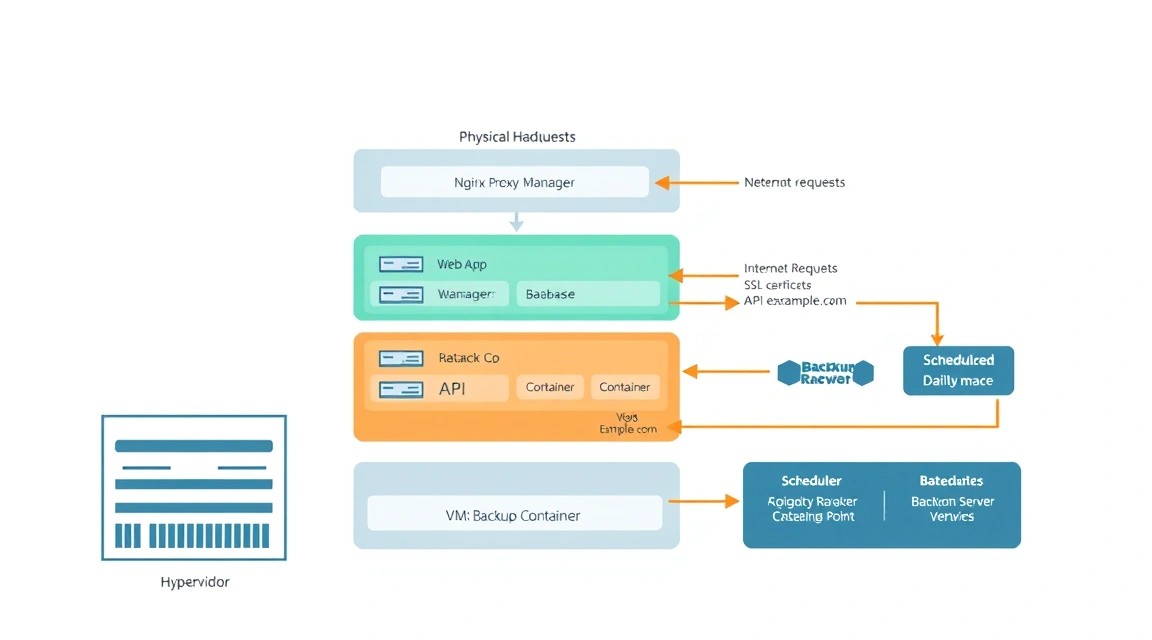
Nginx Proxy Manager can be recreated quickly, but without a backup you will lose proxy hosts, access lists, users, certificates, and settings. In addition to NPM, you must separately back up application data: Nextcloud directories, Vaultwarden, Git repositories, PostgreSQL and MariaDB databases, Mattermost files, and Compose configurations.
What to include in a backup
| Object | Location | Purpose |
|---|---|---|
| NPM data | ~/stacks/nginx-proxy-manager/data |
SQLite database, proxy hosts, users, settings |
| Let’s Encrypt | ~/stacks/nginx-proxy-manager/letsencrypt |
Certificates, ACME account, keys |
| Compose files and .env | ~/stacks |
Reproducible deployment and secrets |
| Application data | bind mounts or named volumes | User files, databases, configuration |
| Database dumps | separate backup directory | Consistent PostgreSQL/MariaDB recovery |
Do not consider a VPS snapshot a complete backup. A snapshot is useful before an update, but if it is stored in the same account or data center, it does not protect against account deletion, credential compromise, or a provider outage. Use the 3-2-1 rule: at least three copies, on two types of storage, with one outside the primary server.
Simple backup with Restic to S3
Restic supports client-side encryption and S3-compatible storage. Create a separate bucket, a separate user with access only to that bucket, and store the keys in a restricted file.
sudo apt install -y restic
sudo install -d -m 700 /root/.config/restic
sudo nano /root/.config/restic/env
sudo chmod 600 /root/.config/restic/env
Add the access variables to the file. Replace the values with your S3 storage details.
export RESTIC_REPOSITORY="s3:https://s3.example-storage.net/server-backups/npm-vps"
export RESTIC_PASSWORD="use_a_long_unique_backup_password"
export AWS_ACCESS_KEY_ID="YOUR_ACCESS_KEY"
export AWS_SECRET_ACCESS_KEY="YOUR_SECRET_KEY"
sudo bash -c 'source /root/.config/restic/env && restic init'The command creates a new encrypted repository. Store the RESTIC_PASSWORD separately from the VPS: in a password manager or offline storage. Losing this password makes the backups unrecoverable.
sudo nano /usr/local/sbin/backup-stacks.sh
sudo chmod 700 /usr/local/sbin/backup-stacks.sh
Create the script:
#!/usr/bin/env bash
set -euo pipefail

source /root/.config/restic/env

STAMP=$(date +%F)
BACKUP_DIR="/root/backup-work/$STAMP"

mkdir -p "$BACKUP_DIR"

docker exec vaultwarden /bin/sh -c 'sqlite3 /data/db.sqlite3 ".backup /data/db-backup.sqlite3"' || true

restic backup /home/admin/stacks \
  --exclude='/node_modules' \
  --exclude='/cache' \
  --tag docker-stacks

restic forget --keep-daily 7 --keep-weekly 4 --keep-monthly 6 --prune
restic check
The script saves stack directories, removes old snapshots according to the retention policy, and checks the repository. For applications with PostgreSQL or MariaDB, add pg_dump or mariadb-dump before the backup; copying files from an active database without a dump can result in a corrupted or logically inconsistent copy.
sudo crontab -eAdd a daily nighttime run:
15 3 * /usr/local/sbin/backup-stacks.sh >> /var/log/backup-stacks.log 2>&1After configuration, be sure to perform a restore into a test directory. A backup is considered working only after a successful recovery test.
sudo bash -c 'source /root/.config/restic/env && restic snapshots'
sudo mkdir -p /root/restore-test
sudo bash -c 'source /root/.config/restic/env && restic restore latest --target /root/restore-test'
NPM and container updates
For a single VPS, a maintenance window model is optimal: choose a period, for example once every two weeks, make a backup, read the release notes, and update one stack at a time. A rolling update is useful in a cluster with multiple replicas, but on a single server it usually does not provide high availability: restarting NPM for 10–30 seconds will still briefly interrupt connections.
cd ~/stacks/nginx-proxy-manager
docker compose pull
docker compose up -d
docker image prune -f
docker compose ps
The commands download the image, recreate the container when the version changes, remove unused dangling images, and show the final status. First pin the image version in compose.yml, then update it deliberately. Do not blindly run docker system prune -a --volumes: the command can remove data that Docker considers unused.
Once a month, check OS updates, certificate expiration, log size, and free space:
sudo apt update && sudo apt upgrade -y
df -h
docker system df
openssl s_client -connect vault.example.com:443 -servername vault.example.com < /dev/null 2>/dev/null | openssl x509 -noout -dates
Troubleshooting + FAQ
Why does an Internal Error or timeout appear when issuing a Let’s Encrypt certificate?
First, check DNS: the domain must resolve to the IP address of this VPS. Then make sure port 80 is open in UFW, in the provider panel, and is not occupied by another container or Nginx on the host. Run sudo ss -lntp | grep -E ":80|:443" and verify that Docker is listening on the ports. If a CDN proxy is used, temporarily disable it for diagnostics. Also check docker logs nginx-proxy-manager and do not exceed Let’s Encrypt limits through repeated attempts.
Why does Nginx Proxy Manager return 502 Bad Gateway?
Error 502 almost always means that NPM cannot connect to the upstream container. Check the container name, internal port, and Docker network. Run docker exec nginx-proxy-manager curl -I http://SERVICE:PORT. If the name does not resolve, both containers are not on the proxy network. If the connection is refused, the application is listening on a different port or has not started. Do not specify the VPS's public domain in the Forward Hostname field: this can create a proxy loop.
Why does the domain open over HTTP but not redirect to HTTPS?
Open the settings of the corresponding Proxy Host and make sure a certificate is selected and the Force SSL toggle is enabled. If the certificate has not been issued, NPM cannot safely redirect to HTTPS. Check whether a separate IPv6 AAAA DNS record points to another server: the browser may connect over IPv6 while you are checking IPv4. The commands dig A domain and dig AAAA domain help quickly identify discrepancies.
What is the minimum suitable VPS configuration?
For one Nginx Proxy Manager instance and several lightweight containers, the minimum reasonable option is 2 vCPU, 2 GB RAM, 30 GB SSD, and a public IPv4 address. One vCPU and 1 GB RAM may work for testing, but updates, TLS operations, and neighboring services will quickly run out of memory. For Vaultwarden, Uptime Kuma, a small Gitea instance, and a reverse proxy, it is better to choose 2 vCPU, 4 GB RAM, and 60 GB NVMe from the start.
Which should you choose for this task — a VPS or dedicated server?
For Nginx Proxy Manager, personal services, and a small team, choose a VPS: it is cheaper, faster to deploy, and usually easy to scale in terms of CPU, RAM, and disk. A dedicated server is justified not by the proxy itself, but by the load of the applications behind it: a large GitLab instance, a heavy database, terabytes of file storage, CI, video processing, or very high traffic. If the server serves fewer than several dozen active users, a VPS is usually sufficient.
Why does an application work through an IP address and port but not through a domain?
Check the Proxy Host configuration: the correct scheme, container name, and port. Many applications generate links, cookies, and redirect URLs based on variables such as DOMAIN, URL, ROOT_URL, or PUBLIC_URL. Specify the external HTTPS domain there, not http://localhost:PORT. For services with WebSocket, enable Websockets Support. After changing environment variables, recreate the container using docker compose up -d.
Do I need to open application ports, such as 3000, 8080, or 3001, in UFW?
No, if NPM and the application are connected to the same Docker network. Do not add UFW rules for internal ports or publish them through ports. NPM accesses the service by container name within the Docker network. The exception is debugging, but even then it is safer to temporarily bind the port to 127.0.0.1, for example 127.0.0.1:3001:3001, and connect through an SSH tunnel.
How can I securely open the NPM admin panel?
The best simple option is to keep port 81 bound to 127.0.0.1 and use an SSH tunnel. For permanent access, you can create a separate proxy host with HTTPS, an access list, and additional authentication, but this increases the external attack surface. A more reliable approach is to access the panel only through WireGuard or Tailscale. Always change the default credentials, use a unique password, and update the container regularly.
Conclusions and next steps
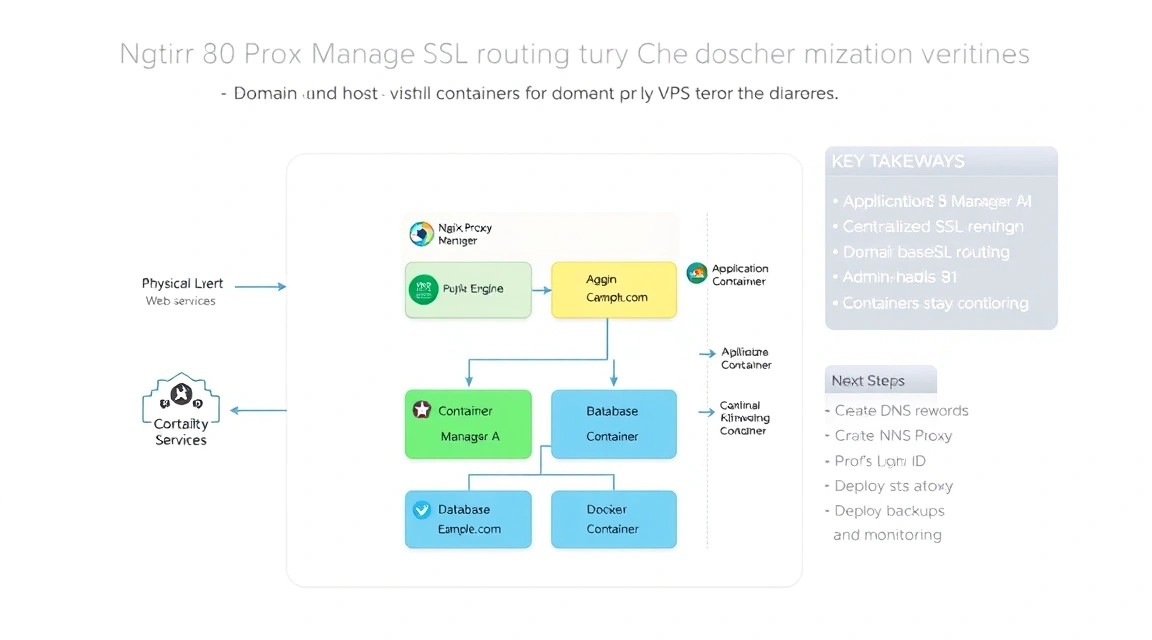
Now one VPS can serve multiple Docker applications through separate domains with automatic HTTPS. Nginx Proxy Manager hides internal container ports, centralizes TLS certificates, and simplifies adding new services.
- Add domain availability monitoring through Uptime Kuma and configure notifications in Telegram, email, or Mattermost.
- Move administrative interfaces behind WireGuard or Tailscale, leaving only services intended for users public.
- Set up regular backup recovery testing and document domains, containers, ports, and secrets in a private repository or password manager.
When the number of services grows, separate applications into Compose projects, limit container resources, and consider a separate database or a second VPS for backups and monitoring.