bolt Valebyte VPS from $4/mo — NVMe, 60s deploy.

Get a VPS arrow_forward
eco Beginner Tutorial/How-to

Deploying Listmonk

calendar_month Jun 26, 2026 schedule 22 min read visibility 24 views
Развёртывание Listmonk на VPS: Управление рассылками с Docker, PostgreSQL и Caddy
info

Need a server for this guide? We offer dedicated servers and VPS in 50+ countries with instant setup.

Need a server for this guide?

Deploy a VPS or dedicated server in minutes.

Deploying Listmonk on VPS: Managing Mailings with Docker, PostgreSQL, and Caddy

TL;DR

In this detailed guide, we will set up Listmonk — a powerful open-source platform for email newsletters — on your own VPS server, step by step. By using Docker for containerization, PostgreSQL for the database, and Caddy as a reverse proxy with automatic HTTPS, you will get a fully controlled, scalable, and secure solution for managing subscribers and sending campaigns, avoiding reliance on third-party services and their limitations.

  • Setting up Listmonk, PostgreSQL, and Caddy using Docker Compose for easy deployment and management.
  • Automatic acquisition and renewal of SSL certificates with Caddy.
  • Ensuring basic server security (SSH, firewall, Fail2ban).
  • Recommendations for choosing the optimal VPS configuration and backup strategies.
  • Practical commands and configuration files for each installation step.
  • An expanded section on troubleshooting common issues and answers to frequently asked questions.

What We Are Setting Up and Why
Diagram: What We Are Setting Up and Why

In this guide, we will focus on deploying Listmonk — a modern, high-performance, and feature-rich platform for managing email newsletters. Listmonk is an excellent alternative to commercial SaaS solutions like Mailchimp or SendGrid, offering full control over your data and mailings without a monthly fee based on the number of subscribers or emails sent (you only pay for the SMTP service and VPS).

What the reader will get in the end:

  • A fully functional system for creating and sending email campaigns.
  • Ability to import and manage subscriber lists.
  • Tools for audience segmentation and email personalization.
  • Detailed analytics on open rates, clicks, and unsubscribes.
  • A reliable solution running in Docker containers, with a PostgreSQL database and a Caddy reverse proxy providing automatic HTTPS.
  • Your own mailing server that you can scale and customize to your unique needs, without worrying about third-party service usage policies.

What alternatives exist and why self-hosted on a VPS:

There are many email marketing solutions on the market. They can be divided into two main categories:

  • Cloud-managed (SaaS) services: Mailchimp, SendGrid, Brevo (Sendinblue), MailerLite, Constant Contact.
    • Pros: Ease of use, no technical expertise required, ready-made infrastructure.
    • Cons: High cost with subscriber base growth, dependence on service policies (account blocks, content restrictions), lack of full data control, inability for deep customization.
  • Self-hosted solutions: Listmonk, Mautic, Ghost (with mailing integration), Postfix/Dovecot (for mail server).
    • Pros: Full control over data and infrastructure, no subscriber limits, flexibility in configuration and integration, potentially lower long-term cost, increased privacy.
    • Cons: Requires technical expertise for installation and maintenance, responsibility for security and operability lies with you.

Choosing a self-hosted solution on a VPS, such as Listmonk, is ideal for developers, startups, small and medium-sized businesses, and anyone who values independence, control, and privacy. This allows you to create a powerful mailing system that will fully meet your requirements and grow with your project.

What VPS Configuration is Needed for This Task
Diagram: What VPS Configuration is Needed for This Task

Choosing the right VPS configuration is critical for Listmonk's stable and efficient operation. While Listmonk is quite lightweight, PostgreSQL can be resource-intensive with large data volumes and high loads. Caddy and Docker themselves consume minimal resources, but they need to be considered.

Minimum Requirements:

  • CPU: 2 vCPU. One for Listmonk, one for PostgreSQL and the rest of the system.
  • RAM: 4 GB. PostgreSQL likes RAM for caching, and Listmonk itself will run more comfortably.
  • Disk: 50 GB SSD. SSD significantly speeds up database operations. This will be enough for the operating system, Docker images, Listmonk and PostgreSQL data (for tens of thousands of subscribers and thousands of sent emails).
  • Network: 100 Mbps. This is sufficient for most tasks. Stability and no traffic limits are more important.

Specific VPS Plan for the Task:

For a comfortable start and support of several hundred thousand subscribers with regular mailings, the following configuration plan is recommended:

  • CPU: 2-4 vCPU (e.g., Intel Xeon E5 or AMD EPYC).
  • RAM: 4-8 GB DDR4.
  • Disk: 80-160 GB NVMe SSD (NVMe is preferred for speed, but a good SATA SSD will also suffice).
  • Network: 1 Gbps port with unlimited traffic or a large limit (e.g., 1-2 TB/month).
  • Operating System: Ubuntu Server 24.04 LTS (or a newer stable version).

You can get a VPS with the specified characteristics to start, or consider more powerful options as your needs grow.

When a Dedicated Server is Needed, Not a VPS:

A dedicated server should be considered if you have:

  • Millions of subscribers: PostgreSQL will require significantly more CPU and RAM resources, as well as high-speed disks.
  • Very high mailing frequency: Sending millions of emails per hour requires a stable and powerful network subsystem, as well as dedicated resources for the SMTP service.
  • Increased isolation and security requirements: A dedicated server provides complete physical isolation from other users.
  • Need for specific hardware: For example, for GPU computing or special RAID arrays, which is rarely required for Listmonk but may be relevant for related tasks.

For most Listmonk tasks at the small and medium business level, a well-configured VPS will be more than sufficient.

Location: What it Affects

  • Latency: Choose a location close to your primary audience or to yourself (for management). Low latency improves the loading speed of the Listmonk interface and the delivery speed of emails to the SMTP provider.
  • Legislation: If you work with personal data of users from the EU, ensure that the server is located in a jurisdiction compliant with GDPR. Similarly for other regions.
  • SMTP Provider Availability: Some SMTP providers may have preferred regions for better performance.

Server Preparation
Diagram: Server Preparation

Before proceeding with Listmonk installation, it is necessary to perform basic security setup and update the operating system. We will use Ubuntu Server 24.04 LTS as the most common and stable platform for such tasks.

1. Connecting to the Server via SSH

Use an SSH client to connect to your VPS. Typically, the provider gives you the IP address and initial credentials (root login and password).


ssh root@ВАШ_IP_АДРЕС

2. System Update

First, update the package list and installed packages to their latest versions.


sudo apt update -y  # Update package list
sudo apt upgrade -y # Upgrade installed packages
sudo apt autoremove -y # Remove unnecessary dependencies

3. Creating a New User with Sudo Privileges

Using the root user for everyday tasks is insecure. Create a new user and grant them sudo privileges.


adduser listmonkadmin # Create a new user "listmonkadmin"
usermod -aG sudo listmonkadmin # Add user to the sudo group

Now, exit the root session and log in as the new user:


exit # Exit root session
ssh listmonkadmin@ВАШ_IP_АДРЕС # Log in as the new user

4. Setting Up SSH Keys (Recommended)

To enhance security, it is recommended to use SSH keys instead of passwords. Generate a key pair on your local machine (if you haven't already):


ssh-keygen -t rsa -b 4096 # On your local machine

Copy the public key to the server:


ssh-copy-id listmonkadmin@ВАШ_IP_АДРЕС # On your local machine

After this, you can disable password authentication in /etc/ssh/sshd_config by setting PasswordAuthentication no and restarting the SSH service.

5. Firewall Setup (UFW)

Enable UFW (Uncomplicated Firewall) and allow only the necessary ports: SSH (22), HTTP (80), and HTTPS (443).


sudo ufw allow OpenSSH # Allow SSH
sudo ufw allow http # Allow HTTP (for Caddy/Let's Encrypt)
sudo ufw allow https # Allow HTTPS
sudo ufw enable # Enable firewall (confirm 'y')
sudo ufw status # Check firewall status

6. Installing Fail2ban

Fail2ban protects against brute-force attacks by blocking IP addresses that attempt to guess passwords for SSH and other services.


sudo apt install fail2ban -y # Install Fail2ban
sudo systemctl enable fail2ban # Enable autostart
sudo systemctl start fail2ban # Start service
sudo cp /etc/fail2ban/jail.conf /etc/fail2ban/jail.local # Create a local copy of the config

Edit /etc/fail2ban/jail.local to configure parameters, for example, set bantime = 1h (ban time) and maxretry = 5 (number of attempts). Ensure that the [sshd] section is active (enabled = true).

7. Installing Basic Utilities

Install the necessary utilities that will be useful during installation and for debugging.


sudo apt install curl wget git nano htop -y

Your server is now ready for the installation of the main software.

Software Installation — Step-by-Step
Diagram: Software Installation — Step-by-Step

For deploying Listmonk, we will use Docker and Docker Compose. This significantly simplifies installation, dependency management, and ensures solution portability. We will install Docker Engine, Docker Compose, and then configure the Listmonk, PostgreSQL, and Caddy services.

1. Installing Docker Engine

We will install Docker from the official repository to get the latest versions (for 2026, we will target Docker Engine 26.x and above).


# Update package list
sudo apt update -y

# Install necessary packages for working with HTTPS repositories
sudo apt install ca-certificates curl gnupg lsb-release -y

# Add Docker's official GPG key
sudo install -m 0755 -d /etc/apt/keyrings
curl -fsSL https://download.docker.com/linux/ubuntu/gpg | sudo gpg --dearmor -o /etc/apt/keyrings/docker.gpg

# Add Docker repository to Apt sources
echo \
  "deb [arch="$(dpkg --print-architecture)" signed-by=/etc/apt/keyrings/docker.gpg] https://download.docker.com/linux/ubuntu \
  "$(. /etc/os-release && echo "$VERSION_CODENAME")" stable" | \
  sudo tee /etc/apt/sources.list.d/docker.list > /dev/null

# Update package list considering the new repository
sudo apt update -y

# Install Docker Engine, containerd, and Docker Compose (cli)
sudo apt install docker-ce docker-ce-cli containerd.io docker-buildx-plugin docker-compose-plugin -y

# Add current user to the docker group to work without sudo
sudo usermod -aG docker $USER

# Note: To apply group changes, you need to log out and log back into the SSH session
echo "To complete Docker installation, please log out of your SSH session and log back in."

Log out of your SSH session (exit) and log back in for the Docker group changes to take effect. After that, verify the Docker installation:


docker run hello-world # Verify successful Docker installation

If you see the message "Hello from Docker!", then Docker is installed and working correctly.

2. Installing Docker Compose (plugin)

In modern Docker versions, docker compose already comes as a plugin for the Docker CLI, so a separate installation is not required. We have already installed docker-compose-plugin in the previous step. Let's check its version:


docker compose version # Check Docker Compose version

The expected version for 2026 will be something like Docker Compose v2.25.x or higher.

3. Creating a Directory for the Listmonk Project

Let's create a directory where all Listmonk configuration files and data will be stored.


mkdir ~/listmonk # Create project directory in user's home folder
cd ~/listmonk # Navigate to the project directory

4. Preparing the docker-compose.yml File

Now, let's create the main docker-compose.yml file, which will describe all our services: Listmonk, PostgreSQL, and Caddy.


nano docker-compose.yml # Open text editor to create the file

Insert the following content (current image versions for 2026):


version: '3.8'

services:
  db:
    image: postgres:17-alpine # Current PostgreSQL version for 2026, alpine for lightness
    restart: always
    environment:
      POSTGRES_DB: listmonk # Database name
      POSTGRES_USER: listmonk # Database user
      POSTGRES_PASSWORD: ${DB_PASSWORD} # Password from .env file
    volumes:
      - db_data:/var/lib/postgresql/data # Persistent storage for DB data
    healthcheck:
      test: ["CMD-SHELL", "pg_isready -U listmonk -d listmonk"]
      interval: 5s
      timeout: 5s
      retries: 5

  listmonk:
    image: listmonk/listmonk:2.5.0 # Current Listmonk version for 2026
    restart: always
    environment:
      LM_APP_NAME: "My Listmonk" # Your application name
      LM_DATABASE_URL: postgres://listmonk:${DB_PASSWORD}@db:5432/listmonk?sslmode=disable # DB connection URL
      LM_ADMIN_USERNAME: admin # Default administrator username
      LM_ADMIN_PASSWORD: ${ADMIN_PASSWORD} # Admin password from .env
      LM_SMTP_HOST: ${SMTP_HOST} # SMTP server host (e.g., smtp.sendgrid.net)
      LM_SMTP_PORT: ${SMTP_PORT} # SMTP server port (e.g., 587)
      LM_SMTP_USERNAME: ${SMTP_USERNAME} # SMTP username
      LM_SMTP_PASSWORD: ${SMTP_PASSWORD} # SMTP password
      LM_SMTP_AUTH_PROTOCOL: login # Authentication protocol (usually login or plain)
      LM_SMTP_FROM_EMAIL: "[email protected]" # Default sender email
      LM_SMTP_FROM_NAME: "Your Company" # Default sender name
      LM_ENABLE_GRAVATAR: "true" # Enable Gravatar
      LM_DEBUG: "false" # Disable debug mode in production
      LM_TLS_ENABLE: "true" # Enable TLS for SMTP (default)
      LM_APP_URL: "https://listmonk.yourdomain.com" # Public URL of your Listmonk
    depends_on:
      db:
        condition: service_healthy # Start Listmonk only after DB is ready
    volumes:
      - listmonk_data:/var/lib/listmonk # Persistent storage for Listmonk data (avatars, attachments)
    labels:
      caddy: "listmonk.yourdomain.com" # Specify Caddy domain for Listmonk
      caddy.reverse_proxy: "{{upstreams}}" # Proxy requests to Listmonk

  caddy:
    image: caddy:2.7.6-alpine # Current Caddy version for 2026, alpine for lightness
    restart: always
    ports:
      - "80:80" # HTTP port
      - "443:443" # HTTPS port
    volumes:
      - caddy_data:/data # For storing SSL certificates and other Caddy data
      - caddy_config:/config # For storing Caddy configuration
      - ./Caddyfile:/etc/caddy/Caddyfile # Our custom Caddyfile
    depends_on:
      - listmonk # Caddy depends on Listmonk (though it can start earlier)

volumes:
  db_data:
  listmonk_data:
  caddy_data:
  caddy_config:

IMPORTANT: Replace listmonk.yourdomain.com with your actual domain that you plan to use for Listmonk. Ensure that the DNS record (A or CNAME) for this domain points to your VPS's IP address.

5. Creating the .env File for Secrets

For security, we will store passwords and other sensitive data in a separate .env file, which will not be committed to version control (if you are using it).


nano .env # Open text editor to create the file

Insert the following content, replacing YOUR_DB_PASSWORD, YOUR_ADMIN_PASSWORD, YOUR_SMTP_HOST, etc., with your own values:


DB_PASSWORD=YOUR_DB_PASSWORD_STRONG_AND_UNIQUE
ADMIN_PASSWORD=YOUR_ADMIN_PASSWORD_STRONG_AND_UNIQUE
SMTP_HOST=smtp.your-email-provider.com
SMTP_PORT=587
SMTP_USERNAME=your-smtp-username
SMTP_PASSWORD=YOUR_SMTP_PASSWORD_STRONG_AND_UNIQUE

Save the file (Ctrl+O, Enter, Ctrl+X).

6. Creating the Caddyfile

Caddy automatically manages SSL certificates, which greatly simplifies HTTPS setup. Let's create a simple Caddyfile for our domain.


nano Caddyfile # Open text editor to create the file

Insert the following content, replacing listmonk.yourdomain.com with your actual domain:


listmonk.yourdomain.com {
    reverse_proxy listmonk:9000 # Proxy requests to Listmonk, which listens on port 9000 inside Docker
    log {
        output stdout
        format json
    }
}

Save the file (Ctrl+O, Enter, Ctrl+X).

7. Starting Docker Compose Services

Now that all files are ready, you can start all services using Docker Compose.


docker compose up -d # Start all services in the background

This command will download the necessary Docker images (Listmonk, PostgreSQL, Caddy), create containers, configure networks, and start them. The -d flag means running in detached mode (in the background).

8. Initializing the Listmonk Database

After the first launch of the Listmonk container, its database needs to be initialized. This only needs to be done once.


docker compose run --rm listmonk ./listmonk --install # Run Listmonk installation command in a new container

This command will create tables in the PostgreSQL database and set up initial data for Listmonk. The --rm parameter ensures that the temporary container is removed after the command execution.

After successful initialization, you can check the status of the running containers:


docker compose ps # Check container status

All containers (db, listmonk, caddy) should be in the running state.

Now Listmonk should be accessible via your domain (e.g., https://listmonk.yourdomain.com) over HTTPS. Caddy will automatically obtain and configure an SSL certificate from Let's Encrypt.
Configuration

Diagram: Configuration

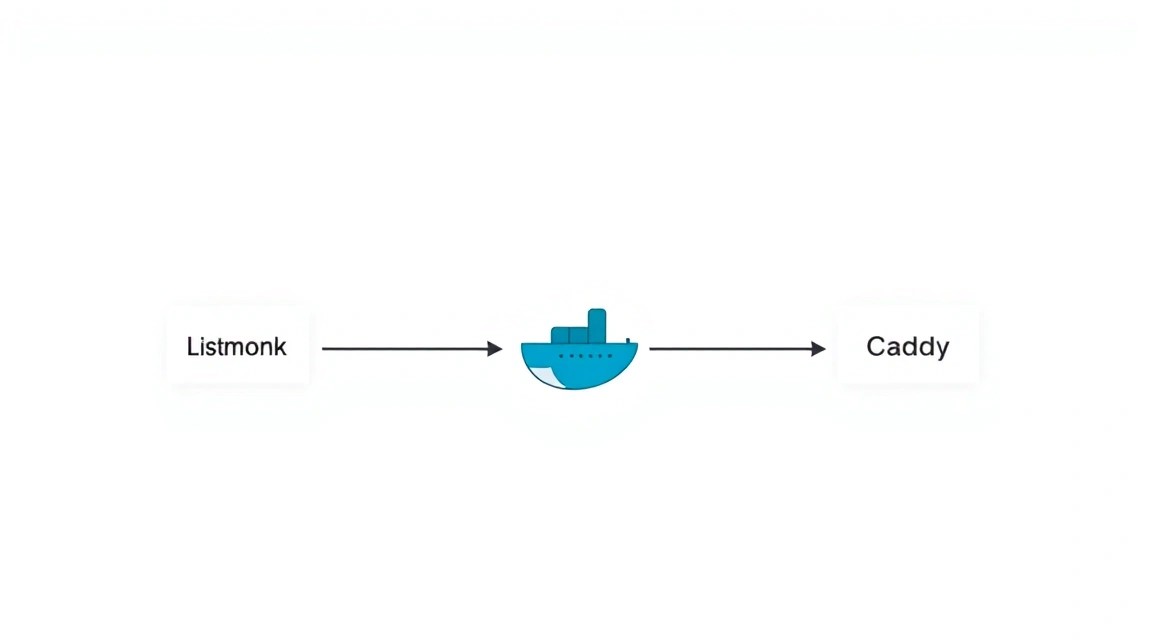
During the installation phase, we already created the basic configuration files. Now let's examine them in more detail and ensure everything is set up correctly. The key files we will be looking at are docker-compose.yml, .env, and Caddyfile.

1. Overview of docker-compose.yml

The docker-compose.yml file is central to our deployment. It defines three services:

  • db (PostgreSQL):
    • image: postgres:17-alpine: Uses PostgreSQL version 17 (as of 2026) based on Alpine Linux to minimize size.
    • environment: Here, environment variables for PostgreSQL are set, such as the database name (listmonk), username (listmonk), and password (DB_PASSWORD, which is taken from the .env file).
    • volumes: - db_data:/var/lib/postgresql/data: This is critically important. We mount a named volume db_data to the directory where PostgreSQL stores its data. This ensures that database data persists even if the db container is removed or recreated.
    • healthcheck: Defines how Docker will check the database's health, which prevents Listmonk from starting until the DB is fully ready.
  • listmonk:
    • image: listmonk/listmonk:2.5.0: Uses the official Listmonk image version 2.5.0 (current as of 2026).
    • environment: All necessary settings for Listmonk are passed here:
      • LM_APP_NAME: The name of your Listmonk application.
      • LM_DATABASE_URL: The connection string to the PostgreSQL database. Note that db is the name of the PostgreSQL service in Docker Compose, and it is used as the host. The password is also taken from .env.
      • LM_ADMIN_USERNAME and LM_ADMIN_PASSWORD: Credentials for the first login to the Listmonk admin panel (also from .env).
      • LM_SMTP_HOST, LM_SMTP_PORT, LM_SMTP_USERNAME, LM_SMTP_PASSWORD: Settings for connecting to your SMTP provider (e.g., SendGrid, Mailgun, Brevo). This data is also taken from .env.
      • LM_SMTP_FROM_EMAIL, LM_SMTP_FROM_NAME: Default sender email and name.
      • LM_APP_URL: The full URL of your Listmonk, which will be used in email links.
    • depends_on: Specifies that Listmonk should only start after the db service becomes healthy (service_healthy).
    • volumes: - listmonk_data:/var/lib/listmonk: Stores Listmonk data (e.g., avatars, attachments) in a persistent volume.
  • caddy:
    • image: caddy:2.7.6-alpine: Uses the official Caddy image.
    • ports: - "80:80" - "443:443": Maps HTTP and HTTPS ports from the host to the Caddy container.
    • volumes:
      • caddy_data:/data: For storing Let's Encrypt SSL certificates and other dynamic Caddy information.
      • caddy_config:/config: For storing persistent Caddy configuration.
      • ./Caddyfile:/etc/caddy/Caddyfile: Mounts our local Caddyfile into the container.

2. Managing Secrets via .env

The .env file contains sensitive information, such as database and SMTP service passwords. It is automatically loaded by Docker Compose on startup. Never commit this file to public repositories!

If you need to change any secret, simply edit .env and restart the services:


docker compose down # Stop and remove containers
docker compose up -d # Start with new variables

3. Configuring TLS/HTTPS via Caddy

We use Caddy as a reverse proxy, which automatically obtains and renews SSL certificates from Let's Encrypt. This significantly simplifies HTTPS setup.

In our Caddyfile:


listmonk.yourdomain.com {
    reverse_proxy listmonk:9000
    log {
        output stdout
        format json
    }
}
  • listmonk.yourdomain.com: Specifies the domain for which Caddy will handle requests and obtain a certificate. Ensure this record matches your domain and that the DNS record for this domain points to your VPS's IP address.
  • reverse_proxy listmonk:9000: Redirects all incoming requests to the internal listmonk service (the Listmonk container name in Docker Compose) on port 9000.

On first startup, Caddy will automatically attempt to obtain an SSL certificate. If you encounter issues, ensure that:

  • The domain name is correctly configured and points to your VPS's IP.
  • Ports 80 and 443 are open in the firewall (we did this during server preparation).
  • There are no other errors in the Caddy container (check logs: docker compose logs caddy).

4. Checking Functionality

After starting all services, you need to ensure everything is working as expected.


# Check container status
docker compose ps

# Check Caddy logs (for SSL or proxying debugging)
docker compose logs caddy

# Check Listmonk logs (for DB or SMTP connection debugging)
docker compose logs listmonk

# Check web interface accessibility from the server (replace with your domain)
curl -IL https://listmonk.yourdomain.com

You should see HTTP response headers, including HTTP/2 200 or HTTP/1.1 200 OK, indicating a successful connection.

Open your domain in a browser (e.g., https://listmonk.yourdomain.com). You should see the Listmonk login page. Use the login admin and the password specified in the ADMIN_PASSWORD variable in your .env file to log in.

After logging into the Listmonk admin panel, go to Settings > SMTP and ensure your SMTP settings have loaded correctly. You can send a test email to verify the SMTP server's functionality.

Backups and Maintenance

Diagram: Backups and Maintenance

Backups are a critically important part of any deployment. Data loss can have catastrophic consequences. In the case of Listmonk on Docker, we need to back up PostgreSQL data, Listmonk configuration, and files stored by Listmonk.

1. What to back up

  • PostgreSQL Database: Contains all subscribers, lists, campaigns, statistics, and other important information. This is the most crucial component.
  • Listmonk Data: Includes avatars, email attachments, and other files that Listmonk stores on disk (listmonk_data volume).
  • Configuration Files: docker-compose.yml, .env, Caddyfile. These are necessary for quickly restoring the entire infrastructure.

2. Simple Auto-Backup Script

Let's create a simple script that will back up the database and Listmonk data, and then archive them. For storage, you can use an external S3-compatible service or another VPS.

Create the file backup_listmonk.sh in the ~/listmonk directory:


nano backup_listmonk.sh

Insert the following content:


#!/bin/bash

# Directory where docker-compose.yml and .env files are stored
PROJECT_DIR="/home/listmonkadmin/listmonk" # Make sure this is the correct path
BACKUP_DIR="/var/backups/listmonk"
DATE=$(date +%Y%m%d%H%M%S)

# Load environment variables from .env
set -a
. "$PROJECT_DIR/.env"
set +a

# Create backup directory if it doesn't exist
mkdir -p "$BACKUP_DIR"

echo "--- Starting Listmonk backup ($DATE) ---"

# 1. PostgreSQL Database Backup
echo "Backing up PostgreSQL database..."
docker compose exec db pg_dump -U listmonk -d listmonk > "$BACKUP_DIR/listmonk_db_$DATE.sql"
if [ $? -eq 0 ]; then
    echo "DB backup successfully created: $BACKUP_DIR/listmonk_db_$DATE.sql"
else
    echo "Error creating DB backup."
fi

# 2. Listmonk Data Backup (listmonk_data volume)
echo "Backing up Listmonk data..."
# Get Docker volume name
LISTMONK_VOLUME_NAME=$(docker volume inspect listmonk_listmonk_data --format '{{ .Mountpoint }}')
if [ -d "$LISTMONK_VOLUME_NAME" ]; then
    tar -czf "$BACKUP_DIR/listmonk_files_$DATE.tar.gz" -C "$LISTMONK_VOLUME_NAME" .
    if [ $? -eq 0 ]; then
        echo "Listmonk files backup successfully created: $BACKUP_DIR/listmonk_files_$DATE.tar.gz"
    else
        echo "Error creating Listmonk files backup."
    fi
else
    echo "listmonk_data volume not found or path is incorrect."
fi

# 3. Copying configuration files
echo "Copying configuration files..."
cp "$PROJECT_DIR/docker-compose.yml" "$BACKUP_DIR/docker-compose_$DATE.yml"
cp "$PROJECT_DIR/.env" "$BACKUP_DIR/.env_$DATE"
cp "$PROJECT_DIR/Caddyfile" "$BACKUP_DIR/Caddyfile_$DATE"
echo "Configuration files copied."

# 4. Deleting old backups (e.g., older than 7 days)
echo "Deleting old backups (older than 7 days)..."
find "$BACKUP_DIR" -type f -name "*.sql" -mtime +7 -delete
find "$BACKUP_DIR" -type f -name "*.tar.gz" -mtime +7 -delete
find "$BACKUP_DIR" -type f -name "*.yml" -mtime +7 -delete
find "$BACKUP_DIR" -type f -name "*.env" -mtime +7 -delete
echo "Old backups deleted."

echo "--- Listmonk backup finished ---"

Make the script executable:


chmod +x backup_listmonk.sh

Test the script manually:


./backup_listmonk.sh
ls -lh /var/backups/listmonk/

3. Where to store backups

  • External S3-compatible object storage: Recommended option. Reliable, scalable, and usually inexpensive. Use utilities like s3cmd, rclone, or aws cli (for compatible storage) to automatically upload backup files.
  • Separate VPS: You can configure rsync to copy backups to another VPS. This provides geographical separation.
  • Locally (for testing only): Storing backups on the same server as the data is not a reliable solution, as server loss also means backup loss.

To upload to S3-compatible storage, you can add to the script, for example, after archiving:


# Example S3 upload using rclone (rclone pre-configuration required)
# rclone copy "$BACKUP_DIR/listmonk_db_$DATE.sql" "my_s3_remote:listmonk-backups/"
# rclone copy "$BACKUP_DIR/listmonk_files_$DATE.tar.gz" "my_s3_remote:listmonk-backups/"

4. Automating Backups with Cron

Add the script to Cron for automatic execution, for example, daily at 3:00 AM.


crontab -e

Add the following line to the end of the file (make sure the script path is correct):


0 3 * * * /home/listmonkadmin/listmonk/backup_listmonk.sh >> /var/log/listmonk_backup.log 2>&1

This line will run the script every day at 3 AM, redirecting the output to a log file.

5. Updates: rolling vs maintenance window

Regular software updates are important for security and new features.

  • OS Update: Recommended monthly (sudo apt update && sudo apt upgrade -y). For major distribution upgrades (e.g., from 24.04 to 26.04), plan a maintenance window and perform full backups.
  • Docker Image Updates (Listmonk, PostgreSQL, Caddy):
    • Rolling updates: If you use the latest tag (not recommended for production) or specific but unfixed tags (e.g., listmonk/listmonk:2.5 instead of listmonk/listmonk:2.5.0), Docker will download new versions with docker compose pull.
    • Maintenance window: For production, it's better to fix image versions (e.g., listmonk/listmonk:2.5.0). Update manually: change the version in docker-compose.yml, run docker compose pull, then docker compose up -d. A backup is recommended before updating.

Troubleshooting + FAQ

Even with careful configuration, problems can arise. This section will help you diagnose and resolve the most common ones.

1. Listmonk UI inaccessible or showing 502/503 error

What to check:

  1. Container Status: Ensure that all containers (db, listmonk, caddy) are running and in a running state. Use the command docker compose ps.
  2. Caddy Logs: Check Caddy logs for errors related to proxying or SSL. docker compose logs caddy. Look for errors like "connection refused" to Listmonk or issues with obtaining Let's Encrypt certificates.
  3. Listmonk Logs: Check Listmonk logs. It might not be able to connect to the database or there might be other internal errors. docker compose logs listmonk.
  4. Firewall: Ensure that ports 80 and 443 are open on your VPS. sudo ufw status.
  5. DNS Record: Verify that your domain (e.g., listmonk.yourdomain.com) correctly points to your VPS's IP address.

How to fix: Correct errors found in the logs. If Caddy cannot obtain SSL, ensure the DNS record is correct and ports 80/443 are open. If Listmonk cannot connect to the DB, check environment variables in .env and docker-compose.yml.

2. Listmonk database connection error

What to check:

  1. Environment Variables: Ensure that DB_PASSWORD in .env matches POSTGRES_PASSWORD in docker-compose.yml for the db service and is used in LM_DATABASE_URL for the listmonk service.
  2. DB Container Health: docker compose ps. Ensure that the db service is in a healthy state.
  3. DB Logs: docker compose logs db. Look for PostgreSQL startup errors or access issues.
  4. DB Hostname: In LM_DATABASE_URL, the host should be the Docker Compose service name, i.e., db.

How to fix: Correct incorrect passwords or usernames. If the DB doesn't start, check the logs. The data volume might be corrupted, requiring its cleanup (with data loss if no backup exists) and re-initialization.

3. Email sending issues

What to check:

  1. SMTP Settings: In Listmonk (Settings > SMTP) and in the .env file, check SMTP_HOST, SMTP_PORT, SMTP_USERNAME, SMTP_PASSWORD. Ensure they match your SMTP provider's details.
  2. Listmonk Logs: docker compose logs listmonk. Listmonk usually outputs detailed errors for failed email sending attempts.
  3. VPS Firewall: Ensure your VPS can establish outbound connections to the SMTP port (usually 587 or 465).
  4. SMTP Provider Limits: Check if you have exceeded your SMTP provider's email sending limits.

How to fix: Adjust SMTP settings. Ensure your SMTP provider is not blocking connections from your IP address. Check your SMTP provider account status.

4. Caddy not obtaining SSL certificate

What to check:

  1. DNS Record: The domain name must be configured and point to your VPS's public IP. Check this with dig listmonk.yourdomain.com.
  2. Ports 80 and 443: Must be open in UFW. sudo ufw status. Let's Encrypt uses port 80 for domain validation.
  3. Caddyfile: Ensure that the domain in Caddyfile is specified correctly and matches your domain.
  4. Caddy Logs: docker compose logs caddy. Caddy usually reports SSL acquisition issues in great detail.

How to fix: Correct the DNS record. Open ports in the firewall. Restart Caddy: docker compose restart caddy.

5. What is the minimum suitable VPS configuration?

For small projects with up to 50,000 subscribers and infrequent mailings, a VPS with 2 vCPU, 4 GB RAM, and 50-80 GB NVMe/SSD disk will be minimally suitable. This will provide sufficient performance for Listmonk, PostgreSQL, and Caddy. If you plan to actively develop email marketing, you should immediately aim for 4 vCPU and 8 GB RAM.

6. What to choose — VPS or dedicated for this task?

For most users, including developers, solo founders, and small teams, a VPS will be the optimal choice. It offers sufficient power, flexibility, and cost-effectiveness. A dedicated server is only justified for very large scales (hundreds of thousands or millions of subscribers, high mailing frequency) or specific requirements for physical isolation and performance that virtualization cannot provide.

7. How to update Listmonk to a new version?

What to check:

  1. Before updating, be sure to make a full backup of the database and Listmonk data, as described in the "Backups and Maintenance" section.
  2. Check the official Listmonk documentation for database migrations or important changes between versions.

How to fix: Edit the docker-compose.yml file and change the Listmonk image tag to the new version (e.g., from listmonk/listmonk:2.5.0 to listmonk/listmonk:2.6.0). Then execute:


docker compose pull listmonk # Download new Listmonk image
docker compose up -d # Restart Listmonk container with the new image

If database migrations are required in the new version, Listmonk usually performs them automatically on startup. Otherwise, additional commands specified in the official Listmonk documentation may be required.

Troubleshooting + FAQ

Even with careful configuration, problems can arise. This section will help you diagnose and resolve the most common ones.

1. Listmonk UI inaccessible or showing 502/503 error

What to check:

  1. Container Status: Ensure that all containers (db, listmonk, caddy) are running and in a running state. Use the command docker compose ps.
  2. Caddy Logs: Check Caddy logs for errors related to proxying or SSL. docker compose logs caddy. Look for errors like "connection refused" to Listmonk or issues with obtaining Let's Encrypt certificates.
  3. Listmonk Logs: Check Listmonk logs. It might not be able to connect to the database or there might be other internal errors. docker compose logs listmonk.
  4. Firewall: Ensure that ports 80 and 443 are open on your VPS. sudo ufw status.
  5. DNS Record: Verify that your domain (e.g., listmonk.yourdomain.com) correctly points to your VPS's IP address.

How to fix: Correct errors found in the logs. If Caddy cannot obtain SSL, ensure the DNS record is correct and ports 80/443 are open. If Listmonk cannot connect to the DB, check environment variables in .env and docker-compose.yml.

2. Listmonk database connection error

What to check:

  1. Environment Variables: Ensure that DB_PASSWORD in .env matches POSTGRES_PASSWORD in docker-compose.yml for the db service and is used in LM_DATABASE_URL for the listmonk service.
  2. DB Container Health: docker compose ps. Ensure that the db service is in a healthy state.
  3. DB Logs: docker compose logs db. Look for PostgreSQL startup errors or access issues.
  4. DB Hostname: In LM_DATABASE_URL, the host should be the Docker Compose service name, i.e., db.

How to fix: Correct incorrect passwords or usernames. If the DB doesn't start, check the logs. The data volume might be corrupted, requiring its cleanup (with data loss if no backup exists) and re-initialization.

3. Email sending issues

What to check:

  1. SMTP Settings: In Listmonk (Settings > SMTP) and in the .env file, check SMTP_HOST, SMTP_PORT, SMTP_USERNAME, SMTP_PASSWORD. Ensure they match your SMTP provider's details.
  2. Listmonk Logs: docker compose logs listmonk. Listmonk usually outputs detailed errors for failed email sending attempts.
  3. VPS Firewall: Ensure your VPS can establish outbound connections to the SMTP port (usually 587 or 465).
  4. SMTP Provider Limits: Check if you have exceeded your SMTP provider's email sending limits.

How to fix: Adjust SMTP settings. Ensure your SMTP provider is not blocking connections from your IP address. Check your SMTP provider account status.

4. Caddy not obtaining SSL certificate

What to check:

  1. DNS Record: The domain name must be configured and point to your VPS's public IP. Check this with dig listmonk.yourdomain.com.
  2. Ports 80 and 443: Must be open in UFW. sudo ufw status. Let's Encrypt uses port 80 for domain validation.
  3. Caddyfile: Ensure that the domain in Caddyfile is specified correctly and matches your domain.
  4. Caddy Logs: docker compose logs caddy. Caddy usually reports SSL acquisition issues in great detail.

How to fix: Correct the DNS record. Open ports in the firewall. Restart Caddy: docker compose restart caddy.

5. What is the minimum suitable VPS configuration?

For small projects with up to 50,000 subscribers and infrequent mailings, a VPS with 2 vCPU, 4 GB RAM, and 50-80 GB NVMe/SSD disk will be minimally suitable. This will provide sufficient performance for Listmonk, PostgreSQL, and Caddy. If you plan to actively develop email marketing, you should immediately aim for 4 vCPU and 8 GB RAM.

6. What to choose — VPS or dedicated for this task?

For most users, including developers, solo founders, and small teams, a VPS will be the optimal choice. It offers sufficient power, flexibility, and cost-effectiveness. A dedicated server is only justified for very large scales (hundreds of thousands or millions of subscribers, high mailing frequency) or specific requirements for physical isolation and performance that virtualization cannot provide.

7. How to update Listmonk to a new version?

What to check:

  1. Before updating, be sure to make a full backup of the database and Listmonk data, as described in the "Backups and Maintenance" section.
  2. Check the official Listmonk documentation for database migrations or important changes between versions.

How to fix: Edit the docker-compose.yml file and change the Listmonk image tag to the new version (e.g., from listmonk/listmonk:2.5.0 to listmonk/listmonk:2.6.0). Then execute:


docker compose pull listmonk # Download new Listmonk image
docker compose up -d # Restart Listmonk container with the new image

If database migrations are required in the new version, Listmonk usually performs them automatically on startup. Otherwise, additional commands specified in the official Listmonk documentation may be required.

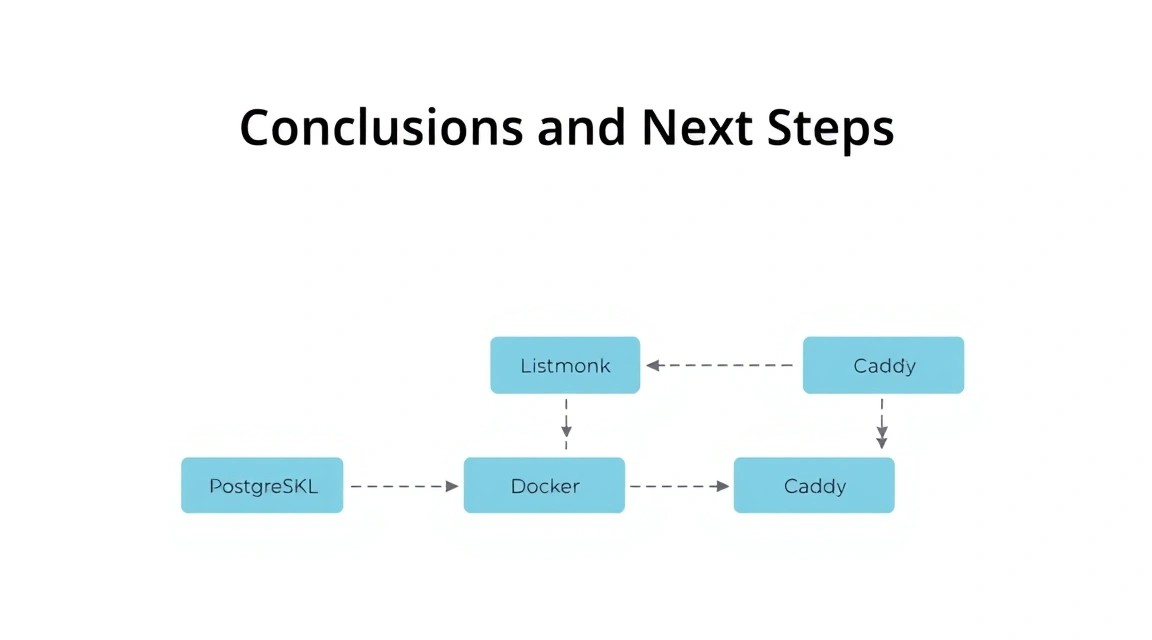
Conclusions and Next Steps

Diagram: Conclusions and Next Steps

Congratulations! You have successfully deployed Listmonk on your VPS server using Docker, PostgreSQL, and Caddy. You now have a powerful, fully controlled tool for managing email newsletters, which provides flexibility, privacy, and is free from the limitations inherent in many SaaS solutions.

This is a reliable and scalable solution, ready for production. You have gained full control over your infrastructure and data, which is a key advantage of the self-hosted approach.

Next Steps:

  • SMTP Provider Integration: Ensure your SMTP provider (SendGrid, Mailgun, Brevo, etc.) is configured and working correctly. You may need to set up SPF, DKIM, and DMARC records for your domain to improve email deliverability.
  • Email Template Creation: Develop attractive and responsive templates for your newsletters. Listmonk supports an HTML editor and template import.
  • Subscriber Import and Segmentation: Import existing subscribers and configure segments for more targeted mailings.
  • Monitoring Setup: Consider installing monitoring systems (e.g., Prometheus + Grafana) to track the status of your VPS, Docker containers, and Listmonk performance.
  • Scaling: As your subscriber base and mailing volume grow, consider increasing VPS resources or migrating to a dedicated server. PostgreSQL can be optimized for heavy loads.

Was this guide helpful?

Listmonk deployment on VPS: newsletter management with Docker, PostgreSQL, and Caddy
support_agent
Valebyte Support
Usually replies within minutes
Hi there!
Send us a message and we'll reply as soon as possible.