
Deploying Ollama and Open WebUI on a VPS: A Step-by-Step Guide to Creating a Private AI Chat
TL;DR
This guide describes the process of deploying a fully autonomous and private artificial intelligence ecosystem based on Ollama (a backend for running LLMs) and Open WebUI (a modern ChatGPT-style interface) on a virtual private server (VPS). This solution allows you to eliminate data transfer to third-party companies, bypass censorship restrictions of cloud models, and gain full control over your data and computing resources.
- Complete Privacy: Your queries and documents for RAG do not leave your server.
- Cost Savings: No monthly subscriptions (ChatGPT Plus, Claude Pro) when using your own resources.
- Flexibility: The ability to run any open models: Llama 3.x, Mistral, DeepSeek, Gemma, and specialized coding assistants.
- Integration: Out-of-the-box API compatibility with the OpenAI API for connecting third-party applications to your server.
- Scalability: Easy transition from CPU inference to full GPU utilization as the load increases.

1. What We Are Setting Up and Why: The Evolution of Self-hosted AI
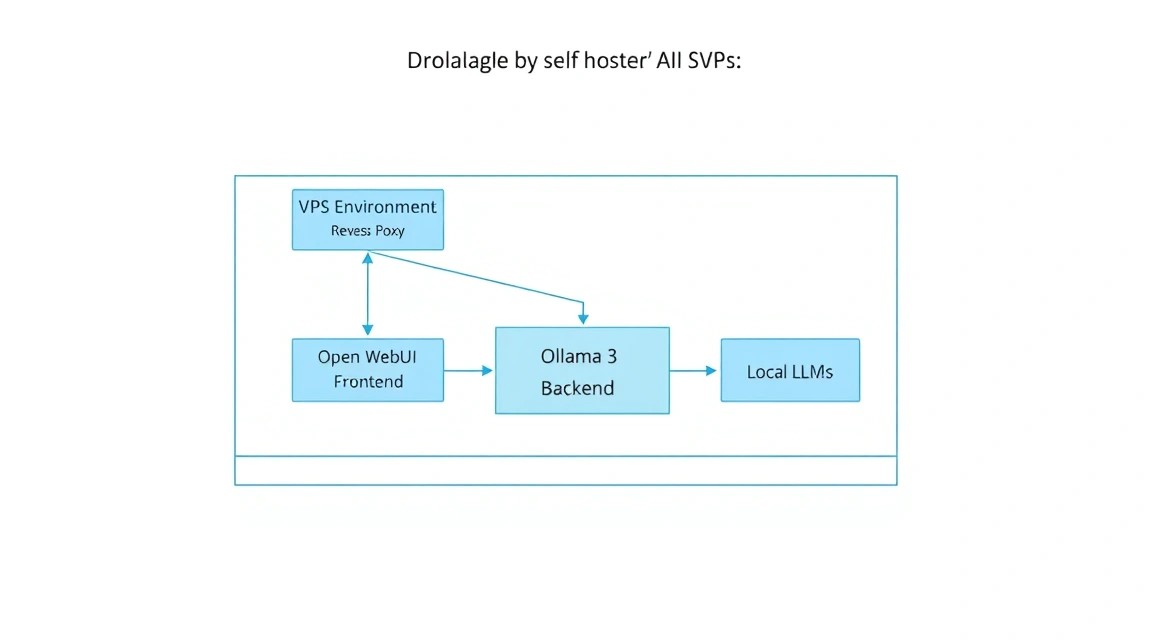
By 2026, the large language model (LLM) industry has split into two clear camps: proprietary cloud solutions (OpenAI, Anthropic, Google) and open models (Meta, Mistral AI, DeepSeek). Despite the convenience of the former, professional developers and companies are increasingly choosing the self-hosted path. The main reason is data sovereignty. When you use a cloud chat, every word you say becomes part of the training set or is stored in logs accessible to third parties.
We will use a combination of two powerful tools:
- Ollama: This is an efficient engine (inference server) that handles all the heavy lifting of loading model weights, managing memory, and performing computations. It is optimized to run on both GPUs and CPUs, using modern instruction sets (AVX-512, AMX).
- Open WebUI: Formerly known as Ollama WebUI, this is the most advanced interface for working with local models. It supports multimodality (image analysis), RAG (Retrieval Augmented Generation — chatting with your PDFs/documents), user management, and web search integration.
A self-hosted solution on a VPS gives you independence from API keys, limits on the number of messages per hour, and the "lobotomy" of models, where developers excessively restrict AI responses for safety reasons. Your server — your rules.
2. Which VPS Config is Needed for This Task: Resource Calculation
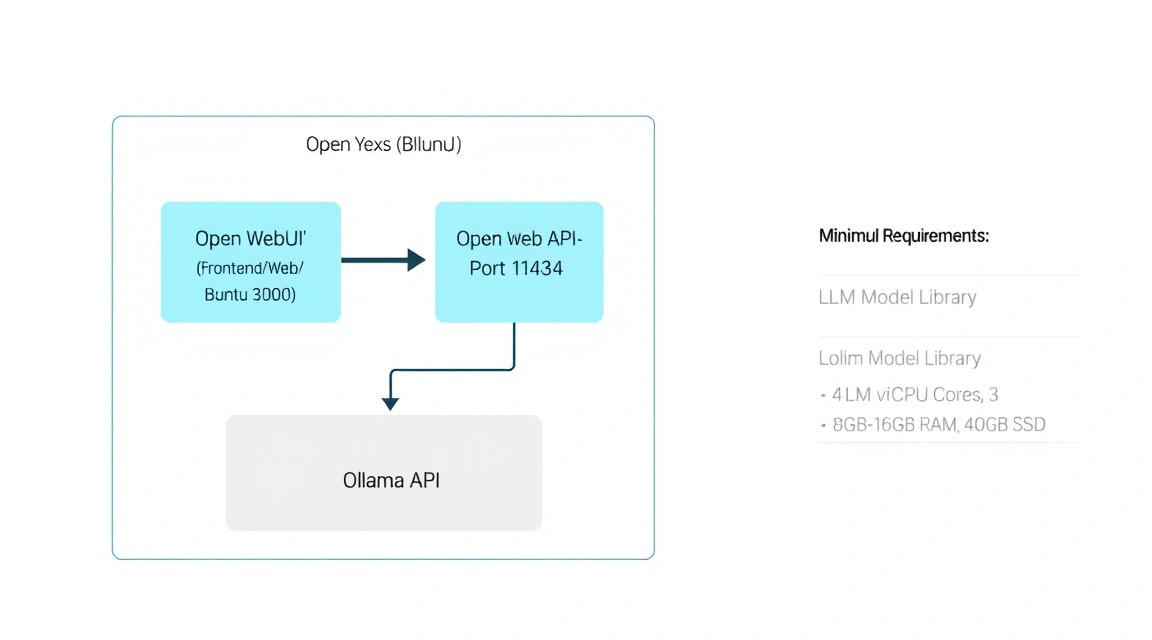
The choice of server specifications directly depends on which models you plan to run. In 2026, the standard for a "smart" chat is models with 7-14 billion parameters (7B-14B), quantized to 4 or 8 bits.
| Task Type | Model (example) | Minimum RAM | Recommended CPU | Disk (NVMe) |
|---|---|---|---|---|
| Light Chat / Code | Llama 3.2 3B / Phi-4 | 8 GB | 4 Cores | 40 GB |
| Universal AI | Llama 3.1 8B / Mistral 7B | 16 GB | 8 Cores | 80 GB |
| Complex Analytics | Gemma 2 27B / Command R | 32-48 GB | 12+ Cores | 160 GB |
| Enterprise / RAG | Llama 3.1 70B (Q4) | 64 GB+ | 16+ Cores | 300 GB |
It is important to understand the difference between CPU and GPU inference. On a standard VPS, you will be using the CPU. Thanks to the llama.cpp library, on which Ollama is based, the generation speed on modern server processors reaches 3-7 tokens per second for 8B models, which is quite comfortable for real-time human reading. If you need instantaneous generation or need to serve 10+ simultaneous users, you should consider a dedicated server with a GPU (NVIDIA A2000, A4000, or H100/L40).
For comfortable work with mid-level models (8B-14B), you can rent a suitable VPS with 16 GB of RAM and fast NVMe disks, as the speed of loading model weights into memory is critical for interface responsiveness.
Server Location: Since you will be transmitting and receiving significant amounts of text data, choose a location with minimal ping to you. However, for AI tasks, physical processor performance is more important than a network latency of 20-30 ms.
3. Server Preparation: Security and Basic Environment
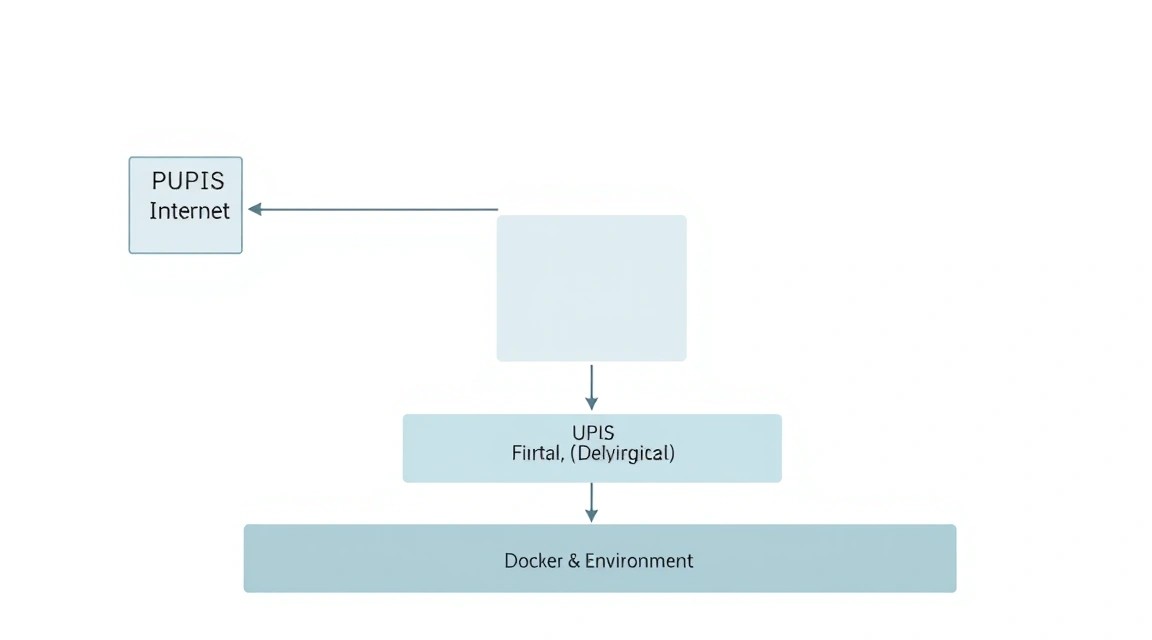
After gaining access to the server via SSH, the first step is to ensure its security. AI services consume a lot of resources, and you don't want your server to become part of a botnet.
# Update package list and the system
sudo apt update && sudo apt upgrade -y

# Create a new user with sudo privileges (replace 'aiuser' with your name)
adduser aiuser
usermod -aG sudo aiuser

# Configure SSH: disable password login and root login (optional but recommended)
# Before this, ensure you have added your SSH key to ~/.ssh/authorized_keys
# sudo nano /etc/ssh/sshd_config
# Change: PermitRootLogin no, PasswordAuthentication no
# sudo systemctl restart ssh
Firewall configuration (UFW). We will need ports 22 (SSH), 80 (HTTP), and 443 (HTTPS). We will keep the Ollama (11434) and Open WebUI (8080) ports closed to the outside world, as access to them will be handled through a reverse proxy.
sudo ufw allow 22/tcp
sudo ufw allow 80/tcp
sudo ufw allow 443/tcp
sudo ufw enable
Installing basic utilities that will be needed for resource monitoring and file management:
sudo apt install -y curl wget git htop fastfetch build-essential
4. Installing Docker and Docker Compose (2026 Versions)
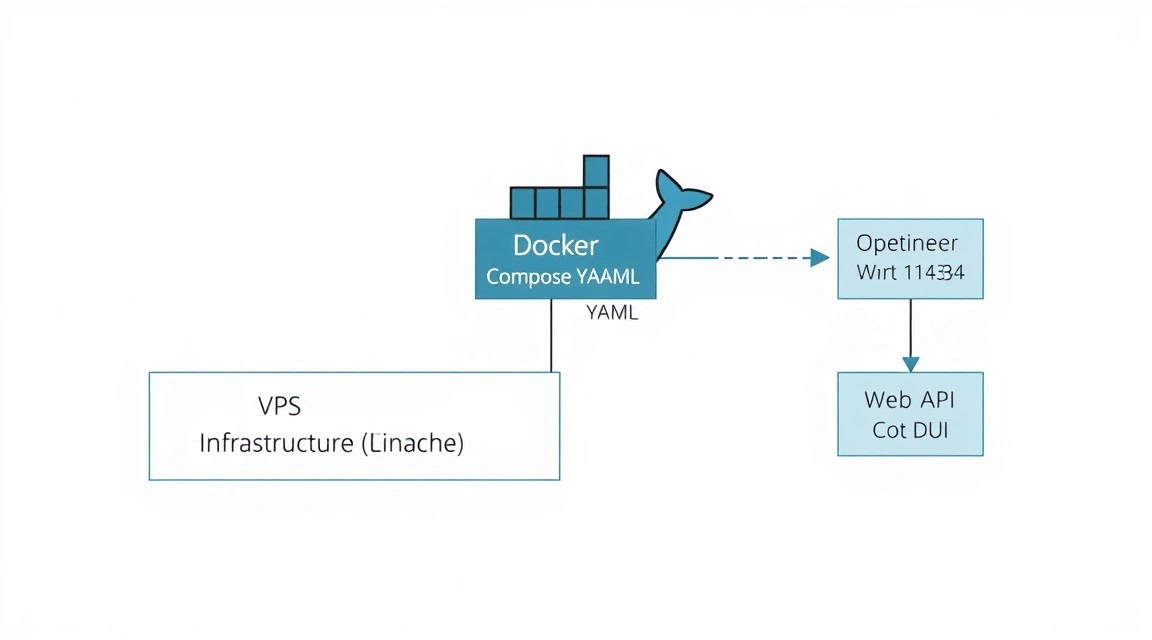
The best way to deploy Open WebUI is using containerization. This isolates dependencies and allows for easy system updates. In 2026, Docker Compose is a built-in part of the Docker CLI.
# Installing the official Docker repository
sudo apt install -y ca-certificates curl gnupg
sudo install -m 0755 -d /etc/apt/keyrings
curl -fsSL https://download.docker.com/linux/ubuntu/gpg | sudo gpg --dearmor -o /etc/apt/keyrings/docker.gpg
sudo chmod a+r /etc/apt/keyrings/docker.gpg

# Adding the repository to apt sources
echo \
  "deb [arch=$(dpkg --print-architecture) signed-by=/etc/apt/keyrings/docker.gpg] https://download.docker.com/linux/ubuntu \
  $(. /etc/os-release && echo "$VERSION_CODENAME") stable" | \
  sudo tee /etc/apt/sources.list.d/docker.list > /dev/null

sudo apt update
sudo apt install -y docker-ce docker-ce-cli containerd.io docker-buildx-plugin docker-compose-plugin

# Adding the user to the docker group to avoid using sudo constantly
sudo usermod -aG docker $USER
# IMPORTANT: Re-log into the SSH session for the permissions to update
5. Deploying Ollama: The Heart of Your AI Server
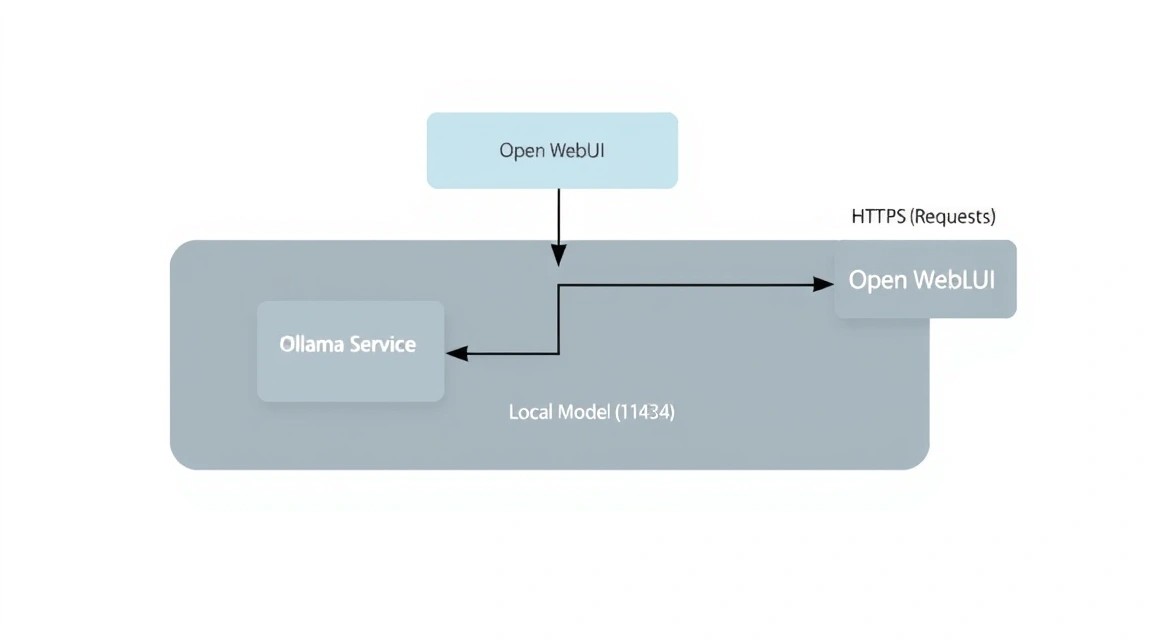
Ollama can be installed either natively or in Docker. For maximum performance on Linux, native installation is often recommended, as it has direct access to processor instructions without containerization layers.
# Native Ollama installation with a single command
curl -fsSL https://ollama.com/install.sh | sh
After installation, Ollama runs as a system service. Let's check its status:
sudo systemctl status ollama
Now let's download our first model. Llama 3.1 8B is an excellent choice to start with. It is balanced in terms of speed and response quality.
ollama run llama3.1:8b
Once the download is complete, you can chat with the model directly in the console. To exit, type /bye. The model will remain in the server's memory or will be loaded automatically upon the first API call.
Tip: If your server has limited RAM, use models with the :q4_k_m suffix (4-bit quantization); they consume almost half the memory with minimal loss in quality.
6. Installing Open WebUI: Interface and Functionality
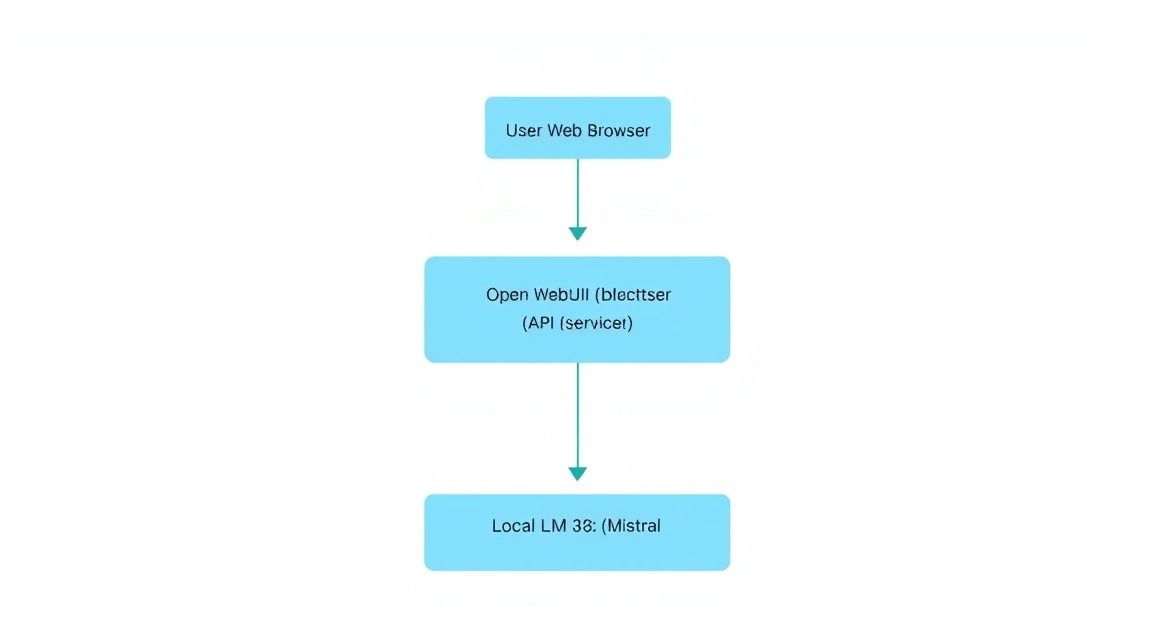
Open WebUI is more than just a chat; it is a full-fledged platform. We will deploy it using Docker Compose to link the interface with Ollama and ensure data storage in a persistent volume.
Let's create a working directory:
mkdir ~/ai-stack && cd ~/ai-stack
nano docker-compose.yaml
Insert the following content into the docker-compose.yaml file:
services:
  open-webui:
    image: ghcr.io/open-webui/open-webui:main
    container_name: open-webui
    restart: always
    ports:
      - "8080:8080"
    extra_hosts:
      - "host.docker.internal:host-gateway"
    environment:
      - 'OLLAMA_BASE_URL=http://host.docker.internal:11434'
      - 'WEBUI_SECRET_KEY=super_secret_key_change_me'
    volumes:
      - open-webui:/app/backend/data

volumes:
  open-webui:
Deploying the stack:
docker compose up -d
Now the interface is available at http://YOUR_SERVER_IP:8080. The first user to register will automatically become the administrator.
7. Network, SSL, and Security Configuration (Caddy/Nginx)
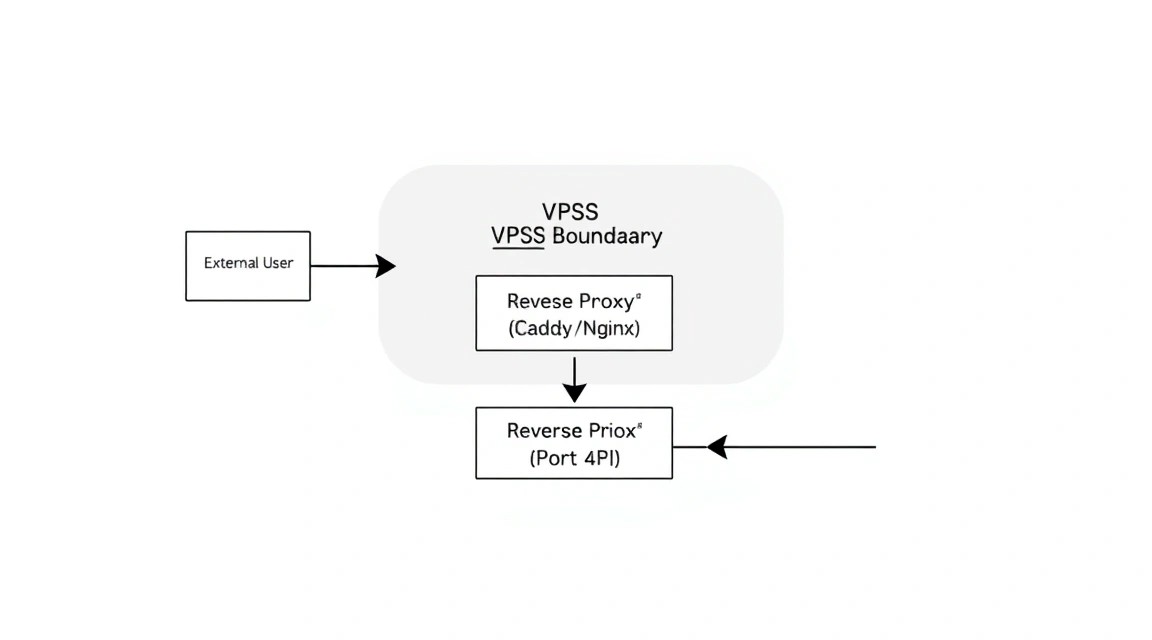
Opening port 8080 directly is a bad idea. We need HTTPS to protect traffic and a nice domain name. We will use Caddy, as it automatically obtains and renews SSL certificates from Let's Encrypt.
# Installing Caddy
sudo apt install -y debian-keyring debian-archive-keyring apt-transport-https
curl -1G 'https://dl.cloudsmith.io/public/caddy/stable/gpg.key' | sudo gpg --dearmor -o /usr/share/keyrings/caddy-stable-archive-keyring.gpg
curl -1G 'https://dl.cloudsmith.io/public/caddy/stable/debian.deb.txt' | sudo tee /etc/apt/sources.list.d/caddy-stable.list
sudo apt update
sudo apt install caddy
Configuring Caddy:
sudo nano /etc/caddy/Caddyfile
Add the following lines (replace ai.yourdomain.com with your actual domain):
ai.yourdomain.com {
    reverse_proxy localhost:8080

    header {
        # Clickjacking protection
        X-Frame-Options DENY
        # XSS protection
        X-XSS-Protection "1; mode=block"
        Strict-Transport-Security "max-age=31536000;"
    }
}
Restart Caddy:
sudo systemctl restart caddy
Now your private chat is available via the secure HTTPS protocol.
8. RAG Configuration and Working with Documents
One of the most powerful features of Open WebUI is RAG (Retrieval-Augmented Generation). This allows you to upload PDFs, text files, or provide links to websites so that the AI can answer questions based on that information.
In 2026, Open WebUI includes a vector database (ChromaDB or similar) by default. For RAG to work effectively on a VPS:
- Choosing an Embedding Model: Go to Admin Settings -> Documents. By default,
sentence-transformersis used, which works well on CPUs. - Uploading Documents: In the chat window, click the "+" icon or simply drag and drop a file.
- Usage: Type the
#symbol in the message box to select an uploaded document for context.
This turns your VPS into a personal knowledge base. You can upload project documentation, legal contracts, or textbooks and ask questions about their content without the risk of these documents leaking into public clouds.
9. Backups, Model Updates, and System Maintenance
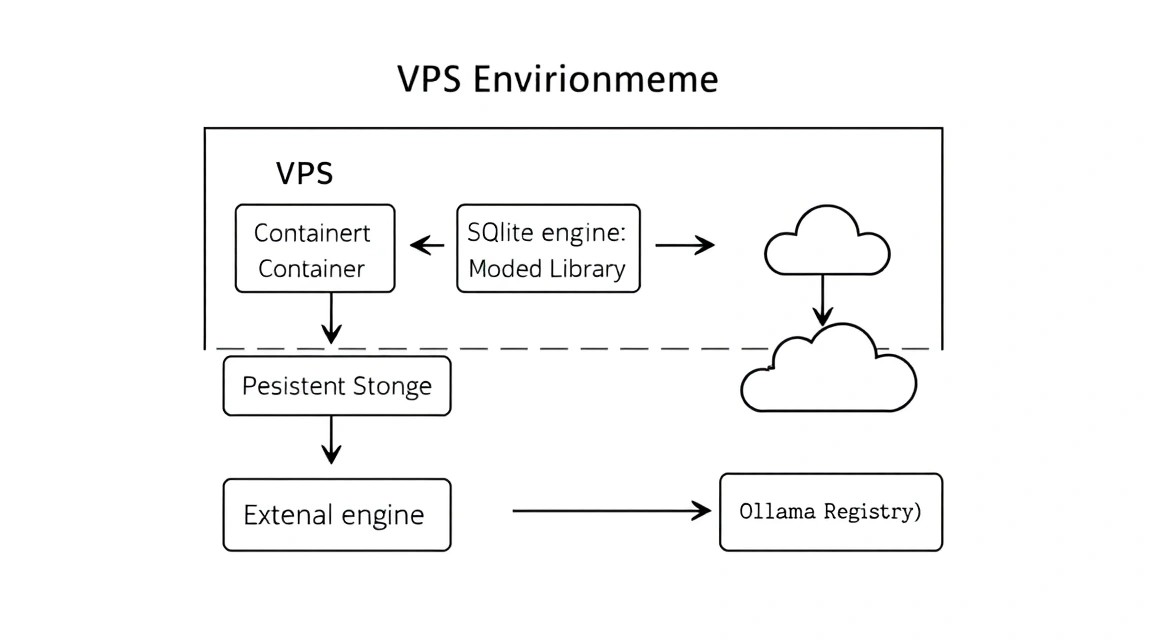
An AI server requires regular maintenance, as models and software are updated almost every week.
Updating Components
# Updating Ollama
curl -fsSL https://ollama.com/install.sh | sh

# Updating Open WebUI
cd ~/ai-stack
docker compose pull
docker compose up -d --remove-orphans
Backup Script
The most important part is the database of users and their chats. In Open WebUI, it is stored in a Docker volume. Let's create a simple backup script:
#!/bin/bash
BACKUP_DIR="/home/aiuser/backups"
TIMESTAMP=$(date +"%Y%m%d_%H%M%S")
mkdir -p $BACKUP_DIR

# Stopping the container for data consistency
docker stop open-webui

# Creating a data archive
tar -czf $BACKUP_DIR/webui_data_$TIMESTAMP.tar.gz -C /var/lib/docker/volumes/ai-stack_open-webui/_data .

# Starting the container
docker start open-webui

# Deleting backups older than 30 days
find $BACKUP_DIR -type f -mtime +30 -name "*.gz" -delete
Add this script to crontab -e to run daily at 3:00 AM.
10. Troubleshooting + FAQ: Solving Common Issues
Why is text generation very slow?
The main reason is a lack of RAM. If the model lacks RAM, the system starts using swap (disk paging), which slows down performance hundreds of times. Check memory consumption with the htop command. Also, make sure you are not running a model that exceeds the available RAM. For an 8B model, you need at least 8-10 GB of free memory.
"Connection refused" error when connecting WebUI to Ollama
Check if Ollama is listening on port 11434 on all interfaces. By default, it may only listen on 127.0.0.1. In Docker Compose, we used host.docker.internal, which is correct for container-to-host communication. Ensure that the environment variable OLLAMA_HOST=0.0.0.0 is set in the system if you are using a complex network configuration.
What is the minimum VPS configuration required?
To run the smallest models like Phi-3 or Llama 3.2 3B, 4-8 GB of RAM and 2-4 CPU cores are sufficient. However, for a full experience with models like Llama 3.1 8B, we strongly recommend 16 GB of RAM. This will provide a buffer for the OS, Docker, and context caching.
What to choose — VPS or dedicated for this task?
A VPS is ideal for personal use and experiments. If you plan to integrate AI into company business processes where the chat will be used by 20+ employees simultaneously, or if you need to train models (fine-tuning), you should definitely choose a dedicated server with a powerful multi-core processor or GPU.
How to restrict access to the chat?
In the Open WebUI settings (Admin Settings -> General), you can disable "New Signups". After you create accounts for yourself and your team, turn off registration so that outsiders cannot use your server's resources.
Can I use a GPU on a VPS?
Yes, if the provider offers GPU acceleration and device passthrough to the virtual machine. In this case, you will need to install nvidia-container-toolkit and add deploy.resources.reservations.devices to your docker-compose.yaml. Generation speed will increase by 10-50 times.
11. Conclusion and Next Steps: The Path to a Personal Agent
We have successfully deployed a fully private and functional artificial intelligence environment. Now you have your own ChatGPT alternative that is not subject to censorship, does not trade your data, and is available to you 24/7 at a fixed server rental price.
Where to go next?
- API Integration: Use your server address as a replacement for the OpenAI API in applications like Cursor or Obsidian.
- Custom Models: Try specialized models for programming (CodeLlama, DeepSeek-Coder) or medical/legal models.
- Automation: Set up integration with your calendar or email via the Open WebUI API, turning the chat into a full-fledged digital assistant.
Remember that the field of local LLMs is evolving rapidly. Keep an eye on updates for Ollama and Open WebUI, as new versions often bring significant speed optimizations, allowing you to run increasingly complex models on the same hardware.