
Setting up your own Shlink URL Shortener on a VPS with Docker
TL;DR
In this detailed guide, we will step-by-step set up your own Shlink URL shortening service on a Virtual Private Server (VPS) using Docker and Docker Compose. You will learn how to prepare the server, deploy Shlink along with a database and the Caddy web server for automatic TLS certificate acquisition, and how to ensure backup and maintenance of your installation.
- You will deploy Shlink – a powerful and flexible open-source URL shortener.
- You will use Docker and Docker Compose for easy service isolation and management.
- You will configure automatic HTTPS certificate acquisition with Caddy.
- You will gain full control over your shortened links and their analytics.
- You will master the basic principles of Docker application maintenance and backup.
- You will create a fault-tolerant and secure environment for your service.
What we are setting up and why
In an era where every character matters, and long, clumsy URLs can deter users and spoil the appearance of a message, link shortening services have become an indispensable tool. Shlink is a self-hosted, open-source solution that allows you to create your own, fully controlled URL shortening service. Unlike popular commercial counterparts such as Bitly or Rebrandly, Shlink provides you with complete freedom and data ownership, as well as the ability to use your own domains for link branding.
By the end of this guide, you will have a fully functional Shlink URL shortener deployed on your own VPS. This means you will be able to create short, memorable links that point to your domain (e.g., my.link/abc instead of long-and-ugly-url.com/some/path/to/resource). In addition to basic shortening, Shlink offers a rich set of features: detailed click analytics (number of clicks, geography, browsers, OS), QR code generation for each link, the ability to set passwords on links, click limits, and expiration dates, as well as a powerful API for integration with your other services. You can manage all these features through a convenient web interface or the command line.
Why self-hosted on a VPS, and not cloud-managed services? The choice in favor of your own VPS is due to several key advantages. Firstly, it's complete control over data. All information about your links and their analytics is stored on your server, not on third-party provider servers. This is critical for projects requiring increased confidentiality or compliance with strict regulatory requirements. Secondly, it's customization. You can configure Shlink to your needs, integrate it with other tools, use your own branded domain without the limitations often imposed by free tiers of cloud services. Thirdly, it's long-term savings. Although renting a VPS requires some initial investment and setup time, for high-load or long-term projects, it often turns out to be significantly cheaper than monthly subscriptions to commercial services, especially with a large volume of links or analytics. Finally, it's an excellent way to deepen your knowledge in server administration and working with Docker, which is a valuable skill for any developer or technical specialist.
Alternatives to Shlink include many commercial solutions such as Bitly, Rebrandly, Short.io, TinyURL, as well as other self-hosted options like Kutt or Polr. However, Shlink stands out for its maturity, active development, rich functionality, and Docker support, making it an ideal choice for deployment on a VPS.
What VPS configuration is needed for this task
For deploying Shlink with Docker and a database on a VPS, it's important to choose appropriate hardware resources. Shlink itself is quite lightweight, but Docker, the database (e.g., MariaDB or PostgreSQL), and the web server (Caddy) require a certain minimum.
Minimum requirements:
- CPU: 1 vCPU (virtual core). This will be sufficient for small projects and testing.
- RAM: 1 GB. This is an absolute minimum. Docker Engine, OS, and the database consume a significant portion of this memory, leaving little for Shlink itself. Problems may arise during peak loads or updates.
- Disk: 20 GB NVMe/SSD. NVMe or SSD are highly desirable for database performance. 20 GB will be enough for the OS, Docker images, Shlink data, and logs.
- Network: 100 Mbps with unlimited traffic or a large allowance (from 1 TB per month). Shlink is not a highly network-dependent service unless you expect millions of clicks per day.
Recommended VPS plan for most cases (relevant for 2026):
For comfortable operation and future scalability, as well as to ensure stability, the following configuration is recommended:
- CPU: 2 vCPU. Will ensure smooth operation of all components and allow processing more requests simultaneously.
- RAM: 2-4 GB. 2 GB will be sufficient for most medium projects, 4 GB will provide a large safety margin and allow running additional services if needed.
- Disk: 40-80 GB NVMe/SSD. A larger disk volume will provide space for database expansion, logs, and potential backups. NVMe will significantly speed up disk operations.
- Network: 1 Gbps with traffic from 5 TB per month. A gigabit port and sufficient traffic volume will ensure high download speed and request processing, even if your URL shortener becomes very popular.
Finding a VPS with the specified characteristics will not be difficult with most providers. For example, you can choose a VPS with 2 vCPU, 4 GB RAM, and an 80 GB NVMe disk, which will provide excellent performance and future headroom.
When a dedicated server is needed, not a VPS:
A dedicated server becomes necessary when your URL shortener starts handling very large volumes of traffic (tens or hundreds of millions of clicks per month), when maximum database performance is required, or if you plan to host many other resource-intensive applications on the same server. Dedicated servers also offer a higher level of isolation and often broader hardware customization options. For Shlink, this is usually not required unless you are building a global service with billions of redirects.
Location: what it affects
The choice of VPS location matters for several reasons:
- Latency: The closer the server is to your primary audience or to the servers that the shortened links will point to, the lower the latency during redirection. For a URL shortener, this is not critical, as the redirect itself happens very quickly, but for the overall responsiveness of the admin panel and API, it can be noticeable.
- Legislation: Depending on where the server is physically located, the laws of that country regarding data storage, privacy, etc., apply to it. Ensure that the chosen jurisdiction meets your requirements.
- Availability: Some regions may offer more stable and faster network connectivity, as well as better connectivity to different parts of the world.
It is usually recommended to choose a location that is geographically close to your target audience or to yourself to simplify management.
Server Preparation
After gaining access to your new VPS, the first step is to perform minimal setup to ensure security and ease of use. We will use the Ubuntu Server 24.04 LTS distribution (current version for 2026) as the most common and well-documented choice.
1. Connecting via SSH
Connect to the server as the root user (or the user provided by your hosting provider) via SSH. Replace
ssh root@
If you are using a password, the system will prompt for it. If you are using SSH keys, ensure your public key is added to the server.
2. System Update
Always start by updating the package list and installing them to the latest version. This will ensure you have all the latest security and stability fixes.
sudo apt update          # Update the list of available packages
sudo apt upgrade -y      # Install all available updates without confirmation
sudo apt autoremove -y   # Remove unnecessary packages
3. Creating a New User with Sudo Privileges
Working as the root user is unsafe. Create a new user and grant them sudo privileges.
sudo adduser shlinkuser                  # Create a new user named shlinkuser
sudo usermod -aG sudo shlinkuser         # Add user shlinkuser to the sudo group
After creating the user, set a strong password for them. Now you can log out of root and log in as the new user:
exit                                     # Log out of root
ssh shlinkuser@             # Log in as the new user
4. Setting up SSH Keys for the New User (Recommended)
To enhance security and convenience, set up SSH key-based login for shlinkuser. If you don't already have an SSH key on your local machine, create one:
ssh-keygen -t rsa -b 4096 -C "[email protected]" # Create a new SSH key (on your local machine)
Then, copy the public key to the server:
ssh-copy-id shlinkuser@ # Copy the public key to the server
Or manually add the content of the file ~/.ssh/id_rsa.pub (on your local machine) to the file ~/.ssh/authorized_keys on the server (for the shlinkuser user).
After this, you can disable password-based SSH login by editing the file /etc/ssh/sshd_config. Find the lines:
PasswordAuthentication yes
And change it to:
PasswordAuthentication no
It is also recommended to disable SSH login for the root user by changing:
PermitRootLogin yes
to:
PermitRootLogin no
After the changes, restart the SSH service:
sudo systemctl restart sshd
Important: Make sure you can log in with your SSH key before disabling password login! Otherwise, you might lose access to the server.
5. Installing and Configuring the UFW Firewall
The Uncomplicated Firewall (UFW) is easy to configure and significantly enhances server security by blocking unwanted incoming connections.
sudo apt install ufw -y                 # Install UFW
sudo ufw allow OpenSSH                  # Allow SSH connections (port 22)
sudo ufw allow http                     # Allow HTTP connections (port 80)
sudo ufw allow https                    # Allow HTTPS connections (port 443)
sudo ufw enable                         # Enable UFW
sudo ufw status                         # Check UFW status
The output of sudo ufw status should show that SSH, HTTP, and HTTPS are allowed.
6. Installing Fail2Ban
Fail2Ban scans server logs (e.g., SSH, web server) for suspicious activity (numerous failed login attempts) and temporarily or permanently blocks the IP addresses of attackers.
sudo apt install fail2ban -y            # Install Fail2Ban
sudo systemctl enable fail2ban          # Enable Fail2Ban autostart on system boot
sudo systemctl start fail2ban           # Start the Fail2Ban service
sudo cp /etc/fail2ban/jail.conf /etc/fail2ban/jail.local # Copy config for local changes
You can edit /etc/fail2ban/jail.local for fine-tuning, for example, to change bantime (block time) or findtime (period over which failed attempts are counted). By default, SSH is already protected.
Software Installation — Step-by-Step
Now that the server is prepared, let's proceed with installing the necessary software: Docker Engine and Docker Compose. We will use the current versions available in 2026.
1. Installing Docker Engine
Docker Engine is the core platform for running containers. We will install it from the official Docker repository to always have the latest versions.
# Update the package list and install apt dependencies
sudo apt update
sudo apt install ca-certificates curl gnupg lsb-release -y

# Add Docker's official GPG key
sudo install -m 0755 -d /etc/apt/keyrings
curl -fsSL https://download.docker.com/linux/ubuntu/gpg | sudo gpg --dearmor -o /etc/apt/keyrings/docker.gpg

# Add the Docker repository to sources.list
echo \
  "deb [arch="$(dpkg --print-architecture)" signed-by=/etc/apt/keyrings/docker.gpg] https://download.docker.com/linux/ubuntu \
  "$(. /etc/os-release && echo "$VERSION_CODENAME")" stable" | \
  sudo tee /etc/apt/sources.list.d/docker.list > /dev/null

# Update the apt package list after adding the Docker repository
sudo apt update

# Install Docker Engine, Docker CLI, and containerd.io
# Current versions for 2026: Docker Engine 26.x, Docker CLI 26.x
sudo apt install docker-ce docker-ce-cli containerd.io docker-buildx-plugin docker-compose-plugin -y

# Verify that Docker is installed and running
sudo systemctl status docker
The output of sudo systemctl status docker should show that Docker is active (active (running)).
2. Adding User to Docker Group
To avoid constantly using sudo when working with Docker, add your user to the docker group.
sudo usermod -aG docker shlinkuser       # Add shlinkuser to the docker group
newgrp docker                            # Activate changes for the current session
Now you can test your Docker installation without sudo:
docker run hello-world # Run the 'hello-world' test container
If you see a welcome message from Docker, then everything is configured correctly.
3. Creating a Directory for the Shlink Project
Let's create a directory where all Shlink project files will be stored.
mkdir ~/shlink-docker                    # Create the shlink-docker directory in the user's home directory
cd ~/shlink-docker                       # Navigate to the created directory
4. Downloading the Docker Compose File for Shlink
Shlink provides an official docker-compose.yml file that includes all necessary services: Shlink itself, a database (MariaDB by default), and the Caddy web server for reverse proxy and HTTPS. We will use it as a base.
As of 2026, official Shlink and Caddy images are actively maintained. Shlink version 4.x and Caddy version 2.x.
# Download the official docker-compose.yml file
curl -sL https://raw.githubusercontent.com/shlinkio/shlink-web-client/master/docker/docker-compose.yml -o docker-compose.yml

# Download the example .env file
curl -sL https://raw.githubusercontent.com/shlinkio/shlink-web-client/master/docker/.env.example -o .env

# Download the example Caddyfile
curl -sL https://raw.githubusercontent.com/shlinkio/shlink-web-client/master/docker/Caddyfile -o Caddyfile
Now you have three key files in the ~/shlink-docker directory: docker-compose.yml, .env, and Caddyfile. We will edit them in the next step.
Configuration
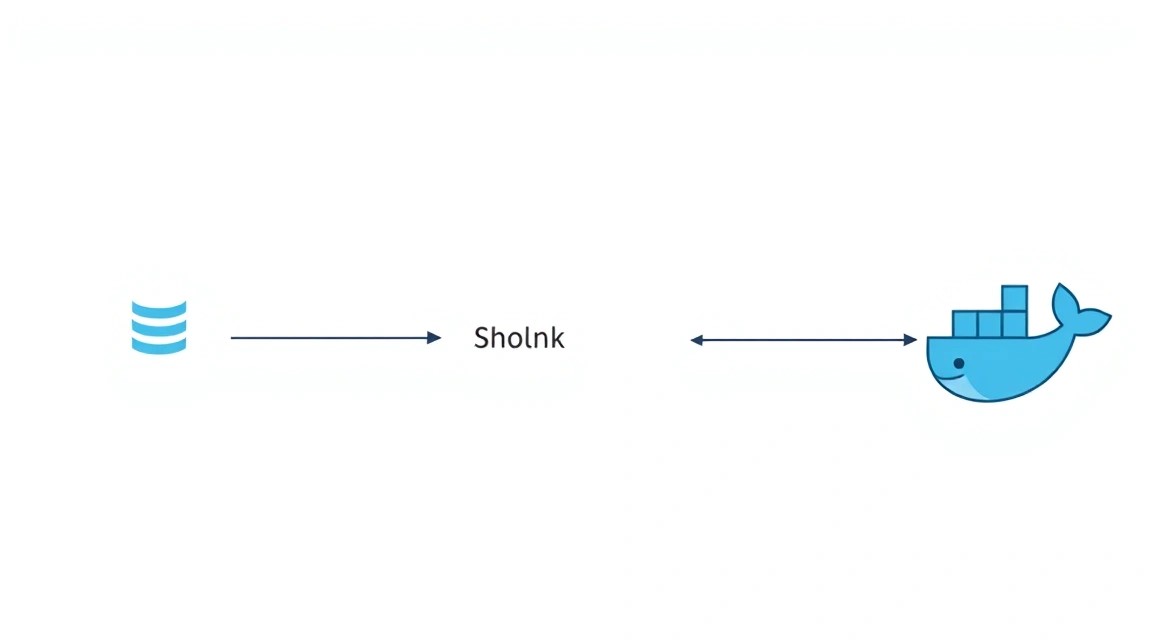
After downloading the base files, you need to configure them for your environment. This includes environment variables, database settings, Caddy web server configuration, and DNS records.
1. Configuring the .env file
The .env file contains environment variables used by Docker Compose to configure services. Edit it by replacing the placeholders with your values. Open the file for editing:
nano .env
Example .env content (be sure to change DB_ROOT_PASSWORD, DB_PASSWORD, DEFAULT_DOMAIN, and API_KEY):
# Database configuration
DB_DRIVER=mariadb
DB_HOST=db
DB_PORT=3306
DB_NAME=shlink
DB_USER=shlink
DB_PASSWORD=your_strong_db_password_here # Be sure to change!
DB_ROOT_PASSWORD=your_strong_db_root_password_here # Be sure to change!

# Shlink configuration
DEFAULT_DOMAIN=your-shlink-domain.com # Replace with your domain (e.g., s.example.com)
DEFAULT_BASE_URL=https://your-shlink-domain.com # Replace with your domain
DEFAULT_TITLE=My Custom Shlink
GEOLITE_LICENSE_KEY=your_geolite_license_key # Optional, for geo-analytics. Get from MaxMind.
API_KEY=your_shlink_api_key_here # Be sure to generate and change!
INITIAL_API_KEY=your_initial_api_key_for_first_login # Optional, for first admin login
SHLINK_WEB_CLIENT_URL=https://shlink-web.your-shlink-domain.com # URL for the web client, if deploying it separately
Explanations:
DB_PASSWORDandDB_ROOT_PASSWORD: It is very important to use unique and strong passwords.DEFAULT_DOMAIN: This is the domain that will be used for shortened links. For example, if you want links to look likes.example.com/xyz, then this should bes.example.com. Make sure this domain (or subdomain) points to your VPS's IP address.API_KEY: Generate a long, random key. It will be used for authentication when accessing the Shlink API and in the web client.GEOLITE_LICENSE_KEY: If you want to use geo-analytics, you need to obtain a free GeoLite2 license key from MaxMind (registration required). Without it, geo-analytics will not work.
2. Configuring the Caddyfile
Caddy will act as a reverse proxy, forwarding requests to Shlink and automatically managing HTTPS certificates via Let's Encrypt. Open the file for editing:
nano Caddyfile
Replace your-shlink-domain.com with your domain (the same as in .env).
{
  email [email protected] # Replace with your email for Let's Encrypt notifications
}

your-shlink-domain.com { # Replace with your domain (e.g., s.example.com)
  reverse_proxy shlink:8080
}

# If you are deploying the Shlink web client separately, add a section for it:
# shlink-web.your-shlink-domain.com { # Replace with your domain for the web client
#   root * /app/dist
#   file_server
#   try_files {path} {path}/ /index.html
# }
Explanations:
email [email protected]: Enter your active email address. Let's Encrypt will use it for certificate notifications.your-shlink-domain.com: This is the domain through which your Shlink will be accessible. Caddy will automatically obtain an HTTPS certificate for it.shlink:8080: This is the internal Shlink service name within Docker Compose and its port.- (Optional) If you are deploying the Shlink web client (
shlink-web-client) in the same Docker Compose, you may need a separate section for it, as shown in the commented example. In this guide, we focus on Shlink itself, and the web client can be connected later via API.
3. Configuring the docker-compose.yml file (if necessary)
Usually, the downloaded docker-compose.yml is suitable without changes, but it's worth checking. It defines three services:
db: Database (MariaDB).shlink: The Shlink service itself.caddy: Web server/reverse proxy.
Ensure that the image versions are up-to-date (e.g., shlinkio/shlink:4.0.0, mariadb:11.3, caddy:2.7-alpine for 2026). If you plan to use PostgreSQL, you will need to change the db image and the corresponding variables in .env.
# Example docker-compose.yml (abbreviated)
version: '3.8'

services:
  db:
    image: mariadb:11.3 # Current MariaDB version for 2026
    restart: unless-stopped
    env_file:
      - .env
    volumes:
      - shlink_db_data:/var/lib/mysql
    environment:
      MARIADB_ROOT_PASSWORD: ${DB_ROOT_PASSWORD}
      MARIADB_DATABASE: ${DB_NAME}
      MARIADB_USER: ${DB_USER}
      MARIADB_PASSWORD: ${DB_PASSWORD}

  shlink:
    image: shlinkio/shlink:4.0.0 # Current Shlink version for 2026
    restart: unless-stopped
    env_file:
      - .env
    ports:
      - "8080:8080" # Internal Shlink port
    depends_on:
      - db
    environment:
      DB_DRIVER: ${DB_DRIVER}
      DB_HOST: ${DB_HOST}
      DB_PORT: ${DB_PORT}
      DB_NAME: ${DB_NAME}
      DB_USER: ${DB_USER}
      DB_PASSWORD: ${DB_PASSWORD}
      DEFAULT_DOMAIN: ${DEFAULT_DOMAIN}
      DEFAULT_BASE_URL: ${DEFAULT_BASE_URL}
      DEFAULT_TITLE: ${DEFAULT_TITLE}
      GEOLITE_LICENSE_KEY: ${GEOLITE_LICENSE_KEY}
      API_KEY: ${API_KEY}
      INITIAL_API_KEY: ${INITIAL_API_KEY}

  caddy:
    image: caddy:2.7-alpine # Current Caddy version for 2026
    restart: unless-stopped
    ports:
      - "80:80"
      - "443:443"
    volumes:
      - ./Caddyfile:/etc/caddy/Caddyfile
      - shlink_caddy_data:/data
    depends_on:
      - shlink

volumes:
  shlink_db_data:
  shlink_caddy_data:
4. Configuring DNS records
Before launching Shlink, you need to ensure that your domain (or subdomain, e.g., s.example.com) points to your VPS's IP address. Go to your domain registrar's (or DNS provider's) control panel and create an A-record:
- Type: A
- Name/Host: your subdomain (e.g.,
sif the full domain iss.example.com) or@if you are using the main domain. - Value/IP address: Your VPS's IP address.
DNS record propagation can take from a few minutes to several hours. You can check the status using the dig command on your local machine:
dig +short your-shlink-domain.com
It should return your VPS's IP address.
5. Launching Shlink with Docker Compose
After all configurations, while in the ~/shlink-docker directory, start all services:
docker compose up -d # Start containers in detached mode
This will download the necessary Docker images (if not present locally), create containers, configure the network, and start the services. The first launch may take some time.
You can check the status of running containers with the command:
docker compose ps # Shows the status of running containers
All containers (db, shlink, caddy) should be in running status.
6. Verifying functionality
After launching, you need to ensure that Shlink is working correctly.
- Caddy Check: Open your domain (
https://your-shlink-domain.com) in your browser. You should see a message from Shlink saying "It works!" or the Shlink web client page if you have deployed it. If you see a certificate error, it's possible that DNS has not yet updated or there is an issue with the Caddyfile. - Shlink API Check: Make a request to the Shlink API to ensure it is responding. Replace
your-shlink-domain.comwith your domain.
curl -I https://your-shlink-domain.com/rest/v4/health
In the response, you should see an HTTP/2 200 status and a server: Caddy header, which indicates successful operation.
If everything is in order, your Shlink is ready to use! You can start shortening links via the API or through the official Shlink web client, by specifying your Shlink instance URL and API key.
Backups and Maintenance
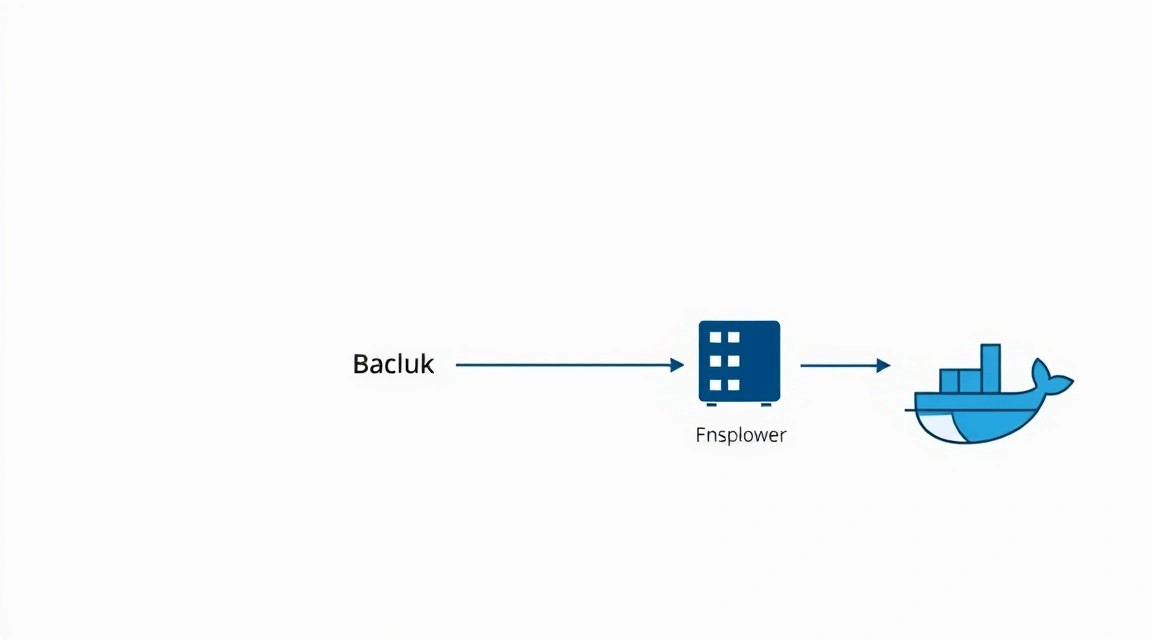
Setting up Shlink is just the first step. Regular backups and proper maintenance are crucial for ensuring the long-term stability and security of your URL shortener.
1. What to Back Up
The following components are critical for Shlink:
- Database: Contains all shortened links, click statistics, domains, and Shlink settings. This is the most important component.
- Configuration Files: Primarily
.envandCaddyfile. They define how your services operate. - Caddy Data: The
shlink_caddy_datadirectory (fromdocker-compose.yml) contains Let's Encrypt TLS certificates and other Caddy data. It's important to preserve it to avoid issues with re-obtaining certificates after restoration.
2. Simple Auto-Backup Script
We will create a simple script that will dump the database and archive important files. This script can be scheduled to run using cron.
Create the file backup_shlink.sh in the ~/shlink-docker directory:
nano ~/shlink-docker/backup_shlink.sh
Add the following content (replace your_strong_db_root_password_here with your actual password from .env):
#!/bin/bash

# Backup directory
BACKUP_DIR="/var/backups/shlink"
DATE=$(date +%Y-%m-%d_%H-%M-%S)
DB_CONTAINER_NAME="shlink-docker-db-1" # Database container name (check via docker ps)
DB_NAME="shlink"
DB_USER="root"
DB_ROOT_PASSWORD="your_strong_db_root_password_here" # Use DB_ROOT_PASSWORD from .env

# Create backup directory if it doesn't exist
mkdir -p "$BACKUP_DIR"

echo "Starting Shlink backup at $DATE..."

# 1. Database Backup
echo "Dumping database..."
docker exec "$DB_CONTAINER_NAME" mariadb-dump -u "$DB_USER" -p"$DB_ROOT_PASSWORD" "$DB_NAME" > "$BACKUP_DIR/$DB_NAME-$DATE.sql"
if [ $? -eq 0 ]; then
    echo "Database dump successfully created: $BACKUP_DIR/$DB_NAME-$DATE.sql"
else
    echo "Error creating database dump!"
fi

# 2. Archiving configuration files and Caddy data
echo "Archiving configuration files and Caddy data..."
tar -czvf "$BACKUP_DIR/shlink-config-caddy-data-$DATE.tar.gz" -C ~/shlink-docker .env Caddyfile shlink_caddy_data
if [ $? -eq 0 ]; then
    echo "Configuration and Caddy data archive successfully created: $BACKUP_DIR/shlink-config-caddy-data-$DATE.tar.gz"
else
    echo "Error creating configuration and Caddy data archive!"
fi

# 3. Deleting old backups (older than 7 days)
echo "Deleting old backups..."
find "$BACKUP_DIR" -type f -name "*.sql" -mtime +7 -delete
find "$BACKUP_DIR" -type f -name "*.tar.gz" -mtime +7 -delete
echo "Old backups deleted."

echo "Shlink backup completed."
Make the script executable:
chmod +x ~/shlink-docker/backup_shlink.sh
3. Setting up Cron for Automatic Backups
Add the script to cron for daily execution. For example, at 03:00 AM.
crontab -e
Add the following line to the end of the file:
0 3 * * * /home/shlinkuser/shlink-docker/backup_shlink.sh >> /var/log/shlink_backup.log 2>&1
This line runs the script every day at 3 AM and redirects its output to the log file /var/log/shlink_backup.log.
4. Where to Store Backups (External Storage)
Storing backups on the same server as the main service is risky. In case of a VPS disk failure, you will lose both the service and the backups. It is recommended to use external storage:
- Object Cloud Storage (S3-compatible): AWS S3, Backblaze B2, DigitalOcean Spaces, MinIO. These are reliable and scalable solutions. You can use utilities like
s3cmdorrcloneto automatically synchronize local backups with the cloud. - Separate VPS: If you have a second VPS, you can set up
rsyncorscpto copy backups to it. - Local NAS/Server: For personal use, you can copy backups to a home network-attached storage.
Example of adding rclone to send backups to S3-compatible storage:
# Install rclone
sudo apt install rclone -y

# Configure rclone (follow on-screen instructions, choose an S3-compatible provider)
rclone config

# Add a line to backup_shlink.sh script for synchronization after creating the archive:
# rclone sync "$BACKUP_DIR" "your_rclone_remote_name:your_bucket_name/shlink_backups"
5. Updates: rolling vs maintenance window
Regular updates are important for security and new features.
- OS Update: Run
sudo apt update && sudo apt upgrade -yevery few weeks or months. This may require a server reboot. - Docker Container Updates:
- Shlink: To update Shlink to a new version, you need to change the image tag in
docker-compose.yml(e.g., fromshlinkio/shlink:4.0.0toshlinkio/shlink:4.1.0). - Database and Caddy: Similarly, update the
mariadbandcaddyimage tags.
After changing
docker-compose.yml, execute:cd ~/shlink-docker docker compose pull # Downloads new image versions docker compose up -d # Recreates containers with new images docker compose prune # Removes old, unused imagesThis will result in a brief service downtime (a few seconds or minutes), so it's best to perform it during a "maintenance window" when traffic is minimal. Always make a backup before updating!
- Shlink: To update Shlink to a new version, you need to change the image tag in
Troubleshooting + FAQ
Various issues may arise during the installation and operation of Shlink. Here, we will cover the most common ones and provide recommendations for their resolution.
Why isn't my domain working or Caddy not getting a certificate?
This is one of the most common issues.
What to check:
- DNS Records: Ensure that the A-record for your domain (e.g.,
s.example.com) is correctly configured and points to your VPS's IP address. Usedig your-shlink-domain.comon your local machine to verify this. DNS propagation can take up to 24 hours, but usually happens faster. - Ports 80 and 443: Check that ports 80 (HTTP) and 443 (HTTPS) are open on your VPS. Caddy must be able to listen on these ports to obtain Let's Encrypt certificates. Use
sudo ufw statusorsudo ss -tulpn | grep -E ':(80|443)'. Ensure no other service is occupying these ports. - Caddyfile: Check the
Caddyfilesyntax for typos. Ensure that the domain in theCaddyfileexactly matches the one you are using. - Caddy Logs: Check the Caddy container logs for errors:
docker compose logs caddy. Look for error messages related to certificate acquisition.
How to fix: Correct the DNS record, open ports in the firewall, fix the Caddyfile, and restart Caddy: docker compose restart caddy.
Shlink is not shortening links or is throwing API errors.
If the Shlink web interface or API is not working correctly, the problem might be with Shlink's configuration or the database connection.
What to check:
- Shlink Logs: Check the Shlink container logs:
docker compose logs shlink. Look for errors related to database connection or application errors. .envfile: Ensure that all environment variables, especially those related to the database (DB_HOST,DB_USER,DB_PASSWORD,DB_NAME) and domain (DEFAULT_DOMAIN,API_KEY), are correctly configured and accurate.- Database Availability: Ensure that the database container (
db) is running and operational:docker compose ps. Try connecting to the database from within the Shlink container:docker exec -it shlink-docker-shlink-1 mariadb -u shlink -p(enter password).
How to fix: Correct errors in .env or docker-compose.yml, then restart the services: docker compose up -d --force-recreate shlink.
What is the minimum suitable VPS configuration?
For a minimal Shlink installation with Docker, a database, and Caddy, you will need a VPS with 1 vCPU, 1 GB RAM, and 20 GB NVMe/SSD disk. This will be sufficient for personal use or a small project with a moderate number of links and traffic. However, for more stable operation and growth potential, as well as comfortable operation of the OS and Docker services, it is recommended to have at least 2 vCPU and 2-4 GB RAM. An NVMe/SSD disk will significantly improve database performance. You might consider VPS options with 2 vCPU and 4 GB RAM, which will provide a good balance between cost and performance.
What to choose — VPS or dedicated for this task?
For most Shlink use cases, a VPS (Virtual Private Server) is the optimal choice. Shlink itself is not an extremely resource-intensive application, and modern VPS offerings provide sufficient performance, flexibility, and scalability at an affordable price. A VPS is ideal for individual developers, small teams, early-stage SaaS startups, and personal projects. A Dedicated server is only necessary in very specific cases: if you anticipate extremely high loads (tens of millions of clicks per day), if you require maximum I/O performance for the database, or if you plan to host many other resource-intensive applications on the same server that demand full isolation of hardware resources. In most cases, overpaying for a dedicated server for Shlink makes no sense.
How to update Shlink or other components?
Updating Docker Compose components involves changing the image tag in the docker-compose.yml file to a new version (e.g., from shlinkio/shlink:4.0.0 to shlinkio/shlink:4.1.0) and then executing the following commands:
docker compose pull                 # Downloads new image versions
docker compose up -d                # Recreates containers with new images
docker image prune                  # Removes old, unused images
Always create a full backup of the database and configuration files before updating. OS updates are performed via sudo apt update && sudo apt upgrade -y.
Can I use another web server instead of Caddy (e.g., Nginx)?
Yes, you can use Nginx or any other reverse proxy. To do this, you will need to manually configure Nginx to proxy requests to the Shlink container (usually on internal port 8080) and separately configure the acquisition and renewal of TLS certificates (e.g., using Certbot). Caddy was chosen in this guide due to its ease of configuration and automatic HTTPS management, which significantly simplifies the process for most users.
How to get a GeoLite2 License Key?
To obtain a GeoLite2 License Key, which Shlink uses for geo-analytics, you need to register on the MaxMind website. After registration, you can generate your key in the "My Account" -> "Manage License Keys" section. Insert this key into the GEOLITE_LICENSE_KEY variable in the .env file.
Conclusions and Next Steps
Congratulations! You have successfully set up and deployed your own Shlink URL shortener on your VPS using Docker. You now have a powerful link management tool that provides full control over your data, branding through your own domain, and detailed click analytics. This experience has not only provided you with a functional service but also strengthened your skills in working with Docker, Linux, and server administration.
Where to go next?
- Connecting the Shlink web client: Deploy the official Shlink web client (Shlink Web Client) in a separate Docker container or on another subdomain. This will provide you with a convenient graphical interface for managing links without needing to use the API or command line.
- Integration with other services: Use Shlink's powerful API to integrate link shortening into your own applications, CRM systems, or automation scripts.
- Monitoring and Logging: Set up more advanced monitoring for your VPS and Docker containers using tools like Prometheus/Grafana or ELK Stack to track performance and identify potential issues.
- Scaling: If your Shlink becomes very popular, consider scaling the database to a separate server or using a Docker Swarm/Kubernetes cluster to ensure high availability and handle large loads.