Installing Zabbix Server on a VPS: Comprehensive Monitoring and Alerting
TL;DR
In this detailed guide, we will step-by-step configure Zabbix Server version 7.0 LTS on the Ubuntu Server 24.04 LTS operating system, using PostgreSQL 16, Nginx, and PHP 8.3. You will learn how to install all necessary components, configure them for optimal operation, ensure security, and set up basic monitoring to obtain a powerful and flexible system for tracking the status of your servers and applications.
- Install Zabbix Server 7.0 LTS on Ubuntu Server 24.04 LTS.
- Configure PostgreSQL 16 database for Zabbix data storage.
- Deploy the Zabbix web interface using Nginx and PHP 8.3.
- Ensure basic server security using UFW and Fail2ban.
- Set up automatic backups of key Zabbix data.
- Address common problems and their solutions.
What we are configuring and why
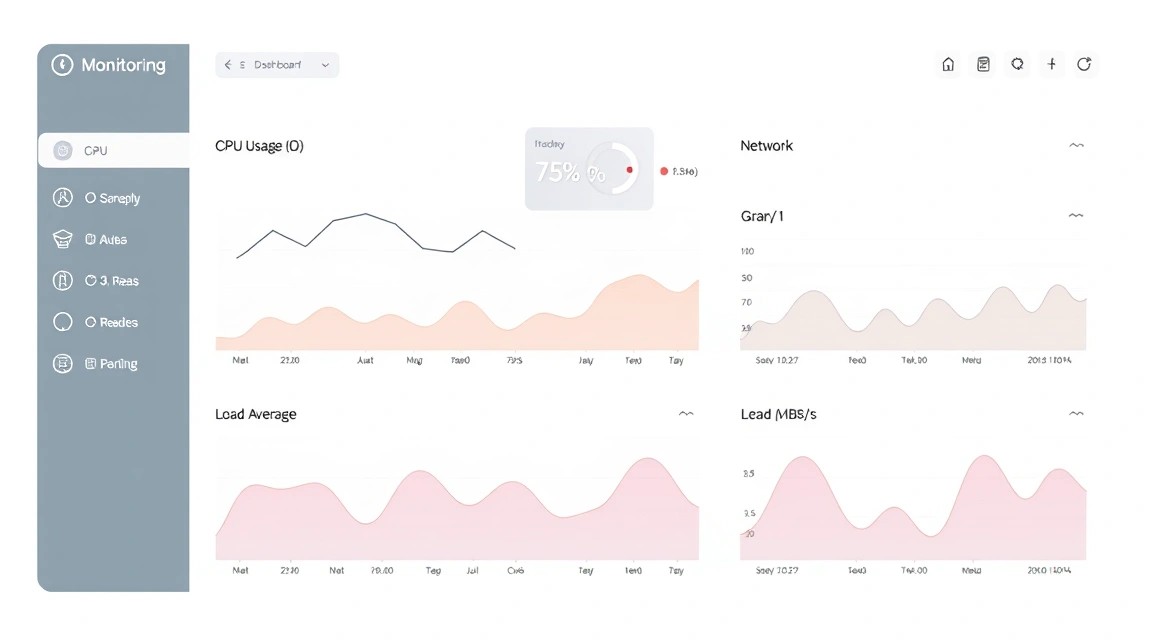
We will be installing Zabbix Server — a powerful, versatile, and completely free open-source monitoring system. Zabbix allows collecting data on the performance and availability of virtually any network devices, servers, virtual machines, cloud services, and applications. It can track thousands of different metrics, such as CPU load, memory usage, disk space, network traffic, process status, application logs, and much more.
Ultimately, the reader will get a fully functional monitoring system capable of collecting data, visualizing it on dashboards, analyzing trends, and most importantly, generating alerts when parameters exceed predefined thresholds. This will allow for prompt reaction to problems before they affect end-users and help maintain a high level of availability for your services.
There are various approaches to monitoring. Cloud-managed solutions (e.g., AWS CloudWatch, Google Cloud Monitoring, Datadog) can be used, offering convenience and scalability for a subscription fee. However, deploying Zabbix on your own VPS or dedicated server has several advantages:
- Full Control: You have complete control over data, configuration, and security.
- Cost Savings: No monthly monitoring fees; only the server itself is paid for.
- Flexibility: Ability for deep customization to meet the specific needs of your infrastructure.
- Privacy: Your monitoring data does not leave your infrastructure, which is critical for some projects.
Thus, Zabbix on a VPS is an ideal solution for those seeking a powerful, flexible, and cost-effective monitoring tool with full control over their data.
What VPS configuration is needed for this task

The choice of VPS configuration for Zabbix Server depends on the scale of monitoring. The more devices, data items, and triggers you plan to track, the more powerful the server should be. Zabbix is quite resource-intensive, especially its database, so it's not advisable to skimp on resources.
Minimum requirements for Zabbix Server (for small infrastructures, up to 50 devices):
- CPU: 2 vCPU. Zabbix Server actively uses the processor for data processing and checks.
- RAM: 4 GB. RAM is critical for the database (PostgreSQL or MySQL) and Zabbix Server processes.
- Disk: 80 GB SSD. SSD significantly speeds up database operations, which is important for Zabbix performance. The volume depends on the depth of historical data storage.
- Network: 100 Mbps or 1 Gbps. For data transfer from agents and access to the web interface.
Recommended VPS plan for medium tasks (up to 200 devices, several thousand metrics):
For more serious tasks requiring monitoring of up to 200 devices with frequent data collection, more powerful resources are needed. For example, you can opt for a VPS with 4 vCPU, 8 GB RAM, and 200 GB SSD. This will ensure stable Zabbix operation, allow storing more historical information, and processing more requests without delays. Make sure your provider offers a stable and fast SSD (NVMe is preferable) and sufficient network bandwidth.
When a dedicated server is needed, not a VPS
A dedicated server becomes preferable when:
- Very large infrastructure: Monitoring hundreds or thousands of devices, collecting millions of metrics per minute.
- Long-term data storage: The need to store years of historical data, requiring terabytes of disk space.
- High database performance: A VPS might have IOPS limitations, which is critical for high-load Zabbix databases. A dedicated server provides guaranteed disk subsystem performance.
- Isolation requirements: Complete physical isolation from other provider clients.
For most tasks, especially at the initial stage, a powerful VPS will suffice, but as the infrastructure grows, it's worth considering a transition to a dedicated server.
Location: what it affects
The choice of VPS location is also important:
- Latency: Place the Zabbix Server as close as possible to the monitored objects (agents) to minimize data collection delays. High latency can lead to false trigger activations or missed metric collections.
- Geographical distribution: If your infrastructure is distributed across different continents, consider deploying multiple Zabbix Proxies in regions to collect data and then forward it to the central Zabbix Server.
- Legislation: Consider data retention laws in the chosen location if this is critical for your project.
Server preparation
Before installing Zabbix, it is necessary to perform basic security configuration and update the operating system. We will be using Ubuntu Server 24.04 LTS.
1. SSH Connection and User Creation
Connect to your VPS via SSH as the root user or the user provided by your hosting provider. Then, create a new user with limited privileges for daily work and add them to the sudo group.
# Создаем нового пользователя (замените 'youruser' на желаемое имя)
sudo adduser youruser

# Добавляем пользователя в группу sudo
sudo usermod -aG sudo youruser

# Переключаемся на нового пользователя
su - youruser
Going forward, all commands will be executed as this user using sudo.
2. System Update
Always start by updating the package list and the system itself to ensure you have the latest versions of all components and security fixes installed.
# Обновляем список пакетов
sudo apt update

# Обновляем установленные пакеты
sudo apt upgrade -y

# Перезагружаем сервер, если требуется обновление ядра
sudo reboot
After rebooting, reconnect via SSH.
3. Firewall Configuration (UFW)
Enable Uncomplicated Firewall (UFW) and allow only the necessary ports. For Zabbix, we will need SSH (port 22), HTTP (port 80), and HTTPS (port 443), as well as the Zabbix Server port (10051) and Zabbix Agent port (10050) for interaction with the server itself and agents.
# Разрешаем SSH (порт 22)
sudo ufw allow ssh

# Разрешаем HTTP (порт 80)
sudo ufw allow http

# Разрешаем HTTPS (порт 443)
sudo ufw allow https

# Разрешаем порт Zabbix Server (для входящих соединений от агентов/прокси)
sudo ufw allow 10051/tcp

# Разрешаем порт Zabbix Agent (если Zabbix Agent будет установлен на этом же сервере и мониторить его)
sudo ufw allow 10050/tcp

# Включаем UFW
sudo ufw enable
Confirm firewall activation by typing y. You can check the UFW status with the command sudo ufw status.
4. Install Fail2ban
Fail2ban helps protect the server from brute-force attacks by blocking IP addresses that make too many failed login attempts.
# Устанавливаем Fail2ban
sudo apt install fail2ban -y

# Включаем и запускаем сервис Fail2ban
sudo systemctl enable fail2ban
sudo systemctl start fail2ban
Fail2ban is configured by default to protect SSH. You can add additional rules if needed.
5. Install Basic Utilities
Install several useful utilities that will come in handy during setup and administration.
# Устанавливаем curl, wget, git, htop, nano
sudo apt install curl wget git htop nano -y
Software Installation — Step-by-step
Software Installation — Step-by-step
In this section, we will install all the necessary components for Zabbix Server 7.0 LTS to work: PostgreSQL 16 database server, Nginx web server, PHP 8.3, and Zabbix Server itself.
1. Installing PostgreSQL Server 16
Zabbix can use various databases, but PostgreSQL is an excellent choice for performance and reliability. Ubuntu 24.04 LTS comes with PostgreSQL 16.
# Install PostgreSQL 16 and additional modules
sudo apt install postgresql postgresql-contrib -y

# Check PostgreSQL service status
sudo systemctl status postgresql
Ensure that the service is running and active.
2. Creating Zabbix Database and User
Let's create a new PostgreSQL database and user specifically for Zabbix, and set a password for this user. Use a strong password!
# Switch to postgres user to work with the DB
sudo -u postgres psql

# Create zabbix database
CREATE DATABASE zabbix ENCODING 'UTF8' LC_COLLATE 'en_US.UTF-8' LC_CTYPE 'en_US.UTF-8' TEMPLATE template0;

# Create zabbix user and set password (replace 'your_db_password' with a strong password)
CREATE USER zabbix WITH PASSWORD 'your_db_password';

# Grant all privileges to zabbix user for zabbix database
GRANT ALL PRIVILEGES ON DATABASE zabbix TO zabbix;

# Exit psql
\q
3. Installing Zabbix Server 7.0 LTS
Let's add the official Zabbix repository for Ubuntu 24.04 and install the necessary packages.
# Download and install Zabbix 7.0 LTS repository for Ubuntu 24.04
wget https://repo.zabbix.com/zabbix/7.0/ubuntu/pool/main/z/zabbix-release/zabbix-release_7.0-1+ubuntu24.04_all.deb
sudo dpkg -i zabbix-release_7.0-1+ubuntu24.04_all.deb

# Update package list after adding the repository
sudo apt update

# Install Zabbix Server with PostgreSQL support, Zabbix Frontend with Nginx, and Zabbix Agent
sudo apt install zabbix-server-pgsql zabbix-frontend-php zabbix-nginx-conf zabbix-agent -y
This command will install Zabbix Server, the web interface, Nginx configuration for Zabbix, and Zabbix Agent (which will monitor the Zabbix server itself).
4. Importing Initial Database Schema
Now it is necessary to import the initial Zabbix schema and data into the created database. When prompted for a password, enter the password for the zabbix user that you set earlier.
# Import schema and data (password for zabbix user will be prompted)
sudo -u zabbix psql -h localhost zabbix < /usr/share/zabbix-sql-scripts/postgresql/server.sql
If the command executes without errors, the Zabbix database schema will be successfully imported.
5. Configuring PHP for Zabbix Frontend
Zabbix Frontend requires specific PHP settings. By default, Zabbix-Nginx-Conf installs PHP-FPM, but we need to ensure that all parameters meet the requirements.
# Open PHP-FPM configuration file (for PHP 8.3)
sudo nano /etc/php/8.3/fpm/php.ini
Find and modify (or add, if missing) the following parameters:
max_execution_time = 300
max_input_time = 300
memory_limit = 256M
post_max_size = 16M
upload_max_filesize = 16M
date.timezone = Europe/Moscow ; Replace with your timezone
Save changes (Ctrl+O, Enter, Ctrl+X).
6. Configuring Nginx
The zabbix-nginx-conf package has already provided a configuration file for Nginx. It is usually located in /etc/nginx/conf.d/zabbix.conf or /etc/nginx/sites-available/zabbix.conf. Ensure that Nginx is configured to listen on the correct PHP-FPM port.
# Check Nginx configuration file for Zabbix
sudo nano /etc/nginx/conf.d/zabbix.conf
Ensure that the location ~ \.php$ section points to the correct PHP-FPM socket (for PHP 8.3, this is usually /run/php/php8.3-fpm.sock):
# Example zabbix.conf content (ensure fastcgi_pass matches your PHP version)
server {
    listen 80;
    server_name your_domain_or_ip; # Replace with your VPS IP or domain name

    root /usr/share/zabbix;
    index index.php;

    location / {
        try_files $uri $uri/ =404;
    }

    location ~ /\.ht {
        deny all;
    }

    location ~ \.php$ {
        fastcgi_pass unix:/run/php/php8.3-fpm.sock; # Ensure this matches your PHP-FPM version
        fastcgi_index index.php;
        fastcgi_param SCRIPT_FILENAME $document_root$fastcgi_script_name;
        include fastcgi_params;
        fastcgi_buffers 16 16k;
        fastcgi_buffer_size 32k;
    }
}
Save changes if any were made.