
Встановлення та налаштування Stirling-PDF на VPS: Повний посібник з self-hosted керування PDF з OCR
TL;DR
Stirling-PDF — це потужний, конфіденційний і повністю безкоштовний self-hosted інструмент для роботи з PDF, який замінює платні хмарні сервіси на кшталт Adobe Acrobat або SmallPDF. У цьому посібнику ми розгорнемо Stirling-PDF на VPS під керуванням Ubuntu 24.04/26.04 з використанням Docker, налаштуємо автоматичне розпізнавання тексту (OCR), забезпечимо безпеку через реверс-проксі Caddy з автоматичним SSL та створимо систему резервного копіювання.
- Стек: Docker, Docker Compose, Caddy (HTTPS), Tesseract OCR.
- Результат: Власний веб-сервіс для редагування, злиття, розділення та захисту PDF без обмежень на розмір файлів.
- Безпека: Повна ізоляція даних — ваші документи ніколи не залишають ваш сервер.
- Підтримка: Розпізнавання тексту на 100+ мовах, включно з російською.
- Термін реалізації: 30-40 хвилин.
1. Що таке Stirling-PDF і навіщо він потрібен на власному сервері
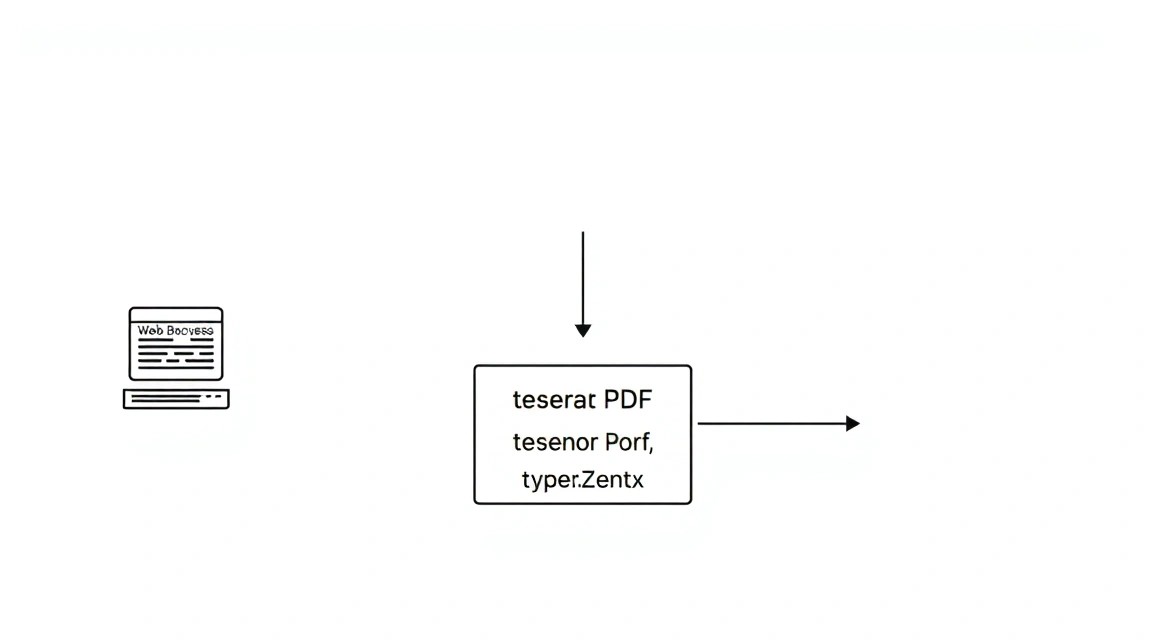
До 2026 року питання приватності даних стало критичним. Щоразу, коли ви завантажуєте документ на безкоштовний онлайн-сервіс для "швидкого об'єднання PDF", ви передаєте свої персональні дані, фінансові звіти або корпоративні секрети третім особам. Stirling-PDF — це open-source рішення, яке переносить функціонал професійних PDF-редакторів у ваш браузер, працюючи при цьому виключно на вашому обладнанні.
На відміну від десктопних застосунків, Stirling-PDF доступний з будь-якого пристрою: смартфона, планшета або ноутбука. На відміну від SaaS-рішень, тут немає підписок, лімітів на кількість сторінок або "преміум-функцій". Ви отримуєте повний контроль над процесом обробки.
Ключові можливості:
- Об'єднання, розділення, поворот та видалення сторінок.
- Стиснення PDF з вибором алгоритмів оптимізації.
- Додавання водяних знаків, підписів та штампів.
- Перетворення PDF у формати Word, Excel, PowerPoint, HTML і навпаки.
- OCR (Optical Character Recognition): перетворення сканів у текстові документи з можливістю пошуку.
- Видалення паролів та встановлення нових (AES-256).
- Інструменти для організації сторінок: зміна порядку, нумерація, обрізка.
Self-hosting на VPS дає вам незалежність від санкцій провайдерів, стабільну швидкість обробки (що залежить лише від ресурсів вашого сервера) та впевненість у тому, що ваші файли не використовуються для навчання нейромереж без вашої згоди.
2. Який VPS-конфіг потрібен для цього завдання
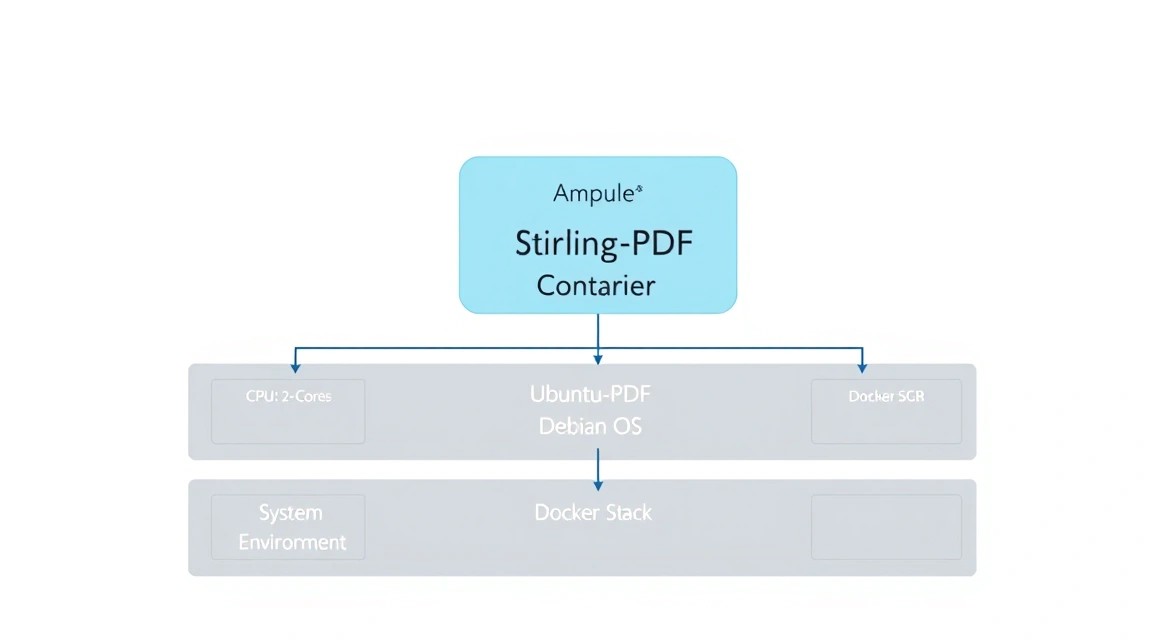
Stirling-PDF — це Java-застосунок (Spring Boot), який активно використовує зовнішні бібліотеки, такі як LibreOffice та Tesseract OCR. Ці компоненти вимогливі до ресурсів, особливо під час конвертації об'ємних файлів або розпізнавання тексту у високій роздільній здатності.
| Характеристика | Мінімум (1-2 користувачі) | Рекомендовано (Команда/SaaS) |
|---|---|---|
| vCPU | 2 ядра (Intel/AMD) | 4-8 ядер (High Performance) |
| RAM | 4 ГБ | 8-16 ГБ |
| Диск | 20 ГБ SSD/NVMe | 100+ ГБ NVMe |
| ОС | Ubuntu 24.04 LTS | Ubuntu 24.04 / Debian 13 |
Для стабільної роботи OCR, особливо якщо ви плануєте обробляти документи об'ємом понад 100 сторінок, критично важливий обсяг оперативної пам'яті. Java-процес може споживати значні ресурси під час пікових навантажень. Для комфортної роботи без затримок можна взяти відповідний VPS з 4 або 8 ГБ оперативної пам'яті — це забезпечить плавну роботу інтерфейсу та швидку обробку черг завдань.
Коли варто обрати Dedicated сервер? Якщо ваше завдання — автоматизована обробка тисяч документів на день через API Stirling-PDF, або якщо ви будуєте внутрішній корпоративний сервіс для штату в 50+ співробітників. В інших випадках сучасного VPS буде більш ніж достатньо.
Локація: Вибирайте сервер максимально близько до вас або вашої цільової аудиторії. Незважаючи на те, що PDF-обробка відбувається на бекенді, затримка (latency) впливає на швидкість завантаження та завантаження великих файлів.
3. Підготовка сервера: базове зміцнення та утиліти
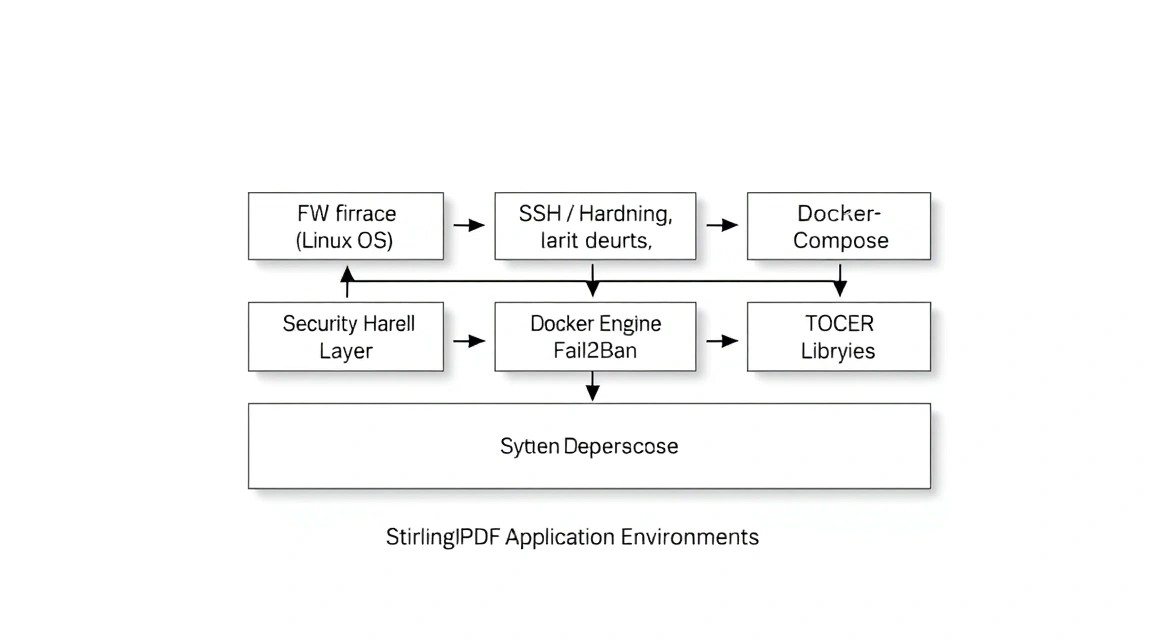
Перш ніж встановлювати сам застосунок, необхідно підготувати середовище. Ми будемо використовувати Ubuntu 24.04, але інструкції застосовні і до новіших версій 2026 року.
Насамперед оновимо пакети та встановимо базовий набір інструментів:
sudo apt update && sudo apt upgrade -y
sudo apt install -y curl wget git htop ufw fail2ban
Налаштування безпеки — важливий етап. Ми закриємо всі порти, крім SSH та стандартних веб-портів:
# Дозволяємо SSH (переконайтеся, що у вас є доступ!)
sudo ufw allow 22/tcp
# Дозволяємо HTTP та HTTPS
sudo ufw allow 80/tcp
sudo ufw allow 443/tcp
# Вмикаємо брандмауер
sudo ufw enable
Для запобігання брутфорс-атакам на SSH налаштуємо fail2ban. Створимо локальний конфіг:
sudo cp /etc/fail2ban/jail.conf /etc/fail2ban/jail.local
sudo systemctl enable fail2ban
sudo systemctl start fail2ban
Рекомендується також створити окремого користувача з правами sudo, щоб не працювати під root постійно:
adduser pdfadmin
usermod -aG sudo pdfadmin
# Перемикаємося на нового користувача
su - pdfadmin
4. Встановлення Docker та Docker Compose (актуально на 2026 рік)
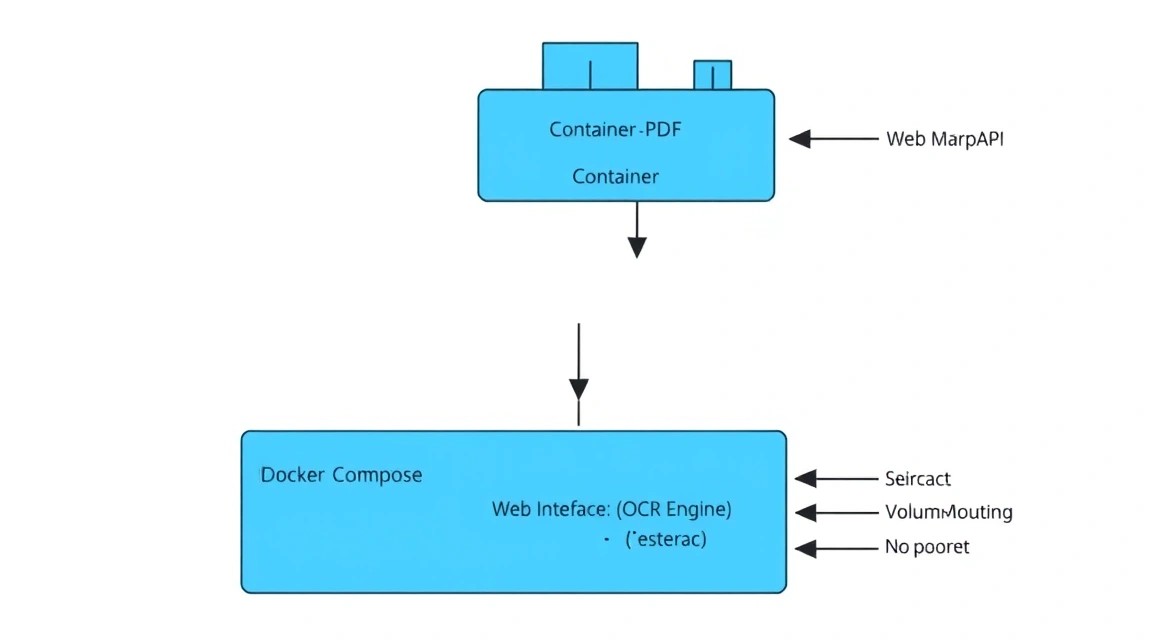
Stirling-PDF офіційно постачається у вигляді Docker-образу. Це ідеальний спосіб встановлення, оскільки він включає всі залежності (Python, LibreOffice, Java, Tesseract) в ізольованому контейнері, не "засмічуючи" основну систему.
Встановимо Docker через офіційний скрипт:
curl -fsSL https://get.docker.com -o get-docker.sh
sudo sh get-docker.sh
Додамо нашого користувача до групи docker, щоб запускати контейнери без sudo:
sudo usermod -aG docker $USER
# Застосуйте зміни груп (або перезайдіть в SSH)
newgrp docker
Перевіримо встановлення:
docker compose version
docker --version
У 2026 році Docker Compose є вбудованою частиною команди docker (плагін compose), тому окрема установка docker-compose більше не потрібна.
5. Розгортання Stirling-PDF: покрокова інструкція
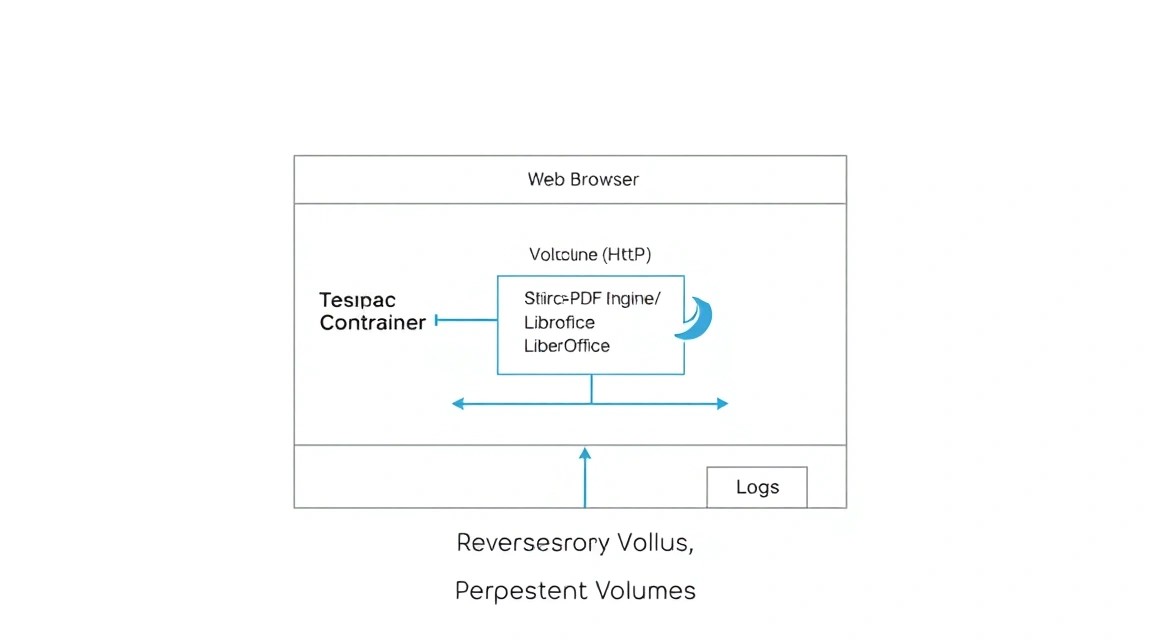
Ми будемо використовувати Stirling-PDF-Ultra — це найбільш повна версія образу, що включає всі OCR-мови та додаткові інструменти. Створимо робочу директорію:
mkdir -p ~/stirling-pdf/configs ~/stirling-pdf/logs
cd ~/stirling-pdf
Створимо файл docker-compose.yml. У цьому файлі ми опишемо параметри запуску застосунку:
nano docker-compose.yml
Вставте наступний вміст:
services:
  stirling-pdf:
    image: frooodle/s-pdf:latest-ultra
    container_name: stirling-pdf
    restart: always
    ports:
      - "8080:8080"
    environment:
      - DOCKER_ENABLE_SECURITY=true
      - INSTALL_BOOK_AND_ADVANCED_HTML_OPS=true
      - LANGS=ru_RU,en_GB
      - APP_LOCALE=ru_RU
      - SYSTEM_DEFAULT_LOCALE=ru_RU
      - TZ=Europe/Moscow
    volumes:
      - ./configs:/configs
      - ./logs:/logs
      - /usr/share/tesseract-ocr/4.00/tessdata:/usr/share/tesseract-ocr/4.00/tessdata # Опціонально для власних словників
Розберемо ключові змінні середовища:
- DOCKER_ENABLE_SECURITY: вмикає систему авторизації (логін/пароль). За замовчуванням логін
admin, парольstirling. Обов'язково змініть після першого входу! - LANGS: список мов для OCR. Ми вказали російську та англійську.
- INSTALL_BOOK_AND_ADVANCED_HTML_OPS: вмикає підтримку конвертації електронних книг та розширені операції з HTML.
Запускаємо контейнер:
docker compose up -d
Перевірити статус запуску можна командою docker ps або переглянувши логи: docker logs -f stirling-pdf. При першому запуску завантаження образу "Ultra" може зайняти кілька хвилин, оскільки він важить близько 2-3 ГБ через вбудований LibreOffice та мовні пакети.
6. Налаштування доступу через HTTPS (Caddy)
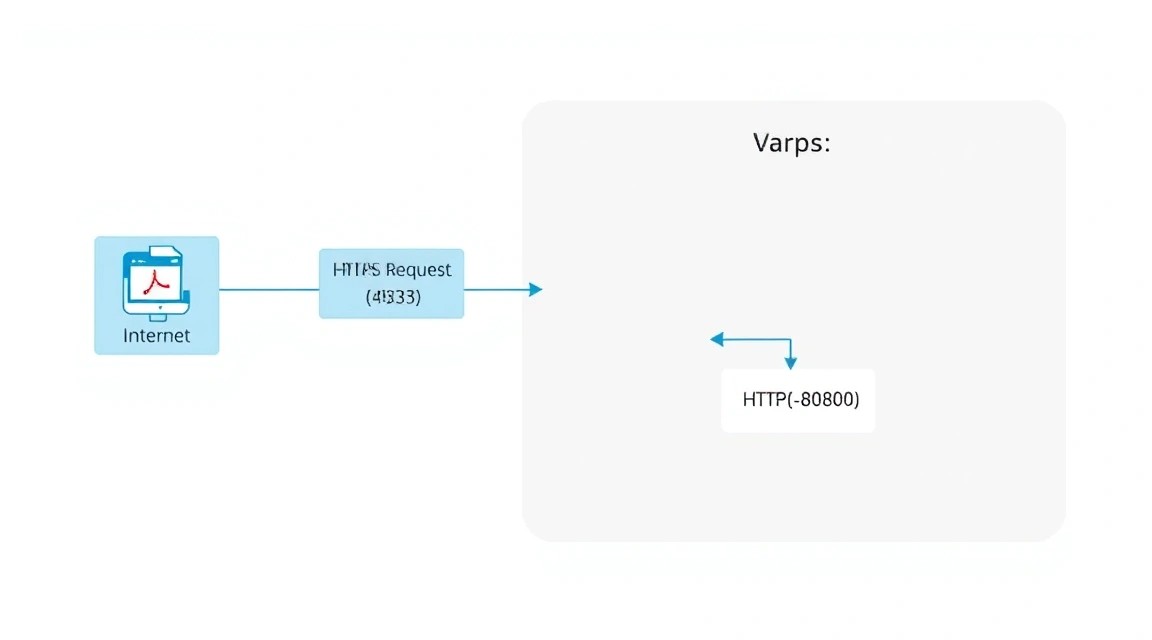
Запускати сервіс на порту 8080 без шифрування — погана ідея, особливо якщо ви працюєте з документами. Нам потрібен HTTPS. Найпростіший і найсучасніший спосіб — використовувати веб-сервер Caddy, який автоматично отримує та оновлює SSL-сертифікати від Let's Encrypt.
Встановимо Caddy:
sudo apt install -y debian-keyring debian-archive-keyring apt-transport-https
curl -1G 'https://dl.cloudsmith.io/public/caddy/stable/gpg.key' | sudo gpg --dearmor -o /usr/share/keyrings/caddy-stable-archive-keyring.gpg
curl -1G 'https://dl.cloudsmith.io/public/caddy/stable/debian.deb.txt' | sudo tee /etc/apt/sources.list.d/caddy-stable.list
sudo apt update
sudo apt install caddy
Налаштуємо проксіювання. Відредагуйте файл /etc/caddy/Caddyfile:
sudo nano /etc/caddy/Caddyfile
Замініть вміст на наступний (вкажіть ваш домен):
pdf.yourdomain.com {
    reverse_proxy localhost:8080

    encode gzip

    log {
        output file /var/log/caddy/pdf_access.log
    }
}
Перезапустіть Caddy:
sudo systemctl restart caddy
Тепер, за умови, що ваш A-запис домену вказує на IP вашого VPS, сервіс буде доступний за адресою https://pdf.yourdomain.com з валідним SSL-сертифікатом.
7. Глибоке налаштування: OCR, локалізація та безпека
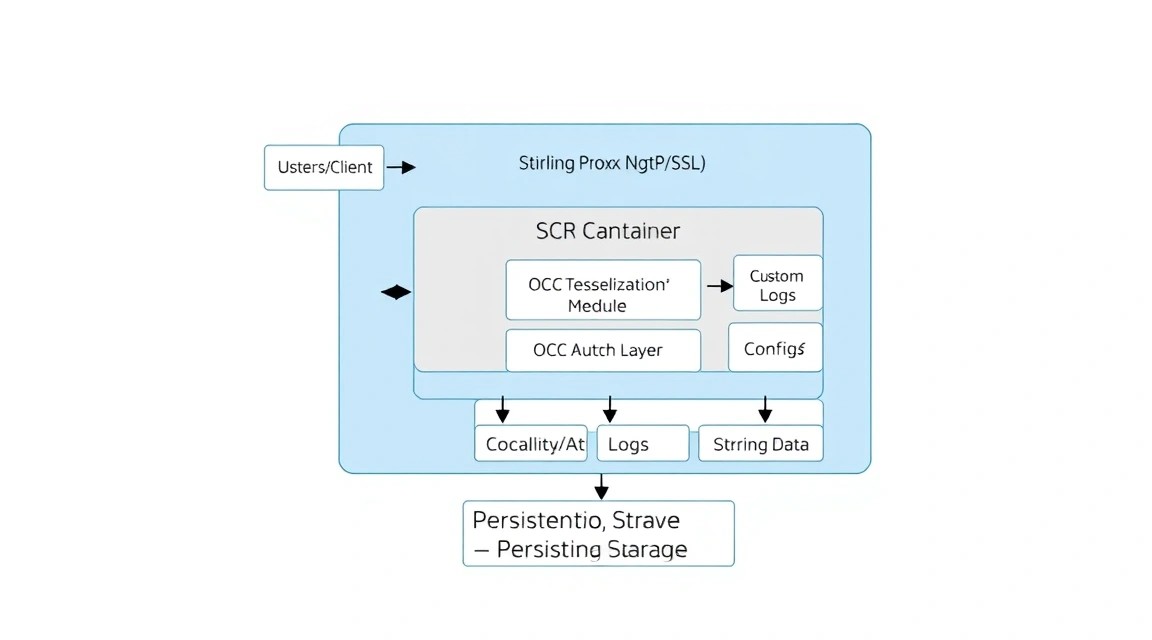
Stirling-PDF дозволяє тонко налаштовувати процес розпізнавання тексту. OCR базується на рушії Tesseract. Якщо ви виявили, що якість розпізнавання російської мови недостатньо висока, ви можете додати додаткові треновані дані.
Налаштування авторизації
Після першого входу перейдіть до розділу Settings -> Security Settings. Тут ви можете:
- Змінити стандартний пароль адміністратора.
- Увімкнути API-ключі для інтеграції з іншими сервісами (наприклад, для автоматизації через скрипти Python або n8n).
- Налаштувати час життя сесії.
Оптимізація продуктивності
Якщо сервер починає "гальмувати" під час обробки PDF, можна обмежити ресурси контейнера в docker-compose.yml:
    deploy:
      resources:
        limits:
          cpus: '2.0'
          memory: 4G
Це запобіжить ситуації, коли один важкий файл "підвішує" весь VPS, позбавляючи вас доступу по SSH.
Кастомні шрифти
Для коректного відображення кирилиці при конвертації з PDF у Word/HTML іноді потрібні специфічні шрифти. Ви можете змонтувати теку зі шрифтами вашого сервера в контейнер:
- /usr/share/fonts:/usr/share/fonts:ro
8. Резервні копії та автоматичне оновлення системи
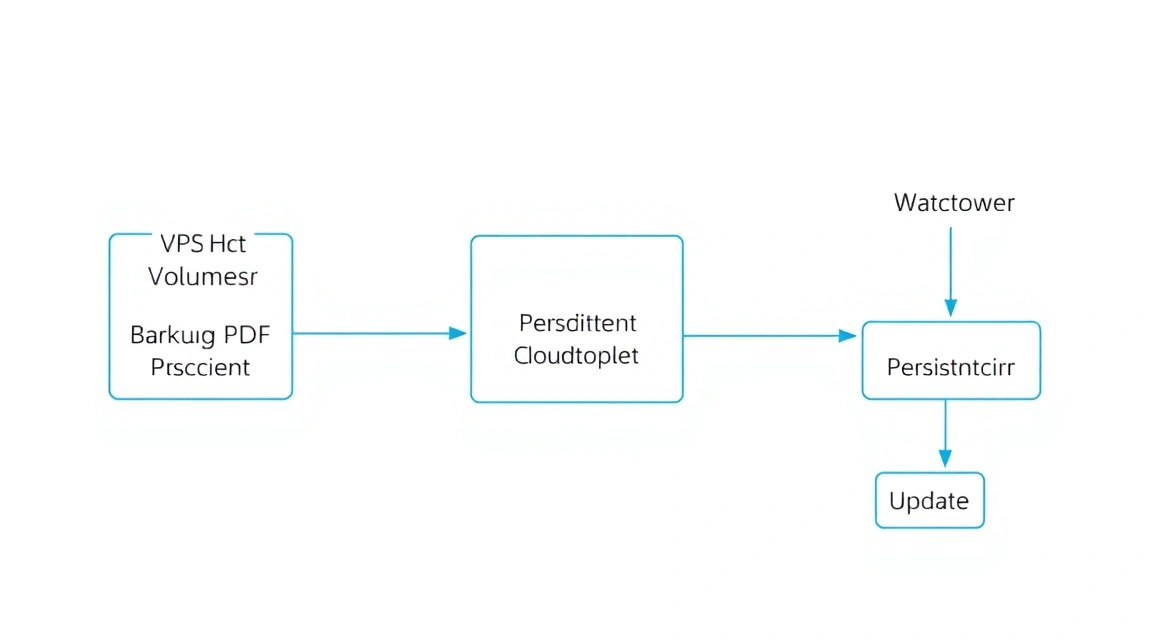
Хоча Stirling-PDF за замовчуванням не зберігає ваші документи вічно (вони видаляються з тимчасового сховища після обробки), налаштування програми, користувачів та кастомні водяні знаки потрібно резервувати.
Скрипт резервного копіювання
Створимо простий скрипт backup.sh:
#!/bin/bash
BACKUP_DIR="/home/pdfadmin/backups"
DATE=$(date +%Y-%m-%d)
mkdir -p $BACKUP_DIR

# Останавливаем контейнер для консистентности данных (опционально)
cd /home/pdfadmin/stirling-pdf
docker compose stop

# Архивация конфигов
tar -czf $BACKUP_DIR/stirling_conf_$DATE.tar.gz ./configs

# Запуск контейнера
docker compose start

# Удаление старых бэкапов (старше 30 дней)
find $BACKUP_DIR -type f -mtime +30 -delete
Додайте скрипт у crontab для щоденного запуску о 3 годині ночі:
0 3 * * * /bin/bash /home/pdfadmin/stirling-pdf/backup.sh
Оновлення Stirling-PDF
Розробники активно випускають оновлення. Щоб оновитися до останньої версії, виконайте:
cd ~/stirling-pdf
docker compose pull
docker compose up -d --remove-orphans
Docker автоматично завантажить нові шари образу та перезапустить сервіс зі збереженням усіх ваших налаштувань (оскільки вони зберігаються у зовнішніх volumes).
9. Усунення несправностей + FAQ
Чому OCR працює дуже повільно?
OCR — це процес, що максимально навантажує CPU. Якщо ваш VPS має всього 1-2 ядра, розпізнавання 50-сторінкового документа може зайняти кілька хвилин. Перевірте навантаження командою htop. Якщо CPU завантажений на 100%, розгляньте можливість апгрейду тарифу VPS.
Помилка "Out of Memory" при завантаженні великих файлів
Це пов'язано з лімітами Java Heap Size. Ви можете збільшити ліміт, додавши змінну в docker-compose.yml:
- JAVA_OPTS=-Xmx2g
Це виділить 2 ГБ оперативної пам'яті спеціально під потреби Java-процесу.
Який VPS-конфіг мінімально підійде?
Мінімально — 2 ядра CPU та 4 ГБ RAM. На 2 ГБ RAM програма запуститься, але при спробі використовувати OCR або конвертувати PDF у DOCX контейнер, швидше за все, буде зупинений системою (OOM Killer).
Що вибрати — VPS чи dedicated для цього завдання?
Для особистого використання та малих команд (до 10 осіб) VPS — ідеальний вибір. Він гнучкий, його легко масштабувати. Dedicated сервер варто брати тільки якщо ви плануєте обробляти величезні архіви документів (десятки тисяч сторінок на добу), де важлива багатопоточність та відсутність "сусідів" по гіпервізору.
Чи безпечно зберігати документи на сервері?
Stirling-PDF спроектований так, щоб видаляти файли відразу після того, як ви закрили сторінку або завантажили результат. Однак, для максимальної безпеки, переконайтеся, що ви використовуєте HTTPS та складний пароль для входу в систему.
Як додати підтримку інших мов OCR?
У змінній LANGS у файлі docker-compose.yml додайте потрібні коди через кому (наприклад, deu для німецької, fra для французької). Повний список кодів доступний у документації Tesseract.
10. Висновки та наступні кроки
Ми успішно розгорнули професійний інструмент керування PDF на власному сервері. Тепер у вас є повний контроль над вашими документами, відсутність підписок та потужний рушій OCR, доступний з будь-якої точки світу.
Що робити далі?
- Інтеграція: Спробуйте використовувати API Stirling-PDF для автоматизації рутинних завдань. Наприклад, ви можете налаштувати скрипт, який автоматично накладає водяний знак на всі PDF у певній папці.
- Мобільний додаток: Оскільки інтерфейс адаптивний, ви можете додати ярлик сторінки на екран смартфона — це працюватиме як повноцінний PWA-додаток.
- Оптимізація: Якщо ви плануєте публічний доступ, налаштуйте Cloudflare перед вашим VPS для захисту від DDoS-атак та додаткового кешування статики.
Self-hosting — це не тільки економія грошей, а й важливий крок до цифрового суверенітету. З Stirling-PDF ваші дані належать тільки вам.