Deploying Owncast on a VPS: self-hosted live streaming, SSL, Docker, and backups
TL;DR
Owncast is a self-hosted platform for live streaming that can run on your own VPS, receive a stream from OBS over RTMP, and deliver it to viewers via HTTPS. In this guide, we will prepare Ubuntu 24.04 LTS, install Docker, launch Owncast, configure a domain and SSL through Caddy, test the stream, and organize data backups.
- For one stream with up to 50–100 concurrent viewers, 2 vCPU, 4 GB RAM, and a 40–80 GB SSD are usually sufficient.
- Owncast will run in a Docker container with a persistent data directory on the server.
- OBS connects to
rtmp://stream.example.com/liveusing the stream key from the Owncast panel. - Caddy automatically obtains and renews a Let’s Encrypt TLS certificate.
- You need to back up the Owncast directory, Caddy configuration, and secrets, but not temporary cache files.
- After launch, DNS, HTTPS, the RTMP port, container healthchecks, and backup restoration are verified.
1. What we are configuring and why
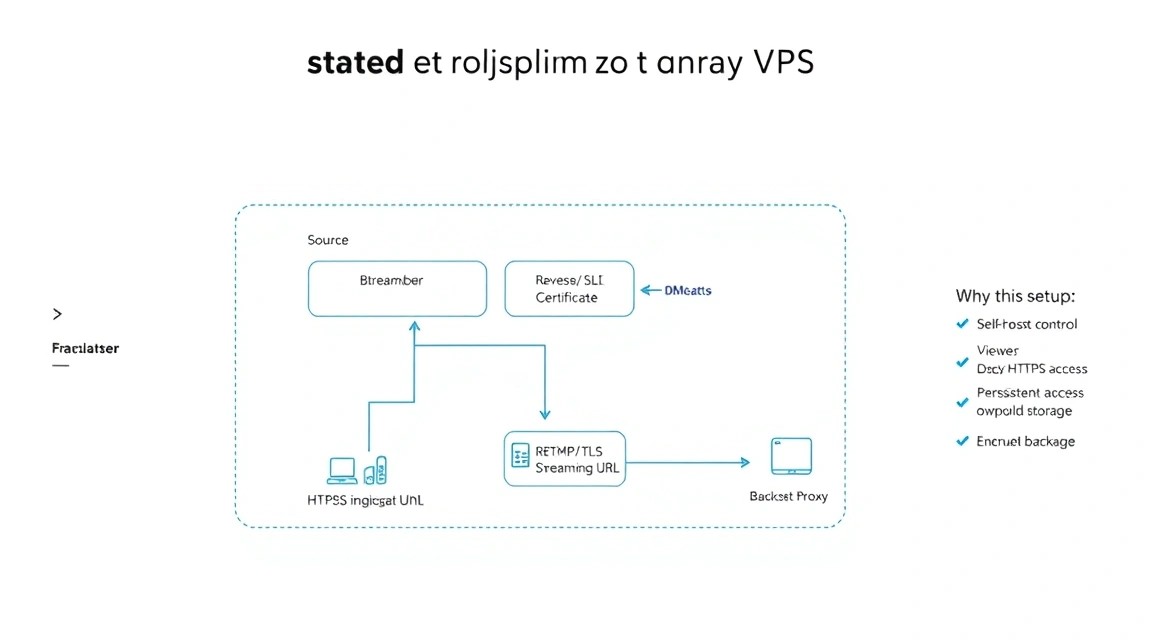
Owncast is an open platform for self-hosted live streaming. It receives a video stream from OBS Studio or another RTMP-compatible application, transcodes it or delivers it to viewers through a web player, and provides a stream page, chat, channel settings, and basic moderation.
Unlike Twitch, YouTube Live, or Kick, the Owncast server is under your control. You manage the domain, access settings, logs, backups, and data retention policy yourself. This is useful for private streams, corporate events, educational projects, your own community, or integrating streaming with a website.
This guide assumes the following setup:
- VPS with Ubuntu Server 24.04 LTS and a public IPv4 address;
- the
stream.example.comdomain pointed to the VPS; - Docker Engine and Docker Compose Plugin;
- Owncast in a container with persistent storage;
- Caddy as a reverse proxy and automatic TLS manager;
- OBS Studio on the broadcaster’s computer;
- external storage for backups.
What you will have in the end
After following the instructions, viewers will be able to open the channel’s HTTPS address, while you will be able to send a stream from OBS to the RTMP address. The Owncast web interface will be available through Caddy on ports 80 and 443, and the RTMP connection will be accepted on port 1935. The administrator panel will be protected by a separate password.
It is important to understand the limits of this setup. A VPS does not create additional bandwidth for each viewer: the server must send the video stream to every connected client. If the stream has a bitrate of 6 Mbps and 50 people are watching simultaneously, outgoing traffic can reach approximately 300 Mbps, excluding overhead.
Self-hosted and cloud platforms
Cloud services are easier to start with: you do not need to update the server, monitor disk usage, configure SSL, or pay for outgoing traffic separately. At the same time, platform restrictions apply: content rules, fees, API limits, mandatory viewer registration, or a lack of full control over analytics.
Self-hosted Owncast requires more administration, but provides a predictable architecture. You can embed the player on your website, change its appearance, restrict access using a VPN or reverse proxy, store the configuration yourself, and move the installation between servers.
| Criterion | Cloud platform | Owncast on a VPS |
|---|---|---|
| Launch | Almost instant | Server configuration required |
| Data control | Depends on the provider | Full owner control |
| Branding | Limited by the plan | Configured independently |
| Scaling | Usually built in | Network and servers must be planned |
| Security responsibility | Shared with the platform | Rests with the administrator |
2. What VPS configuration is needed for this task
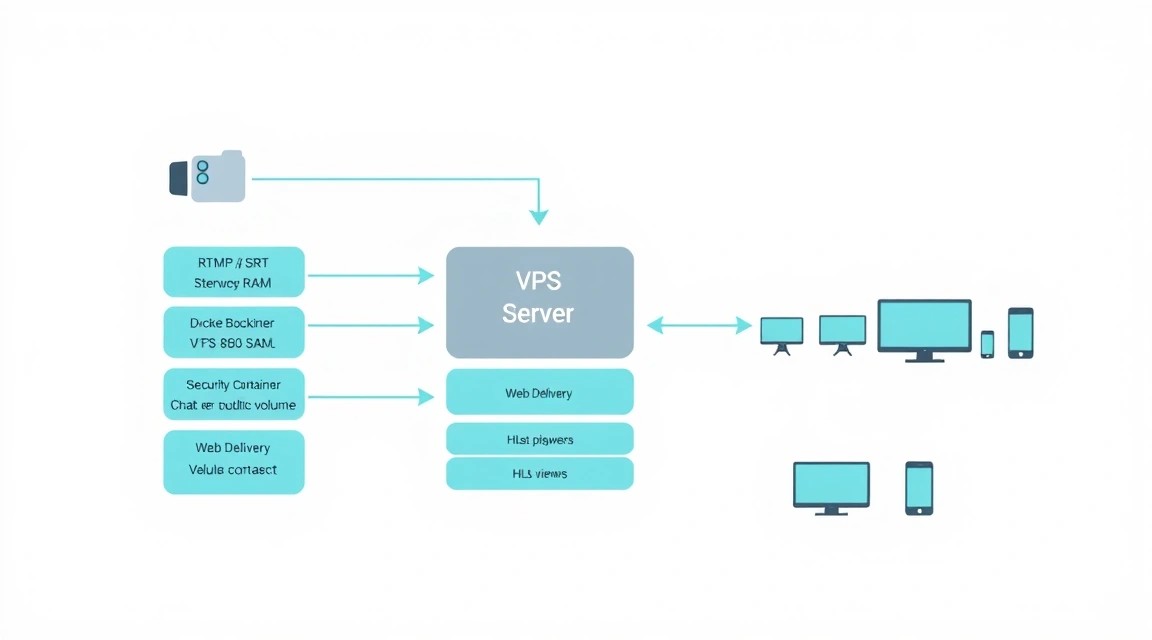
The main resource for live streaming is not only CPU and memory, but also outgoing network capacity. If Owncast does not transcode the video, the server mainly receives one RTMP stream and distributes it to viewers. If additional quality profiles or transcoding are enabled, CPU load increases many times over.
Minimum configuration
For a test stream and a small private channel, a VPS with 2 vCPU, 2 GB RAM, a 30–40 GB SSD, and a 1 Gbps network port will be suitable. This option is intended for approximately 5–15 viewers at a stream bitrate of 2–4 Mbps, provided that the server is not performing heavy transcoding.
A practical starting option for one public channel is 2–4 vCPU, 4 GB RAM, an 80 GB NVMe drive, and at least 1 TB of outgoing traffic per month. For a 1080p stream with a bitrate of 5–8 Mbps, this is usually sufficient for a small community, but the actual limit depends on the plan, network, and number of concurrent viewers.
| Scenario | CPU and RAM | Disk | Approximate viewers |
|---|---|---|---|
| Testing | 2 vCPU, 2 GB RAM | 40 GB SSD | 5–15 |
| Small channel | 2–4 vCPU, 4 GB RAM | 80 GB NVMe | 20–80 |
| Regular broadcasts | 4–8 vCPU, 8–16 GB RAM | 160 GB NVMe | 80–250 |
| Transcoding | 8+ vCPU, 16+ GB RAM | 160+ GB NVMe | Depends on quality profiles |
Suitable VPS option
For the described configuration, you can choose a suitable VPS with 4 vCPU, 8 GB RAM, an NVMe drive of at least 80 GB, a public IPv4 address, and a 1 Gbps network port. Check not only the port speed but also the monthly traffic limit: 100 viewers at 6 Mbps can use approximately 2.2 TB of outgoing data during 24 hours of continuous streaming.
When a dedicated server is needed
A dedicated server is justified if the channel regularly attracts hundreds of viewers, several simultaneous streams are required, hardware-dependent encoding is performed, or competition for CPU and network resources with neighboring virtual machines cannot be allowed. It is also useful for archiving a large number of recordings and processing video.
For one Owncast channel, a dedicated server is usually excessive. First measure CPU, RAM, outgoing traffic, and latency. Move to a physical server when increasing the VPS size no longer solves the problem or when the cost of guaranteed resources becomes comparable to the cost of a dedicated server.
Choosing a location
Place the server closer to your primary audience. Geographic proximity reduces latency when opening the website and the risk of network problems, but does not eliminate the load caused by video delivery. If viewers are located in several regions, you can add a CDN for web resources or use a separate media relay for scaling; however, a standard HTTP CDN does not always proxy live video streams correctly.
3. Preparing the server
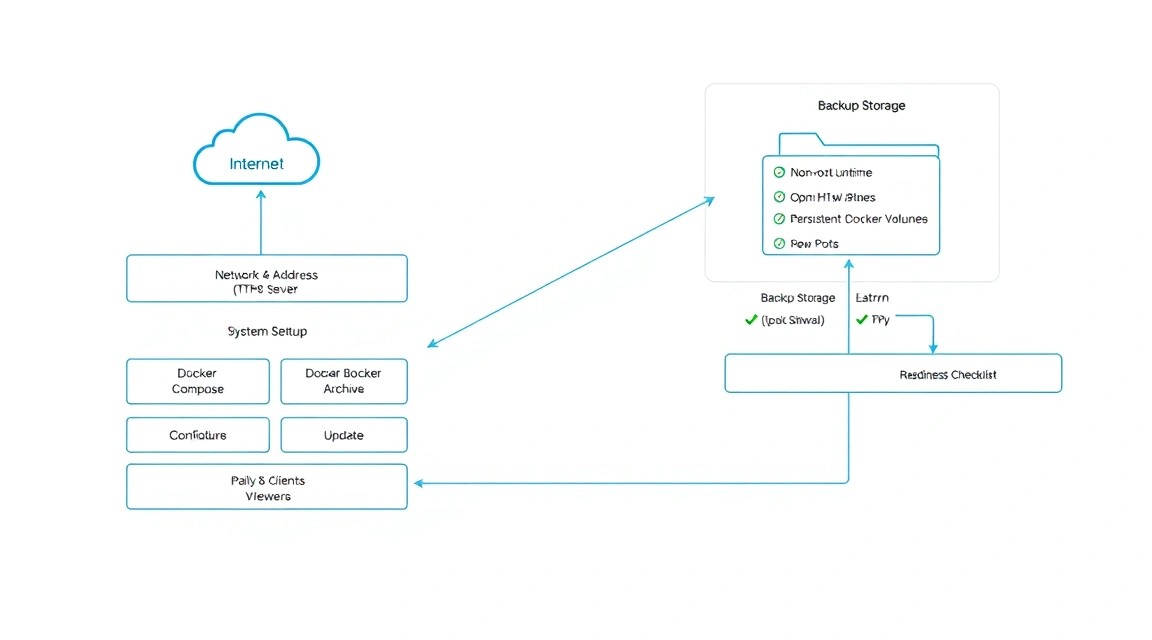
The instructions below use a clean Ubuntu Server 24.04 LTS with a user created during installation. All commands are executed over SSH using a user with sudo privileges. Replace the IP address and domain name with your own values.
Updating the system and basic utilities
First update the package index and installed components. A reboot is required if the kernel or system libraries used by services were updated.
sudo apt update
sudo apt full-upgrade -y
sudo apt install -y ca-certificates curl gnupg git vim unzip jq htop ncdu
sudo reboot
After reconnecting, check the OS version and time. Incorrect time can interfere with TLS certificate verification and the backup scheduler.
cat /etc/os-release
timedatectl status
hostnamectl
Separate administrative user
Do not use root for everyday work. Create the streamadmin user, add it to the sudo group, and install a public SSH key. You can obtain the public key from the local file ~/.ssh/id_ed25519.pub.
sudo adduser streamadmin
sudo usermod -aG sudo streamadmin
sudo install -d -m 700 -o streamadmin -g streamadmin /home/streamadmin/.ssh
sudo nano /home/streamadmin/.ssh/authorized_keys
sudo chown streamadmin:streamadmin /home/streamadmin/.ssh/authorized_keys
sudo chmod 600 /home/streamadmin/.ssh/authorized_keys
Open a second terminal and make sure that login works:
ssh streamadmin@SERVER_IPAfter verification, you can disable root SSH login and password authentication. Do not do this before verifying the key; otherwise, it is easy to lose access to the server.
sudo install -d -m 755 /etc/ssh/sshd_config.d
printf 'PermitRootLogin no\nPasswordAuthentication no\nKbdInteractiveAuthentication no\n' | sudo tee /etc/ssh/sshd_config.d/99-hardening.conf
sudo sshd -t
sudo systemctl reload ssh
Firewall and fail2ban
You need to allow SSH, HTTP, HTTPS, and RTMP. The SSH port in this example remains the standard 22; if you changed it, replace the UFW rule.
sudo apt install -y ufw fail2ban
sudo ufw default deny incoming
sudo ufw default allow outgoing
sudo ufw allow 22/tcp
sudo ufw allow 80/tcp
sudo ufw allow 443/tcp
sudo ufw allow 1935/tcp
sudo ufw enable
sudo ufw status verbose
Fail2ban will block repeated failed SSH login attempts. For a basic configuration, it is sufficient to enable the system jail:
sudo systemctl enable --now fail2ban
sudo fail2ban-client status sshd
Port 1935 is required only for incoming RTMP. Do not expose the Owncast administrative port externally: it will be available through the HTTPS reverse proxy, while direct access to it will be restricted to a local bind address.
4. Software Installation — Step by Step
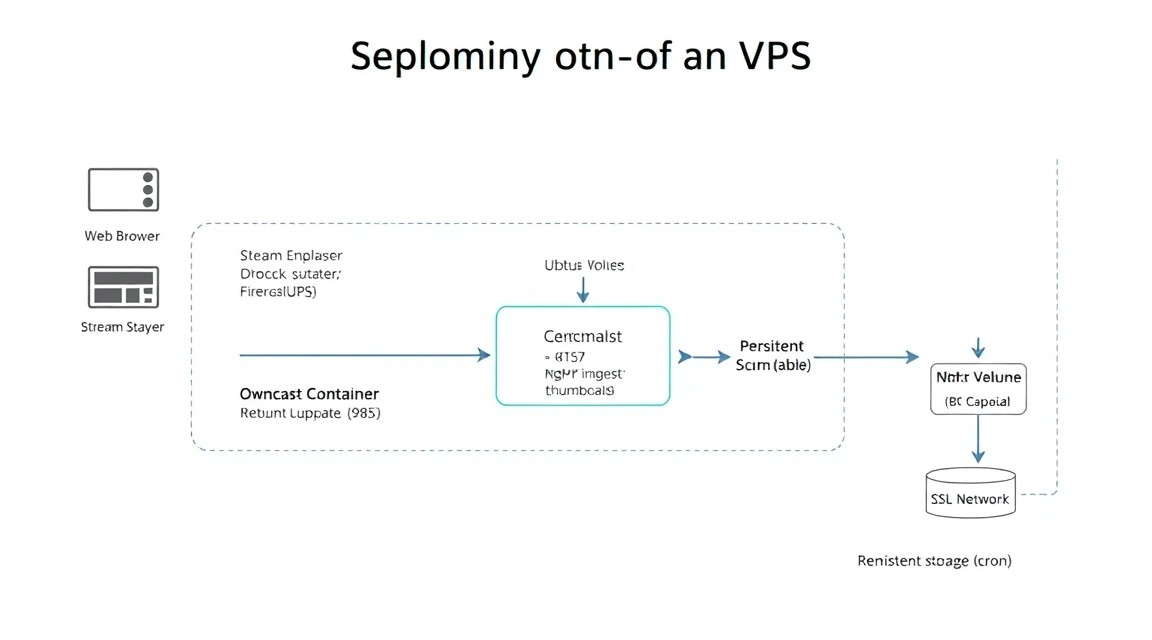
In 2026, it is convenient to use Docker Engine and the Docker Compose Plugin from the official Docker repository for this type of deployment. It is better to pin the Owncast version with an image tag rather than using unconditional latest. At the time of preparing this example, the Owncast 0.2.x branch is used; before updating, check the current release in the official documentation and test it on a copy of the data.
Adding the Official Docker Repository
First, remove conflicting packages if they were installed from the old Ubuntu repository.
sudo apt remove -y docker.io docker-compose docker-doc podman-docker containerd runc || trueThe following commands install the repository key and connect the official Docker package source.
sudo install -m 0755 -d /etc/apt/keyrings
curl -fsSL https://download.docker.com/linux/ubuntu/gpg | sudo gpg --dearmor -o /etc/apt/keyrings/docker.gpg
sudo chmod a+r /etc/apt/keyrings/docker.gpg
echo "deb [arch=$(dpkg --print-architecture) signed-by=/etc/apt/keyrings/docker.gpg] https://download.docker.com/linux/ubuntu $(. /etc/os-release && echo "$VERSION_CODENAME") stable" | sudo tee /etc/apt/sources.list.d/docker.list > /dev/null
sudo apt update
Install Docker Engine, Buildx, and the Compose Plugin. This example uses the modern docker compose syntax rather than the outdated standalone docker-compose command.
sudo apt install -y docker-ce docker-ce-cli containerd.io docker-buildx-plugin docker-compose-plugin
sudo systemctl enable --now docker
sudo docker version
sudo docker compose version
Adding a user to the docker group allows running Docker without sudo, but effectively grants the user root-level privileges. On a dedicated production server, this is acceptable only for a trusted administrator.
sudo usermod -aG docker "$USER"
newgrp docker
docker run --rm hello-world
Creating Owncast Directories
Create a project directory and a separate data directory. The data directory must persist when the container is recreated: it contains the configuration, user settings, logos, styling, and other persistent Owncast files.
sudo mkdir -p /opt/owncast/{data,backups}
sudo chown -R "$USER:$USER" /opt/owncast
cd /opt/owncast
Docker Compose File
Create the /opt/owncast/compose.yml file. The image runs as the container process, and data is mounted to the standard /app/data path. Port 8080 is published only on the loopback interface, so it cannot be accessed directly from the internet.
services:
  owncast:
    image: owncast/owncast:0.2.1
    container_name: owncast
    restart: unless-stopped
    environment:
      - TZ=UTC
    ports:
      - "127.0.0.1:8080:8080"
      - "1935:1935"
    volumes:
      - ./data:/app/data
    healthcheck:
      test: ["CMD", "wget", "-q", "-O", "-", "http://127.0.0.1:8080"]
      interval: 30s
      timeout: 10s
      retries: 5
      start_period: 30s
Before starting, download the image and validate the Compose configuration:
docker compose config
docker compose pull
docker compose up -d
docker compose ps
docker compose logs --tail=100 owncast
If the image with the specified tag is unavailable, do not substitute a random tag. Open the Owncast releases page, select the current stable version, and change the image field. After making the change, run docker compose pull and restart the container.
Installing Caddy
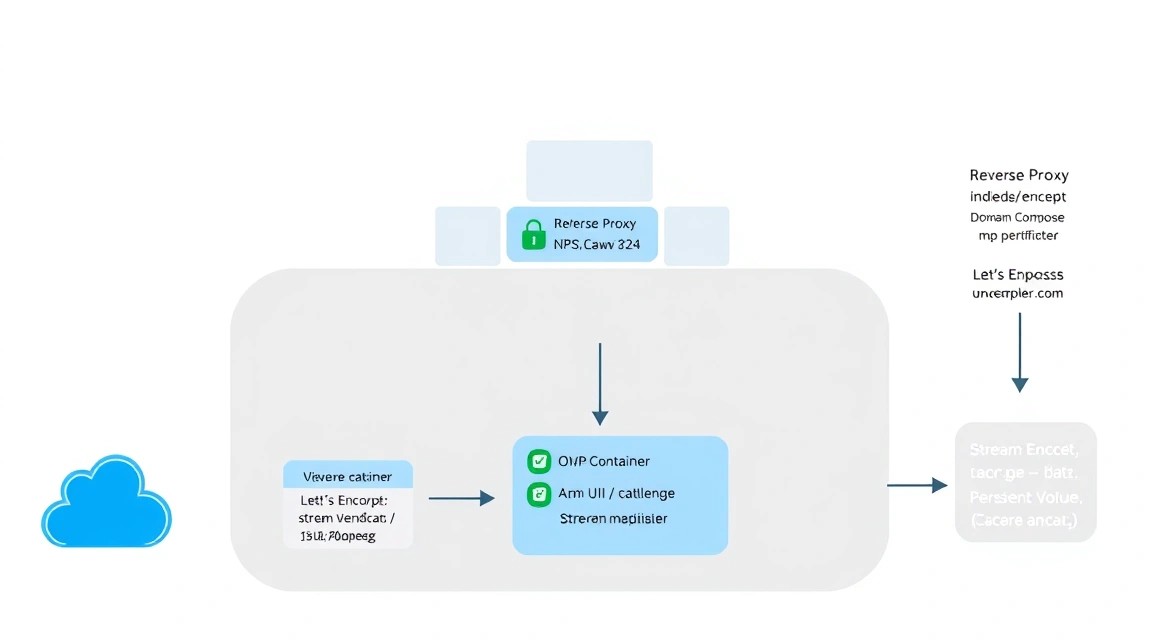
Caddy will accept HTTPS requests, automatically obtain a Let’s Encrypt certificate, and forward requests to Owncast on local port 8080. Installation is performed from the official Caddy repository.
sudo apt install -y debian-keyring debian-archive-keyring apt-transport-https curl
curl -1sLf 'https://dl.cloudsmith.io/public/caddy/stable/gpg.key' | sudo gpg --dearmor -o /usr/share/keyrings/caddy-stable-archive-keyring.gpg
curl -1sLf 'https://dl.cloudsmith.io/public/caddy/stable/debian.deb.txt' | sudo tee /etc/apt/sources.list.d/caddy-stable.list
sudo apt update
sudo apt install -y caddy
sudo systemctl enable --now caddy
caddy version
5. Owncast, Domain, and SSL Configuration
DNS Record
Create an A record with your domain registrar:
| Name | Type | Value |
|---|---|---|
| stream | A | VPS public IPv4 address |
If IPv6 is used and correctly routed to the server, you can add an AAAA record. Do not create an AAAA record if IPv6 is not configured on the VPS: some viewers will then receive an unreachable address.
You can check DNS from the server itself or from a local computer:
dig +short A stream.example.com
dig +short AAAA stream.example.com
Initial Owncast Setup
Open the interface via a local address through an SSH tunnel. This is safer than temporarily opening port 8080 in the external firewall:
ssh -L 8080:127.0.0.1:8080 streamadmin@SERVER_IPNow open http://127.0.0.1:8080 on your local computer. On first launch, Owncast will prompt you to complete the initial setup. Specify the channel name, time zone, administrator password, description, and other parameters. Use a unique password of at least 20 characters.
The stream key must not be published together with the broadcast address. Anyone who obtains this key can send a stream to your channel. If the key is leaked, change it in the Owncast admin panel and update the OBS settings.
Reverse Proxy Through Caddy
Create the /etc/caddy/Caddyfile file. Replace the domain with your own. The reverse_proxy directive forwards HTTP requests to the Owncast container, while Caddy automatically enables HTTPS after DNS starts pointing to the server and ports 80/443 are available.
stream.example.com {
    encode gzip zstd

    reverse_proxy 127.0.0.1:8080

    log {
        output file /var/log/caddy/owncast-access.log
        format json
    }

    header {
        Strict-Transport-Security "max-age=31536000"
        X-Content-Type-Options "nosniff"
        Referrer-Policy "strict-origin-when-cross-origin"
    }
}
Check the syntax and apply the configuration:
sudo caddy validate --config /etc/caddy/Caddyfile
sudo systemctl reload caddy
sudo journalctl -u caddy -n 100 --no-pager
Within a few seconds, Caddy should obtain a certificate. HTTPS can be checked with the command:
curl -I https://stream.example.com
curl -sS https://stream.example.com | head
An HTTP/2 200 response or another successful HTTP code returned by the current Owncast page is expected. If Caddy reports an ACME error, check DNS, system time, UFW rules, and whether another process is using ports 80 or 443.
Configuring OBS Studio
In OBS, open the streaming settings and select a custom service. Enter the following in the server field:
rtmp://stream.example.com/livePaste the Stream Key from the Owncast panel into the key field. For the first test, use a moderate profile: H.264, 1920×1080 at 30 frames per second, and a bitrate of 4500–6000 Kbit/s. AAC audio at 128–160 Kbit/s is compatible with most devices.
If the broadcaster's outgoing internet speed is unstable, start with 1280×720 and 2500–4000 Kbit/s. The stream should have bandwidth headroom: ideally, the actual upload speed should be at least 1.5 times higher than the selected bitrate. Enable automatic reconnection in OBS and set the reconnection buffer to 10–20 seconds.
Checking the Configuration
Verify that the container is running and has a healthy status or is operating stably without restart loops:
cd /opt/owncast
docker compose ps
docker inspect --format='{{json .State.Health}}' owncast | jq
docker compose logs --tail=200 owncast
Check the local backend without involving Caddy:
curl -I http://127.0.0.1:8080
ss -lntp | grep -E ':(80|443|1935|8080)\b'
Checking external ports from another node helps detect a firewall error:
nc -vz stream.example.com 80
nc -vz stream.example.com 443
nc -vz stream.example.com 1935
After starting OBS, open the public Owncast page and ensure that the live indicator appears, the viewer count increases, and audio plays. If the page opens but the video does not start, first check the Owncast logs and the browser console.
6. Stream Testing and Diagnostics
Reliable testing should include not only opening the web page, but also monitoring resources during the broadcast. Start container monitoring in a separate SSH session:
docker stats owncastIf CPU usage consistently remains around 100 percent of one or more cores, video processing load or an overly demanding profile is likely. When memory is insufficient, Linux may start using swap, which increases delays and creates a risk of the container stopping.
Check available disk space and the size of the data directory:
df -h /
du -sh /opt/owncast/data
sudo du -xhd1 /var/lib/docker | sort -h
Monitor outgoing traffic. Depending on the provider's panel, data may be updated with a delay, so use system tools or interface monitoring for prompt assessment. If the connection has a traffic limit, configure notifications in advance at 70–80 percent of the monthly limit.
Bandwidth Estimation
The calculation can be made using the formula: multiply the stream bitrate in Mbit/s by the number of viewers, then add a margin of about 15 percent. For example, a 6 Mbit/s stream for 40 viewers requires approximately 276 Mbit/s of outgoing bandwidth:
6 × 40 × 1,15 = 276 Мбит/сFor monthly traffic, convert the bitrate to gigabytes. A 6 Mbit/s stream running continuously for one day transfers approximately 64.8 GB without accounting for protocol overhead. With 30 viewers, this is about 1.9 TB per day, so long public broadcasts must be planned separately.
TLS Check
The certificate and chain can be checked through OpenSSL:
echo | openssl s_client -connect stream.example.com:443 -servername stream.example.com 2>/dev/null | openssl x509 -noout -issuer -subject -datesCaddy renews the certificate automatically. Do not run Certbot in parallel for the same domain: two certificate managers may conflict over ports and the ACME challenge.
7. Backups and Maintenance
What Needs to Be Saved
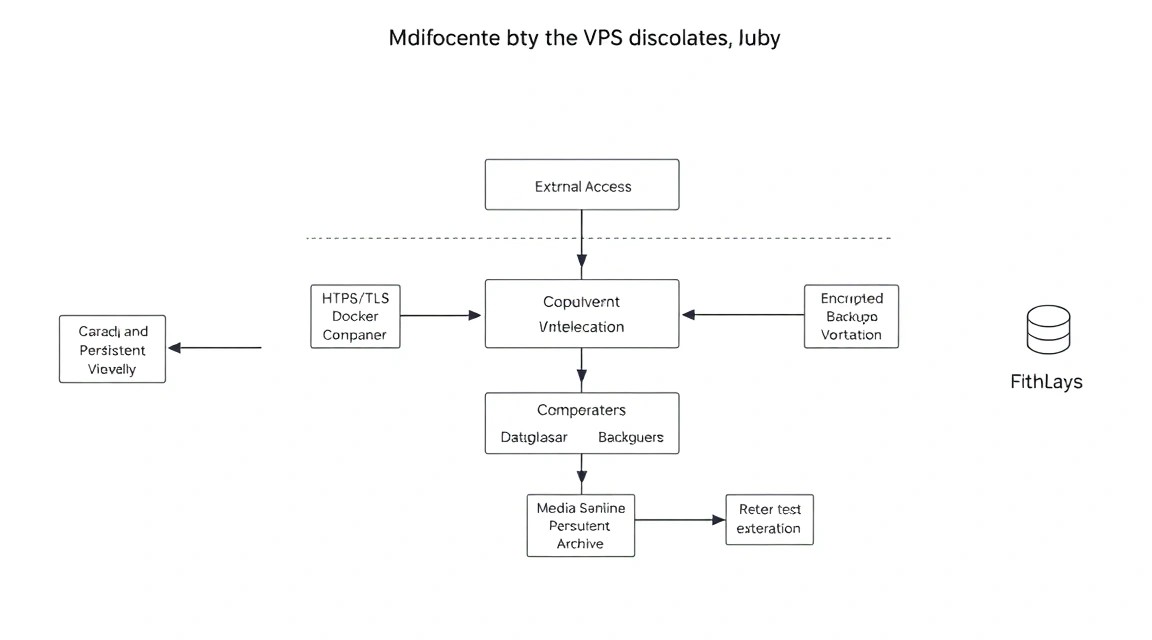
The primary backup target is /opt/owncast/data. It may contain channel settings, custom appearance changes, chat data, configuration, and other files needed to restore the installation. Also save /opt/owncast/compose.yml, /etc/caddy/Caddyfile, and the list of installed packages.
Do not blindly copy the entire /var/lib/docker directory: this increases the backup size and ties restoration to Docker's internal format. Restore the project through Compose and return only the required persistent data.
Simple Backup with restic
Restic encrypts backups before sending them to remote storage. You can use S3-compatible storage or a separate server as the backend. Install the package:
sudo apt install -y restic
sudo install -d -m 700 /root/.config/restic
sudo nano /root/.config/restic/env
sudo chmod 600 /root/.config/restic/env
The environment file must contain the repository address, password, and S3 keys. The values below are examples and must be replaced:
export RESTIC_REPOSITORY="s3:https://s3.example.net/owncast-backups"
export RESTIC_PASSWORD="GENERATE_A_LONG_RANDOM_PASSWORD"
export AWS_ACCESS_KEY_ID="S3_ACCESS_KEY"
export AWS_SECRET_ACCESS_KEY="S3_SECRET_KEY"
The Restic password must not be lost: without it, the encrypted storage cannot be restored. Initialize the repository once:
sudo bash -c 'source /root/.config/restic/env && restic init'Create the /usr/local/sbin/owncast-backup script. Before copying, Compose temporarily stops so that data does not change during the snapshot. A short interruption is safer than backing up an inconsistent state.
sudo tee /usr/local/sbin/owncast-backup > /dev/null <<'EOF'
#!/usr/bin/env bash
set -Eeuo pipefail

source /root/.config/restic/env

PROJECT=/opt/owncast
STAGE=$(mktemp -d)
trap 'rm -rf "$STAGE"' EXIT

cd "$PROJECT"
docker compose stop owncast

mkdir -p "$STAGE/owncast-data" "$STAGE/config"
rsync -a --delete "$PROJECT/data/" "$STAGE/owncast-data/"
cp "$PROJECT/compose.yml" "$STAGE/config/compose.yml"
cp /etc/caddy/Caddyfile "$STAGE/config/Caddyfile"

docker compose start owncast

restic backup "$STAGE" --tag owncast
restic forget --keep-daily 7 --keep-weekly 4 --keep-monthly 6 --prune
restic check
EOF
sudo chmod 700 /usr/local/sbin/owncast-backup
Run a test manually and make sure the container is running again:
sudo /usr/local/sbin/owncast-backup
restic snapshots
docker compose -f /opt/owncast/compose.yml ps
Add a daily run through a systemd timer. A timer is preferable to cron because its status and logs are visible through journalctl.
sudo tee /etc/systemd/system/owncast-backup.service > /dev/null <<'EOF'
[Unit]
Description=Backup Owncast data

[Service]
Type=oneshot
ExecStart=/usr/local/sbin/owncast-backup
EOF

sudo tee /etc/systemd/system/owncast-backup.timer > /dev/null <<'EOF'
[Unit]
Description=Daily Owncast backup

[Timer]
OnCalendar=--* 03:15:00
Persistent=true

[Install]
WantedBy=timers.target
EOF

sudo systemctl daemon-reload
sudo systemctl enable --now owncast-backup.timer
systemctl list-timers owncast-backup.timer
Restore Verification
A backup is considered functional only after a test restore. Get the list of snapshots, choose an identifier, and restore the contents to a temporary directory without overwriting production:
sudo bash -c 'source /root/.config/restic/env && restic snapshots'
sudo mkdir -p /tmp/owncast-restore
sudo bash -c 'source /root/.config/restic/env && restic restore SNAPSHOT_ID --target /tmp/owncast-restore'
sudo find /tmp/owncast-restore -maxdepth 4 -type f | sort | head -50
Periodically verify restoration on a separate VPS or during a maintenance window. The backup repository must be located outside the primary server: disk failure, VPS deletion, or root compromise must not destroy both copies.
Updating Owncast
Before updating, create a fresh backup and read the release notes. For a planned update, stop the stream, download the new image, recreate the container, and check the logs:
cd /opt/owncast
sudo /usr/local/sbin/owncast-backup
docker compose pull
docker compose up -d
docker compose ps
docker compose logs --tail=200 owncast
Change the version in compose.yml deliberately. A rolling update for a single Owncast container is not available in the traditional sense: there is usually a short period of downtime. To minimize downtime, keep a previously tested old tag available and do not remove it until the update has been confirmed successful.
Regular Maintenance
- Check free disk space, container status, and recent backups weekly.
- Perform a test restore of part of the data monthly.
- Update Ubuntu and Docker during a separate maintenance window.
- Monitor domain expiration and DNS availability.
- Check outgoing traffic usage after major broadcasts.
- Periodically change the administrative password and stream key if a leak is suspected.
- Do not store secrets in a public Git repository or include them in a Dockerfile.
8. Troubleshooting and FAQ
Why does the domain open with a “connection refused” error?
First, check that DNS points to the correct IP: dig +short A stream.example.com. Then run sudo systemctl status caddy, sudo ss -lntp, and sudo ufw status. Caddy must listen on 80 and 443, while Owncast must listen on local port 8080. If the container is stopped, check docker compose logs owncast. The error also occurs when an incorrect AAAA record remains in DNS.
Why can't Caddy obtain a certificate?
Ports 80 and 443 must be accessible from the internet, and the domain must already resolve to the VPS. Check UFW rules and the provider's external firewall. Make sure another web server has not taken the ports: sudo ss -lntp | grep -E ':(80|443)\b'. The detailed reason can be found in sudo journalctl -u caddy -n 200. Do not run Caddy and Certbot simultaneously for the same domain.
OBS connects, but the stream does not appear
Check the server address: it is usually rtmp://stream.example.com/live, not the page's HTTPS address. Make sure port 1935 is allowed in UFW and the external firewall. The stream key must match in Owncast and OBS. After starting OBS, run docker compose logs -f owncast and check whether the server registers the incoming RTMP connection. If the key is leaked, create a new one.
Video buffers for viewers even though CPU is idle
The most likely cause is insufficient outbound bandwidth or a traffic limit. Calculate the bitrate multiplied by the number of viewers and compare the result with the guaranteed VPS speed. Check packet loss and the route to several networks. Reduce the bitrate in OBS, for example from 6000 to 4000 Kbit/s, and test again. If the problem occurs only in remote regions, consider a media relay or a separate edge server.
What is the minimum suitable VPS configuration?
For a test stream, 2 vCPU, 2 GB RAM, a 40 GB SSD, and a public IPv4 address are sufficient. For regular broadcasting with 20–80 viewers, it is better to choose 2–4 vCPU, 4 GB RAM, an 80 GB NVMe drive, and a 1 Gbit/s port with sufficient monthly traffic. These values assume that Owncast does not perform heavy transcoding. Multiple quality profiles will require additional CPU and memory.
What should I choose for this task: VPS or dedicated?
A VPS is suitable for most small and medium-sized channels: it is easier to scale, migrate, and maintain, and costs less. Dedicated hosting is needed for hundreds of simultaneous viewers, multiple channels, continuous transcoding, large archives, or requirements for guaranteed resources. Make the decision based on CPU, RAM, outbound traffic, and network latency measurements, not only on the number of cores.
The container keeps restarting. What should I check?
Run docker compose ps and docker compose logs --tail=300 owncast. Common causes include an incorrect image tag, a corrupted data directory, insufficient space, or a volume permission error. Check df -h, df -i, and permissions for /opt/owncast/data. Do not delete data immediately: first stop the container and copy the directory. Restoring from the latest working backup is safer than manually editing unknown files.
Can Owncast be opened without a domain and SSL?
For a temporary test, you can access the IP address and local port, but public operation should only begin after configuring a domain and HTTPS. Without TLS, administrative passwords and other data are transmitted insecurely, and browsers may block certain functions. RTMP is also not encrypted by default, so the stream key cannot be considered protected from interception. For production, use HTTPS for the web interface and restrict access to the panel.
9. Conclusions and Next Steps
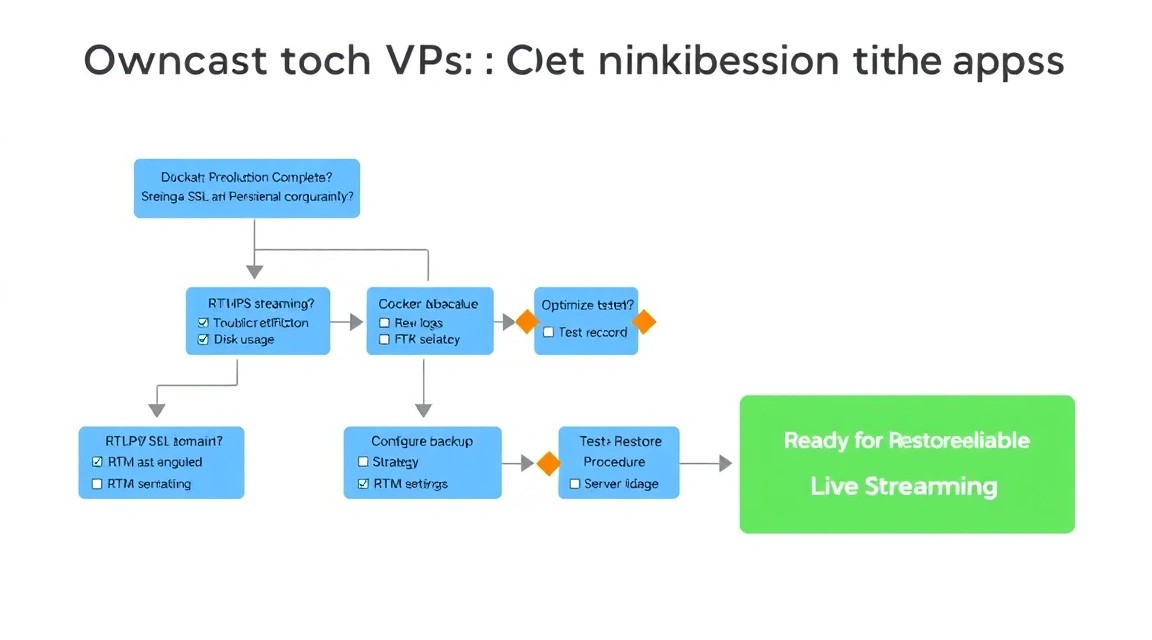
As a result, Owncast runs on a VPS in Docker, accepts a stream from OBS, serves viewers an HTTPS page through Caddy, and automatically obtains a TLS certificate. Persistent data is stored in a separate directory, while backups are encrypted with Restic and sent to external storage.
Next, measure actual CPU load, latency, and outbound traffic during several broadcasts. You can then add Prometheus or Uptime Kuma monitoring, configure a separate recording storage system, and prepare a second server for disaster recovery. As the audience grows, plan to separate the web proxy, ingest server, and media stream delivery.