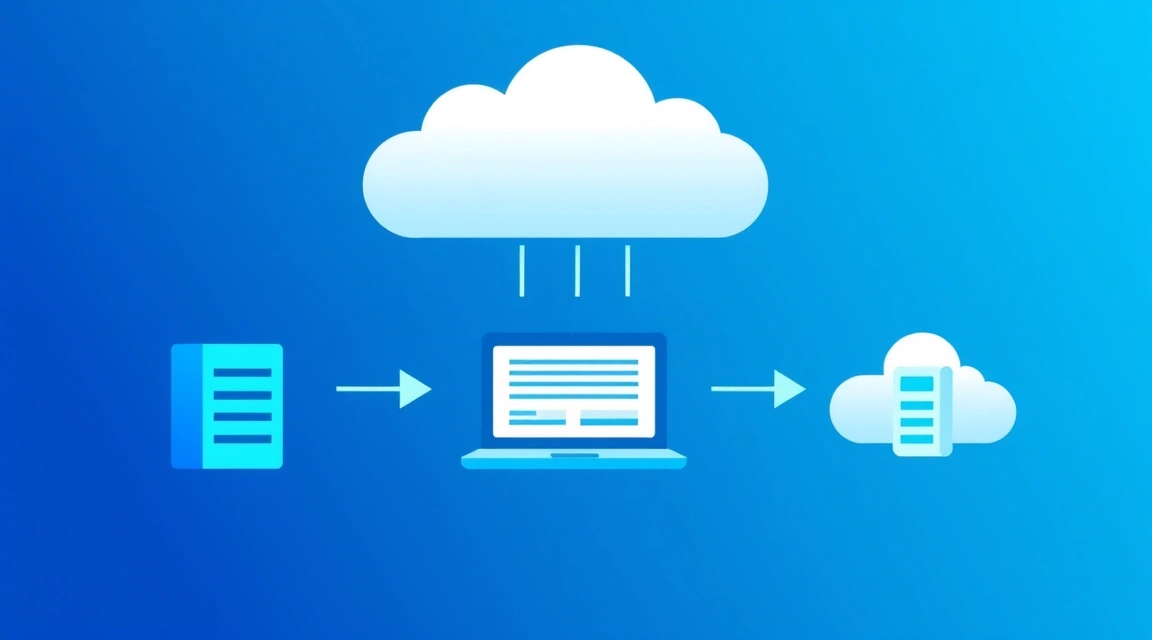
La transferencia de un sitio web a otro hosting sin downtime es posible con una planificación meticulosa, el uso de métodos de sincronización de datos y un cambio adecuado de los registros DNS, lo que permite a los usuarios no notar el cambio de servidor.
La migración de un sitio web no es simplemente copiar archivos; es un proceso complejo que, si se aborda incorrectamente, puede provocar interrupciones significativas, pérdida de datos y un deterioro de las posiciones SEO. Esto es especialmente crítico para proyectos comerciales, donde cada minuto de downtime se traduce en pérdidas financieras directas y daños a la reputación. El objetivo de este artículo es proporcionar una guía paso a paso para transferir su recurso web, ya sea un sitio HTML simple, una tienda online compleja o un portal corporativo en WordPress, a un nuevo hosting con un tiempo de inactividad mínimo o nulo. Revisaremos los aspectos técnicos, las herramientas y las mejores prácticas que le ayudarán a llevar a cabo este proceso de forma indolora y eficaz, especialmente al pasar a soluciones más potentes como los VPS o servidores dedicados de Valebyte.com.
¿Por qué es importante transferir un sitio web a otro hosting sin downtime?
La transferencia de un sitio web a un nuevo hosting es a menudo una solución necesaria, impulsada por el crecimiento del proyecto, la búsqueda de un mejor rendimiento, seguridad o condiciones más ventajosas. Sin embargo, el enfoque tradicional para cambiar de hosting a menudo implica un período en el que el sitio no está disponible. Esto puede durar desde unos pocos minutos hasta varias horas, lo que en el internet moderno se considera inaceptable.
Impacto del downtime en el negocio y el SEO
La inactividad del sitio, incluso breve, tiene graves consecuencias negativas:
- Pérdida de ingresos: Para tiendas online o servicios que dependen de transacciones en línea, cada minuto de downtime es una venta perdida. Por ejemplo, para un sitio de e-commerce promedio con una facturación de $1000/hora, 15 minutos de inactividad costarán $250.
- Deterioro de la experiencia del usuario: Los visitantes que encuentran un sitio inaccesible pueden irse a la competencia y es poco probable que regresen. Esto lleva a una disminución de la lealtad y a la fuga de audiencia.
- Daño a la reputación: Las interrupciones constantes o frecuentes crean la impresión de un servicio poco fiable, lo que es especialmente crítico para empresas que operan en el sector de servicios o finanzas.
- Impacto negativo en el SEO: Los motores de búsqueda, como Google, rastrean los sitios web regularmente. Si el bot detecta que su sitio no está disponible, esto puede llevar a una disminución de su ranking en los resultados de búsqueda. Múltiples interrupciones pueden incluso resultar en la exclusión temporal de páginas del índice. Esto es especialmente relevante si busca posiciones altas para la consulta clave "transferencia de sitio web a otro hosting".
- Pérdida de datos: Si la migración no está sincronizada o se utilizan copias de seguridad desactualizadas, existe el riesgo de perder los últimos cambios, comentarios, pedidos o registros de usuarios.
Por eso, el objetivo de cero downtime durante la migración de un sitio web no es solo una "buena práctica", sino un requisito críticamente importante para cualquier proyecto online serio. Los métodos que examinaremos a continuación están diseñados para minimizar estos riesgos.
¿Cómo prepararse para la migración de un sitio web: checklist y elección del nuevo hosting?
Una migración exitosa comienza mucho antes de la copia real de los archivos. Una preparación minuciosa es la clave para que la transferencia del sitio web a otro hosting se realice sin problemas ni sorpresas.
Elección del hosting adecuado: de shared a servidor dedicado
Antes de comenzar el cambio de hosting, es necesario decidir el nuevo proveedor y el tipo de hosting. Valebyte.com ofrece una amplia gama de soluciones, desde potentes VPS hasta servidores dedicados, que son ideales para proyectos en crecimiento que requieren más recursos y control que un hosting compartido normal.
- Shared hosting: La opción más simple y económica. Los recursos del servidor se comparten entre muchos usuarios. Adecuado para sitios pequeños con poco tráfico. Contras: control limitado, posibles "vecinos" con mala reputación, bajo rendimiento en picos de carga.
- VPS (Virtual Private Server): Servidor privado virtual. Obtiene recursos garantizados (CPU, RAM, espacio en disco) y acceso root completo al sistema operativo. Ideal para proyectos medianos que requieren flexibilidad, escalabilidad y mejor rendimiento. Valebyte.com ofrece VPS con discos NVMe, lo que acelera significativamente el funcionamiento de los sitios web.
- Servidor dedicado: Máximo rendimiento, seguridad y control. Todo el servidor físico está a su disposición. Adecuado para proyectos de alta carga, grandes tiendas online, servidores de juegos o sistemas corporativos. Es la cima del hosting en términos de rendimiento y capacidades. Los servidores dedicados para empresas ofrecen la máxima fiabilidad y SLA.
Tabla: Comparación de tipos de hosting para la migración
| Característica | Shared hosting | VPS | Servidor dedicado |
|---|---|---|---|
| Complejidad de la transferencia | Baja (a menudo con panel) | Media (requiere habilidades) | Media/Alta (control total) |
| Control | Bajo | Total (acceso root) | Total (acceso root) |
| Rendimiento | Bajo/Medio | Medio/Alto (recursos garantizados) | Alto (recursos exclusivos) |
| Escalabilidad | Limitada | Buena (fácil cambio de recursos) | Posibilidad de clustering |
| Seguridad | Depende de los "vecinos" | Alta (aislamiento) | Máxima (aislamiento) |
| Costo aproximado/mes. | $3 - $15 | $10 - $100+ (por ejemplo, VPS con 4 vCPU, 8 GB RAM, 100 GB NVMe desde $30/mes.) | $80 - $500+ (por ejemplo, Intel Xeon E3-1270v6, 32 GB RAM, 2x1TB NVMe desde $120/mes.) |
| Ideal para | Blogs personales, sitios pequeños | Negocios medianos, e-commerce, blogs de alto tráfico | Grandes corporaciones, SaaS, plataformas de juegos |
Para la mayoría de los proyectos que se enfrentan a la necesidad de migración debido a problemas de rendimiento o control, la transición a un VPS es la solución óptima. Esto proporciona flexibilidad y potencia a un costo razonable.
Checklist antes de la transferencia del sitio web
Antes de proceder con la migración del sitio web, asegúrese de que se hayan completado todos los pasos necesarios:
- Elección del nuevo hosting: Decida el proveedor (por ejemplo, Valebyte.com) y el tipo de servidor (VPS, dedicado). Asegúrese de que el nuevo hosting cumple con los requisitos técnicos de su sitio (versiones de PHP, SGBD, módulos disponibles).
- Acceso al hosting antiguo y nuevo:
- Acceso completo a los archivos (FTP/SFTP/SSH).
- Acceso a la base de datos (phpMyAdmin/SSH).
- Acceso al panel de control del dominio (zonas DNS).
- Acceso al panel de control del hosting antiguo.
- Copias de seguridad actualizadas: Realice una copia de seguridad completa de todos los archivos del sitio y la base de datos en su ordenador local. Este es su seguro en caso de problemas imprevistos.
- Información del sitio:
- Versión de CMS (WordPress, Joomla, OpenCart, etc.).
- Versión de PHP, MySQL/MariaDB, servidor web (Apache/Nginx).
- Lista de plugins utilizados y sus versiones.
- Ruta al directorio raíz del sitio (document root).
- Configuración de las conexiones a la base de datos (nombre de la base de datos, usuario, contraseña, host).
- Configuración del nuevo hosting:
- Instale el sistema operativo (para VPS/servidor dedicado).
- Instale y configure el servidor web (Apache/Nginx), PHP, SGBD (MySQL/MariaDB/PostgreSQL) con las versiones correspondientes.
- Cree una base de datos y un usuario con los privilegios necesarios.
- Cree la estructura de directorios para el sitio.
- Asegúrese de que todos los módulos PHP necesarios estén instalados.
- Cambio de los registros TTL DNS: 24-48 horas antes de la transferencia planificada, reduzca el valor TTL (Time To Live) para el registro A de su dominio al mínimo posible (por ejemplo, 300 segundos o 5 minutos). Esto asegurará una reconfiguración más rápida de DNS al cambiar de hosting.
- Verificación de compatibilidad: Asegúrese de que todos los componentes de su sitio (CMS, plugins, temas) son compatibles con las versiones de software del nuevo servidor.
Seguir este checklist meticulosamente reducirá significativamente los riesgos y simplificará todo el proceso de migración.
¿Busca un servidor fiable para sus proyectos?
VPS desde $10/mes y servidores dedicados desde $9/mes con NVMe, protección DDoS y soporte 24/7.
Ver ofertas →Transferencia paso a paso de archivos y bases de datos: métodos y herramientas
Después de la preparación, puede proceder a la copia real de los datos. Esta etapa requiere precisión para no dañar la información y mantener la integridad del sitio.
Transferencia de archivos del sitio: rsync y SFTP
Para transferir los archivos del sitio, se recomienda utilizar métodos seguros y eficientes. La forma más fiable y rápida es SSH con la utilidad rsync.
Transferencia con rsync (recomendado)
rsync es una potente utilidad para la sincronización de archivos que transfiere solo las partes modificadas de los archivos, lo que acelera significativamente las transferencias repetidas y la hace ideal para migraciones con cero downtime. Funciona a través de SSH, lo que garantiza la seguridad.
Pasos:
- Conéctese por SSH al servidor antiguo.
- Ejecute el comando rsync.
Supongamos que los archivos de su sitio en el servidor antiguo están en
/var/www/html/mysite, y en el nuevo servidor (IP:new_server_ip, usuario:user) desea ubicarlos en/var/www/html/mysite.rsync -avz --progress /var/www/html/mysite/ user@new_server_ip:/var/www/html/mysite/-a: Modo archivo (copia recursiva, preservación de enlaces simbólicos, permisos, propietarios, marcas de tiempo).-v: Salida detallada (para ver el progreso).-z: Compresión de datos durante la transferencia.--progress: Muestra el progreso de la transferencia.- Tenga en cuenta la barra al final de la ruta de origen (
mysite/). Esto significa que se copia el contenido del directorio, no el directorio en sí.
- Repita rsync antes de cambiar el DNS.
Este comando realizará un "delta", es decir, copiará solo aquellos archivos que hayan cambiado desde la última sincronización. Esto es crítico para minimizar el downtime.
rsync -avz --progress /var/www/html/mysite/ user@new_server_ip:/var/www/html/mysite/Ejecute este comando inmediatamente antes de cambiar el DNS. Cuantos menos cambios se hayan realizado en el sitio antiguo entre la primera y la última sincronización, más rápida será esta transferencia final.
Transferencia a través de SFTP
Si el acceso SSH es limitado, se puede utilizar SFTP (Secure File Transfer Protocol) a través de clientes como FileZilla. Esto es menos eficiente para sitios grandes, ya que no admite la sincronización incremental y puede ser más lento.
Pasos:
- Conéctese al servidor antiguo por SFTP.
- Descargue todos los archivos del sitio a su ordenador local.
- Conéctese al nuevo servidor por SFTP.
- Suba los archivos desde su ordenador local al nuevo servidor.
Transferencia de la base de datos: mysqldump y phpMyAdmin
La base de datos es el corazón de cualquier sitio web dinámico. Su transferencia requiere una precaución especial.
Transferencia con mysqldump (recomendado)
mysqldump es una utilidad de línea de comandos para crear copias de seguridad de bases de datos MySQL/MariaDB. Es el método más fiable.
Pasos (en el servidor antiguo):
- Cree un dump de la base de datos.
mysqldump -u username -p database_name > backup.sqlusername: Nombre de usuario de la base de datos.database_name: Nombre de la base de datos.- El sistema solicitará la contraseña.
Para bases de datos grandes, especialmente si utiliza InnoDB, puede añadir la opción
--single-transactionpara crear una copia "en caliente" sin bloquear tablas, y también--hex-blobpara exportar correctamente datos binarios (por ejemplo, imágenes).mysqldump -u username -p --single-transaction --hex-blob database_name > backup.sql - Copie el archivo
backup.sqlal nuevo servidor.Utilice
scp(Secure Copy Protocol):scp backup.sql user@new_server_ip:/path/to/destination/
Pasos (en el nuevo servidor):
- Cree una nueva base de datos y un usuario.
Conéctese a MySQL/MariaDB en el nuevo servidor:
mysql -u root -pEjecute los comandos:
CREATE DATABASE new_database_name CHARACTER SET utf8mb4 COLLATE utf8mb4_unicode_ci; CREATE USER 'new_username'@'localhost' IDENTIFIED BY 'new_password'; GRANT ALL PRIVILEGES ON new_database_name.* TO 'new_username'@'localhost'; FLUSH PRIVILEGES; EXIT; - Importe el dump a la nueva base de datos.
mysql -u new_username -p new_database_name < backup.sqlEl sistema solicitará la contraseña para
new_username.
Transferencia a través de phpMyAdmin
Si tiene acceso a phpMyAdmin en ambos hostings, puede usarlo para exportar e importar la base de datos. Esto es conveniente para bases de datos pequeñas.
Pasos:
- En el hosting antiguo, en phpMyAdmin, seleccione la base de datos, vaya a la pestaña "Exportar", elija "Rápido" o "Personalizado" (para mayor control) y el formato SQL. Guarde el archivo.
- En el nuevo hosting, en phpMyAdmin, cree una nueva base de datos.
- Seleccione la nueva base de datos, vaya a la pestaña "Importar", elija el archivo SQL guardado y haga clic en "Continuar".
Después de transferir los archivos y la base de datos, no olvide actualizar los archivos de configuración de su sitio (por ejemplo, wp-config.php para WordPress) en el nuevo servidor, especificando los nuevos datos de conexión a la base de datos.

Configuración del servidor web y el entorno en el nuevo hosting VPS
La transferencia de un sitio web a un VPS de Valebyte.com le otorga control total sobre el entorno del servidor. Esto significa que puede configurarlo de manera óptima para su proyecto, pero también requiere ciertos conocimientos.
Instalación y configuración de Nginx/Apache y PHP-FPM
La configuración del servidor web es una etapa clave. Veremos ejemplos para Nginx (más eficiente para contenido estático y como proxy inverso) y Apache (más común, especialmente con .htaccess).
Para Nginx
Nginx se utiliza a menudo junto con PHP-FPM para procesar solicitudes PHP.
1. Instalación de Nginx, PHP-FPM y MySQL/MariaDB:
sudo apt update
sudo apt install nginx php-fpm php-mysql mysql-server -y # Para Debian/Ubuntu
# sudo yum install nginx php-fpm php-mysql mariadb-server -y # Para CentOS/RHEL
2. Configuración de Nginx para su sitio:
Cree un nuevo archivo de configuración para su dominio (por ejemplo, /etc/nginx/sites-available/yourdomain.com):
sudo nano /etc/nginx/sites-available/yourdomain.comEjemplo de configuración para WordPress:
server {
    listen 80;
    listen [::]:80;
    server_name yourdomain.com www.yourdomain.com;
    root /var/www/html/yourdomain.com; # Especifique la ruta a los archivos de su sitio

    index index.php index.html index.htm;

    location / {
        try_files $uri $uri/ /index.php?$args;
    }

    location ~ \.php$ {
        include snippets/fastcgi-php.conf;
        fastcgi_pass unix:/var/run/php/php8.1-fpm.sock; # Especifique la versión actual de PHP
        fastcgi_param SCRIPT_FILENAME $document_root$fastcgi_script_name;
        include fastcgi_params;
    }

    # Prohibir el acceso a archivos ocultos
    location ~ /\.ht {
        deny all;
    }

    # Caché de archivos estáticos
    location ~* \.(jpg|jpeg|gif|png|css|js|ico|xml)$ {
        expires 30d;
        log_not_found off;
    }
}
3. Activación del sitio y reinicio de Nginx:
sudo ln -s /etc/nginx/sites-available/yourdomain.com /etc/nginx/sites-enabled/
sudo nginx -t # Verificación de sintaxis
sudo systemctl restart nginx
sudo systemctl enable nginx
sudo systemctl enable php8.1-fpm # Asegúrese de que PHP-FPM también esté en ejecución
Para Apache
Apache sigue siendo una opción popular, especialmente si utiliza archivos .htaccess.
1. Instalación de Apache, PHP y MySQL/MariaDB:
sudo apt update
sudo apt install apache2 php libapache2-mod-php php-mysql mysql-server -y # Para Debian/Ubuntu
# sudo yum install httpd php php-mysql mariadb-server -y # Para CentOS/RHEL
2. Configuración de Apache para su sitio:
Cree un nuevo host virtual (por ejemplo, /etc/apache2/sites-available/yourdomain.com.conf):
sudo nano /etc/apache2/sites-available/yourdomain.com.confEjemplo de configuración:
    ServerAdmin webmaster@localhost
    ServerName yourdomain.com
    ServerAlias www.yourdomain.com
    DocumentRoot /var/www/html/yourdomain.com # Especifique la ruta a los archivos de su sitio


        Options -Indexes +FollowSymLinks
        AllowOverride All # Habilitar soporte .htaccess
        Require all granted


    ErrorLog ${APACHE_LOG_DIR}/yourdomain.com_error.log
    CustomLog ${APACHE_LOG_DIR}/yourdomain.com_access.log combined
3. Activación del sitio, módulos y reinicio de Apache:
sudo a2ensite yourdomain.com.conf
sudo a2enmod rewrite # Habilitar el módulo rewrite para .htaccess
sudo systemctl restart apache2
sudo systemctl enable apache2
Instalación del certificado SSL (Let's Encrypt)
Hoy en día, la presencia de un certificado SSL (HTTPS) es un estándar que afecta la seguridad y el SEO. Let's Encrypt ofrece certificados gratuitos.
1. Instale Certbot:
sudo snap install core; sudo snap refresh core
sudo snap install --classic certbot
sudo ln -s /snap/bin/certbot /usr/bin/certbot
2. Obtenga e instale el certificado:
- Para Nginx:
sudo certbot --nginx -d yourdomain.com -d www.yourdomain.com - Para Apache:
sudo certbot --apache -d yourdomain.com -d www.yourdomain.com
Certbot configurará automáticamente su servidor web y añadirá reglas para la renovación automática del certificado.
Configuración de permisos de archivos
Los permisos de acceso correctos son críticos para la seguridad y la funcionalidad. Normalmente, los archivos pertenecen al usuario, y el servidor web (por ejemplo, www-data en Debian/Ubuntu) necesita permisos de lectura y escritura en directorios específicos (por ejemplo, para subir imágenes).
Ejemplo para WordPress:
sudo chown -R user:www-data /var/www/html/yourdomain.com # user - su usuario SSH
sudo find /var/www/html/yourdomain.com -type d -exec chmod 755 {} \; # Directorios
sudo find /var/www/html/yourdomain.com -type f -exec chmod 644 {} \; # Archivos
Para directorios donde WordPress debe escribir datos (por ejemplo, wp-content/uploads), puede ser necesario chmod 775 o incluso 777 (pero esta última opción es menos segura y solo debe usarse en casos extremos y con conocimiento de los riesgos).
Cambio de DNS con cero downtime: técnica de proxy y TTL
Esta es la etapa más crítica para lograr cero downtime al cambiar de hosting. El objetivo es redirigir el tráfico al nuevo servidor de manera que los usuarios no noten la conmutación.
Comprensión del TTL y su papel
TTL (Time To Live) es un valor en segundos que indica a los servidores DNS y a los sistemas cliente cuánto tiempo deben almacenar en caché un registro DNS antes de solicitarlo de nuevo. Si el TTL es alto (por ejemplo, 24 horas), después de cambiar el registro A del dominio (el puntero a la dirección IP del servidor), tardará hasta 24 horas en que todos los proveedores de Internet actualicen sus cachés. Durante este tiempo, parte de los usuarios serán dirigidos al servidor antiguo y parte al nuevo.
Paso clave: 24-48 horas antes de la transferencia planificada, reduzca el TTL para el registro A de su dominio al valor mínimo posible (por ejemplo, 300 segundos o 5 minutos). Esto permitirá que sus cambios de DNS se propaguen por la red mucho más rápido.
Método de cambio de DNS con downtime mínimo
El método más eficaz para lograr cero downtime implica varias etapas:
- Preparación del nuevo servidor: Asegúrese de que su sitio web esté completamente configurado y funcionando en el nuevo servidor, utilizando un dominio temporal o modificando el archivo
hostsen su ordenador local para realizar pruebas. - Sincronización final de datos: Inmediatamente antes de cambiar el DNS, realice la última sincronización de archivos (por ejemplo, con
rsync) y de la base de datos (exportación/importación). Esto garantiza que el nuevo servidor tenga los datos más recientes. - Cambio del registro A: En el panel de control de su dominio (en el registrador del dominio o en el proveedor de DNS), cambie el registro A de su dominio (y el subdominio
www, si existe) para que apunte a la dirección IP del nuevo servidor. - Monitorización: Después de cambiar el registro A, los servidores antiguo y nuevo deben funcionar en paralelo durante un tiempo (igual al TTL anterior, si no lo redujo, o al TTL mínimo, si lo hizo). Esto se denomina "período de propagación de DNS". Durante este tiempo, parte de los usuarios accederán al servidor antiguo y parte al nuevo. Es importante que ambos servidores puedan procesar las solicitudes durante este período y tengan datos actualizados.
- Desactivación del servidor antiguo: Solo después de asegurarse de que los registros DNS se han actualizado completamente en todo el mundo (puede comprobarlo con servicios como dnschecker.org) y todo el tráfico se dirige al nuevo servidor, puede desactivar el antiguo. Se recomienda esperar al menos 24 horas después del cambio de DNS, incluso con un TTL bajo, para una máxima seguridad.
Uso de Cloudflare u otro CDN para proxying
Servicios como Cloudflare pueden simplificar y asegurar significativamente el proceso de migración, así como acelerar el funcionamiento del sitio web mediante el almacenamiento en caché.
Cómo funciona:
- Configure Cloudflare: Transfiera los registros DNS de su dominio a Cloudflare. Esto significa que cambia los registros NS en el registrador del dominio a los servidores NS de Cloudflare.
- Habilite el proxying: En Cloudflare, para el registro A de su dominio, habilite el proxying (la nube naranja). Esto significa que el tráfico pasará por los servidores de Cloudflare, que ya conocen la IP de su servidor.
- Pruebas en el nuevo servidor: En esta etapa, su sitio web sigue funcionando en el servidor antiguo, pero el tráfico pasa por Cloudflare. Ahora puede cambiar la dirección IP en el registro A de Cloudflare a la IP del nuevo servidor. Dado que Cloudflare almacena en caché los registros DNS en sus servidores, el cambio será instantáneo para la mayoría de los usuarios.
- Sincronización final: Realice la última sincronización de archivos y la base de datos en el nuevo servidor.
- Conmutación: Cambie la dirección IP del registro A en Cloudflare a la IP del nuevo servidor. Cloudflare comenzará a dirigir el tráfico a la nueva IP al instante. El servidor antiguo permanece activo como "respaldo".
- Desactivación del servidor antiguo: Una vez que se haya asegurado de que el nuevo servidor funciona de forma estable, el antiguo puede desactivarse.
Este método con Cloudflare permite evitar problemas de TTL y asegurar una transferencia de tráfico casi instantánea, ya que Cloudflare gestiona el DNS y proxy las solicitudes.
Verificación y pruebas después de la migración
Después de la transferencia de datos y el cambio de DNS, llega una etapa crítica: la verificación exhaustiva del funcionamiento del sitio web en el nuevo hosting. Una verificación insuficiente puede llevar a problemas graves que sus usuarios descubrirán.
Cómo verificar el sitio antes y después del cambio de DNS
Verificación en el nuevo servidor antes del cambio de DNS
Para asegurarse de que el sitio funciona correctamente en el nuevo servidor, sin esperar la propagación completa de DNS, puede utilizar varios métodos:
- Edición del archivo hosts:
En su ordenador local (Windows, macOS, Linux), edite el archivo
hosts. Añada una línea que vincule su dominio con la dirección IP del nuevo servidor:# Para Windows: C:\Windows\System32\drivers\etc\hosts # Para macOS/Linux: /etc/hosts new_server_ip yourdomain.com www.yourdomain.comGuarde el archivo y limpie la caché DNS (
ipconfig /flushdnsen Windows,sudo killall -HUP mDNSResponderen macOS). Ahora, al acceder ayourdomain.com, su ordenador se conectará directamente al nuevo servidor, omitiendo los servidores DNS públicos. Esto le permite probar completamente el sitio antes de que otros usuarios lo vean. - Uso de un dominio temporal:
Muchos proveedores de hosting ofrecen una URL o dirección IP temporal para acceder al sitio antes de vincular el dominio principal. Si su hosting no ofrece esta opción, puede vincular temporalmente un subdominio técnico al nuevo servidor (por ejemplo,
test.yourdomain.com) y configurar un host virtual para él en el nuevo servidor.
Verificación después del cambio de DNS
Una vez que haya cambiado el registro A del dominio, es necesario asegurarse de que la propagación de DNS se está realizando correctamente y de que los usuarios acceden al nuevo servidor.
- Servicios online de verificación de DNS:
Utilice servicios como DNS Checker o What's My DNS para rastrear la propagación de sus cambios de DNS en todo el mundo. Introduzca su dominio y asegúrese de que la mayoría de las ubicaciones muestran la dirección IP de su nuevo servidor.
- Verificación a través de la línea de comandos:
Utilice los comandos
ping,dig(Linux/macOS) onslookup(Windows) para verificar la dirección IP a la que se conecta su ordenador.ping yourdomain.com dig yourdomain.com nslookup yourdomain.comAsegúrese de que muestran la IP del nuevo servidor.
Pruebas exhaustivas de la funcionalidad del sitio
Después de confirmar que el sitio se carga desde el nuevo servidor, es necesario realizar pruebas funcionales exhaustivas:
- Navegación y enlaces: Verifique todos los enlaces internos y externos, asegúrese de que dirigen a las páginas correctas y no devuelven errores 404.
- Formularios: Pruebe todos los formularios de contacto, registro, inicio de sesión y pedido. Asegúrese de que envían datos y de que los correos electrónicos llegan.
- Base de datos: Verifique que todos los datos de la base de datos se muestran correctamente (productos, artículos, comentarios, usuarios). Intente añadir contenido nuevo o modificar el existente para asegurarse de que se guarda en la base de datos.
- Funcionalidad de CMS/e-commerce:
- Para WordPress: Verifique el panel de administración, la creación/edición de publicaciones, el funcionamiento de plugins, temas y widgets.
- Para tiendas online: Verifique el proceso de añadir productos al carrito, realizar pedidos y el funcionamiento de los sistemas de pago.
- Velocidad de carga: Utilice herramientas como Google PageSpeed Insights o GTmetrix para evaluar la velocidad de carga del sitio en el nuevo servidor. Se espera que en un VPS de Valebyte.com con discos NVMe la velocidad sea mayor.
- Registros del servidor: Revise los registros del servidor web (Nginx/Apache) y PHP en el nuevo servidor en busca de errores.
- Certificado SSL: Asegúrese de que HTTPS funciona correctamente y de que el navegador muestra el icono del candado.
Esta etapa puede llevar desde unas pocas horas hasta varios días, dependiendo de la complejidad de su sitio. No se apresure a apagar el servidor antiguo hasta que esté 100% seguro de que el nuevo funciona de forma estable.
Plan de reversión: ¿qué hacer si algo sale mal?
Incluso con la preparación y verificación más meticulosas, pueden surgir problemas imprevistos. Por lo tanto, tener un plan de reversión (rollback plan) claro es una condición obligatoria para una migración exitosa. Es su "colchón de seguridad".
Importancia de las copias de seguridad y el mantenimiento del servidor antiguo
- Copias de seguridad actualizadas:
Lo más importante es tener copias de seguridad completas y actualizadas de todos los archivos del sitio y la base de datos, realizadas inmediatamente antes de iniciar la migración. Guárdelas en un lugar seguro, preferiblemente en varios medios (localmente, en almacenamiento en la nube). Esto le permitirá restaurar el sitio a su estado original en cualquier servidor.
- No apague el servidor antiguo inmediatamente:
No apague ni elimine el hosting antiguo inmediatamente después de cambiar el DNS. Manténgalo activo durante al menos 24-72 horas (o incluso más para proyectos críticamente importantes). Esto le da la oportunidad de cambiar rápidamente el DNS de nuevo a la dirección IP antigua si surgen problemas graves en el nuevo servidor que no se pueden resolver rápidamente. Esta es la esencia del "cero downtime" en la reversión: los usuarios simplemente serán redirigidos de nuevo al sitio antiguo en funcionamiento.
- Guarde todos los accesos:
Asegúrese de tener todas las credenciales de acceso al hosting antiguo (FTP, SSH, cPanel, phpMyAdmin, panel de control de DNS).
Reversión paso a paso
Si durante o después de la migración descubre errores críticos que no se pueden corregir rápidamente en el nuevo servidor (por ejemplo, problemas de compatibilidad, fallos graves en la base de datos, inaccesibilidad del sitio), siga estos pasos para la reversión:
- Evalúe el problema:
Determine la naturaleza y la gravedad del problema. ¿Se puede resolver rápidamente en el nuevo servidor? Si no, la reversión es la mejor opción.
- Cambie el DNS de nuevo:
En el panel de control de su dominio (en el registrador o proveedor de DNS), cambie el registro A de nuevo a la dirección IP del servidor antiguo. Gracias a que redujo el TTL de antemano, este cambio se propagará relativamente rápido.
- Sincronización final de datos (opcional, pero recomendado):
Si se realizaron cambios o se añadieron nuevos datos en el nuevo servidor (por ejemplo, nuevos pedidos, comentarios) que desea conservar, intente sincronizarlos de nuevo con el servidor antiguo antes de cambiar el DNS. Sin embargo, esto puede ser complicado y arriesgado si la base de datos está muy dañada. En la mayoría de los casos, al revertir, se sacrifican los últimos cambios en favor de la funcionalidad del sitio.
- Limpie la caché:
Después de cambiar el DNS, limpie la caché DNS en su ordenador (como se describió anteriormente) e intente acceder al sitio. Asegúrese de que se carga desde el servidor antiguo.
- Analice y corrija:
Después de una reversión exitosa y la restauración del funcionamiento del sitio en el hosting antiguo, realice un análisis detallado de las causas del fallo en el nuevo servidor. Corrija todos los problemas identificados, posiblemente con la ayuda del soporte técnico de Valebyte.com o especialistas externos. No intente repetir la migración hasta que esté seguro de que el problema se ha solucionado.
Recuerde que la reversión no es una derrota, sino parte de un enfoque profesional para la gestión de la infraestructura. Es mejor volver temporalmente a un sitio antiguo pero funcional que dejar a los usuarios sin acceso a su recurso.
Particularidades de la transferencia de WordPress a un VPS: plugins y método manual
WordPress es el CMS más popular del mundo, y su transferencia a un hosting más potente, como un VPS de Valebyte.com, es una tarea frecuente. Esto permite mejorar significativamente el rendimiento, la seguridad y la escalabilidad. El hosting de WordPress para alto tráfico requiere un enfoque especial, y un VPS proporciona los recursos necesarios.
Uso de plugins para la transferencia de WordPress
Para principiantes o aquellos que no quieren profundizar en la línea de comandos, existen plugins que simplifican la transferencia de WordPress. Estos suelen empaquetar todo el sitio (archivos y base de datos) en un solo archivo y proporcionan un script para su despliegue en la nueva ubicación.
Plugins populares:
- Duplicator: Uno de los plugins más potentes y populares. Crea un "paquete" de su sitio (archivos + base de datos) y un script instalador. Los sube al nuevo servidor, ejecuta el script y este despliega el sitio. Permite cambiar fácilmente el dominio y las rutas. Hay una versión gratuita y una Pro.
- All-in-One WP Migration: Un plugin muy fácil de usar. Exporta todo el sitio a un solo archivo, que luego se puede importar a través del panel de administración de WordPress en el nuevo servidor. La versión gratuita tiene limitaciones en el tamaño del archivo exportado (normalmente 512 MB o 1 GB).
- UpdraftPlus: Principalmente un plugin de copias de seguridad, pero se puede utilizar para la migración creando una copia de seguridad completa y restaurándola en el nuevo servidor.
Ventajas de los plugins:
- Facilidad de uso, no se requieren conocimientos técnicos profundos.
- Reemplazo automático de URL en la base de datos.
Desventajas de los plugins:
- Limitaciones en el tamaño del archivo (en las versiones gratuitas).
- Pueden ser menos fiables para sitios muy grandes o con problemas de recursos en el hosting antiguo.
- A veces pueden surgir conflictos o errores difíciles de depurar sin comprender el proceso manual.
Transferencia manual de WordPress a un VPS
El método manual, aunque requiere más habilidades técnicas (SSH, MySQL), proporciona control total y a menudo es más fiable para sitios grandes o complejos, así como al pasar a un VPS.
Pasos principales de la transferencia manual (además de los pasos generales descritos anteriormente):
- Transferencia de archivos: Utilice
rsyncpara copiar todos los archivos de WordPress del hosting antiguo al nuevo VPS (por ejemplo, en/var/www/html/yourdomain.com).rsync -avz --progress /path/to/old/wordpress/ user@new_server_ip:/var/www/html/yourdomain.com/ - Exportación e importación de la base de datos: Utilice
mysqldumppara exportar la base de datos del hosting antiguo e impórtela en el nuevo VPS.# En el servidor antiguo mysqldump -u old_db_user -p old_db_name > wordpress_backup.sql scp wordpress_backup.sql user@new_server_ip:/tmp/ # En el nuevo servidor (después de crear una nueva BD y usuario) mysql -u new_db_user -p new_db_name < /tmp/wordpress_backup.sql - Edición de
wp-config.php:En el nuevo VPS, edite el archivo
wp-config.phpen el directorio raíz de WordPress. Actualice los datos de conexión a la base de datos:define('DB_NAME', 'new_db_name'); define('DB_USER', 'new_db_user'); define('DB_PASSWORD', 'new_db_password'); define('DB_HOST', 'localhost'); // O la dirección IP del servidor de BD, si es remoto - Actualización de URL en la base de datos:
Si cambió el nombre de dominio o movió WordPress a un subdirectorio diferente, debe actualizar todas las ocurrencias de la URL antigua a la nueva en la base de datos. Este es un paso crítico, ya que WordPress almacena URL absolutas en publicaciones, páginas, configuraciones y metadatos. No utilice una función simple de "buscar y reemplazar" en un editor de texto para el archivo SQL, esto puede dañar los datos serializados.
Utilice el script Search Replace DB o WP-CLI (si está instalado en el VPS):
# Si usa WP-CLI (recomendado para VPS)
cd /var/www/html/yourdomain.com
wp search-replace 'http://olddomain.com' 'http://newdomain.com' --skip-columns=guid --all-tables
No olvide también actualizar los registros
siteurlyhomeen la tablawp_options(o como se llame su tabla de opciones). - Actualización de enlaces permanentes (permalinks):
Después de la transferencia y la actualización de las URL, acceda al panel de administración de WordPress (
yourdomain.com/wp-admin), vaya a "Ajustes" -> "Enlaces permanentes" y simplemente guarde los cambios, sin modificar la estructura. Esto actualizará las reglas de reescritura en el nuevo servidor web. - Verificación de permisos de acceso: Asegúrese de que los permisos de acceso a los archivos y directorios de WordPress estén configurados correctamente (consulte la sección "Configuración de permisos de archivos").
La transferencia de WordPress a un VPS le brinda más control y oportunidades de optimización. Puede configurar el almacenamiento en caché (Redis, Memcached), usar versiones de PHP más eficientes, configurar un CDN y mucho más, lo que no está disponible en un hosting compartido. Para escenarios más complejos, como Headless WordPress en un VPS o WordPress Multisite en un VPS, el control total sobre el servidor se vuelve críticamente importante.
Conclusiones
La transferencia exitosa de un sitio web a otro hosting sin downtime es una tarea que requiere una planificación meticulosa y conocimientos técnicos, pero es totalmente alcanzable si se sigue la metodología. La elección de un hosting potente y flexible, como un VPS o un servidor dedicado de Valebyte.com, junto con la ejecución paso a paso de todas las recomendaciones de sincronización de datos y un cambio adecuado de DNS, garantiza el funcionamiento ininterrumpido de su recurso.
VPS NVMe con activación en 60 segundos: acceso root completo, más de 20 ubicaciones, pago con tarjeta o cripto.
Elegir plan


