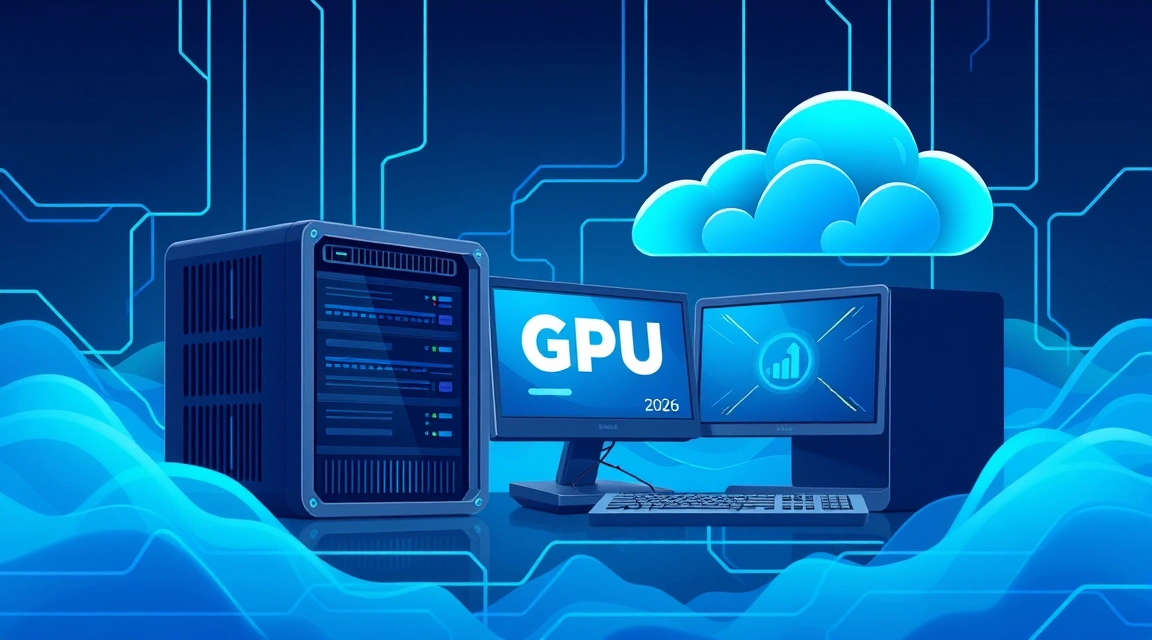
El alquiler de GPU para gaming en 2026 representa una solución altamente eficiente y económicamente ventajosa para ejecutar juegos exigentes en un servidor en la nube remoto, equipado con una potente tarjeta gráfica, lo que permite obtener un PC gaming en la nube completo sin inversiones significativas en hardware físico.
¿Qué es el alquiler de GPU para gaming y cómo funciona?
En un contexto de requisitos del sistema en constante aumento para los juegos modernos, muchos gamers se enfrentan a un dilema: invertir miles de dólares en una nueva tarjeta gráfica o buscar soluciones alternativas. El alquiler de GPU para gaming ofrece precisamente esa alternativa. Es un servicio en el que obtienes acceso a un potente servidor remoto con una tarjeta gráfica de alto rendimiento (GPU) instalada, además de suficiente memoria RAM y un procesador rápido. Te conectas a este servidor a través de internet, utilizando software especializado para streaming, y ejecutas los juegos como si estuvieran instalados en tu ordenador local.
Diferencias con el gaming en la nube tradicional
Es importante entender la diferencia entre el alquiler de un servidor GPU (o cloud gaming VPS) y las plataformas de gaming en la nube tradicionales, como GeForce NOW, Google Stadia (que ya no está activa, pero sirvió como ejemplo) o Xbox Cloud Gaming. Los servicios tradicionales ofrecen paquetes predefinidos donde estás limitado a su biblioteca de juegos, configuraciones y, a menudo, no tienes control total sobre el sistema operativo. Simplemente haces streaming del juego como un flujo de video. En el caso del alquiler de GPU, obtienes un servidor virtual o dedicado completo con derechos de administrador. Esto significa que puedes instalar cualquier sistema operativo (generalmente Windows Server), instalar cualquier juego de Steam, Epic Games Store, GOG u otras plataformas, así como cualquier otro software. Tú mismo gestionas la configuración gráfica, los drivers y la optimización, lo que te da una flexibilidad y un control incomparablemente mayores. En esencia, creas tu propio PC gaming en la nube.
Ventajas clave y escenarios de uso
Las ventajas de alquilar una GPU para gaming son evidentes para muchas categorías de usuarios:
- Ahorro de costes: En lugar de comprar una tarjeta gráfica costosa por $800-$2000+, pagas solo por el tiempo de uso real de la GPU. Es una opción ideal para quienes no juegan constantemente, sino solo unas pocas horas a la semana o al mes.
- Acceso a hardware de primera línea: Puedes acceder a las tarjetas gráficas más nuevas y potentes (por ejemplo, RTX 4080, RTX 4090 o incluso tarjetas profesionales como A40/A6000), que serían inaccesibles para comprar o instalar en tu PC actual.
- Flexibilidad: Posibilidad de ejecutar cualquier juego, sin limitarse a la biblioteca del servicio. También puedes usar la GPU para otras tareas, como renderizado 3D, machine learning o edición de video, si el proveedor lo permite. El alquiler de GPU para renderizado es un tema aparte, pero relacionado, donde los mismos servidores pueden ser extremadamente útiles.
- Movilidad: Acceso a tu PC gaming desde cualquier parte del mundo donde haya una conexión a internet estable. Puedes jugar en un portátil de gama baja, una tablet o incluso un smartphone, utilizando el servidor remoto.
- Escalabilidad: A medida que salgan nuevos juegos o cambien tus necesidades, puedes actualizar fácilmente la configuración del servidor o cambiar la GPU sin necesidad de actualizar el hardware físico.
Los escenarios de uso incluyen: gamers con hardware obsoleto, desarrolladores de juegos que necesitan probar proyectos en diferentes configuraciones, usuarios de Mac que desean jugar a juegos de Windows, o simplemente aquellos que quieren evitar el ruido y la disipación de calor de un PC potente en casa.
¿Cómo configurar un PC gaming en la nube en un servidor GPU de Valebyte?
Configurar tu propio PC gaming en la nube en un servidor GPU de Valebyte es un proceso que requiere atención, pero que te da control total sobre tu entorno de juego. Veamos paso a paso cómo hacerlo.
Elección del servidor GPU adecuado
El primer paso es elegir la configuración adecuada. Para el gaming, no solo la GPU es importante, sino también otros componentes: el procesador, la memoria RAM y el subsistema de disco. Valebyte ofrece diversas configuraciones de servidores dedicados con GPU, así como potentes VPS con capacidad de passthrough de tarjeta gráfica o GPU virtualizadas. Al elegir, presta atención a los siguientes parámetros:
- GPU: Determina qué tan bien funcionarán los juegos. Para 1080p/60fps, una NVIDIA RTX 3060/4060 o AMD RX 6700XT/7700XT es suficiente. Para 1440p/144fps o 4K/60fps, necesitarás una RTX 4070/4080/4090 o sus equivalentes.
- VRAM: La cantidad de memoria de video. Los juegos modernos en altas resoluciones pueden consumir hasta 12-16 GB de VRAM o más. Un mínimo de 8 GB para 1080p, 12 GB o más para 1440p/4K.
- CPU: El procesador juega un papel clave, especialmente en juegos que exigen mucho de un solo núcleo (por ejemplo, simuladores, estrategias). Se recomienda un mínimo de 4-8 núcleos con una alta frecuencia de reloj (por ejemplo, Intel Xeon E-23xx/E-24xx o AMD EPYC con buen rendimiento por núcleo).
- RAM: Memoria RAM. 16 GB es el mínimo absoluto para un gaming cómodo en 2026. 32 GB es óptimo para la mayoría de los juegos y tareas en segundo plano.
- Disco: Solo NVMe SSD. La velocidad de carga de juegos y niveles es crítica. Capacidad: de 500 GB a 2 TB, dependiendo de la cantidad de juegos a instalar.
- Ubicación del servidor: Elige un centro de datos que esté lo más cerca posible de tu ubicación física. Esto afecta directamente a la latencia (ping), que es un factor crítico para una experiencia de juego cómoda.
Por ejemplo, para la mayoría de los proyectos AAA modernos en 1440p con alto FPS, recomendaríamos una configuración con NVIDIA RTX 4080 (16 GB VRAM), Intel Xeon E-24xx (6-8 núcleos, 4.5+ GHz Boost), 32 GB DDR5 RAM y 1 TB NVMe SSD.
Instalación y configuración del sistema operativo
Después de alquilar el servidor, se te proporcionará acceso al panel de control. Elige la instalación de Windows Server (por ejemplo, Windows Server 2022). Esta es la opción óptima, ya que es compatible con todos los juegos y tiene la funcionalidad necesaria, a menudo requiriendo menos recursos que las versiones de escritorio de Windows si se configura correctamente. Después de instalar el SO:
- Conéctate al servidor por RDP (Remote Desktop Protocol).
- Desactiva la configuración de seguridad mejorada de Internet Explorer (IE Enhanced Security Configuration) en Server Manager para facilitar la descarga de archivos.
- Instala todas las actualizaciones de Windows disponibles.
- Instala un navegador (Chrome, Firefox) para futuras descargas.
Configuración de drivers y optimización
Esta es la etapa más importante para obtener el máximo rendimiento:
¿Buscas un servidor fiable para tus proyectos?
VPS desde $10/mes y servidores dedicados desde $9/mes con NVMe, protección DDoS y soporte 24/7.
Ver ofertas →-
Instalación de drivers de GPU: Descarga los últimos drivers NVIDIA GeForce Game Ready Driver o AMD Radeon Software desde los sitios web oficiales. Asegúrate de descargar la versión compatible con tu tarjeta gráfica y Windows Server.
# Ejemplo para NVIDIA (descargar y ejecutar) # Abre el navegador en el servidor, ve a nvidia.com/drivers # Selecciona tu tarjeta gráfica y SO (por ejemplo, Windows 10/11 64-bit, ya que los drivers Game Ready a menudo no especifican Server OS) # Descarga y ejecuta el archivo de instalación # Elige "Custom Installation" e instala solo el driver gráfico, PhysX y HD Audio Driver (si necesitas sonido a través de HDMI/DisplayPort). # Desactiva GeForce Experience si no planeas usarlo, para ahorrar recursos. # Después de la instalación, se requerirá un reinicio. -
Optimización de Windows Server:
- Desactiva servicios innecesarios (por ejemplo, Print Spooler, Windows Search, si no los usas).
- Configura el plan de energía en "Alto rendimiento".
- Desactiva las actualizaciones automáticas de Windows (o configúralas para una verificación manual, para evitar reinicios inesperados durante el juego).
- Instala DirectX End-User Runtime (si no está instalado con el juego).
- Asegúrate de que el Firewall de Windows no bloquee los puertos utilizados para el streaming (Parsec, Moonlight).
- Drivers de audio: Si tienes problemas de sonido, es posible que necesites instalar drivers de audio adicionales o dispositivos de audio virtuales (por ejemplo, VB-Cable Virtual Audio Device) para una transmisión de sonido correcta a través de clientes de streaming.
¿Qué GPUs soportan los juegos modernos en 2026?
La elección de la tarjeta gráfica es la piedra angular de cualquier PC gaming, y un PC gaming en la nube no es una excepción. En 2026, con el lanzamiento de nuevas generaciones de juegos y tecnologías gráficas, los requisitos de GPU siguen aumentando. Veamos qué tarjetas son relevantes y de qué son capaces.
Comparativa de tarjetas gráficas populares para alquiler (NVIDIA RTX, AMD Radeon)
En el mercado de alquiler de GPU, las tarjetas NVIDIA dominan gracias a su amplio soporte de tecnologías (DLSS, Ray Tracing, CUDA para tareas profesionales) y su excelente rendimiento. AMD también ofrece soluciones competitivas, pero su disponibilidad en la nube puede ser menor. Veamos los modelos actuales:
- NVIDIA GeForce RTX 4060/4060 Ti (8-16 GB VRAM): Excelente opción para gaming en 1080p con ajustes altos y 1440p con DLSS. Buena relación precio/rendimiento.
- NVIDIA GeForce RTX 4070/4070 Ti (12-16 GB VRAM): Ideales para gaming en 1440p con ajustes máximos. Con DLSS, son capaces de ofrecer un alto FPS incluso en juegos exigentes con Ray Tracing.
- NVIDIA GeForce RTX 4080 (16 GB VRAM): Una tarjeta potente para 1440p con un FPS muy alto y gaming cómodo en 4K con DLSS. Excelente opción para quienes buscan el máximo rendimiento sin pasar al segmento superior.
- NVIDIA GeForce RTX 4090 (24 GB VRAM): El rey del rendimiento. Permite jugar en 4K con ajustes máximos, Ray Tracing y un alto FPS. Excesiva para la mayoría, pero indispensable para entusiastas y quienes buscan la mejor experiencia.
- NVIDIA RTX A4000/A5000/A6000 (16-48 GB VRAM): Tarjetas profesionales, a menudo disponibles para alquiler. Aunque no están optimizadas para juegos de la misma manera que las GeForce, su alto rendimiento y gran cantidad de VRAM las convierten en una excelente opción para gaming, especialmente si también usas el servidor para tareas de trabajo (renderizado, IA). Dónde alquilar una GPU A100 en la nube es una cuestión aparte, pero las A4000/A6000 también son soluciones potentes.
- AMD Radeon RX 7700 XT / 7800 XT (12-16 GB VRAM): Soluciones competitivas de AMD, que ofrecen un excelente rendimiento en juegos rasterizados. Buenas para 1440p, pero pueden quedarse atrás de NVIDIA en Ray Tracing y tecnologías de escalado (FSR es bueno, pero DLSS a menudo está más pulido).
Benchmarks y requisitos para proyectos AAA
En 2026, se espera que la mayoría de los juegos AAA utilicen activamente el trazado de rayos (Ray Tracing) y las tecnologías de escalado de resolución (DLSS, FSR). Requisitos y rendimiento aproximados:
- Para 1080p/60fps (ajustes High/Ultra): RTX 4060/4060 Ti, RX 7700 XT.
- Para 1440p/60-100fps (ajustes Ultra, Ray Tracing Medium/High, DLSS/FSR Quality): RTX 4070/4070 Ti, RX 7800 XT.
- Para 1440p/120+fps (ajustes Ultra, Ray Tracing High, DLSS/FSR Balanced): RTX 4080.
- Para 4K/60+fps (ajustes Ultra, Ray Tracing High/Ultra, DLSS/FSR Performance): RTX 4080/4090.
Tabla aproximada de rendimiento y coste de alquiler de GPU para gaming (a partir de 2026, los precios son orientativos y pueden variar):
| Modelo de GPU | VRAM (GB) | Rendimiento típico (1440p Ultra, DLSS Quality) | Coste de alquiler aproximado ($/hora) | Juegos/escenarios recomendados |
|---|---|---|---|---|
| NVIDIA RTX 4060 Ti | 8/16 | 60-80 FPS | $0.40 - $0.60 | Cyberpunk 2077 (sin RT), Starfield, Alan Wake 2 (con DLSS) |
| NVIDIA RTX 4070 Super | 12 | 80-100 FPS | $0.60 - $0.80 | La mayoría de los juegos AAA con RT (Medium), Hogwarts Legacy, Diablo IV |
| NVIDIA RTX 4080 | 16 | 100-140 FPS | $0.90 - $1.20 | Cualquier juego en Ultra con RT (High), para monitores 1440p/144Hz |
| NVIDIA RTX 4090 | 24 | 140-200+ FPS | $1.50 - $2.50 | Gaming 4K sin compromisos, VR, streaming con alto bitrate |
| AMD Radeon RX 7800 XT | 16 | 70-90 FPS (raster), 40-60 FPS (RT Medium, FSR) | $0.50 - $0.70 | Juegos sin gran énfasis en RT, CoD, Forza Horizon 5 |
Nota: El FPS depende en gran medida del juego específico, la configuración gráfica, el procesador del servidor y la calidad de la conexión de red. Los valores indicados son orientativos.

Latencia y streaming: Parsec y Moonlight para GPU gaming en alquiler
Un aspecto crítico del gaming en la nube es la minimización de la latencia y la elección de software de streaming eficiente. Incluso la GPU gaming en alquiler más potente será inútil si la imagen se retrasa y el control no responde. Aquí es donde entran en juego soluciones de streaming especializadas como Parsec y Moonlight.
Optimización de la conexión de red y minimización de la latencia
La latencia en el gaming en la nube se compone de varios elementos:
- Latencia de red (ping): El tiempo necesario para transmitir datos desde tu dispositivo al servidor y viceversa. Este es el factor más importante. Elige un servidor ubicado lo más cerca posible de ti. Lo ideal es que el ping sea inferior a 30 ms, y perfecto si es inferior a 15-20 ms.
- Latencia de codificación/decodificación: El tiempo que tarda la GPU del servidor en codificar el flujo de juego y tu dispositivo en decodificarlo. Las GPU y CPU modernas tienen codificadores/decodificadores de hardware (NVENC en NVIDIA, AMF en AMD), lo que reduce significativamente esta latencia.
- Latencia de procesamiento de fotogramas: El tiempo que tarda el juego en renderizar un fotograma en el servidor. Depende de la potencia de la GPU y la configuración del juego.
- Latencia de entrada: El tiempo desde que presionas un botón en tu lado hasta la reacción del juego en el servidor.
Para minimizar la latencia:
- Usa una conexión Ethernet por cable en lugar de Wi-Fi en tu dispositivo.
- Conecta el servidor a un canal de alta velocidad con mínima carga. Valebyte proporciona puertos de alta velocidad para sus servidores.
- Cierra todas las aplicaciones en segundo plano que consuman ancho de banda de red en tu dispositivo.
- Configura los parámetros del cliente de streaming (resolución, bitrate, FPS) de acuerdo con las capacidades de tu conexión a internet. Para 1080p/60fps se requiere una conexión estable de aproximadamente 20-30 Mbps, para 4K/60fps, de 50-100 Mbps.
En el contexto de la baja latencia, cabe mencionar que Valebyte también ofrece el mejor VPS para trading de futuros con baja latencia, lo que confirma nuestra experiencia en la provisión de soluciones de red de alta velocidad y fiables.
Configuración de Parsec para PC en la nube
Parsec es una de las mejores herramientas para acceso remoto con baja latencia, diseñada específicamente para gaming y tareas profesionales. Proporciona streaming de video y audio de alta calidad con una latencia mínima. Está disponible en Windows, macOS, Linux, Android, iOS y Raspberry Pi.
Configuración en el servidor (Host):
- Descarga e instala Parsec (Parsec for Teams/Gaming) en tu servidor GPU.
- Crea una cuenta Parsec e inicia sesión.
- En la configuración de Parsec en el servidor:
- Host → Bandwidth: Establece el valor máximo que tu conexión a internet pueda soportar (por ejemplo, 50-100 Mbps).
- Host → Resolution: Establece la resolución deseada (por ejemplo, 1920x1080 o 2560x1440).
- Host → FPS: Elige 60 FPS o superior, si tu monitor lo soporta.
- Host → Renderer: Elige DirectX 11 o 12.
- Host → H.265 (HEVC): Actívalo si tu tarjeta gráfica y dispositivo cliente soportan codificación/decodificación de hardware H.265 para una mejor calidad con menor bitrate.
- Host → VSync: Desactívalo en el servidor para reducir la latencia.
- Asegúrate de que el servidor tenga una contraseña establecida para el inicio de sesión (Panel de control → Cuentas de usuario → Cambiar contraseña). Parsec requiere una contraseña para iniciar sesión.
- Reinicia Parsec después de los cambios.
Configuración en el dispositivo cliente:
- Descarga e instala Parsec en tu PC/portátil local.
- Inicia sesión con la misma cuenta. Tu servidor debería aparecer en la lista de máquinas disponibles.
- Conéctate al servidor.
- En la configuración de Parsec en el cliente:
- Client → Decoder: Establece "Hardware" para un rendimiento máximo.
- Client → VSync: Desactívalo.
- Client → Immersive Mode: Actívalo para una inmersión completa.
# Ejemplo de comando para verificar la conexión de red al servidor (en tu PC local)
ping your_server_ip -n 50

# Ejemplo de comando para instalar Parsec en Windows Server (ejecutar en PowerShell como administrador)
# Descargar el instalador
Invoke-WebRequest -Uri "https://builds.parsec.app/package/parsec-windows.exe" -OutFile "$env:TEMP\parsec-windows.exe"
# Ejecutar la instalación
Start-Process -FilePath "$env:TEMP\parsec-windows.exe" -ArgumentList "/S" -Wait
# Después de la instalación, iniciar Parsec y realizar la configuración a través de la GUI
Configuración de Moonlight (NVIDIA GameStream)
Moonlight es un cliente de código abierto que funciona con la tecnología NVIDIA GameStream (ahora NVIDIA GeForce Experience Share). Permite transmitir juegos desde tu servidor GPU NVIDIA a cualquier dispositivo. Para usar Moonlight, se necesita una tarjeta gráfica NVIDIA y GeForce Experience instalado en el servidor.
Configuración en el servidor (Host):
- Instala GeForce Experience en tu servidor GPU (si lo omitiste al instalar los drivers).
- En GeForce Experience, ve a Settings → SHIELD y asegúrate de que GameStream esté activado.
- Añade los juegos que quieras transmitir a GeForce Experience (Games → Scan for games). Si un juego no se encuentra automáticamente, añádelo manualmente a través del botón "+".
- Asegúrate de que el modo de escritorio remoto esté activado en el servidor, pero no lo uses durante el streaming a través de Moonlight. Es preferible que el servidor esté en un estado de escritorio activo, no bloqueado. Para ello, se pueden usar scripts o utilidades especiales que simulen un monitor conectado.
Configuración en el dispositivo cliente:
- Descarga e instala Moonlight en tu dispositivo (disponible en Windows, macOS, Linux, Android, iOS, ChromeOS, Raspberry Pi).
- Inicia Moonlight. Debería detectar automáticamente tu servidor en la red local. Si el servidor es remoto, deberás añadir su dirección IP manualmente.
- Moonlight te pedirá que introduzcas un código PIN, que se mostrará en la pantalla del servidor. Introdúcelo.
- Después de emparejar, verás una lista de juegos disponibles para streaming. Selecciona un juego y ejecútalo.
Moonlight a menudo ofrece una latencia aún menor que Parsec, gracias a la integración directa con NVIDIA GameStream, pero está limitado solo a GPU NVIDIA y requiere GeForce Experience, que puede consumir más recursos que un Parsec Host puro.
¿Cuánto cuesta alquilar una GPU para gaming por hora y a quién le beneficia?
El coste del alquiler de GPU para gaming es un factor clave en la toma de decisiones. A diferencia del precio fijo de compra de una tarjeta gráfica, el alquiler ofrece un modelo de pago flexible, lo que lo hace atractivo para una categoría específica de usuarios.
Cálculo de costes y factores que influyen en el precio
El coste del alquiler de un servidor GPU generalmente se calcula por hora, pero muchos proveedores también ofrecen tarifas mensuales, que son más ventajosas para un uso constante. El precio promedio por hora de alquiler de una potente GPU gaming varía según el modelo de tarjeta gráfica, el procesador, la cantidad de RAM y disco, así como la región del centro de datos. Precios orientativos (a partir de 2026):
- NVIDIA RTX 4060 Ti (8-16 GB): $0.40 - $0.60 por hora.
- NVIDIA RTX 4070/4070 Ti (12-16 GB): $0.60 - $0.80 por hora.
- NVIDIA RTX 4080 (16 GB): $0.90 - $1.20 por hora.
- NVIDIA RTX 4090 (24 GB): $1.50 - $2.50 por hora.
- AMD RX 7800 XT (16 GB): $0.50 - $0.70 por hora.
Factores adicionales que influyen en el coste:
- Procesador y RAM: Una CPU más potente y una mayor cantidad de RAM aumentan el coste total.
- Subsistema de disco: NVMe SSD es más caro que los SSD o HDD normales, pero es críticamente importante para los juegos.
- Tráfico: Algunos proveedores pueden cobrar por el tráfico saliente que exceda un cierto límite. En Valebyte, el tráfico generalmente está incluido en el precio o tiene un límite muy alto.
- Sistema operativo: La licencia de Windows Server puede estar incluida en el precio o pagarse por separado.
- Región: Los servidores en regiones populares con mejor conectividad pueden ser más caros.
Por ejemplo, si juegas 3 horas al día en un servidor con RTX 4070 Ti por $0.70/hora:
- Gastos diarios: 3 horas * $0.70 = $2.10
- Gastos mensuales: $2.10 * 30 días = $63.00
Si juegas solo los fines de semana, 5 horas al día:
- Gastos semanales: 2 días * 5 horas * $0.70 = $7.00
- Gastos mensuales: $7.00 * 4 semanas = $28.00
Comparación con la compra de una tarjeta gráfica física
Veamos a quién le beneficia más que la compra de una tarjeta gráfica. El coste promedio de una nueva tarjeta gráfica RTX 4070 Ti es de aproximadamente $800-$1000. Una RTX 4080 cuesta $1200-$1500, y una RTX 4090, $1800-$2500+.
Punto de equilibrio (Break-even point): Si una RTX 4070 Ti cuesta $900 y el alquiler es de $0.70/hora, entonces $900 / $0.70 ≈ 1285 horas de uso. Con 3 horas de juego al día, esto es ~428 días (casi 1.2 años). Con 10 horas de juego a la semana, esto es ~128 semanas (casi 2.5 años). Esto no tiene en cuenta el coste del resto del PC (CPU, RAM, MB, PSU, caja), así como el desgaste, el ruido, la disipación de calor y la futura pérdida de valor de la tarjeta gráfica.
Ventajas del alquiler:
- Ausencia de costes iniciales: No es necesario desembolsar una gran suma de dinero de inmediato.
- Hardware actualizado: Siempre puedes alquilar la tarjeta más nueva y potente, sin preocuparte por la obsolescencia de tu equipo.
- Ausencia de mantenimiento: El proveedor se encarga de todo el mantenimiento, refrigeración y suministro eléctrico.
- Escalabilidad: Puedes cambiar fácilmente la configuración si necesitas más potencia o, por el contrario, un servidor menos potente.
Ventajas de la compra:
- Tiempo de uso ilimitado: Una vez comprada, la tarjeta es tuya y puedes usarla todo el tiempo que quieras.
- Ausencia de dependencia de internet: No se requiere una conexión de alta velocidad constante.
- Latencia mínima: Un PC local siempre tendrá la latencia más baja.
Público objetivo: ¿a quién le conviene un cloud gaming VPS?
El alquiler de GPU para gaming es beneficioso para las siguientes categorías de usuarios:
- Gamers casuales y aficionados: Aquellos que juegan unas pocas horas a la semana y no quieren gastar miles en un PC gaming.
- Jugadores con hardware obsoleto: En lugar de actualizar todo el PC, se puede alquilar un servidor GPU.
- Propietarios de Mac o portátiles de gama baja: Posibilidad de jugar a exclusivos de Windows o juegos exigentes.
- Viajeros: Acceso a su biblioteca de juegos desde cualquier parte del mundo.
- Entornos de prueba: Desarrolladores de juegos que necesitan probar el rendimiento en diferentes GPUs.
- Entusiastas ahorradores: Aquellos que quieren probar hardware de primera línea, pero no están dispuestos a comprarlo.
Si juegas más de 20 horas a la semana, la compra de una tarjeta gráfica probablemente será más rentable a largo plazo (1.5-2 años). Sin embargo, si juegas 5-10 horas a la semana o quieres tener acceso a diferentes GPUs, el alquiler es tu opción. Además, Valebyte soporta VPS sin tarjeta bancaria y hosting con pago en criptomonedas, lo que hace que el proceso de alquiler sea aún más accesible y privado para muchos usuarios en todo el mundo.
Recomendaciones para la elección y operación de un servidor GPU para gaming
Para que tu experiencia con un PC gaming en la nube sea lo más agradable y eficiente posible, es importante considerar no solo la GPU, sino también otros aspectos de la elección y operación del servidor.
Parámetros importantes del servidor (RAM, CPU, NVMe SSD)
Además de la tarjeta gráfica, el resto de los componentes del servidor juegan un papel críticamente importante en el rendimiento general y la capacidad de respuesta de tu sistema de juego:
- Procesador (CPU): Para el gaming, se prefieren procesadores con una alta frecuencia de reloj por núcleo, en lugar de con el máximo número de núcleos. Los juegos rara vez utilizan todos los 16+ núcleos, pero cargan activamente 4-8 núcleos rápidos. Un Intel Xeon de la serie E o un AMD Ryzen/Threadripper con buen rendimiento de un solo hilo serán una excelente opción. Mínimo 4 núcleos con una frecuencia de 3.5 GHz o más, óptimo 6-8 núcleos con una frecuencia de 4.0+ GHz (con Boost).
- Memoria RAM: 16 GB de RAM DDR4 o DDR5 es el estándar mínimo para los juegos modernos. Para ejecutar cómodamente proyectos AAA, software de streaming y tareas en segundo plano, se recomiendan encarecidamente 32 GB de RAM. Asegúrate de que la RAM sea lo suficientemente rápida (por ejemplo, DDR4 3200 MHz o DDR5 4800+ MHz).
- Subsistema de disco (NVMe SSD): El uso de un NVMe SSD es una condición obligatoria para un servidor de juegos. La velocidad de carga de niveles, texturas y el propio juego aumenta significativamente. Los HDD o incluso los SATA SSD crearán "cuellos de botella" notables, lo que provocará micro-congelaciones y tiempos de carga prolongados. Se recomienda un NVMe SSD con una capacidad de 500 GB a 2 TB, dependiendo de tu biblioteca de juegos.
- Interfaz de red: Un puerto de 1 Gbit/s es el estándar. Asegúrate de que no esté sobrecargado y tenga una conexión estable a la troncal de internet. Para un rendimiento máximo, algunos proveedores ofrecen puertos de 10 Gbit/s, lo que puede ser útil para streaming con un bitrate muy alto o para descargar juegos grandes.
Seguridad y monitorización
Dado que utilizas un servidor remoto, las cuestiones de seguridad y monitorización se vuelven especialmente relevantes:
- Contraseñas: Utiliza contraseñas seguras y complejas para acceder al servidor (RDP, SSH, panel de control).
- Firewall: Configura el firewall de Windows Server para permitir solo las conexiones entrantes necesarias (por ejemplo, para RDP, Parsec/Moonlight). Cierra todos los demás puertos.
- Actualizaciones: Instala regularmente las actualizaciones de seguridad para Windows Server y los drivers de la GPU. Puedes configurarlas para una verificación manual para evitar reinicios repentinos durante el juego.
- Antivirus: Instala un antivirus básico. En un entorno de nube, el riesgo de infección es menor, pero aún existe.
- Monitorización: Utiliza las herramientas integradas de Windows (Administrador de tareas, Monitor de recursos) o utilidades de terceros para monitorizar la carga de la CPU, RAM, GPU y red. Esto te ayudará a identificar "cuellos de botella" y optimizar el rendimiento.
- Copia de seguridad: Si almacenas datos importantes o partidas guardadas en el servidor, configura copias de seguridad regulares. Algunos proveedores ofrecen este servicio, o puedes usar almacenamiento en la nube.
Siguiendo estas recomendaciones, podrás crear un PC gaming en la nube fiable y de alto rendimiento que te deleitará con un funcionamiento estable y gráficos excelentes.
Conclusiones
El alquiler de GPU para gaming en 2026 es una alternativa potente y flexible a la compra de costosos equipos de juego, especialmente para usuarios que valoran el ahorro y el acceso a tarjetas gráficas de primera línea bajo demanda. La elección de un servidor GPU adecuado, su correcta configuración utilizando soluciones de streaming como Parsec o Moonlight, y la optimización de la conexión de red permiten crear un PC gaming en la nube completo con una latencia mínima. Este enfoque es especialmente ventajoso para gamers con un presupuesto limitado, jugadores ocasionales o aquellos que quieren jugar a proyectos AAA modernos sin la necesidad de actualizar constantemente su equipo local.
Bare metal en más de 70 ubicaciones: hardware moderno, NVMe, entrega rápida, pago con tarjeta o cripto.
Ver servidores