bolt Valebyte VPS from $4/mo — NVMe, 60s deploy.

Get a VPS arrow_forward
eco Beginner Tutorial/How-to

Installing Mailcow on VPS: Complete Guide

calendar_month Jun 01, 2026 schedule 20 min read visibility 34 views
Установка Mailcow на VPS: Полный гид по self-hosted почте с Docker и Let's Encrypt
info

Need a server for this guide? We offer dedicated servers and VPS in 50+ countries with instant setup.

Need a server for this guide?

Deploy a VPS or dedicated server in minutes.

Installation of Mailcow on VPS: A Complete Guide to Self-Hosted Email with Docker and Let's Encrypt

TL;DR

In this detailed guide, we will step-by-step set up a full-fledged Mailcow email server on your Virtual Private Server (VPS), using Docker and automatically generated SSL certificates from Let's Encrypt. You will gain complete control over your email, ensuring privacy, reliability, and flexibility, which is ideal for developers, solo founders, and companies striving for independence from third-party email providers.

  • Setting up Mailcow on a VPS allows you to create your own email service with full data control.
  • Using Docker simplifies the deployment, isolation, and updating of all Mailcow components.
  • Automatic integration of Let's Encrypt provides free and up-to-date SSL/TLS certificates for traffic protection.
  • The guide covers all stages: from VPS selection and basic server setup to Mailcow installation, DNS configuration, backup, and troubleshooting common issues.
  • You will get a fully functional email server, including a web interface, antispam, antivirus, and support for modern protocols.
  • All commands and settings are current for 2026 and are intended for immediate execution.

What We Are Setting Up and Why
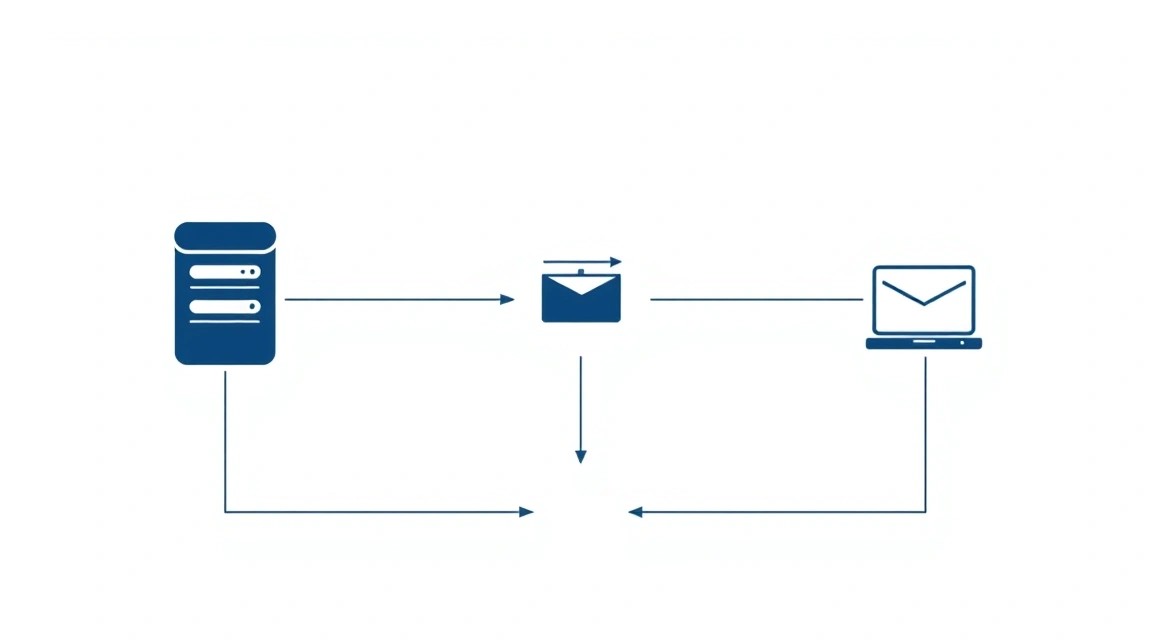
Diagram: What We Are Setting Up and Why

In this guide, we will install and configure Mailcow, a comprehensive solution for creating your own email server. Mailcow is a powerful, fully containerized (Docker-based) email service that provides all the necessary components for email operation: SMTP, IMAP/POP3, web interface (SOGo), antispam (Rspamd), antivirus (ClamAV), calendar, contacts, as well as integration with Let's Encrypt for automatic issuance of SSL/TLS certificates.

The task is to deploy Mailcow on your own VPS or dedicated server, which will give you full control over your email infrastructure. Ultimately, you will get a reliable and secure email server that can serve domains and users of your choice. You will be able to create mailboxes, manage aliases, configure spam filtering rules, and be confident in the confidentiality of your data, as it will be stored on your own hardware, not with a third-party provider.

Why self-hosted email on a VPS, and not cloud services?

There are many alternatives to self-hosted email, such as Gmail, Outlook 365, ProtonMail, or Yandex.Mail for a domain. They offer convenience and ease of use but have their drawbacks:

  • Data Control: When using cloud services, your data is stored on third-party servers, which can raise privacy and security concerns. A self-hosted solution gives you full control over where and how your emails are stored.
  • Flexibility and Customization: Cloud services offer limited customization options. Mailcow, being deployed on your server, allows you to finely tune all aspects of email operation, from filtering rules to integration with other systems.
  • Long-term Cost: For large teams or many mailboxes, the cost of cloud email services can significantly increase. Your own server, when properly configured, can be a more cost-effective solution.
  • Independence: You are not dependent on the policies, failures, or changes in the operation of third-party providers. Your email server will work as you have configured it.

This guide is ideal for those who value privacy, want full control over their infrastructure, or have specific requirements that cannot be met by standard cloud offerings. Developers can set up email for their projects, startups for team communication, and crypto enthusiasts for ensuring privacy.

What VPS Configuration is Needed for This Task
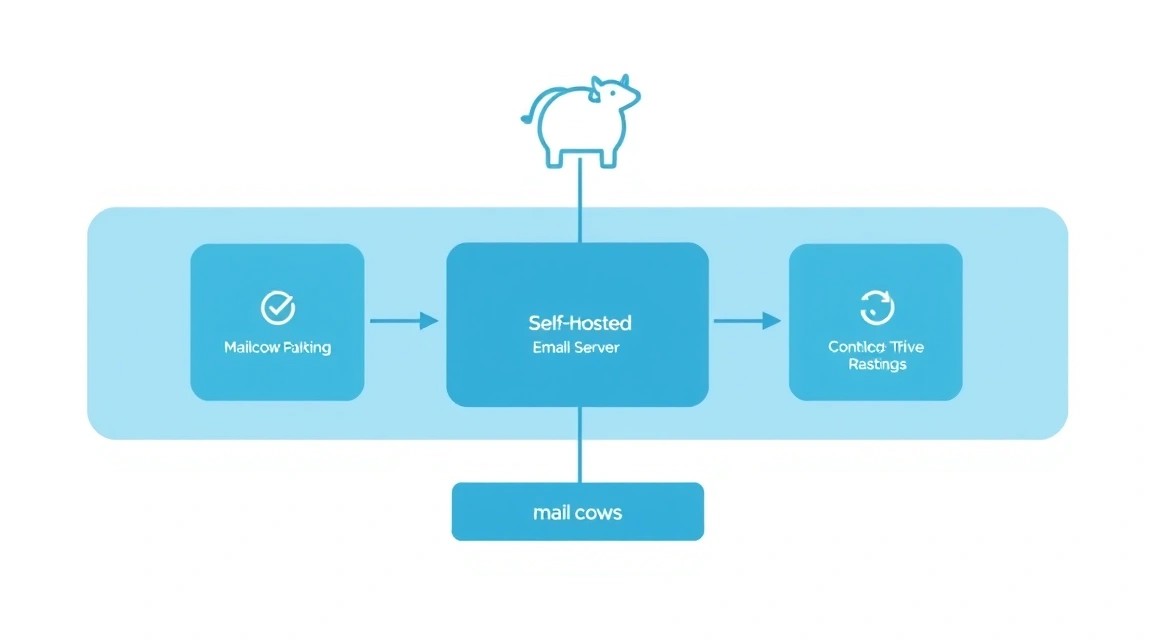
Diagram: What VPS Configuration is Needed for This Task

For successful and stable Mailcow deployment, it is critically important to choose a suitable VPS or dedicated server. Mailcow, although optimized for containerized operation, is a fairly resource-intensive application due to the multitude of included components (database, web server, antispam, antivirus, etc.).

Minimum Requirements (for 1-5 users, low traffic):

  • CPU: 2 x86-64 cores. Modern processors with high clock speeds are preferred.
  • RAM: 4 GB. This is the absolute minimum; with active antispam and antivirus, it might be insufficient. Part of the RAM will be used by Docker and the OS.
  • Disk: 50 GB SSD. SSD is critically important for database performance and fast access to email files. Keep in mind that emails quickly fill up disk space.
  • Network: 100 Mbps with unlimited traffic or a large volume (minimum 1 TB/month). A stable IP address, preferably without a spam history.

Recommended VPS Plan (for 5-20 users, moderate traffic):

  • CPU: 4 x86-64 cores.
  • RAM: 8 GB. This will ensure comfortable operation of all components, including Rspamd and ClamAV.
  • Disk: 100-200 GB SSD. With a reserve for mailbox growth and log storage.
  • Network: 1 Gbps with unlimited traffic.

For such characteristics, you can consider a VPS with the specified characteristics. When choosing, always pay attention to the disk type (SSD only) and the availability of unlimited or large traffic volume.

When is a dedicated server needed, not a VPS?

A dedicated server becomes necessary if:

  • Large Number of Users: More than 50 active users generating significant traffic.
  • High Email Volume: The server processes hundreds of thousands of emails per day.
  • Performance Requirements: Maximum performance is needed for antispam, antivirus, or specific integrations.
  • Strict SLAs and Isolation: Full physical isolation is required for security and stability, as well as guaranteed resources without "noisy neighbors".
  • Large Data Storage: Mailboxes with terabytes of data.

For such scenarios, it is advisable to consider a suitable dedicated server, which provides full control over hardware and guarantees dedicated resources.

Location: What it affects

The choice of server location can affect several factors:

  • Latency: The closer the server is to most of your users, the lower the latency will be when accessing the web interface and IMAP/POP3.
  • Legislation: Data storage and privacy laws vary in different countries. Choose a location that complies with your requirements and regulatory norms.
  • IP Address Reputation: Some IP ranges in certain countries may have a worse reputation with spam filters, which can affect your email deliverability. It is preferable to choose providers with a good reputation and the possibility of obtaining a "clean" IP address.
  • DNS Resolution: Proximity to major internet nodes can slightly speed up DNS queries, but this is less critical than user latency.

It is usually recommended to choose a location as close as possible to your primary audience or business location.

Server Preparation
Diagram: Server Preparation

Before installing Mailcow, basic server preparation is required. We will use Ubuntu 24.04 LTS as a stable and widely used operating system. Ensure you have SSH access to the server with root privileges or a user with sudo.

1. System Update and Basic Utility Installation

First, let's update the system and install the necessary packages.


sudo apt update                                 # Update package list
sudo apt upgrade -y                             # Upgrade installed packages
sudo apt install -y curl wget git               # Install basic utilities: curl, wget, git

2. Creating a New User with Sudo Privileges (Recommended)

Working as root is not recommended for everyday tasks. Let's create a new user and add them to the sudo group.


sudo adduser mailuser                           # Create a new user 'mailuser'
sudo usermod -aG sudo mailuser                  # Add user 'mailuser' to the 'sudo' group

Now, exit the root session and log in as mailuser. All subsequent commands requiring privileges will be executed with sudo.

3. SSH Key Setup (Optional, but Highly Recommended)

To enhance security, it is recommended to use SSH keys instead of passwords. If you don't already have a key pair, generate them on your local machine:


ssh-keygen -t rsa -b 4096                       # Generate a new SSH key on the local machine

Then copy the public key to the server:


ssh-copy-id mailuser@ВАШ_IP_СЕРВЕРА           # Copy the public key to the server for 'mailuser'

After this, you can disable password authentication in the file /etc/ssh/sshd_config by setting PasswordAuthentication no and restarting the SSH service.

4. Firewall Configuration (UFW)

Let's install and configure UFW (Uncomplicated Firewall) to protect the server. By default, all incoming connections will be denied, except those we explicitly allow.


sudo apt install -y ufw                         # Install UFW
sudo ufw default deny incoming                  # Deny all incoming connections by default
sudo ufw default allow outgoing                 # Allow all outgoing connections by default
sudo ufw allow ssh                              # Allow SSH (port 22)
sudo ufw enable                                 # Enable firewall
sudo ufw status                                 # Check firewall status

At this stage, the server is ready for Docker and Mailcow installation.

Software Installation — Step-by-Step
Diagram: Software Installation — Step-by-Step

Mailcow runs on Docker, so the first step will be to install Docker Engine and Docker Compose. We will use the current versions for 2026.

1. Docker Engine Installation

We will install Docker Engine using the official Docker repository to always get the latest versions.


# Добавляем GPG ключ Docker
sudo apt update
sudo apt install -y ca-certificates curl gnupg lsb-release
sudo install -m 0755 -d /etc/apt/keyrings
curl -fsSL https://download.docker.com/linux/ubuntu/gpg | sudo gpg --dearmor -o /etc/apt/keyrings/docker.gpg
sudo chmod a+r /etc/apt/keyrings/docker.gpg

# Добавляем репозиторий Docker в APT
echo \
  "deb [arch="$(dpkg --print-architecture)" signed-by=/etc/apt/keyrings/docker.gpg] https://download.docker.com/linux/ubuntu \
  "$(. /etc/os-release && echo "$VERSION_CODENAME")" stable" | \
  sudo tee /etc/apt/sources.list.d/docker.list > /dev/null

# Устанавливаем Docker Engine, Docker CLI и containerd
sudo apt update
sudo apt install -y docker-ce docker-ce-cli containerd.io docker-buildx-plugin docker-compose-plugin

# Проверяем установку Docker
sudo docker run hello-world                     # Запускаем тестовый контейнер для проверки установки Docker

Add your user to the docker group to avoid using sudo with every Docker command:


sudo usermod -aG docker $USER                   # Добавляем текущего пользователя в группу 'docker'
newgrp docker                                   # Применяем изменения группы без перезахода

Docker is now installed and ready to use. The Docker Engine version will be approximately 26.x - 27.x, and Docker Compose Plugin 2.24.x - 2.27.x, which is current for 2026.

2. Cloning the Mailcow-Dockerized Repository

Navigate to the directory where you want to store Mailcow files (e.g., /opt/mailcow-dockerized) and clone the official Mailcow repository.


sudo mkdir /opt/mailcow-dockerized              # Создаем директорию для Mailcow
sudo chown $USER:$USER /opt/mailcow-dockerized  # Устанавливаем владельца директории на текущего пользователя
cd /opt/mailcow-dockerized                      # Переходим в созданную директорию
git clone https://github.com/mailcow/mailcow-dockerized . # Клонируем репозиторий Mailcow в текущую директорию

3. Generating the Mailcow Configuration File

Mailcow uses the mailcow.conf file for its settings. It can be generated using a script.


./generate_config.sh                            # Запускаем скрипт для генерации mailcow.conf

The script will ask a few questions:

  • Hostname (FQDN): Enter the fully qualified domain name of your mail server, for example, mail.yourdomain.com. This will be the primary name by which your server is accessible.
  • Timezone: Select your timezone.

After answering the questions, the mailcow.conf file will be created. Open it and ensure all settings meet your needs. Pay special attention to variables related to ports and networking if you have specific requirements.

4. Configuring DNS Records

This is a critically important step for the mail server to function. Without correct DNS records, your mail will not be delivered or will end up in spam. You will need to add the following records to your domain's DNS management panel (yourdomain.com):

  • A-record for Mailcow FQDN:
    • Name/Host: mail (or your FQDN, e.g., mail.yourdomain.com)
    • Type: A
    • Value: YOUR_SERVER_IP
  • AAAA-record for Mailcow FQDN (if using IPv6):
    • Name/Host: mail
    • Type: AAAA
    • Value: YOUR_SERVER_IPV6_ADDRESS
  • MX-record: (points to your mail server)
    • Name/Host: @ or yourdomain.com
    • Type: MX
    • Priority: 10 (or any number, lower means higher priority)
    • Value: mail.yourdomain.com
  • SPF-record: (to prevent sender spoofing)
    • Name/Host: @ or yourdomain.com
    • Type: TXT
    • Value: v=spf1 mx a:mail.yourdomain.com -all
  • DKIM-record: (for signing outgoing emails; generated by Mailcow)
    • After the first launch, Mailcow will generate DKIM keys. You will need to copy the TXT record from the Mailcow web interface (Configuration -> Domains -> Add domain or Edit domain) and add it to DNS. The format will be approximately: dkim._domainkey.yourdomain.com TXT v=DKIM1; k=rsa; p=PUBLIC_KEY
  • DMARC-record: (to define the policy for handling emails that fail SPF/DKIM)

Ensure that all DNS records are indexed and available (this may take several hours). You can check them using dig or online tools, such as MXToolbox.


dig A mail.yourdomain.com               # Проверяем A-запись
dig MX yourdomain.com                   # Проверяем MX-запись
dig TXT yourdomain.com                  # Проверяем SPF-запись
dig TXT _dmarc.yourdomain.com           # Проверяем DMARC-запись

5. Starting Mailcow

Now that Docker is installed, the configuration is generated, and DNS is set up, you can start Mailcow.


cd /opt/mailcow-dockerized                      # Убедитесь, что вы находитесь в директории Mailcow
docker compose pull                             # Загружаем все необходимые Docker-образы (актуальные на 2026)
docker compose up -d                            # Запускаем все контейнеры Mailcow в фоновом режиме

The process of downloading images and starting containers may take some time depending on your internet connection speed and server performance. After starting, you can check the status of the containers:


docker compose ps                               # Проверяем статус запущенных контейнеров Mailcow

All containers should be in the running state.

6. Allowing Mailcow Ports in UFW

Mailcow uses many ports. Let's allow them in the UFW firewall.


sudo ufw allow 80/tcp                           # HTTP (for Let's Encrypt ACME challenge)
sudo ufw allow 443/tcp                          # HTTPS (for web interface and mail clients)
sudo ufw allow 25/tcp                           # SMTP (for sending/receiving mail)
sudo ufw allow 465/tcp                          # SMTPS (SMTP over SSL/TLS)
sudo ufw allow 587/tcp                          # Submission (SMTP for clients with StartTLS)
sudo ufw allow 110/tcp                          # POP3
sudo ufw allow 995/tcp                          # POP3S (POP3 over SSL/TLS)
sudo ufw allow 143/tcp                          # IMAP
sudo ufw allow 993/tcp                          # IMAPS (IMAP over SSL/TLS)
sudo ufw allow 4190/tcp                         # Sieve (server-side mail filtering)
sudo ufw status                                 # Check firewall status

Your Mailcow mail server is now running and accessible via the specified FQDN.
Configuration

Diagram: Configuration

After successfully launching Mailcow, the main settings are configured via the web interface. It is also important to ensure the correctness of DNS records and TLS operation.

1. First login to the Mailcow web interface

Open a web browser and navigate to your FQDN (e.g., https://mail.yourdomain.com). You should see the Mailcow UI login page.

Default credentials:

  • Login: admin
  • Password: moohoo

IMPORTANT: Change the administrator password immediately after the first login! Go to System > Configuration > Admins, select admin and change the password.

2. Adding a domain

Go to Configuration > Mail Setup > Domains. Click Add domain and enter your domain (e.g., yourdomain.com). After adding the domain, Mailcow will automatically generate DKIM records. Copy the provided TXT record and add it to your domain's DNS records (if you haven't done so already).

Example DKIM record (which you will copy from the interface):


_dkim.yourdomain.com.    IN    TXT    "v=DKIM1; k=rsa; p=MIGfMA0GCSqGSIb3DQEBAQUAA4GNADCBiQKBgQDzQ..."

Ensure that all DNS records (A, AAAA, MX, SPF, DKIM, DMARC) are correctly configured and resolving. You can use the Configuration > Mail Setup > ARC/DKIM/SPF section in the Mailcow UI to check the status of your DNS records.

3. Creating mailboxes

Go to Configuration > Mail Setup > Mailboxes. Click Add mailbox. Enter the username, select the domain, set a password, and specify a quota. After creation, you will be able to use this mailbox to send and receive emails.

4. Configuring TLS/HTTPS with Let's Encrypt

Mailcow uses acme.sh to automatically issue and renew SSL/TLS certificates from Let's Encrypt. Upon first launch, Mailcow will automatically attempt to obtain a certificate for your FQDN (e.g., mail.yourdomain.com). If the A and AAAA DNS records for your FQDN are correct and ports 80/443 are open, the certificate will be issued.

You can check the certificate status in System > Configuration > Certificates. If the certificate was not issued, check the logs of the acme-mailcow container:


docker compose logs acme-mailcow                # View acme-mailcow container logs

Typical issues: incorrect DNS records, closed ports 80/443, or a conflict with another web server on these ports (which should not happen on a clean VPS).

5. Verifying functionality

After all configurations, it is necessary to ensure that the mail server is functioning correctly.

Checking web interface accessibility:

Open https://mail.yourdomain.com in your browser. Ensure that the connection is secure (green padlock) and a Let's Encrypt certificate is used.

Checking SMTP/IMAP using telnet or openssl:

# Check SMTP (port 25)
telnet mail.yourdomain.com 25                   # Should respond 220 mail.yourdomain.com ESMTP Postfix
# Check SMTPS (port 465)
openssl s_client -connect mail.yourdomain.com:465 -crlf # Should show certificate information and SMTP greeting
# Check IMAPS (port 993)
openssl s_client -connect mail.yourdomain.com:993 -crlf # Should show certificate information and IMAP greeting
Sending a test email:

Create a mailbox in Mailcow (e.g., [email protected]) and send an email from it to an external address (e.g., Gmail). Then send an email from an external address to [email protected]. Check the headers of the received emails on the external service to ensure the correctness of SPF, DKIM, and DMARC records (this usually indicates that the email passed authentication).

Use online tools such as mail-tester.com to send a test email and get a detailed report on the quality of your mail server's configuration, including IP reputation, correctness of DNS records, and spam scores.

6. Configuring the web client (SOGo)

Mailcow comes with the SOGo web client, accessible at the same address as the admin panel. Users can log in to SOGo using their full email addresses (e.g., [email protected]) and passwords.

The SOGo web client provides access to mail, calendar, and contacts. You can customize its appearance and some functions through the Mailcow admin panel.

Backups and Maintenance

Diagram: Backups and Maintenance

Reliable backup and regular maintenance are key to the stable operation of any server, especially a mail server. Mailcow stores all its data in the data/ directory within the installation directory.

1. What to back up

For Mailcow, the following components need to be backed up:

  • data/ directory: This is the most important part. It contains all mailboxes, databases (MariaDB), Rspamd configurations, ClamAV, and other container data.
  • mailcow.conf file: Contains Mailcow's main settings.

2. Simple auto-backup script

It is recommended to use a script that will perform backups regularly, for example, daily via cron. Before starting the backup, it is advisable to stop Mailcow to avoid data integrity issues, especially with the database. However, in most cases, if the backup is performed quickly, it can be done without stopping, but this does not guarantee 100% consistency. Mailcow also provides a built-in backup utility.


#!/bin/bash

# Path to Mailcow directory
MAILCOW_DIR="/opt/mailcow-dockerized"
# Directory for storing backups
BACKUP_DIR="/var/backups/mailcow"
# Date for backup file name
DATE=$(date +%Y-%m-%d_%H-%M-%S)
# Backup file name
BACKUP_FILENAME="mailcow_backup_${DATE}.tar.gz"
# Number of days to retain old backups
RETENTION_DAYS=7

# Create backup directory if it doesn't exist
mkdir -p "${BACKUP_DIR}"

echo "[$(date)] Starting Mailcow backup..."

# Optional: Stop Mailcow for database consistency
# echo "[$(date)] Stopping Mailcow containers..."
# cd "${MAILCOW_DIR}" && docker compose stop

# Create archive of Mailcow data
echo "[$(date)] Creating archive of Mailcow data..."
tar -czf "${BACKUP_DIR}/${BACKUP_FILENAME}" -C "${MAILCOW_DIR}" data mailcow.conf --remove-files

# Optional: Start Mailcow after backup
# echo "[$(date)] Starting Mailcow containers..."
# cd "${MAILCOW_DIR}" && docker compose start

echo "[$(date)] Mailcow backup completed: ${BACKUP_DIR}/${BACKUP_FILENAME}"

# Delete old backups
echo "[$(date)] Cleaning up old backups (older than ${RETENTION_DAYS} days)..."
find "${BACKUP_DIR}" -type f -name "mailcow_backup_*.tar.gz" -mtime +"${RETENTION_DAYS}" -delete
echo "[$(date)] Cleanup complete."

Save this script, for example, as /usr/local/bin/backup_mailcow.sh, make it executable:


sudo chmod +x /usr/local/bin/backup_mailcow.sh

And add it to cron for daily execution (e.g., at 3 AM):


sudo crontab -e                                 # Open crontab for root (or for your user if they have permissions)

Add the line:


0 3 * * * /usr/local/bin/backup_mailcow.sh > /var/log/mailcow_backup.log 2>&1

3. Where to store backups

It is crucial to store backups off the same server where Mailcow is running. In case of server failure, local backups will be lost along with it. Recommended options:

  • External S3-compatible storage: Services like AWS S3, Backblaze B2, DigitalOcean Spaces offer reliable and inexpensive object storage. Use rclone or aws cli for synchronization.
  • Separate VPS: You can use a second, less powerful VPS as backup storage, synchronizing them via rsync over SSH.
  • Local Network Attached Storage (NAS): If you have your own network storage, you can configure mounting and copying there.

Example of sending backups to S3 using rclone (after installation and configuration):


# Add to backup_mailcow.sh script after archive creation:
echo "[$(date)] Uploading backup to S3..."
rclone copy "${BACKUP_DIR}/${BACKUP_FILENAME}" remote_s3_bucket:mailcow-backups/
echo "[$(date)] Upload to S3 complete."

4. Updates: rolling vs maintenance window

Mailcow regularly releases updates that include security fixes, new features, and improvements. Since Mailcow is based on Docker, the update process is relatively simple.

Update procedure:

cd /opt/mailcow-dockerized                      # Navigate to the Mailcow directory
git pull                                        # Update the Mailcow-Dockerized repository to the latest version
docker compose pull                             # Download new versions of Mailcow Docker images
docker compose up -d                            # Recreate and start containers with new images

After executing docker compose up -d, Docker Compose will compare the current configuration with the new one and update only those containers whose images or configurations have changed. This provides a relatively "rolling" update, minimizing downtime.

Maintenance Window:

Although the Mailcow update process usually does not require extended downtime, for critical mail systems, it is recommended to perform updates during a predefined "maintenance window". This allows you to notify users of possible brief unavailability of mail access and gives you time to resolve unforeseen issues, should they arise.

Before updating, it is always recommended to perform a full backup. This will allow you to quickly revert to the previous working version in case of serious problems.

Troubleshooting + FAQ

In this section, we will cover typical issues that may arise during Mailcow installation and operation, and answer frequently asked questions.

Cannot access the Mailcow web interface (https://mail.yourdomain.com)

What to check:

  1. DNS record: Ensure that the A-record (and AAAA, if using IPv6) for your FQDN (mail.yourdomain.com) points to your server's IP address. Use dig mail.yourdomain.com.
  2. Firewall: Check that ports 80 (HTTP) and 443 (HTTPS) are open in UFW (sudo ufw status) and at the VPS provider level.
  3. Docker container status: Ensure that Mailcow containers are running: cd /opt/mailcow-dockerized && docker compose ps. The nginx-mailcow and acme-mailcow containers should be in a running state.
  4. Nginx logs: Check the logs of the nginx-mailcow container for errors: docker compose logs nginx-mailcow.
  5. Let's Encrypt certificates: If you see a "NET::ERR_CERT_COMMON_NAME_INVALID" error or similar, an SSL certificate may not have been issued. Check the acme-mailcow logs: docker compose logs acme-mailcow. Ensure that port 80 is open for the ACME challenge.

How to fix: Correct the DNS record, open ports in the firewall, restart Mailcow (docker compose restart), if necessary, manually request a certificate through the Mailcow interface or restart the acme-mailcow container.

Emails go to spam or are not delivered

What to check:

  1. DNS records (SPF, DKIM, DMARC, MX): This is the most common reason. Use mail-tester.com or mxtoolbox.com to check all your DNS records. Ensure that the MX record points to your FQDN, SPF is correct, the DKIM record is added and matches what Mailcow generated, and DMARC is configured.
  2. IP address reputation: Your IP address might be blacklisted. Check it on mxtoolbox.com/blacklists.aspx. If the IP is blacklisted, contact your VPS provider or request its removal from the list.
  3. PTR record (Reverse DNS): Ensure that a PTR record is configured for your IP address, pointing to your FQDN (mail.yourdomain.com). This is configured in your VPS provider's control panel.
  4. Postfix/Rspamd logs: Check the logs of the postfix-mailcow and rspamd-mailcow containers for errors when sending/receiving emails.

How to fix: Correct DNS records, configure the PTR record, if the IP is blacklisted - contact the provider or delist it. Use mail-tester.com for step-by-step troubleshooting.

Cannot send/receive emails with an email client (Outlook, Thunderbird)

What to check:

  1. Client settings: Ensure that you have correctly entered the server FQDN (mail.yourdomain.com), ports (IMAP 993 SSL/TLS, SMTP 465 SSL/TLS or 587 STARTTLS), the full email address as the login, and the correct password.
  2. Firewall: Check that ports 465, 587, 993, 143, 110, 995 are open in UFW and at the provider level.
  3. Container status: Ensure that the postfix-mailcow (SMTP) and dovecot-mailcow (IMAP/POP3) containers are running.
  4. Logs: Check the logs of postfix-mailcow and dovecot-mailcow for authentication errors or connection issues.

How to fix: Adjust email client settings, check and open necessary ports, restart the corresponding containers.

What is the minimum suitable VPS configuration?

For a small number of users (1-5) and moderate traffic, the minimum configuration should include 2 CPU cores, 4 GB RAM, and 50 GB SSD. An SSD is critically important for performance. However, for more comfortable operation and scalability, it is recommended to have 4 CPU cores, 8 GB RAM, and 100-200 GB SSD. Always choose a provider with a good reputation and the ability to obtain a "clean" IP address.

What to choose — VPS or dedicated for this task?

The choice between a VPS and a dedicated server depends on the scale of your task. For most individual users, small teams (up to 20-30 people), or small SaaS projects, a VPS with the recommended specifications will be more than sufficient and economically advantageous. A dedicated server becomes necessary if you plan to serve a large number of users (more than 50-100), process a very high volume of mail, have strict requirements for performance and complete resource isolation, or need to store terabytes of mail data. A dedicated server provides maximum performance and control but comes with a higher cost and the need for full hardware management.

How to update Mailcow?

Updating Mailcow is performed in three steps: git pull in the Mailcow directory to get the latest scripts and configurations, docker compose pull to download new Docker images, and docker compose up -d to deploy them. It is recommended to do this regularly to receive security updates and new features. Always make a backup before updating.

How to add a new user or domain?

All management of users, domains, aliases, and distribution groups is done through the Mailcow web interface. After logging in as an administrator, go to Configuration > Mail Setup. There you will find the Domains section for adding new domains and Mailboxes for creating new mailboxes. For each new domain, be sure to configure all necessary DNS records (A, AAAA, MX, SPF, DKIM, DMARC).

Conclusion and Next Steps

Diagram: Conclusion and Next Steps

Congratulations! You have successfully installed and configured Mailcow on your VPS, gaining full control over a powerful and secure self-hosted mail server. You now have complete command over your email, ensuring privacy, independence, and flexibility unavailable in cloud solutions. You have mastered not only the installation but also the basic configuration, as well as the principles of backup and maintenance.

To make the most effective use of your new mail server, we recommend the following steps:

  • Antispam optimization: Explore Rspamd settings in the Mailcow web interface. You can configure black/white lists, set more aggressive filtering rules, or integrate additional data sources to enhance spam fighting effectiveness.
  • Server monitoring: Set up basic monitoring for your VPS (e.g., using Prometheus/Grafana or Zabbix) to track CPU, RAM, disk usage, and network traffic. This will help identify potential issues before they affect mail operations.
  • Additional domains and users: If you plan to use Mailcow for multiple projects or teams, add new domains and create corresponding mailboxes. Ensure that all necessary DNS records are correctly configured for each new domain.
  • Studying Mailcow documentation: The official Mailcow documentation contains a wealth of useful information on advanced features, integrations, and solving specific problems. It's an excellent resource for further mastering the system.

Was this guide helpful?

Mailcow installation on VPS: Complete guide to self-hosted email with Docker and Let's Encrypt
support_agent
Valebyte Support
Usually replies within minutes
Hi there!
Send us a message and we'll reply as soon as possible.