Deploying ClickHouse on a VPS for High-Performance Analytical Databases
TL;DR
In this guide, we will step-by-step configure and optimize a ClickHouse database server on a Virtual Private Server (VPS). You will learn how to choose a suitable VPS configuration, prepare the operating system, install the latest ClickHouse version (25.8), perform its basic and advanced configuration, ensure security using TLS and a firewall, and set up a backup system for your analytical data. As a result, you will get a ready-to-use, high-performance analytical DBMS capable of processing petabytes of data.
- Configuring ClickHouse version 25.8 on Ubuntu 24.04 LTS.
- Detailed selection of VPS configuration considering ClickHouse requirements.
- Step-by-step instructions for installation, configuration, and security.
- Recommendations for system backup and maintenance.
- Solving typical problems and answering frequently asked questions.
What we are configuring and why
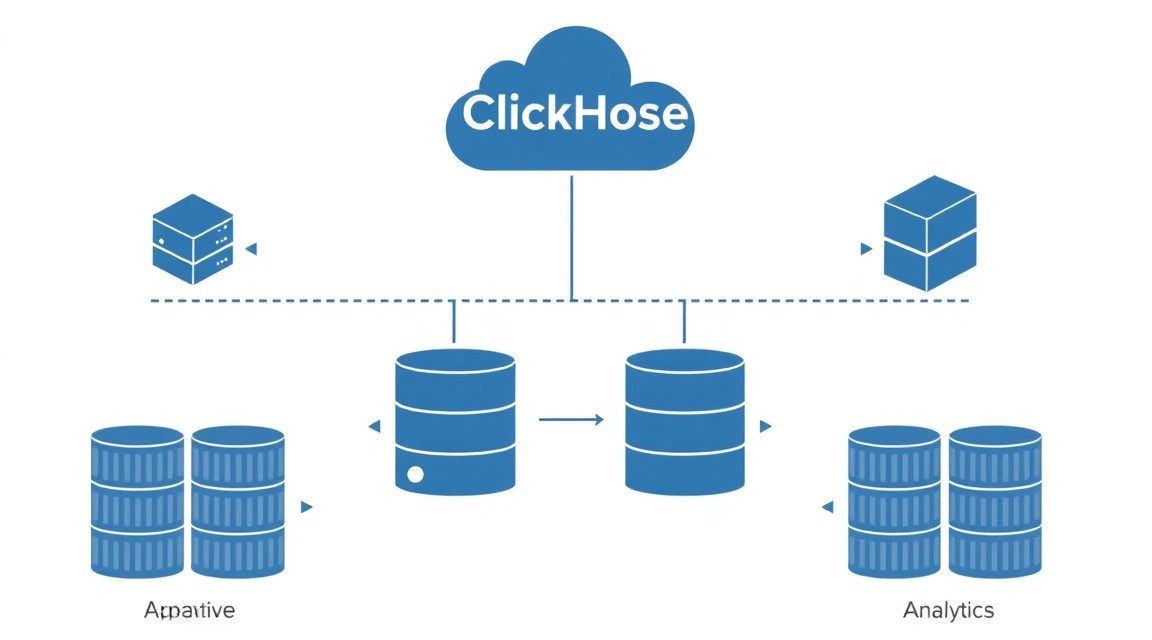
We will be deploying ClickHouse — a columnar database management system (DBMS) designed for online analytical processing (OLAP). ClickHouse was developed by Yandex and is known for its incredible speed in processing large volumes of data, often tens or hundreds of times faster than traditional relational databases for analytical tasks. It is ideal for scenarios requiring aggregation and analysis of vast amounts of information in real-time, such as logs, metrics, financial transactions, IoT data, and user events.
Ultimately, the reader will have a fully functional ClickHouse server, optimized for high performance and ready to ingest data. This will enable the creation of powerful analytical applications, dashboards, monitoring, and reporting systems that process queries in milliseconds, even on gigabytes or terabytes of information.
Alternatives to ClickHouse exist, such as PostgreSQL with extensions (e.g., TimescaleDB), Apache Druid, Apache Doris, or cloud-managed solutions like Amazon Redshift, Google BigQuery, Snowflake. Each of these solutions has its advantages and disadvantages. Cloud services offer ease of scaling and no need to manage infrastructure but often come with high operational costs and vendor lock-in. Self-hosted solutions, such as ClickHouse on a VPS, provide full control over data and infrastructure, which is critical for projects with sensitive data or strict security and privacy requirements. Choosing self-hosted on a VPS can significantly reduce costs compared to cloud counterparts, especially with predictable loads, and achieve maximum performance by fine-tuning the system to your needs. Furthermore, it provides invaluable experience in administering high-load systems.
What VPS configuration is needed for this task
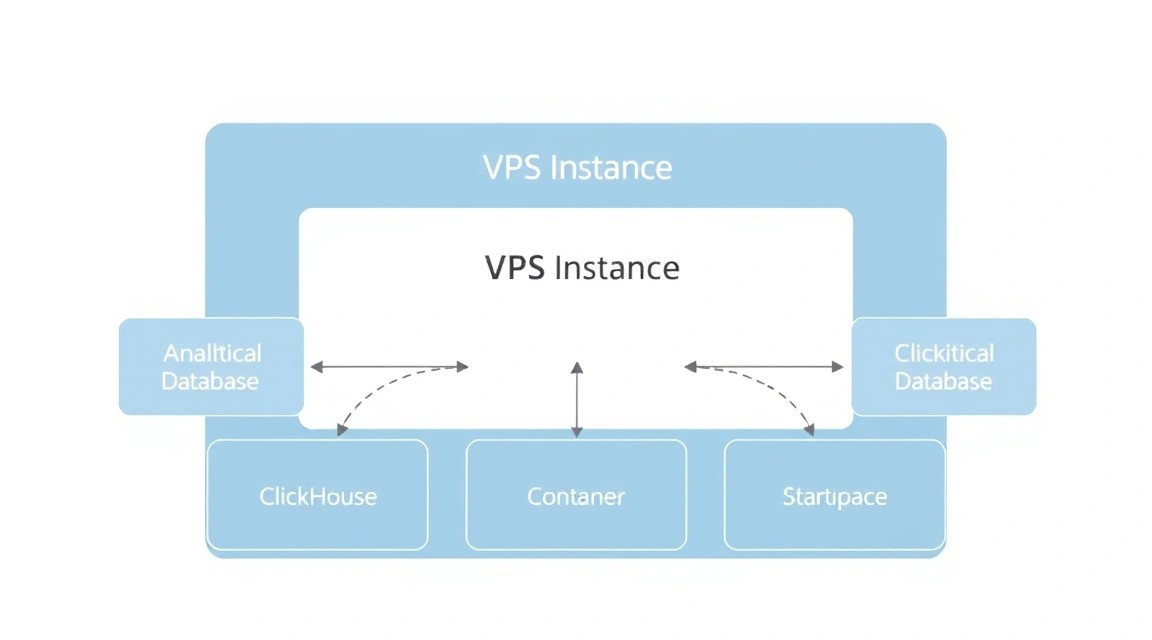
Several parameters are critical for ClickHouse: RAM size, disk subsystem speed, and the number of CPU cores. Network is also important if you plan to actively load data or use replication between servers.
Minimum requirements for a test or small production server (up to 100 GB of data):
- CPU: 2-4 cores (preferably with high frequency, as ClickHouse scales well with cores for parallel query processing).
- RAM: 8 GB. ClickHouse efficiently uses RAM for data caching and query execution. The more RAM, the fewer disk accesses.
- Disk: 200 GB NVMe SSD. Disk speed is one of the key factors in ClickHouse performance. NVMe SSD significantly outperforms SATA SSD and HDD.
- Network: 1 Gbit/s.
Recommended VPS plan for a medium production server (hundreds of GB - 1-2 TB of data):
For more serious tasks, where data volume can reach several terabytes, or high parallel query processing is required, the following configuration is recommended:
- CPU: 8 cores (modern Intel Xeon or AMD EPYC).
- RAM: 32-64 GB.
- Disk: 1-2 TB NVMe SSD. Option for expansion or using multiple disks for RAID 0/1.
- Network: 10 Gbit/s.
For this level of performance and resources, consider a VPS with the specified characteristics, offering flexible plans with NVMe SSD and high network bandwidth.
When a dedicated server is needed, not a VPS
A dedicated server becomes necessary when:
- Data volume exceeds 2-3 TB on a single node: Managing large data volumes on a VPS can be complex due to disk space limitations.
- Maximum I/O performance is required: Dedicated servers often offer direct access to the disk subsystem without virtualization, which is critical for ClickHouse.
- High and stable network bandwidth is needed: For ClickHouse clusters or intensive data loading.
- Specific hardware is required: For example, special RAID controllers, NVMe drives with guaranteed performance, or more cores/RAM than available on a VPS.
- Regulatory or security requirements: Some standards require complete physical separation of hardware resources.
Location: what it affects
The choice of VPS location affects:
- Latency (ping) to users/data sources: Place the server closer to your primary audience or data sources to minimize delays.
- Legislation: Different countries have different laws regarding data storage and processing. Ensure the chosen location complies with your legal requirements.
- Cost: VPS prices can vary depending on the region.
- Network availability: Some locations may have better connectivity to certain regions of the world.
Server Preparation
Let's start with the basic server setup. We will use Ubuntu 24.04 LTS as the most stable and supported operating system. All commands are executed as a user with sudo privileges.
1. Connect via SSH
After obtaining your VPS access details, connect to it via SSH:
ssh root@YOUR_IP_ADDRESS
2. Create a new user and configure sudo
Working as the root user is not recommended. Let's create a new user and add them to the sudo group.
# Replace 'your_username' with the desired username
adduser your_username
usermod -aG sudo your_username
Set a strong password for the new user. Now, exit the root session and log in as the new user:
exit
ssh your_username@YOUR_IP_ADDRESS
3. Configure SSH keys (recommended)
For enhanced security, it is recommended to use SSH keys instead of passwords. If you don't have an SSH key yet, generate one on your local machine:
# On your local machine
ssh-keygen -t ed25519 -C "[email protected]"
Then copy the public key to the server:
# On your local machine
ssh-copy-id your_username@YOUR_IP_ADDRESS
After verification, disable password authentication for SSH by editing the /etc/ssh/sshd_config file:
sudo nano /etc/ssh/sshd_config
Find the lines and set the values:
PasswordAuthentication no
ChallengeResponseAuthentication no
UsePAM no
Restart the SSH service:
sudo systemctl restart ssh
4. Update the system and install basic utilities
Ensure your system is updated and necessary packages are installed.
# Update package list
sudo apt update
# Upgrade all installed packages to the latest versions
sudo apt upgrade -y
# Install useful utilities, if not present
sudo apt install -y curl wget git htop rsync unattended-upgrades
5. Configure Firewall (UFW)
Let's configure a basic UFW firewall to allow SSH, HTTP/HTTPS, and ClickHouse ports.
# Allow SSH (default port 22)
sudo ufw allow ssh
# Allow HTTP (port 80)
sudo ufw allow http
# Allow HTTPS (port 443)
sudo ufw allow https
# Allow native ClickHouse protocol (default port 9000)
sudo ufw allow 9000/tcp
# Allow ClickHouse HTTP interface (default port 8123)
sudo ufw allow 8123/tcp
# Enable firewall
sudo ufw enable
# Check firewall status
sudo ufw status verbose
6. Install Fail2Ban
Fail2Ban helps protect the server from brute-force attacks by blocking IP addresses from which numerous failed login attempts originate.
# Install Fail2Ban
sudo apt install -y fail2ban
# Start and enable autostart
sudo systemctl enable fail2ban
sudo systemctl start fail2ban
# Check status
sudo systemctl status fail2ban
Fail2Ban protects SSH by default. For additional services, you can configure it in /etc/fail2ban/jail.local.
Software Installation — Step-by-Step
Now that the server is prepared, let's proceed with ClickHouse installation. We will use the official ClickHouse repository for Ubuntu 24.04 to get the latest version (for 2026, let's assume it will be version 25.8).
1. Adding the Official ClickHouse Repository
Let's add the repository's GPG key and the repository itself to the APT package sources list.
# Install packages for working with HTTPS repositories
sudo apt install -y apt-transport-https ca-certificates dirmngr
# Add ClickHouse GPG key
sudo gpg --no-default-keyring --keyring /usr/share/keyrings/clickhouse.gpg --keyserver hkp://keyserver.ubuntu.com:80 --recv-keys 8F24D2886737F059
# Add ClickHouse repository for the stable branch
echo "deb [signed-by=/usr/share/keyrings/clickhouse.gpg] https://packages.clickhouse.com/deb stable main" | sudo tee /etc/apt/sources.list.d/clickhouse.list
# Update package list
sudo apt update
2. Installing ClickHouse Server and Client
Let's install the ClickHouse server component and the client for interacting with it.
# Install ClickHouse Server and Client (version 25.8 or newer will be automatically selected from the repository)
sudo apt install -y clickhouse-server clickhouse-client
3. Starting and Checking ClickHouse Status
After installation, ClickHouse should start automatically. Let's check its status.
# Check ClickHouse service status
sudo systemctl status clickhouse-server
You should see the status active (running). If not, start it manually:
# Start ClickHouse service
sudo systemctl start clickhouse-server
# Enable autostart on system boot
sudo systemctl enable clickhouse-server
4. Connecting to ClickHouse via Client
Let's try connecting to the server via the CLI client.
# Connect to the local ClickHouse server
clickhouse-client
You should see the prompt ClickHouse client version 25.8.x.x. Connected to ClickHouse server version 25.8.x.x.. Now you can execute queries. For example:
# Create a test database
CREATE DATABASE my_database;
# Create a test table
CREATE TABLE my_database.test_table (id UInt64, name String) ENGINE = MergeTree() ORDER BY id;
# Insert data
INSERT INTO my_database.test_table VALUES (1, 'Test User 1'), (2, 'Test User 2');
# Select data
SELECT * FROM my_database.test_table;
# Exit client
exit;
5. Checking HTTP Interface Availability
ClickHouse also provides an HTTP interface, which is available by default on port 8123.
# Check HTTP interface availability
curl http://localhost:8123/
You should receive an "Ok." response or similar, indicating the interface is working.
Configuration
The basic ClickHouse installation is ready, but for production use and security, additional configuration is required. The main ClickHouse configuration files are located in /etc/clickhouse-server/.
config.xml: The main server configuration file.users.xml: Configuration for users, roles, and access rights.conf.d/: Directory for additional configuration files that override or supplementconfig.xml. This allows for easy management of changes and updates.
1. Main Configuration (config.xml and conf.d)
It is recommended not to modify config.xml directly, but to create your own files in /etc/clickhouse-server/conf.d/. For example, let's create a file z-custom-config.xml for our settings. Files in conf.d are loaded in alphabetical order, so the z- prefix ensures that our settings are applied last and override the standard ones.
sudo nano /etc/clickhouse-server/conf.d/z-custom-config.xml
Example content for z-custom-config.xml:
<yandex>
    <logger>
        <level>information</level>
        <log>/var/log/clickhouse-server/clickhouse-server.log</log>
        <errorlog>/var/log/clickhouse-server/clickhouse-server.err.log</errorlog>
        <size_limit>100M</size_limit>
        <count>10</count>
    </logger>

    <listen_host>0.0.0.0</listen_host> <!-- Listen on all interfaces; for production, it's better to specify a concrete IP -->
    <max_memory_usage>0</max_memory_usage> <!-- 0 means no limit, or RAM capacity  0.8 -->
    <max_memory_usage_for_all_queries>0</max_memory_usage_for_all_queries>

    <query_log>
        <database>system</database>
        <table>query_log</table>
        <flush_interval_milliseconds>7500</flush_interval_milliseconds>
    </query_log>

    <query_thread_log>
        <database>system</database>
        <table>query_thread_log</table>
        <flush_interval_milliseconds>7500</flush_interval_milliseconds>
    </query_thread_log>

    <merge_tree>
        <max_bytes_to_merge_at_once>16106127360</max_bytes_to_merge_at_once> <!-- 15GB -->
        <max_rows_to_merge_at_once>10000000</max_rows_to_merge_at_once>
    </merge_tree>

    <tcp_port_secure>9440</tcp_port_secure> <!-- Port for TLS connections (native protocol) -->
    <http_port_secure>8443</http_port_secure> <!-- Port for TLS connections (HTTP) -->
</yandex>
Note: For listen_host in production, it is better to specify a concrete server IP address or an internal IP if ClickHouse is behind a proxy/load balancer. max_memory_usage and max_memory_usage_for_all_queries should be configured based on actual RAM and load to prevent memory overflow.
2. User and Security Configuration (users.xml)
The users.xml file (or files in users.d/) defines users, their passwords, rights, and settings. By default, there is a default user without a password, which is extremely insecure.
sudo nano /etc/clickhouse-server/users.d/z-custom-users.xml
Example content for z-custom-users.xml:
<yandex>
    <users>
        <default>
            <!-- Disable the 'default' user if not needed, or set a password for it -->
            <password>your_strong_default_password</password>
            <networks>
                <ip>::/0</ip>
            </networks>
            <profile>default</profile>
            <quota>default</quota>
        </default>

        <admin>
            <password>your_admin_password_here</password>
            <networks>
                <ip>127.0.0.1</ip>
                <ip>::1</ip>
                <ip>YOUR_CONNECTING_IP/32</ip> <!-- or 0.0.0.0/0 for all, but this is insecure -->
            </networks>
            <profile>default</profile>
            <quota>default</quota>
        </admin>

        <app_user>
            <password>your_app_password_here</password>
            <networks>
                <ip>YOUR_APPLICATION_IP/32</ip>
            </networks>
            <profile>default</profile>
            <quota>default</quota>
            <access_management>
                <grant>SELECT ON my_database. TO app_user</grant>
                <grant>INSERT ON my_database.some_table TO app_user</grant>
            </access_management>
        </app_user>
    </users>
</yandex>
IMPORTANT: Never use simple passwords. Use strong, generated passwords. Restrict access by IP addresses using <networks><ip>...</ip></networks>.
3. TLS/HTTPS via Caddy (for HTTP interface)
To secure the ClickHouse HTTP interface (port 8123), it is recommended to use a reverse proxy with TLS. Caddy is an excellent choice as it automatically manages Let's Encrypt certificates.
Caddy Installation:
# Install Caddy
sudo apt install -y debian-keyring debian-archive-keyring apt-transport-https
curl -1sLf 'https://dl.cloudsmith.io/public/caddy/stable/gpg.key' | sudo gpg --dearmor -o /usr/share/keyrings/caddy-stable-archive-keyring.gpg
curl -1sLf 'https://dl.cloudsmith.io/public/caddy/stable/debian.deb.txt' | sudo tee /etc/apt/sources.list.d/caddy-stable.list
sudo apt update
sudo apt install -y caddy
Caddyfile Configuration:
Assume you have a domain name, for example, clickhouse.yourdomain.com, which points to your VPS IP.
sudo nano /etc/caddy/Caddyfile
Caddyfile content:
clickhouse.yourdomain.com {
    reverse_proxy localhost:8123
    tls {
        protocols tls1.2 tls1.3
        ciphers ECDHE-ECDSA-AES256-GCM-SHA384 ECDHE-RSA-AES256-GCM-SHA384
    }
    # Optional: basic authentication for HTTP interface access
    # basicauth {
    #     admin Jaffe_1234
    # }
}
Replace clickhouse.yourdomain.com with your actual domain. Caddy will automatically obtain and renew SSL certificates. If you want to use basic authentication, replace Jaffe_1234 with the hash of your password, generated using caddy hash-password.
Restart Caddy:
sudo systemctl reload caddy
Now the ClickHouse HTTP interface will be accessible via HTTPS at https://clickhouse.yourdomain.com.
4. Configuring TLS for ClickHouse Native Protocol
ClickHouse supports TLS for the native protocol (port 9000 by default, or 9440 if you changed it in z-custom-config.xml). This requires your own certificates. You can use certificates issued by Let's Encrypt (if Caddy has already obtained them), or self-signed certificates for internal use.
Copy Let's Encrypt certificates (if using Caddy) to the ClickHouse directory. Caddy stores them in /var/lib/caddy/.local/share/caddy/certificates/acme-v02.api.letsencrypt.org-directory/. You will need the fullchain.pem and .key file for your domain.
# Create a directory for ClickHouse certificates
sudo mkdir -p /etc/clickhouse-server/ssl
# Copy certificates (replace with your paths and domain)
# Example for Caddy:
sudo cp /var/lib/caddy/.local/share/caddy/certificates/acme-v02.api.letsencrypt.org-directory/clickhouse.yourdomain.com/clickhouse.yourdomain.com.crt /etc/clickhouse-server/ssl/server.crt
sudo cp /var/lib/caddy/.local/share/caddy/certificates/acme-v02.api.letsencrypt.org-directory/clickhouse.yourdomain.com/clickhouse.yourdomain.com.key /etc/clickhouse-server/ssl/server.key
# Set correct permissions
sudo chown -R clickhouse:clickhouse /etc/clickhouse-server/ssl
sudo chmod -R 600 /etc/clickhouse-server/ssl/
Add to /etc/clickhouse-server/conf.d/z-custom-config.xml (or create a separate file, e.g., ssl.xml):
<yandex>
    <openSSL>
        <server>
            <certificate_file>/etc/clickhouse-server/ssl/server.crt</certificate_file>
            <private_key_file>/etc/clickhouse-server/ssl/server.key</private_key_file>
            <dh_params_file>/etc/clickhouse-server/ssl/dhparam.pem</dh_params_file> <!-- Optional, but recommended -->
            <verification_mode>none</verification_mode> <!-- 'none' for self-signed, 'relaxed'/'strict' for CA -->
            <load_common_names>true</load_common_names>
            <cache_sessions>true</cache_sessions>
            <disable_protocols>sslv2,sslv3,tlsv1,tlsv1_1</disable_protocols>
            <prefer_server_ciphers>true</prefer_server_ciphers>
            <ciphers>ECDHE-RSA-AES256-GCM-SHA384:ECDHE-RSA-AES128-GCM-SHA256:DHE-RSA-AES256-GCM-SHA384:DHE-RSA-AES128-GCM-SHA256</ciphers>
        </server>
        <client>
            <verification_mode>none</verification_mode>
        </client>
    </openSSL>
</yandex>
Generate dhparam.pem (this may take some time):
sudo openssl dhparam -out /etc/clickhouse-server/ssl/dhparam.pem 2048
sudo chown clickhouse:clickhouse /etc/clickhouse-server/ssl/dhparam.pem
sudo chmod 600 /etc/clickhouse-server/ssl/dhparam.pem
After all changes, restart ClickHouse:
sudo systemctl restart clickhouse-server
5. Verifying Functionality
HTTP/HTTPS Check:
# Check HTTP interface via Caddy
curl -k https://clickhouse.yourdomain.com/
You should receive "Ok.". If you configured basicauth, you need to add -u admin:password.
Native Protocol TLS Check:
clickhouse-client --host localhost --port 9440 --secure --user admin --password your_admin_password_here
You should connect successfully. If you encounter TLS issues, check ClickHouse logs (/var/log/clickhouse-server/clickhouse-server.err.log).
Backups and Maintenance
Reliable backups and regular maintenance are critically important for any production system, including ClickHouse.
What to back up
- ClickHouse Data: Primary table data stored in
/var/lib/clickhouse/data/. - ClickHouse Metadata: Table structures, databases, users, located in
/var/lib/clickhouse/metadata/. - Configuration Files:
/etc/clickhouse-server/(includingconfig.xml,users.xmland all files inconf.d/,users.d/). - Logs: Although logs are not critical for recovery, they are useful for auditing and debugging.
Simple Auto-Backup Script
For ClickHouse, it is recommended to use built-in mechanisms such as ALTER TABLE ... FREEZE PARTITION to create data "snapshots" or specialized tools like clickhouse-backup. We will consider a simple approach using the file system and clickhouse-backup.
Option 1: File System Snapshot (for test environments)
This is the least recommended method for production, but the simplest for small data volumes. It requires stopping ClickHouse or using LVM snapshots.
#!/bin/bash
BACKUP_DIR="/mnt/backups/clickhouse_$(date +%Y%m%d%H%M%S)"
CLICKHOUSE_DATA_DIR="/var/lib/clickhouse"
CONFIG_DIR="/etc/clickhouse-server"

echo "Stopping ClickHouse server..."
sudo systemctl stop clickhouse-server

echo "Creating backup directory: $BACKUP_DIR"
sudo mkdir -p "$BACKUP_DIR"

echo "Copying ClickHouse data..."
sudo rsync -ah --stats "$CLICKHOUSE_DATA_DIR" "$BACKUP_DIR/"

echo "Copying ClickHouse configuration..."
sudo rsync -ah --stats "$CONFIG_DIR" "$BACKUP_DIR/"

echo "Starting ClickHouse server..."
sudo systemctl start clickhouse-server

echo "Backup completed successfully to $BACKUP_DIR"
Option 2: Using clickhouse-backup
clickhouse-backup is a specialized tool for creating and restoring ClickHouse backups. It supports various storage options, including S3.
Installing clickhouse-backup:
# Download the latest version (check GitHub for the current one)
wget https://github.com/Altinity/clickhouse-backup/releases/download/v1.2.0/clickhouse-backup_1.2.0_amd64.deb
sudo dpkg -i clickhouse-backup_1.2.0_amd64.deb
rm clickhouse-backup_1.2.0_amd64.deb
Configuring clickhouse-backup (/etc/clickhouse-backup/config.yml):
Configure ClickHouse connection parameters and remote storage (e.g., S3).
# Example /etc/clickhouse-backup/config.yml
clickhouse:
  username: admin # Your ClickHouse user
  password: your_admin_password_here
  host: 127.0.0.1
  port: 9000 # Or 9440 if using TLS
  secure: false # true if using TLS

s3:
  bucket: my-clickhouse-backups
  region: us-east-1
  access_key: ${S3_ACCESS_KEY} # Use environment variables for secrets
  secret_key: ${S3_SECRET_KEY}
  endpoint: s3.amazonaws.com # Or your S3-compatible endpoint
  force_path_style: false
  acl: private
  compression: "zstd"
  compression_level: 1
  disable_ssl: false
  allow_multipart_download: true
  max_part_size: 100M
Secrets (S3_ACCESS_KEY, S3_SECRET_KEY) are best passed via environment variables for the cron script.
Backup script with clickhouse-backup:
#!/bin/bash
export S3_ACCESS_KEY="YOUR_ACTUAL_S3_ACCESS_KEY"
export S3_SECRET_KEY="YOUR_ACTUAL_S3_SECRET_KEY"

# Create a local backup
clickhouse-backup create --schema --data
# Upload backup to S3
clickhouse-backup upload latest --remote-storage s3
# Clean up old local backups (e.g., keep the last 7)
clickhouse-backup delete local --keep-days 7
# Clean up old remote backups (e.g., keep the last 30)
clickhouse-backup delete remote --keep-days 30 --remote-storage s3

echo "ClickHouse backup completed."
Save this script as /usr/local/bin/clickhouse_backup.sh and make it executable:
sudo chmod +x /usr/local/bin/clickhouse_backup.sh
Setting up Cron for automatic execution:
Add a cron job to run the script daily.
sudo crontab -e
Add a line to run the script, for example, at 2 AM:
0 2 * * * /usr/local/bin/clickhouse_backup.sh >> /var/log/clickhouse_backup.log 2>&1
Where to store backups
- External S3-compatible storage: Recommended option. Cloud storage (AWS S3, MinIO, Wasabi, Backblaze B2) offers high reliability and availability.
- Separate VPS: You can set up rsync or SFTP on a separate, less powerful VPS, specifically dedicated to storing backups.
- Network storage (NAS/SAN): For enterprise environments.
IMPORTANT: Never store backups on the same server as the original data.
Updates: rolling vs maintenance window
Updating ClickHouse requires caution. Always test updates in a staging environment before applying them in production.
- Maintenance Window: The simplest approach. Stop ClickHouse, update packages, start it. This causes service downtime. For most VPS installations, this is acceptable if a few minutes of downtime is permissible.
sudo systemctl stop clickhouse-server sudo apt update sudo apt upgrade -y clickhouse-server clickhouse-client sudo systemctl start clickhouse-server - Rolling Updates: For ClickHouse clusters with replication. Allows updating nodes one by one, minimizing downtime. This is beyond the scope of this guide but it's important to be aware of this capability for scaling.
After each update, it is recommended to check ClickHouse logs for errors and ensure all services are functioning correctly.
Troubleshooting + FAQ
What to do if ClickHouse doesn't start?
First, check ClickHouse logs: /var/log/clickhouse-server/clickhouse-server.log and /var/log/clickhouse-server/clickhouse-server.err.log. Common causes include: errors in configuration files (XML syntax), insufficient memory, occupied port, issues with data file or log file permissions. Use the command sudo systemctl status clickhouse-server for a quick overview of the status and recent errors.
How to check which ports ClickHouse uses?
By default, ClickHouse uses port 9000 for the native protocol and 8123 for the HTTP interface. If you have configured TLS, these might be 9440 and 8443 respectively. You can check the ports in use with the command sudo netstat -tulnp | grep clickhouse or sudo lsof -i -P -n | grep LISTEN | grep clickhouse. Make sure these ports are open in your firewall (UFW).
How to reset the password for a ClickHouse user?
User passwords are stored in /etc/clickhouse-server/users.xml or in files within /etc/clickhouse-server/users.d/. To reset a password, edit the relevant file, change the value of the <password> tag for the desired user, and restart ClickHouse: sudo systemctl restart clickhouse-server. Ensure the new password is strong.
What is the minimum VPS configuration suitable for a small project?
For a small project, for example, with data up to 100 GB and low load, a VPS with 2-4 CPU cores, 8 GB RAM, and 200 GB NVMe SSD is sufficient. However, if active data growth or complex queries are expected, it is recommended to increase RAM to 16-32 GB and use faster, larger NVMe drives.
What to choose — VPS or dedicated for this task?
For initial deployment, small to medium projects, and for learning ClickHouse, a VPS is an excellent economical choice. It provides sufficient resources and flexibility. A dedicated server becomes preferable if you are working with terabytes of data, require maximum disk subsystem performance, have high security and isolation requirements, or need complete freedom in hardware selection. This is also relevant for high-load production clusters.
How to optimize ClickHouse performance?
ClickHouse optimization involves several aspects: correct choice of table engine (MergeTree and its variants), data schema optimization (columnar storage, correct data types), indexing (ORDER BY, PRIMARY KEY), server parameter tuning (e.g., max_memory_usage, max_threads), using materialized views and caching, as well as regular cleanup and merging of partitions.
Conclusions and Next Steps
You have successfully deployed and configured ClickHouse on your VPS, ensuring its basic security and backup mechanism. You now have a powerful tool for high-performance analytics, capable of processing large volumes of data at incredible speed. This server is ready to receive data and execute complex analytical queries.
The next steps for further developing your ClickHouse server may include:
- Integration with data sources: Set up streaming data ingestion from Kafka, RabbitMQ, PostgreSQL, MySQL, or other systems using specialized table engines (e.g., Kafka Engine) or ETL tools.
- Monitoring: Implement a monitoring system (e.g., Prometheus + Grafana) to track ClickHouse metrics (CPU load, memory usage, disk I/O, query count, latencies) and overall server health.
- Scaling and High Availability: For production systems, consider creating a ClickHouse cluster with data replication (using ZooKeeper or ClickHouse Keeper) and sharding for horizontal scaling and fault tolerance.