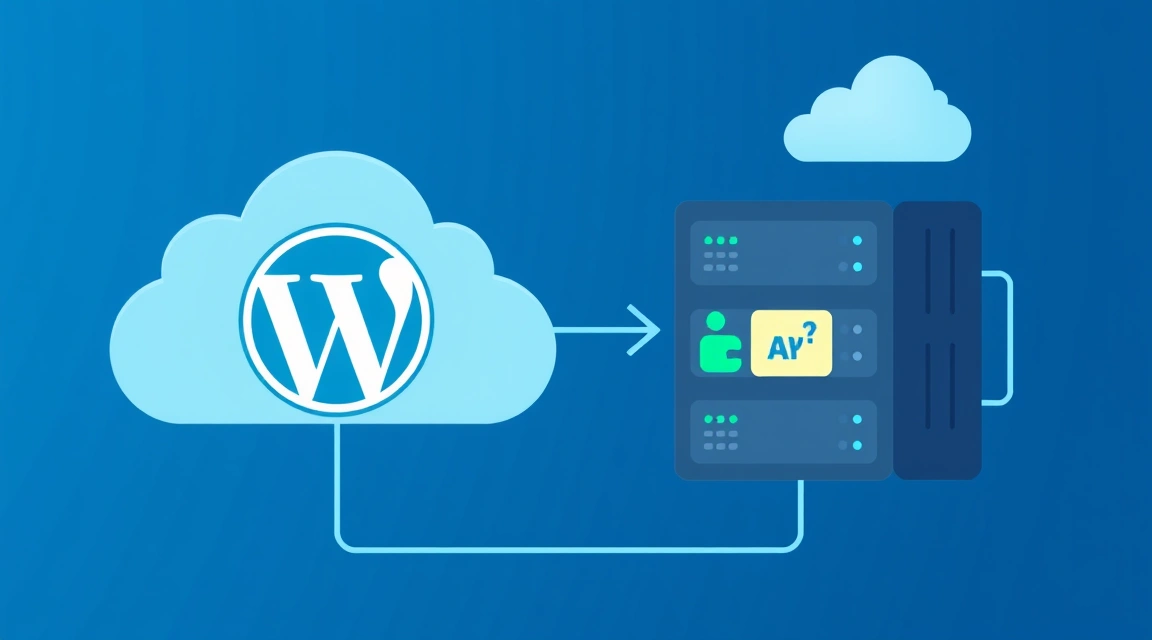
Headless WordPress on a VPS is an architecture where WordPress is used exclusively as a backend for content management, delivering it via a REST or GraphQL API to a separate frontend deployed on the same or another VPS.
This modern paradigm allows developers to use WordPress as a powerful and familiar CMS, while providing complete freedom in choosing technologies for creating the user interface. Separating the backend and frontend paves the way for significant improvements in web application performance, security, and scalability. In the context of VPS hosting, such a solution gains particular value as it allows for fine-tuning the server environment to the specific needs of each system component, ensuring maximum efficiency and control.
What is Headless WordPress and why choose it on a VPS?
Headless WordPress is a development approach where the traditional monolithic WordPress is split into two independent parts: the backend and the frontend. The WordPress-based backend is solely responsible for managing content, the database, users, and media files, providing access to this data via an API (Application Programming Interface). The frontend, built on modern JavaScript frameworks such as Next.js or Nuxt.js, is responsible for displaying this content to users. It interacts with the WordPress backend through API requests, retrieving the necessary data and forming a complete user interface.
This architecture fundamentally changes how WordPress works. Instead of WordPress generating HTML pages directly, it becomes a source of "raw" data, which is then processed and visualized by a separate application. This offers a number of significant advantages, especially when deployed on a Virtual Private Server (VPS).
Advantages of Headless WordPress on a VPS
- High Performance: A frontend built on modern frameworks can utilize static site generation (SSG) or server-side rendering (SSR) techniques, which significantly speeds up page loading and improves user experience. The WordPress backend experiences less load as it is not involved in HTML rendering.
- Improved Security: Separating the frontend and backend reduces the attack surface. The frontend can be deployed on a different server or domain, isolating WordPress from direct user access. Additionally, many WordPress vulnerabilities are associated with plugins and themes, which are not used on the frontend in Headless mode.
- Development Flexibility: Frontend developers gain complete freedom in choosing technologies. They can use React, Vue, Angular, or any other modern framework, without being tied to PHP and the WordPress templating engine. This allows for creating unique, highly interactive user interfaces and leveraging best practices from the JavaScript world.
- Scalability: The backend and frontend can scale independently. If the API experiences high load, you can increase VPS resources for WordPress. If the frontend generates a lot of traffic, you can scale it separately, for example, by using a CDN for static files or additional Node.js instances.
- SEO Optimization: Modern JS frameworks, especially Next.js, offer excellent SEO capabilities thanks to server-side rendering (SSR) and static site generation (SSG). This allows search engine crawlers to easily index content that might otherwise be inaccessible to them with purely client-side rendering.
- Content Reusability: A single WordPress backend can serve as a content source for multiple frontends – a website, a mobile application, an IoT device – simplifying content management and ensuring its consistency.
Why a VPS for Headless WordPress?
A Virtual Private Server (VPS) is an ideal platform for deploying Headless WordPress for several reasons:
- Full Control: A VPS provides root access, allowing you to install any software and configure the server environment (Nginx, PHP, Node.js, databases) precisely to your needs. This is critical for optimizing the performance of both the WordPress backend and the JS frontend.
- Dedicated Resources: Unlike shared hosting, on a VPS you are guaranteed specific amounts of CPU, RAM, and disk space. This ensures stable operation and predictable performance, which is crucial for high-load headless applications.
- Cost-Effectiveness: Compared to dedicated servers, a VPS is significantly cheaper while providing sufficient power for most projects. For small to medium-sized projects, as well as for testing environments, a VPS is an optimal choice.
- Scalability: As your project grows, you can easily increase your VPS resources (RAM, CPU, disk space) without needing to migrate to a new platform. Valebyte.com offers various tariff plans, allowing you to start small and scale as needed. For larger projects requiring maximum performance and isolation, a dedicated server might be suitable.
Headless WordPress Architecture: REST API vs. GraphQL
A key element of any Headless architecture is the API, which serves as a bridge between the backend and the frontend. In the case of Headless WordPress, you have two main options for implementing this bridge: the built-in WordPress REST API or the WPGraphQL plugin, which adds GraphQL support.
WordPress REST API: Basics and Application
WordPress comes with a built-in REST API, which has been integrated into the core since version 4.7. This API allows interaction with content (posts, pages, comments, users, media files), as well as WordPress settings, using standard HTTP methods (GET, POST, PUT, DELETE). It provides endpoints for most typical operations, for example:
/wp-json/wp/v2/posts— to get a list of posts./wp-json/wp/v2/posts/ID— to get a specific post./wp-json/wp/v2/categories— to get a list of categories.
Advantages of WordPress REST API:
- Built-in: Does not require installing additional plugins, works "out of the box."
- Simplicity: Based on standard web technologies, familiar to most web developers.
- Extensibility: You can create custom endpoints or extend existing ones using plugins or custom code in
functions.php.
Disadvantages of REST API:
- Over-fetching: Often, the API returns much more data than is needed for a specific frontend component. For example, when requesting a list of posts, you might receive dozens of fields for each post, even if you only need the title, excerpt, and link.
- Under-fetching: To get all the necessary data for a single page, several requests to different endpoints might be required. For example, a post page with an author and comments might require a separate request for posts, a separate one for users, and a separate one for comments. This increases latency and server load.
- Versioning: Managing API versions can be complex, especially when making changes to the data structure.
WPGraphQL: Power and Flexibility
GraphQL is a query language for APIs and a runtime for executing those queries with your existing data. Unlike REST, where you access predefined endpoints, GraphQL allows the client to precisely specify what data it needs and get it in a single request. For WordPress, this is implemented through the WPGraphQL plugin.
WPGraphQL installation is like any other WordPress plugin. Once activated, it provides a single endpoint (usually /graphql) through which GraphQL queries can be sent.
Example GraphQL query to get post titles and excerpts:
query MyPosts {
  posts {
    nodes {
      id
      title
      excerpt
      uri
    }
  }
}
Advantages of WPGraphQL:
- Precise Queries: You get exactly the data you requested, and nothing extra. This minimizes the amount of data transferred and speeds up loading.
- Single Request for All Data: To retrieve a complex data structure (e.g., a post, its author, its comments, and related categories), a single GraphQL query is sufficient, reducing the number of network requests and latency.
- Improved Developer Experience: GraphQL provides powerful tools for schema introspection, allowing frontend developers to easily explore available data and build queries. There are also clients like Apollo Client, Relay, Urql, which simplify working with GraphQL.
- Extensibility: WPGraphQL is easily extended with plugins (e.g., WPGraphQL for Advanced Custom Fields, WPGraphQL for WooCommerce) or custom code to add new data types and fields.
Disadvantages of WPGraphQL:
- Requires a Plugin: It is not a built-in feature; an additional plugin needs to be installed and maintained.
- Learning Curve: GraphQL has its specifics and syntax, which may require some time to master if you haven't worked with it before.
- Caching: Caching GraphQL queries can be more complex than caching REST endpoints due to their dynamic nature.
When to choose what for Headless WordPress?
- Choose REST API if:
- Your project is relatively simple, and you don't require complex data aggregation.
- You are already familiar with REST and want to use WordPress's built-in capabilities.
- You need to launch a project quickly with minimal setup.
- Choose WPGraphQL if:
- Your project is complex, with many content types and relationships between them.
- You want to maximize API query optimization and minimize data transfer.
- Your frontend development team already has experience with GraphQL or is willing to learn it.
- You need high flexibility and precision in data retrieval.
Overall, for most modern Headless WordPress projects, especially those using frameworks like Next.js or Nuxt.js, WPGraphQL is the preferred choice due to its flexibility and efficiency.
Looking for a reliable server for your projects?
VPS from $10/month and dedicated servers from $9/month with NVMe, DDoS protection, and 24/7 support.
View offers →Frontend Choice: Next.js, Nuxt.js, and Other Frameworks
Once the WordPress backend is configured and ready to deliver content via API, the next step is to create the frontend. Choosing the right JavaScript framework is crucial for the performance, development convenience, and SEO of your Headless WordPress project. Among the most popular and powerful solutions are Next.js and Nuxt.js.
Next.js: A Cutting-Edge Solution for React Developers
Next.js is a React framework that allows you to build high-performance web applications with server-side rendering (SSR), static site generation (SSG), and incremental static regeneration (ISR). Next.js is ideal for projects where load speed, SEO, and an excellent user experience are important.
Key advantages of Next.js for Headless WordPress:
- SSR and SSG: Ability to choose the rendering strategy for each page. SSG generates HTML files at build time, providing lightning-fast loading and excellent search engine indexing. SSR renders pages on the server with each request, which is useful for dynamic content. ISR allows static pages to be updated on a schedule or on demand without a full site rebuild.
- SEO Optimization: Thanks to SSR/SSG, search engine crawlers see fully formed HTML content, which significantly improves page indexing and ranking.
- File-system based routing: Simplifies creating new pages and managing URL structure.
- Built-in Image Optimization: The
Imagecomponent automatically optimizes images, reducing their size and improving performance. - API Routes: Allows you to create serverless functions for executing server-side code, for example, for form processing or creating an API proxy if needed.
- Large Community and Ecosystem: Being based on React, Next.js has a huge community, many libraries, and tools.
Example of fetching data from WordPress API in Next.js using getStaticProps (for SSG):
// pages/posts/[slug].js
import { useRouter } from 'next/router';

export async function getStaticPaths() {
  const res = await fetch('https://your-wordpress-domain.com/wp-json/wp/v2/posts');
  const posts = await res.json();

  const paths = posts.map((post) => ({
    params: { slug: post.slug },
  }));

  return { paths, fallback: 'blocking' };
}

export async function getStaticProps({ params }) {
  const res = await fetch(`https://your-wordpress-domain.com/wp-json/wp/v2/posts?slug=${params.slug}`);
  const post = await res.json();

  if (!post.length) {
    return {
      notFound: true,
    };
  }

  return {
    props: {
      post: post[0],
    },
    revalidate: 60, // Re-generate page every 60 seconds (ISR)
  };
}

function Post({ post }) {
  const router = useRouter();

  if (router.isFallback) {
    return <div>Loading...</div>;
  }

  return (
    <div>
      <h1>{post.title.rendered}</h1>
      <div dangerouslySetInnerHTML={{ __html: post.content.rendered }} />
    </div>
  );
}

export default Post;
Nuxt.js: Versatility for Vue.js Developers
Nuxt.js is a Vue.js framework, similar to Next.js in its capabilities, providing SSR, SSG, and other optimizations. It is ideal for teams who prefer Vue.js and are looking for a structured solution for building universal applications.
Key advantages of Nuxt.js for Headless WordPress:
- SSR and SSG: Like Next.js, Nuxt.js supports various rendering modes for optimal performance and SEO.
- Modular Architecture: Nuxt.js has a rich ecosystem of modules that extend its functionality for working with PWAs, authentication, internationalization, and more.
- Automatic Routing: Based on the file structure in the
pagesdirectory. - Excellent Documentation and Community: Allows for quick learning of the framework and finding solutions to problems.
- Vuex Store: The integrated Vuex state manager simplifies data management in the application.
Example of fetching data in Nuxt.js using asyncData (for SSR/SSG):
// pages/posts/_slug.vue
<template>
  <div>
    <h1>{{ post.title.rendered }}</h1>
    <div v-html="post.content.rendered"></div>
  </div>
</template>

<script>
export default {
  async asyncData({ params, $config }) {
    const res = await fetch(`${$config.wordpressApiUrl}/posts?slug=${params.slug}`);
    const post = await res.json();
    return { post: post[0] };
  },
  head() {
    return {
      title: this.post.title.rendered,
      meta: [
        { hid: 'description', name: 'description', content: this.post.excerpt.rendered },
      ],
    };
  },
};
</script>
Other Frameworks and Their Applications
- Gatsby.js: Also based on React, but primarily focused on static site generation (SSG). Uses GraphQL to fetch data from any source, making it an excellent choice for content-oriented sites and blogs where content is not updated frequently.
- SvelteKit: A framework for Svelte, offering SSR, SSG, and high performance due to compiling code into vanilla JavaScript at build time. An excellent choice for those looking for a lightweight and fast solution.
- Astro: Focused on an "island" architecture, allowing minimal JavaScript to be sent to the client side. Ideal for content sites where performance and Core Web Vitals are a priority. Supports components from React, Vue, Svelte, and other frameworks.
- Vanilla JavaScript / Custom Build: For experienced developers or very specific projects, pure JavaScript or minimalistic libraries like Alpine.js can be used to create the frontend. However, this will require more effort to configure the build, routing, and state management.
The choice of frontend framework depends on many factors: team preferences, performance requirements, project complexity, and the need for dynamic content. Next.js and Nuxt.js are the most versatile and powerful solutions for most Headless WordPress tasks, offering a balance between performance, SEO, and development convenience.

Deploying Headless WordPress Backend on a VPS
Deploying WordPress in Headless mode on a VPS is practically no different from a standard WordPress installation, except for some configuration nuances and an emphasis on the API. You will need a standard LAMP (Linux, Apache, MySQL, PHP) or LEMP (Linux, Nginx, MySQL, PHP) stack, with LEMP often preferred for high-load projects due to Nginx's performance.
Preparing the VPS for the WordPress Backend
Assuming you have a clean VPS with Ubuntu Server. First, you need to update the system and install the necessary components.
sudo apt update
sudo apt upgrade -y
Installing Nginx, PHP-FPM, and MySQL/MariaDB:
Nginx will act as the web server, PHP-FPM as the PHP code handler, and MySQL (or MariaDB) as the database.
sudo apt install nginx -y
sudo apt install php-fpm php-mysql php-curl php-gd php-mbstring php-xml php-zip -y
sudo apt install mariadb-server -y
sudo mysql_secure_installation # Follow instructions to configure MariaDB security
Creating a database for WordPress:
sudo mysql -u root -p
Inside the MySQL console, execute:
CREATE DATABASE wordpress_db CHARACTER SET utf8mb4 COLLATE utf8mb4_unicode_ci;
CREATE USER 'wordpress_user'@'localhost' IDENTIFIED BY 'YOUR_STRONG_PASSWORD';
GRANT ALL PRIVILEGES ON wordpress_db.* TO 'wordpress_user'@'localhost';
FLUSH PRIVILEGES;
EXIT;
Replace YOUR_STRONG_PASSWORD with a strong password.
Installing WordPress
Download the latest version of WordPress and extract it to your site's directory. This is usually /var/www/html or a specialized directory.
cd /tmp
wget https://wordpress.org/latest.tar.gz
tar -xzf latest.tar.gz
sudo mv wordpress /var/www/your_headless_wp_domain
sudo chown -R www-data:www-data /var/www/your_headless_wp_domain
sudo chmod -R 755 /var/www/your_headless_wp_domain
Create the wp-config.php file:
cd /var/www/your_headless_wp_domain
sudo cp wp-config-sample.php wp-config.php
sudo nano wp-config.php
Edit the database connection details:
define( 'DB_NAME', 'wordpress_db' );
define( 'DB_USER', 'wordpress_user' );
define( 'DB_PASSWORD', 'YOUR_STRONG_PASSWORD' );
define( 'DB_HOST', 'localhost' );
Add unique keys and salts (you can generate them at WordPress.org secret key service).
Configuring Nginx for the WordPress Backend
Create a configuration file for your domain (e.g., your_headless_wp_domain.conf) in /etc/nginx/sites-available/.
sudo nano /etc/nginx/sites-available/your_headless_wp_domain.conf
Example Nginx configuration:
server {
    listen 80;
    server_name your-headless-wp-domain.com; # Replace with your domain for the WordPress backend
    root /var/www/your_headless_wp_domain;
    index index.php index.html index.htm;

    location / {
        try_files $uri $uri/ /index.php?$args;
    }

    location ~ \.php$ {
        include snippets/fastcgi-php.conf;
        fastcgi_pass unix:/var/run/php/php8.1-fpm.sock; # Specify your PHP version
        fastcgi_param SCRIPT_FILENAME $document_root$fastcgi_script_name;
        include fastcgi_params;
    }

    # Enable REST API and GraphQL support
    location ~* /(wp-json|graphql) {
        try_files $uri $uri/ /index.php?$args;
    }

    # Deny access to files that should not be public
    location ~ /\.ht {
        deny all;
    }

    location = /favicon.ico { log_not_found off; access_log off; }
    location = /robots.txt { allow all; log_not_found off; access_log off; }
    location ~* \.(css|gif|ico|jpeg|jpg|js|png|svg|webp)$ {
        expires max;
        log_not_found off;
    }
}
Activate the configuration and restart Nginx:
sudo ln -s /etc/nginx/sites-available/your_headless_wp_domain.conf /etc/nginx/sites-enabled/
sudo nginx -t
sudo systemctl restart nginx
sudo systemctl restart php8.1-fpm # Specify your PHP version
Now you can navigate to http://your-headless-wp-domain.com in your browser and complete the WordPress installation via the web interface.
API Configuration and Security
After installing WordPress:
- Install the WPGraphQL plugin (if chosen): In the WordPress admin panel, go to "Plugins" -> "Add New", search for "WPGraphQL" and install it.
- Permalink Settings: Go to "Settings" -> "Permalinks" and choose something other than "Plain" (e.g., "Post name"). This is necessary for the correct functioning of the REST API and WPGraphQL.
- API Security:
- CORS (Cross-Origin Resource Sharing): If your frontend will be on a different domain, you need to allow it access to the API. This can be done by adding code to
wp-config.phpor using a plugin.define('WP_DEBUG', false); // Ensure debug mode is off in production // Allow CORS for your frontend header("Access-Control-Allow-Origin: https://your-frontend-domain.com"); // Replace with your frontend domain header("Access-Control-Allow-Methods: GET, POST, PUT, DELETE, OPTIONS"); header("Access-Control-Allow-Headers: Content-Type, Authorization"); header("Access-Control-Allow-Credentials: true"); if ( 'OPTIONS' === $_SERVER['REQUEST_METHOD'] ) { status_header( 200 ); exit(); }This code should be added to
wp-config.phpbefore the line/* That's all, stop editing! Happy publishing. */. - Access Restriction: If your API should only be accessible to authorized users, use plugins for JWT (JSON Web Token) authentication, such as "JWT Authentication for WP-REST API".
- Firewall: Configure a firewall (e.g., UFW) on the VPS to allow access only to necessary ports (80, 443 for HTTP/HTTPS, 22 for SSH).
- HTTPS: Be sure to configure an SSL/TLS certificate (e.g., using Let's Encrypt) for your WordPress backend to ensure secure data transmission.
- CORS (Cross-Origin Resource Sharing): If your frontend will be on a different domain, you need to allow it access to the API. This can be done by adding code to
After all these steps, your Headless WordPress backend will be ready to operate, providing content via API for your frontend. Remember to regularly update WordPress and plugins to maintain security.
Deploying the Frontend on a VPS: Strategies and Optimization
Deploying the frontend on a VPS requires a specific approach, depending on the chosen framework (Next.js, Nuxt.js, etc.) and rendering strategy (SSG, SSR). Regardless of the choice, the goal is to ensure maximum performance, reliability, and availability.
Static Site Generation (SSG) and Deployment
If your frontend uses static site generation (SSG), for example, with next build && next export for Next.js or nuxt generate for Nuxt.js, the deployment process is significantly simplified. The build result will be a set of static HTML, CSS, JavaScript files, and images.
- Project Build: Execute the build command on your local machine or in a CI/CD pipeline.
npm run build # for Next.js or Nuxt.js
npm run export # for Next.js SSG
After the build, all static files will be in the
outdirectory (for Next.js export) ordist(for Nuxt.js generate). - Transferring Files to VPS: Use
rsyncorscpto copy the generated files to your VPS in the directory served by Nginx.rsync -avz --delete out/ [email protected]:/var/www/your_frontend_domain/html/ - Nginx Configuration: Nginx must be configured to serve static files.
server {
            listen 80;
            server_name your-frontend-domain.com; # Replace with your frontend domain
            root /var/www/your_frontend_domain/html;
            index index.html;

            location / {
                try_files $uri $uri/ =404;
            }

            location ~* \.(css|gif|ico|jpeg|jpg|js|png|svg|webp)$ {
                expires max;
                log_not_found off;
            }
        }
For Next.js with SSG, if you use
next export, ensure all links are relative or configured correctly. If you use SSG withfallback: 'blocking'orrevalidate(ISR), you will still need a Node.js environment for Next.js, and deployment will be closer to SSR. - CDN: For maximum performance, static files can be hosted on a CDN (Content Delivery Network). This will significantly speed up content loading for users worldwide.
Server-Side Rendering (SSR) and Deployment
If your frontend uses server-side rendering (SSR), it requires a running Node.js process on the server. This is a more complex but also more flexible strategy.
- Node.js Installation: Install Node.js on your VPS. It is recommended to use
nvm(Node Version Manager) to manage Node.js versions.curl -o- https://raw.githubusercontent.com/nvm-sh/nvm/v0.39.1/install.sh | bash source ~/.bashrc nvm install 18 # Install the current LTS version nvm use 18 - Project Build: Build the project on the VPS or transfer the built files.
cd /var/www/your_frontend_domain git pull origin main # Or copy files npm install npm run build # For Next.js or Nuxt.js - Process Management with PM2: For reliable launching and managing your Node.js application, use PM2 (Process Manager 2). It will ensure automatic application restarts in case of failure, load balancing across CPU cores, and monitoring.
npm install pm2 -g
pm2 start npm --name "my-frontend-app" -- run start # For Next.js
# Or for Nuxt.js:
pm2 start npm --name "my-frontend-app" -- run start
To automatically start PM2 on server boot:
pm2 startup systemd pm2 save - Nginx as a Reverse Proxy: Nginx will receive incoming requests and forward them to your Node.js process (usually on port 3000).
server {
            listen 80;
            server_name your-frontend-domain.com;

            location / {
                proxy_pass http://localhost:3000; # Port your Node.js server is listening on
                proxy_http_version 1.1;
                proxy_set_header Upgrade $http_upgrade;
                proxy_set_header Connection 'upgrade';
                proxy_set_header Host $host;
                proxy_cache_bypass $http_upgrade;
            }

            # Optimization for static files served directly by Nginx
            location ~* \.(css|gif|ico|jpeg|jpg|js|png|svg|webp)$ {
                root /var/www/your_frontend_domain/.next/static; # For Next.js, or .nuxt/dist/client for Nuxt.js
                expires max;
                log_not_found off;
            }
        }
After changing the Nginx configuration, activate it and restart Nginx:
sudo ln -s /etc/nginx/sites-available/your_frontend_domain.conf /etc/nginx/sites-enabled/ sudo nginx -t sudo systemctl restart nginx - HTTPS: Be sure to configure an SSL/TLS certificate for your frontend using Let's Encrypt (Certbot).
Docker Containerization
For a more complex architecture, as well as to simplify deployment and scaling, Docker can be used. This allows you to package your application with all dependencies into an isolated container.
- Creating a Dockerfile: Create a Dockerfile for your frontend application.
# Dockerfile for Next.js FROM node:18-alpine WORKDIR /app COPY package.json yarn.lock ./ RUN yarn install --frozen-lockfile COPY . . RUN yarn build EXPOSE 3000 CMD ["yarn", "start"] - Building and Running a Docker Image:
docker build -t my-frontend-app . docker run -p 3000:3000 --name my-frontend-container -d my-frontend-app - Docker Compose: For managing multiple services (e.g., frontend, WordPress backend, database), use Docker Compose.
- Nginx Reverse Proxy: Nginx will still act as a reverse proxy, forwarding requests to the Docker container.
CI/CD Pipelines
To automate deployment, it is recommended to set up a CI/CD (Continuous Integration/Continuous Deployment) pipeline using tools such as GitHub Actions, GitLab CI/CD, or Jenkins. This will allow you to automatically build and deploy your frontend with every change in the repository, minimizing manual operations and errors. For example, upon a push to the main branch, the pipeline can automatically execute npm run build, and then rsync or docker push/pull to your VPS.
Regardless of the chosen strategy, it is important to regularly monitor the performance of your frontend and backend to timely identify and eliminate bottlenecks. Monitoring VPS resources (CPU, RAM, disk, network) will help determine when scaling is needed.
Performance Optimization and Caching for Headless WordPress
Performance is one of the main advantages of Headless WordPress, but achieving it requires careful optimization and effective caching at all levels: from backend to frontend and network.
WordPress Backend Caching
Although WordPress in Headless mode does not generate HTML, it still processes database queries and PHP scripts. Optimizing its operation is critical for API response speed.
- Object Caching: WordPress actively uses the database. Object caching allows storing database query results in RAM, reducing the load on MySQL/MariaDB.
- Redis: A high-performance in-memory data store. Install Redis on the VPS:
Then install the "Redis Object Cache" plugin in WordPress and activate it. Insudo apt install redis-server -ywp-config.phpadd:
Activate the cache through the plugin's admin interface.define('WP_REDIS_HOST', '127.0.0.1'); define('WP_REDIS_PORT', 6379); define('WP_REDIS_DATABASE', 0); // Use different databases for different sites/applications - Memcached: An alternative to Redis, also effective for object caching.
- Redis: A high-performance in-memory data store. Install Redis on the VPS:
- Opcache for PHP: PHP Opcode Cache (Opcache) is built into PHP and speeds up PHP script execution by caching compiled opcode in memory to avoid recompilation on every request. Make sure it is enabled and configured in
php.ini.
Find thesudo nano /etc/php/8.1/fpm/php.ini # Specify your PHP version[opcache]section and ensure the following parameters are set:
Restart PHP-FPM after changes.opcache.enable=1 opcache.memory_consumption=128 # For example, 128MB opcache.interned_strings_buffer=8 opcache.max_accelerated_files=10000 opcache.revalidate_freq=60 # Frequency of checking for file changes opcache.fast_shutdown=1 - Nginx API Request Caching (FastCGI Cache): Nginx can cache responses from PHP-FPM for repetitive API requests. This is especially useful for requests that do not change frequently (e.g., list of posts, categories).
Add to your Nginx configuration for the WordPress backend:
# Outside the server block, for example, in /etc/nginx/nginx.conf or in a separate file
fastcgi_cache_path /var/cache/nginx/wordpress levels=1:2 keys_zone=wordpress_cache:10m inactive=60m;
fastcgi_cache_key "$scheme$request_method$host$request_uri";
fastcgi_cache_use_stale error timeout invalid_header http_500;
fastcgi_ignore_headers Cache-Control Expires Set-Cookie;

# Inside the server block, in location ~* /(wp-json|graphql)
location ~* /(wp-json|graphql) {
    try_files $uri $uri/ /index.php?$args;
    include snippets/fastcgi-php.conf;
    fastcgi_pass unix:/var/run/php/php8.1-fpm.sock;
    fastcgi_param SCRIPT_FILENAME $document_root$fastcgi_script_name;
    include fastcgi_params;

    fastcgi_cache wordpress_cache;
    fastcgi_cache_valid 200 301 302 60m; # Cache successful responses for 60 minutes
    fastcgi_cache_bypass $cookie_nocache $arg_nocache;
    fastcgi_no_cache $cookie_nocache $arg_nocache;
    add_header X-FastCGI-Cache $upstream_cache_status;
}
Create the cache directory and set permissions:
Restart Nginx.sudo mkdir -p /var/cache/nginx/wordpress sudo chown -R www-data:www-data /var/cache/nginx
Frontend Optimization and Caching
The frontend, especially with Next.js or Nuxt.js, has its own optimization mechanisms.
- Static Site Generation (SSG) and Incremental Static Regeneration (ISR): These are the most effective caching methods. SSG generates pages at build time, and ISR allows them to be updated in the background, retaining the benefits of static sites. Use
getStaticPropsandrevalidatein Next.js. - CDN (Content Delivery Network): Host all static assets (images, CSS, JS files) on a CDN. This significantly reduces latency for users far from your VPS.
- Service Workers: For PWA (Progressive Web Apps), Service Workers can cache resources on the client side, enabling offline functionality and instant loading on repeat visits.
- Image Optimization: Use modern formats (WebP, AVIF), lazy loading, and responsive images (
srcset). The Next.js Image Component automatically handles many of these tasks. - Minification and Bundling: Modern JS frameworks and their bundlers (Webpack, Vite) automatically minify and bundle code. Ensure this functionality is enabled.
- Compression (Gzip/Brotli): Configure Nginx to compress HTTP responses (HTML, CSS, JS) using Gzip or Brotli. Brotli usually provides better compression.
# In Nginx configuration
gzip on;
gzip_vary on;
gzip_proxied any;
gzip_comp_level 6;
gzip_buffers 16 8k;
gzip_http_version 1.1;
gzip_types text/plain text/css application/json application/javascript text/xml application/xml application/xml+rss text/javascript;

# For Brotli (if module is installed)
brotli on;
brotli_comp_level 6;
brotli_types text/plain text/css application/json application/javascript text/xml application/xml application/xml+rss text/javascript image/svg+xml application/vnd.ms-fontobject application/x-font-opentype application/x-font-ttf application/x-web-font application/javascript;
API Request Optimization
- Batching Requests: If possible, combine multiple small API requests into one. GraphQL inherently facilitates this.
- Request Deduplication: On the frontend, use libraries that deduplicate repeated API requests within a short time frame.
- Client-Side Caching: Use client-side caching libraries (e.g., Apollo Client for GraphQL, React Query/SWR for REST) to cache API responses on the client side.
A comprehensive approach to optimization and caching at all levels will allow your Headless WordPress on a VPS to achieve outstanding performance, providing a fast and responsive user experience.
Choosing a VPS for Headless WordPress: What Characteristics Are Important?
The right VPS choice is the foundation for stable and high-performance Headless WordPress operation. Since the system consists of two independent parts (WordPress backend and JS frontend), resource requirements may vary.
Key VPS Characteristics
- Processor (CPU):
- Number of Cores (vCPU): For Headless WordPress, especially with an active Node.js frontend (SSR), multi-core processors are important. WordPress PHP can use one core per request, but parallel requests benefit from more cores. Node.js also scales well across multiple cores using PM2 cluster mode.
- Minimum: 2 vCPU for small projects.
- Recommended: 4-8 vCPU for medium to high-load sites.
- Frequency (GHz): High core frequency is important for fast processing of individual PHP and Node.js requests. Modern processors (Intel Xeon Gold, AMD EPYC) provide excellent performance.
- Number of Cores (vCPU): For Headless WordPress, especially with an active Node.js frontend (SSR), multi-core processors are important. WordPress PHP can use one core per request, but parallel requests benefit from more cores. Node.js also scales well across multiple cores using PM2 cluster mode.
- Random Access Memory (RAM):
RAM is one of the most critical resources. WordPress, PHP-FPM, MySQL/MariaDB, Redis/Memcached, and Node.js (for SSR) all consume significant amounts of memory.
- WordPress Backend: PHP-FPM processes, MySQL/MariaDB (especially with query caching), Redis/Memcached.
- Minimum: 2 GB (for WordPress + MySQL + Redis).
- Recommended: 4-8 GB for stable operation under load.
- JS Frontend (SSR): Node.js processes.
- Minimum: 2 GB (for PM2 with 1-2 Node.js instances).
- Recommended: 4-8 GB for multiple instances and high load.
- General Recommendation: Start with 4 GB for a small project, 8 GB for a medium one, 16+ GB for a large or high-load one. If the backend and frontend are on different VPS, the requirements are distributed.
- WordPress Backend: PHP-FPM processes, MySQL/MariaDB (especially with query caching), Redis/Memcached.
- Disk Space and Disk Type:
- NVMe SSD: This is critically important. NVMe disk read/write speeds significantly outperform traditional SSDs and HDDs. The WordPress database, caches, WordPress files, and frontend files will run much faster.
- Minimum: 40-60 GB NVMe for WordPress and frontend.
- Recommended: 80-160 GB NVMe, especially if many media files are planned.
- I/O (Input/Output) Speed: Directly affects database performance and file loading speed. NVMe is your best choice.
- NVMe SSD: This is critically important. NVMe disk read/write speeds significantly outperform traditional SSDs and HDDs. The WordPress database, caches, WordPress files, and frontend files will run much faster.
- Network Bandwidth:
For Headless WordPress, where the frontend constantly requests data from the backend, and users load content from the frontend, high network bandwidth is crucial.
- Minimum: 100 Mbps guaranteed channel.
- Recommended: 1 Gbps (gigabit) port for most projects.
- Traffic: Ensure your tariff plan includes sufficient monthly traffic or has unlimited traffic.
- Data Center Geographical Location:
Choose a data center that is as close as possible to your target audience. Lower ping means faster page loading. If your audience is distributed, consider a CDN or multiple VPS in different regions. For example, for an audience in the USA, a dedicated server in Ashburn might be an excellent choice.
Example VPS Configurations for Headless WordPress
Here are some approximate VPS configurations that can be considered at Valebyte.com, depending on the expected load:
| Load / Project | vCPU | RAM (GB) | Disk (NVMe GB) | Traffic | Approximate Cost ($/month) | Recommendations |
|---|---|---|---|---|---|---|
| Small (blog, portfolio, up to 10k visitors/month) | 2 | 4 | 60 | 1 TB+ | $15 - $25 | WordPress backend + SSG frontend on one VPS. Light caching. |
| Medium (corporate website, e-commerce, up to 50k visitors/month) | 4 | 8 | 100 | 2 TB+ | $30 - $50 | WordPress backend + SSR/ISR frontend on one VPS, or separate VPS for backend and frontend. Redis, FastCGI Cache. |
| High (large portal, active e-commerce, 50k+ visitors/month) | 6-8 | 16-32 | 200+ | 5 TB+ | $70 - $150+ | Usually separate VPS for backend and frontend. Active caching, CDN, scaling Node.js processes. Consider a dedicated server. |
When choosing a VPS, it's always better to start with a configuration that slightly exceeds your current needs to have room for growth. With Valebyte.com, you can easily scale VPS resources as needed.
Solution Comparison and Hosting Recommendations
Choosing the optimal hosting for Headless WordPress is not just about VPS characteristics, but also about deployment strategy, management, and support. Let's consider several scenarios and provide specific recommendations.
Scenario 1: Backend and Frontend on a Single VPS
This is the simplest and most economical option, suitable for most small and medium-sized projects (up to 50,000 visitors per month), especially if the frontend uses static site generation (SSG).
- Advantages:
- Low cost: only one VPS is needed.
- Simplicity of administration: everything on one server.
- Minimal latency between backend and frontend (localhost).
- Disadvantages:
- Limited scalability: resources are shared between WP and the frontend.
- Single point of failure: if the VPS goes down, the entire site is unavailable.
- Potential resource conflicts under high load.
- VPS Recommendations (Valebyte.com):
- For SSG frontend: 4 vCPU, 8 GB RAM, 100 GB NVMe.
This configuration provides enough resources for stable operation of WordPress, database, Redis, and building static frontend files.
- For SSR frontend: 6 vCPU, 16 GB RAM, 200 GB NVMe.
Additional resources are needed for continuously running Node.js processes and their scaling via PM2.
- For SSG frontend: 4 vCPU, 8 GB RAM, 100 GB NVMe.
Scenario 2: Backend and Frontend on Separate VPS
This approach provides better isolation, scalability, and security, making it ideal for large and high-load projects (over 50,000 visitors per month).
- Advantages:
- Independent scaling: resources can be increased for WP or the frontend separately.
- Improved security: the backend can be completely isolated from direct internet access, except for the API.
- Increased fault tolerance: failure of one VPS does not necessarily cause a complete outage of another component.
- Disadvantages:
- Higher cost: two or more VPS.
- More complex administration: multiple servers need to be managed.
- Possible slight latency when backend and frontend interact over the network.
- VPS Recommendations (Valebyte.com):
- For WordPress Backend (API): 4 vCPU, 8 GB RAM, 100 GB NVMe.
Sufficient for handling a large number of API requests, with Redis and FastCGI caching.
- For JS Frontend (SSR/ISR): 6-8 vCPU, 16-32 GB RAM, 200 GB NVMe.
These resources will allow efficient scaling of Node.js processes, handling a large volume of traffic, and fast page rendering. Consider hosting the frontend on a VPS closer to your primary audience, for example, in the USA for the American market or in Europe for the European market.
- For WordPress Backend (API): 4 vCPU, 8 GB RAM, 100 GB NVMe.
Additional Hosting Recommendations
- Managed Hosting: If you lack server administration experience or want to focus solely on development, consider options for managed VPS or dedicated servers. The provider takes care of OS installation, web server configuration, monitoring, updates, and security.
- Monitoring: Set up monitoring systems for your VPS (CPU, RAM, disk, network), as well as for the WordPress API and frontend. Tools like Prometheus, Grafana, Zabbix, or built-in provider tools will help identify problems in a timely manner.
- Backup: Regular automatic VPS backups are mandatory. Ensure your provider offers reliable backup solutions.
- CDN: For any Headless WordPress project, especially with a global audience, a CDN (Content Delivery Network) is practically essential. It significantly speeds up the delivery of static content (images, CSS, JS) and reduces the load on your VPS.
- SSL/TLS: Always use HTTPS for both components of your system. Let's Encrypt provides free certificates that are easy to install with Certbot.
By choosing Valebyte.com for your Headless WordPress project, you get flexible tariff plans, high-performance NVMe disks, stable communication channels, and full control over your server, which is critically important for implementing a complex and efficient Headless WordPress architecture.
Conclusion
Headless WordPress on a VPS represents a powerful and flexible solution for creating high-performance, secure, and scalable web applications. Separating the backend and frontend, using REST/GraphQL API, and modern JavaScript frameworks like Next.js, significantly improves user experience and SEO.
For successful deployment, choosing a suitable VPS with sufficient vCPU, RAM (minimum 4-8 GB), and, most importantly, fast NVMe disks is critical. Comprehensive caching at all levels – from Redis for the backend to SSG/ISR for the frontend and CDN – will ensure maximum performance. Valebyte.com offers optimal VPS configurations that allow flexible scaling of resources to meet any requirements of your Headless WordPress project, whether it's a small blog or a large corporate portal.
NVMe VPS with 60-second activation: full root access, 20+ locations, card or crypto payments.
Choose a plan


