Installing Dolibarr ERP/CRM on VPS: Nginx, PostgreSQL, and Let's Encrypt
TL;DR
In this detailed guide, we will step-by-step configure Dolibarr ERP/CRM — a powerful business management system — on your own virtual or dedicated server (VPS/dedicated). We will deploy Dolibarr version 20.0 (current for 2026) using Nginx as the web server, PostgreSQL for the database, and ensure a secure HTTPS connection via Let's Encrypt. This will allow you to gain full control over your business infrastructure, ensure high performance, and data protection.
Dolibarr ERP/CRM version 20.0 will be installed on a VPS with Nginx and PostgreSQL.
Secure HTTPS access will be configured using free Let's Encrypt certificates.
You will get a fully functional system for managing sales, projects, inventory, and finances.
The guide includes commands for Ubuntu 24.04 LTS, current for 2026.
Steps for server preparation, software installation, configuration, backups, and troubleshooting typical problems are described.
What we are configuring and why
Diagram: What we are configuring and why
In this guide, we will focus on installing and configuring Dolibarr ERP/CRM — a comprehensive system for Enterprise Resource Planning (ERP) and Customer Relationship Management (CRM). Dolibarr is a web application that allows small and medium-sized businesses (SMBs), freelancers, and associations to effectively manage various aspects of their operations.
Upon completion of the setup, you will have a fully functional platform capable of handling:
Finance: bank accounts, payments, expenses, reports.
Customer Relationships: contacts, third-party companies, interaction history.
Marketing: mailings, campaigns.
Dolibarr is a powerful alternative to proprietary solutions such as SAP Business One or Odoo (in their free or basic versions), offering flexibility and full control over data. Installation on your own VPS provides several advantages compared to cloud-managed services:
Full data control: Your data is stored on your server, not with a third-party provider, which is critical for confidentiality and compliance with regulations (e.g., GDPR).
Flexibility and customization: You can install any modules, make changes to the code (if necessary), and adapt the system to unique business processes without the limitations of SaaS platforms.
Long-term cost savings: While initial setup takes time, the absence of monthly subscription fees per user or per feature can significantly reduce operational costs for growing teams.
Performance optimization: You can choose a server that perfectly matches your needs and optimize it for maximum Dolibarr performance, without depending on "neighbors" in the cloud.
Vendor independence: You are not tied to a single provider and can easily migrate Dolibarr to another server or hosting if needed.
This tutorial is intended for those looking for a reliable, controlled, and scalable solution for managing their business, preferring self-deployment on a VPS.
What VPS config is needed for this task
Diagram: What VPS config is needed for this task
Choosing the right VPS configuration is critical for ensuring stable and fast operation of Dolibarr. Resource requirements depend on the number of users, data volume, and intensity of system usage. Dolibarr, Nginx, PostgreSQL, and PHP-FPM are quite resource-intensive, so it's not worth saving on basic characteristics.
RAM: 4 GB DDR4. This is sufficient for PostgreSQL, PHP-FPM, and Nginx with a small amount of data and low load.
Disk: 80 GB SSD NVMe. For the database, Dolibarr files, and the operating system. NVMe SSD significantly improves I/O performance, which is critical for databases.
Network: 100 Mbps (guaranteed channel). For stable user access and backups.
Recommended VPS plan (for 5-20 users or active use)
For more active use of Dolibarr, supporting a larger number of users, or if you plan to expand functionality, the following configuration is recommended:
A dedicated server becomes preferable to a VPS in the following cases:
Large number of users: If you have more than 50 active users or thousands of transactions per day, VPS resources may become a bottleneck.
High database load: For very large databases (hundreds of gigabytes) or complex queries, a dedicated server with powerful CPUs and a large amount of RAM (e.g., 32 GB+) will provide better performance.
Increased security and isolation requirements: A dedicated server provides complete physical isolation, which can be critical for certain types of data or security audits.
Need for special equipment: If you need specific hardware components (e.g., hardware RAID controllers, GPUs for other tasks) or want full control over the hardware.
Running multiple services: If, in addition to Dolibarr, you plan to host other demanding applications or microservices.
In such scenarios, a suitable dedicated server may be a more justified choice, despite the higher cost.
Location: what it affects
The choice of server location affects several factors:
Latency: The closer the server is to your primary audience (Dolibarr users), the lower the latency and faster the system response. For local teams, choose a server in your country or a neighboring region.
Legal compliance: Some industries or countries require data storage in a specific jurisdiction. Ensure that the chosen location complies with these requirements.
Cost: Prices for VPS/dedicated servers can vary depending on location due to different costs of electricity, communication channels, and taxes.
Reliability and availability: Choose providers with data centers in regions with high availability and reliable infrastructure.
Server preparation
Diagram: Server preparation
Before installing Dolibarr, you need to perform basic setup of a fresh VPS to ensure security and stability. We will use the Ubuntu 24.04 LTS (Noble Numbat) operating system, current for 2026.
1. Connecting via SSH
Use an SSH client to connect to your server. Replace your_user with your username (usually root or provided by the provider) and your_vps_ip with your VPS's IP address.
ssh your_user@your_vps_ip
2. System update
Always start by updating the package list and installing them to ensure you have the latest software versions and security patches.
sudo apt update && sudo apt upgrade -y
3. Creating a new user with sudo privileges (if you logged in as root)
Working as the root user is insecure. Create a new user and grant them sudo privileges.
sudo adduser dolibarruser # Create a new user
sudo usermod -aG sudo dolibarruser # Add the user to the sudo group
Now, exit the current root session and log in as the new user.
exit
ssh dolibarruser@your_vps_ip
4. Configuring SSH keys for passwordless login
This increases security and convenience. Generate keys on your local machine if you don't have them:
ssh-keygen -t rsa -b 4096
Copy the public key to the server:
ssh-copy-id dolibarruser@your_vps_ip
After verification, disable password login for SSH (recommended). Edit the /etc/ssh/sshd_config file:
sudo nano /etc/ssh/sshd_config
Find and change the following lines:
#PasswordAuthentication yes
PasswordAuthentication no
#PermitRootLogin prohibit-password
PermitRootLogin no
Restart the SSH service:
sudo systemctl restart sshd
5. Installing and configuring the firewall (UFW)
UFW (Uncomplicated Firewall) is an easy-to-use interface for iptables. Allow only the necessary ports.
Now that the server is prepared, let's proceed with the installation of the main components: Nginx, PostgreSQL, PHP-FPM, and Dolibarr itself. We will use the current software versions for 2026, assuming Ubuntu 24.04 LTS is a stable base.
1. Nginx Installation (web server)
Nginx will act as a high-performance web server for Dolibarr.
3. Creating a PostgreSQL Database and User for Dolibarr
Switch to the postgres user to create the database and user.
sudo -i -u postgres # Switch to postgres user
createuser --pwprompt dolibarruserdb # Create database user and set password (remember it!)
createdb -O dolibarruserdb dolibarrdb # Create database 'dolibarrdb' and assign owner
exit # Return to your sudo user
4. Installing PHP-FPM and Required Extensions
Dolibarr is written in PHP. We will use PHP-FPM (FastCGI Process Manager) to process PHP scripts, which provides better performance and security.
We will download the latest stable version of Dolibarr (e.g., 20.0) from the official GitHub repository or SourceForge. Make sure you use the current link for 2026.
cd /tmp # Go to temporary directory
wget https://github.com/Dolibarr/dolibarr/releases/download/20.0.0/dolibarr-20.0.0.tgz # Download Dolibarr 20.0.0 archive (example version for 2026)
sudo tar -xzf dolibarr-20.0.0.tgz -C /opt/ # Extract archive to /opt/
sudo mv /opt/dolibarr-20.0.0 /opt/dolibarr # Rename directory for convenience
sudo mkdir /var/www/dolibarr # Create directory for web access
sudo mv /opt/dolibarr/htdocs/ /var/www/dolibarr/ # Move Dolibarr files to web directory
sudo mkdir /var/lib/dolibarr/documents # Create directory for Dolibarr documents outside web access
sudo chown -R www-data:www-data /var/www/dolibarr /var/lib/dolibarr/documents # Set correct permissions
sudo chmod -R 750 /var/www/dolibarr /var/lib/dolibarr/documents # Set read/write permissions
Dolibarr has a special documents directory that must be writable by the web server but should not be directly accessible from a browser. We place it outside the web server's directory for security.
Configuration
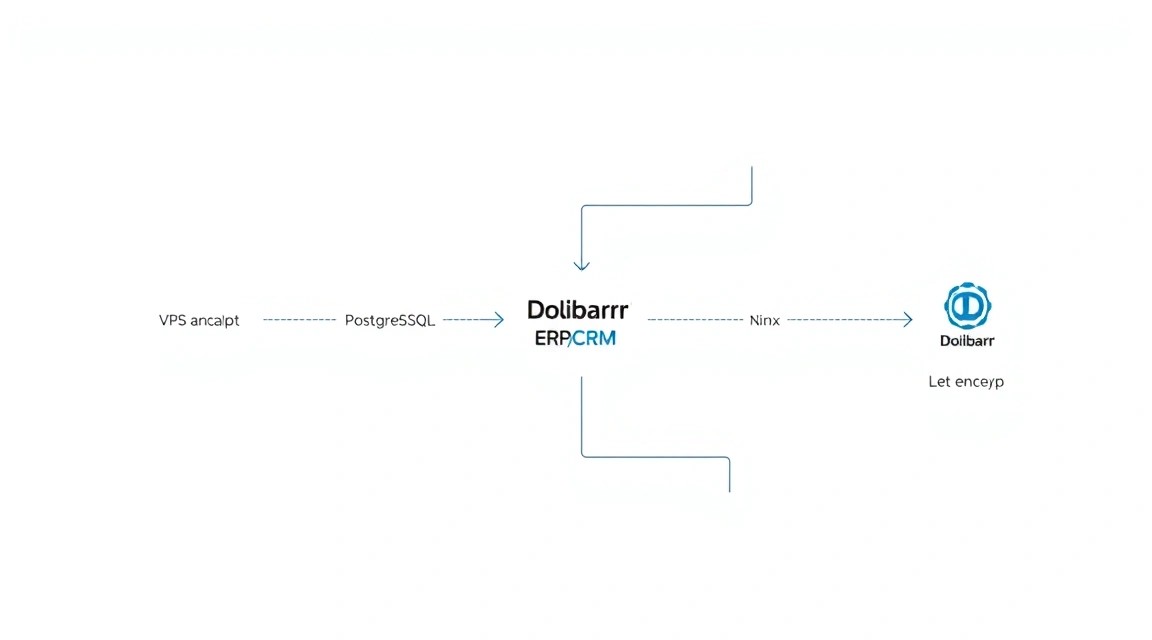
Diagram: Configuration
After installing all components, they need to be configured correctly. This includes Nginx for serving Dolibarr, PHP-FPM for script processing, and securing an HTTPS connection using Let's Encrypt.
1. Configuring Nginx for Dolibarr
Create a new Nginx configuration file for your domain (e.g., yourdomain.com). Replace yourdomain.com with your actual domain.
Sometimes it is necessary to increase memory and execution time limits for PHP. Edit the php.ini file for PHP 8.4 FPM:
sudo nano /etc/php/8.4/fpm/php.ini
Find and modify the following parameters:
memory_limit = 256M # Or higher if you have a lot of RAM and users
upload_max_filesize = 64M
post_max_size = 64M
max_execution_time = 300
date.timezone = Europe/Moscow # Or your timezone
Restart PHP-FPM to apply changes:
sudo systemctl restart php8.4-fpm
3. Obtaining an SSL Certificate with Let's Encrypt (Certbot)
HTTPS is mandatory for any modern web application. Certbot automates the acquisition and installation of Let's Encrypt certificates.
Follow the Certbot instructions. It will automatically modify your Nginx config, add HTTPS redirects, and set up automatic certificate renewal. Once completed, your Nginx config will be updated, and Dolibarr will be accessible via HTTPS.
4. Completing Dolibarr Installation via Web Interface
Now that everything is configured, open your domain (https://yourdomain.com) in your browser. You will see the Dolibarr installation page:
Step 1: Check system requirements. Ensure all necessary PHP extensions and file/directory permissions are marked as "OK".
Step 2: Database configuration.
Database type: PostgreSQL
DBMS hostname: localhost
DBMS port: 5432
Database name: dolibarrdb (which we created)
Database user login: dolibarruserdb (which we created)
Database user password: your_db_password
Step 3: Dolibarr configuration.
Path to data directory (Dolibarr data directory): /var/lib/dolibarr/documents
Administrator name: admin (or other)
Administrator password: your_admin_password
After completing the installation, Dolibarr will ask you to delete or rename the install.lock file. This is an important security step:
sudo rm /var/www/dolibarr/install.lock
Now you can log in to Dolibarr with the created administrator account.
5. Verifying Functionality
Open your domain in a browser (https://yourdomain.com). You should see the Dolibarr login page.
You can also check accessibility using curl from the server:
curl -v https://yourdomain.com
In the output, you should see a successful HTTP response (code 200) and information about the Let's Encrypt certificate.
Backups and Maintenance
Diagram: Backups and Maintenance
Regular backups and timely maintenance are crucial for the stable and secure operation of Dolibarr. Data loss can be catastrophic for any business.
What to Back Up
For a complete Dolibarr recovery, you will need three main components:
PostgreSQL Database: Contains all your business data (customers, invoices, orders, products, etc.). This is the most critical component.
Dolibarr Documents Directory:/var/lib/dolibarr/documents. This stores attached files, PDF invoices, custom reports, and other unstructured data.
Dolibarr Configuration Files:/var/www/dolibarr/conf/conf.php. Contains database connection parameters and other important settings. It's also useful to back up Nginx configs (/etc/nginx/sites-available/dolibarr.conf) and PHP (/etc/php/8.4/fpm/php.ini).
Simple Auto-Backup Script
We will create a simple script that will dump the database and archive the documents directory. These files will then be moved to a secure location.
Storing backups on the same server as Dolibarr is very risky. If the server fails, you will lose both the system and the backups. It is recommended to use one of the following solutions:
External S3-compatible object storage: The most reliable and scalable option. Use utilities like s3cmd, rclone, or awscli (if using AWS S3) for automatic backup uploads.
Separate VPS or dedicated server: Simply synchronize backups via SSH using rsync to another server.
NFS/SMB network storage: If you have a local network with NAS.
Example of adding rsync to the script (after deleting old backups):
# Synchronizing backups to a remote server (replace user@remote_host:/path/to/backups)
echo "Synchronizing backups to a remote server..."
rsync -avz --remove-source-files "${BACKUP_DIR}/" user@remote_host:/path/to/backups/
if [ $? -eq 0 ]; then
    echo "Backups successfully synchronized to remote server."
else
    echo "Error synchronizing backups to remote server!"
fi
Updates: rolling vs maintenance window
OS and stack software updates (Nginx, PHP, PostgreSQL): For system software, it is recommended to use a "maintenance window". Schedule a time when the system is minimally used and run sudo apt update && sudo apt upgrade -y. Always perform a backup before updating.
Dolibarr Updates: Updating the Dolibarr system itself (e.g., from version 20.0 to 21.0) requires a separate approach. This usually involves downloading the new version, replacing files (except for the conf and documents directories), and then running the update script via the web interface. Always read the official Dolibarr update documentation for the specific version and perform a full backup before starting.
Automatic Let's Encrypt renewal: Certbot is configured by default for automatic certificate renewal. You can check the status of the Certbot cron job: sudo systemctl status certbot.timer.
Troubleshooting + FAQ
Even with careful configuration, problems can arise. Below are typical questions and their solutions.
Cannot access Dolibarr via browser (HTTP 502 Bad Gateway)
What to check: A 502 error usually means that Nginx cannot communicate with PHP-FPM.
Check if PHP-FPM is running:
sudo systemctl status php8.4-fpm
Check PHP-FPM logs:
sudo journalctl -u php8.4-fpm
Check if the path to the PHP-FPM socket is correctly specified in the Nginx config (fastcgi_pass unix:/run/php/php8.4-fpm.sock;).
Ensure that the www-data user (under which Nginx runs) has read/write permissions to the PHP-FPM socket.
How to fix: Restart PHP-FPM and Nginx. Ensure all paths in the configs are correct.
Cannot access Dolibarr via browser (HTTP 403 Forbidden)
What to check: A 403 error means that Nginx can find the files, but is forbidden from serving them.
Check permissions for the /var/www/dolibarr directory. The www-data user must be the owner or have read/execute permissions.
sudo ls -la /var/www/dolibarr
Check that there are no deny all; rules in the Nginx config that mistakenly block access to the necessary files.
How to fix: Correct the connection details in conf.php. If you forgot the database password, reset it for the dolibarruserdb user via psql.
Let's Encrypt certificate is not renewing automatically
What to check:
Check the status of the Certbot timer:
sudo systemctl status certbot.timer
Try performing a manual renewal:
sudo certbot renew --dry-run
(for testing) or
sudo certbot renew
(for actual renewal).
Check Certbot logs:
sudo less /var/log/letsencrypt/letsencrypt.log
Ensure ports 80 and 443 are open in UFW.
How to fix: If --dry-run returns errors, fix them (often these are issues with port 80 access or incorrect DNS records). Ensure that the domain names in your Nginx config and in the Certbot command match.
Cannot upload files to Dolibarr (e.g., invoice attachments)
What to check:
Check permissions for the Dolibarr data directory: /var/lib/dolibarr/documents. The www-data user must have write permissions.
sudo ls -la /var/lib/dolibarr/documents
Check the values of upload_max_filesize and post_max_size in /etc/php/8.4/fpm/php.ini. If files are too large, PHP might reject them.
. Increase the limits in php.ini and restart PHP-FPM.
What is the minimum suitable VPS configuration?
For a small team (1-5 active users) and moderate Dolibarr usage, a VPS with 2 CPU cores, 4 GB RAM, and 80 GB NVMe SSD will be minimally suitable. This will provide enough resources for the operating system, PostgreSQL, Nginx, and PHP-FPM. However, as the number of users or system workload increases, it is recommended to scale resources to avoid slowdowns and ensure comfortable operation.
What to choose — VPS or dedicated for this task?
For most small and medium-sized businesses, freelancers, and startups, a VPS will be the optimal choice. It offers sufficient performance, flexibility, and cost-effectiveness. A dedicated server makes sense if you have a very large team (50+ users), high database performance requirements, strict security and isolation regulations, or if you plan to host many other resource-intensive services on the same host. Dedicated servers provide full control over hardware and exclusive resources but are significantly more expensive and require a higher level of administration.
Conclusions and Next Steps
Diagram: Conclusions and Next Steps
You have successfully deployed Dolibarr ERP/CRM on your VPS, using the Nginx, PostgreSQL, and PHP-FPM stack, and secured the connection with Let's Encrypt. You now have a powerful and flexible platform to manage all aspects of your business, entirely under your control.
Here are a few steps you can take to further develop and optimize your system:
Monitoring Setup: Install monitoring systems (e.g., Prometheus + Grafana or Zabbix) to track server performance, resource usage, and Dolibarr health. This will help identify issues before they become critical.
Exploring Dolibarr Modules: Dolibarr has an extensive module store (DoliStore) that can extend the system's functionality to meet your specific business needs. Explore available integrations and extensions.
Performance Optimization: As the load grows, you might consider optimizing PostgreSQL (tuning postgresql.conf), PHP-FPM (configuring process pools), and Nginx (caching).
Implementing CI/CD: For developers or teams actively customizing Dolibarr, setting up a Continuous Integration/Continuous Delivery (CI/CD) pipeline will help automate the deployment of updates and changes.
Was this guide helpful?
Your feedback helps us improve our guides.
Share this post:
Send this guide to someone who may find it useful.