Setting up an Ethereum Validator Node on a VPS: client launch, security, and monitoring
TL;DR
In this guide, we will set up an Ethereum validator step-by-step on a virtual or dedicated server, using popular clients Geth (for execution) and Prysm (for consensus and validation). You will learn how to prepare the server, install the necessary software, ensure its security, and configure basic monitoring so that your validator operates stably on the Ethereum network.
Preparing a Linux server with enhanced security (SSH, UFW, Fail2ban).
Installing and configuring the Geth execution client for blockchain synchronization.
Installing and configuring the Prysm Beacon Chain consensus client.
Configuring the Prysm validator client for Proof-of-Stake participation.
Ensuring basic security and node maintenance strategies.
Recommendations for choosing a VPS configuration and solving typical problems.
What we are setting up and why
Diagram: What we are setting up and why
Ethereum transitioned to the Proof-of-Stake (PoS) consensus mechanism as part of The Merge upgrade, which fundamentally changed how transactions are confirmed and new blocks are created. Now, instead of miners using computational power (Proof-of-Work), the network is supported by validators who "stake" 32 ETH as collateral. Validators are responsible for verifying transactions, creating new blocks, and voting on the correctness of the blockchain state.
Setting up your own Ethereum validator on a VPS or dedicated server allows you to actively participate in network decentralization, earn rewards for your work, and have full control over your funds. Running a validator is not only a way to earn passive income but also an important contribution to the security and sustainability of Ethereum. You will be part of a global network that powers thousands of decentralized applications (dApps), DeFi protocols, and NFT marketplaces.
Ultimately, the reader will have a fully functional Ethereum validator capable of synchronizing with the network, attesting blocks, and proposing new ones, thereby earning rewards. This process involves installing two main types of clients: an Execution Client, which processes transactions and manages the state of the Ethereum Virtual Machine (EVM), and a Consensus Client, which is responsible for Proof-of-Stake logic, including attestations and block proposals.
There are alternatives to self-hosting a validator:
Staking-as-a-Service (SaaS): Services that manage the validator for you, requiring only a deposit of 32 ETH. Convenient, but you trust your validator keys to a third party and pay a fee.
Centralized exchanges: Many exchanges offer staking services, allowing you to stake even less than 32 ETH. This is the most centralized option, where you fully entrust your assets to the exchange and lose control over your keys.
Pool staking: Decentralized protocols, such as Lido or Rocket Pool, allow staking any amount of ETH, receiving liquid staking tokens in return. You don't run your own validator but participate in its support through a pool.
Why is self-hosting on a VPS preferable for our target audience?
Self-hosting on a VPS or dedicated server provides maximum control, security, and privacy. You fully own your validator keys, pay no fees to third parties (beyond the VPS cost), and directly contribute to network decentralization. This is an ideal choice for those who value sovereignty over their assets and want to deeply understand the Ethereum infrastructure.
What VPS configuration is needed for this task
Diagram: What VPS configuration is needed for this task
Choosing the right server configuration is critically important for the stable and efficient operation of an Ethereum validator. A node requires significant resources, especially disk space and I/O speed.
Minimum requirements (current as of 2026):
CPU: Minimum 4 cores (vCPU) with a clock speed of 2.5 GHz or higher. Validators actively use the processor during synchronization and block processing.
RAM: Minimum 16 GB of RAM. 32 GB is highly recommended to ensure stability and prevent slowdowns, especially when using multiple clients or monitoring.
Disk:
Type: NVMe SSD only. Read/write speed is critically important for blockchain synchronization and attestations. SATA SSD may be too slow.
Volume: Minimum 2 TB. The Ethereum blockchain is constantly growing. For a full node (Geth) in 2026, 1.5+ TB may be required, plus room for growth and the operating system. 3 TB is optimal for the long term.
I/O: High I/O speed (minimum 2000 IOPS for read/write).
Network:
Speed: 1 Gbit/s port.
Traffic: Unlimited or with a large reserve (minimum 2-3 TB/month). Synchronization and continuous node operation generate significant network traffic.
Specific VPS plan for the task:
To run an Ethereum validator, it is recommended to choose a VPS plan with the following characteristics:
CPU: 6-8 vCPU, 3.0+ GHz
RAM: 32 GB
Disk: 2-3 TB NVMe SSD
Network: 1 Gbit/s port, unlimited traffic
A VPS with the specified characteristics will ensure the stability and performance of your validator for years to come. If you plan to run multiple validators or other resource-intensive services, consider more powerful configurations.
When a dedicated server is needed, not a VPS:
A dedicated server may be preferable in the following cases:
Multiple validators: If you manage dozens or hundreds of validators.
Maximum performance and control: Dedicated servers offer predictable performance without "noisy neighbors," and full control over hardware.
Specific hardware requirements: For example, using Hardware Security Modules (HSM) for validator keys, which is rarely available on a VPS.
Additional services: If you plan to host other resource-intensive blockchain services, nodes of other networks, or large databases on the same server.
In most cases, a well-configured VPS is sufficient for one or two validators, but for scaling or if maximum reliability and performance are needed, a suitable dedicated server might be a better choice.
Location: what it affects
The choice of server geographical location affects several factors:
Legislation: The jurisdiction where the server is located may affect the legal aspects of owning and managing cryptocurrency assets.
Latency: Low latency to other Ethereum network nodes is important for timely submission of attestations and block proposals. Choose a location with good peering to major internet backbones and large data centers.
Price: The cost of a VPS can vary depending on the region.
Availability: Some regions may have better infrastructure availability and reliability.
It is generally recommended to choose a location in a major European or North American data center for optimal network interaction with the rest of the Ethereum network.
Server Preparation
Diagram: Server Preparation
Before installing Ethereum clients, you need to perform basic setup and security hardening of your server. We will use Ubuntu Server 24.04 LTS (current as of 2026) as the operating system.
1. System Update
First, update all packages to their latest versions.
sudo apt update && sudo apt upgrade -y
This command updates the package list and installs all available updates without prompting for confirmation.
2. Creating a New User with Sudo Privileges
It is not recommended to work directly as the root user. Create a new user and add them to the sudo group.
sudo adduser validator_user
Follow the instructions to create a password and enter user information. Then, add the user to the sudo group:
sudo usermod -aG sudo validator_user
Now you can log in as validator_user and execute commands with sudo.
3. Configuring SSH Key Authentication
This is significantly more secure than using passwords. Generate an SSH key on your local machine (if you don't have one yet):
Then, copy the public key to the server for validator_user. Replace your_public_key_file with the path to your public key (usually ~/.ssh/id_ed25519.pub) and your_server_ip with your server's IP:
If ssh-copy-id is not available, you can do it manually:
# Log in to the server as validator_user
ssh validator_user@your_server_ip

# Create the .ssh directory and authorized_keys file if they don't exist
mkdir -p ~/.ssh
chmod 700 ~/.ssh
touch ~/.ssh/authorized_keys
chmod 600 ~/.ssh/authorized_keys

# Paste your public SSH key (which you copied from your local machine) into the authorized_keys file
# You can use nano or vim:
nano ~/.ssh/authorized_keys
# Paste the key and save (Ctrl+X, Y, Enter for nano)

# Exit the server
exit
Now try logging in to the server as validator_user without a password.
4. Disabling Password Authentication for SSH (Optional, but Recommended)
Once you have confirmed that SSH key login works, disable password authentication in the SSH configuration.
sudo nano /etc/ssh/sshd_config
Find the following lines and ensure they are set as follows:
PasswordAuthentication no
PermitRootLogin no
Save the changes and restart the SSH service:
sudo systemctl restart sshd
Important: Make sure you can log in with an SSH key before disabling password authentication, otherwise you might lose access to the server.
5. Firewall Configuration (UFW)
UFW (Uncomplicated Firewall) is a convenient interface for managing iptables. Configure it to allow only necessary traffic.
Fail2ban protects the server from brute-force attacks by blocking IP addresses that show numerous failed login attempts.
sudo apt install fail2ban -y         # Install Fail2ban
sudo cp /etc/fail2ban/jail.conf /etc/fail2ban/jail.local # Create a local copy of the config
sudo nano /etc/fail2ban/jail.local   # Edit the config
In the jail.local file, find the [sshd] section and ensure it is enabled (enabled = true). You can configure bantime (block time) and findtime (period over which failed attempts are counted).
Your server is now ready for installing Ethereum clients.
Software Installation — Step-by-Step
Diagram: Software Installation — Step-by-Step
We will install two key components: an Execution Client and a Consensus Client, as well as a Validator Client. For clients, we will choose Geth (Go-Ethereum) and Prysm, as they are among the most popular and stable.
1. Preparing the Environment for Clients
We will create separate system users for each client for better isolation and security. We will also create data directories.
# Создание пользователя и директорий для Geth (Execution Client)
sudo adduser --system --no-create-home --group execution
sudo mkdir -p /var/lib/ethereum/execution
sudo chown -R execution:execution /var/lib/ethereum/execution
# Создание пользователя и директорий для Prysm (Consensus Client)
sudo adduser --system --no-create-home --group consensus
sudo mkdir -p /var/lib/ethereum/consensus
sudo chown -R consensus:consensus /var/lib/ethereum/consensus
2. Installing the Execution Client (Geth)
Geth is one of the most common execution clients. For 2026, we will use a stable version, for example, v1.14.x.
2.1. Downloading Geth
Download the latest stable version of Geth from the official GitHub repository. Check the current version on the Geth releases page.
# Перейдите во временную директорию
cd /tmp

# Загрузите архив с бинарными файлами Geth (замените версию на актуальную для 2026 года, например, 1.14.1)
# Пример: wget https://github.com/ethereum/go-ethereum/releases/download/v1.14.1/geth-linux-amd64-1.14.1-e737c04a.tar.gz
wget https://geth.ethereum.org/downloads/geth-linux-amd64-latest.tar.gz -O geth.tar.gz

# Распакуйте архив
tar -xvf geth.tar.gz

# Переместите исполняемый файл в /usr/local/bin
sudo mv geth-linux-amd64-/geth /usr/local/bin/geth

# Проверьте версию Geth
geth version
2.2. Creating a JWT Key
A JWT token is used for secure communication between the execution client and the consensus client. Let's generate it.
--datadir: Specifies the path to the directory where blockchain data will be stored.
--authrpc.addr 127.0.0.1 --authrpc.port 8551 --authrpc.jwtsecret /var/lib/ethereum/jwt/jwtsecret.txt: Configures a secure RPC interface for interaction with the consensus client. Accessible only locally.
--http --http.addr 127.0.0.1 --http.port 8545 --http.api eth,net,web3: Enables the HTTP RPC interface, accessible only locally.
--ws --ws.addr 127.0.0.1 --ws.port 8546: Enables the WebSocket RPC interface, accessible only locally.
--syncmode "snap": Uses "snap sync" mode for fast synchronization.
--cache 16000: Allocates 16 GB of RAM for the Geth cache (16 GB recommended for 32 GB RAM).
--maxpeers 50: Sets the maximum number of peers.
--nat extip:$(curl -s ifconfig.me): Automatically determines the external IP address for NAT.
Save the file and reload Systemd, then start Geth:
sudo systemctl status prysm-beacon
sudo journalctl -f -u prysm-beacon --no-hostname
Prysm Beacon Chain will begin synchronization, using data from Geth and, if configured, checkpoint sync. This process can also take a significant amount of time.
4. Installing the Validator Client (Prysm)
The validator client is responsible for signing attestations and block proposals using your validator keys. Validator keys must be generated and deposited via the official Ethereum Launchpad. Never generate keys on the server unless it is fully isolated and secured.
4.1. Importing Validator Keys
After you have generated your validator keys on your local computer (using the Ethereum Launchpad or tools like ethdo) and completed the 32 ETH deposit process, you will have a validator_keys file (usually in ZIP or JSON format). You need to transfer it to the server.
# Создайте директорию для ключей валидатора
sudo mkdir -p /var/lib/ethereum/validator/keys
sudo chown -R consensus:consensus /var/lib/ethereum/validator

# Скопируйте файл validator_keys.zip с локальной машины на сервер (замените на свои данные)
# scp /path/to/your/validator_keys.zip validator_user@your_server_ip:/tmp/validator_keys.zip

# На сервере, войдите как validator_user, затем переключитесь на пользователя consensus для распаковки
sudo -u consensus bash
cd /tmp
unzip validator_keys.zip -d /var/lib/ethereum/validator/keys/
exit # Вернуться к validator_user

# Установите правильные права доступа
sudo chown -R consensus:consensus /var/lib/ethereum/validator/keys
sudo chmod -R 700 /var/lib/ethereum/validator/keys
You will also need to enter passwords for each validator key. Prysm provides an interactive import.
Important: You need to create the file /var/lib/ethereum/validator/wallet-password.txt, containing the password for your Prysm wallet. This file must be secured.
sudo nano /var/lib/ethereum/validator/wallet-password.txt
# Вставьте пароль Prysm-кошелька, который вы задали при импорте ключей
# Сохраните и закройте
sudo chmod 600 /var/lib/ethereum/validator/wallet-password.txt
sudo chown consensus:consensus /var/lib/ethereum/validator/wallet-password.txt
Explanation of Prysm Validator parameters:
--datadir: Path to the directory for validator client data.
--beacon-rpc-provider 127.0.0.1:4000: Specifies how to connect to the local Prysm Beacon Chain.
--wallet-dir: Path to the directory where Prysm wallet data is stored.
--wallet-password-file: Path to the file containing the wallet password.
--monitoring-host 127.0.0.1 --monitoring-port 8081: Enables metrics for Prometheus (accessible locally).
Save the file and reload Systemd, then start Prysm Validator:
sudo systemctl status prysm-validator
sudo journalctl -f -u prysm-validator --no-hostname
After successfully starting all three components (Geth, Prysm Beacon, Prysm Validator), your validator will begin synchronization and, once active on the Ethereum network, will start performing its functions and earning rewards.
Configuration
Diagram: Configuration
In the previous section, we already configured the main client parameters via Systemd services. Here, we will delve into some important aspects of configuration, security, and verification.
1. Managing the JWT Secret
The JWT secret (jwtsecret.txt) is critically important for secure communication between Geth and Prysm. It allows the consensus client to authorize requests to the execution client. We have already created it in /var/lib/ethereum/jwt/jwtsecret.txt with the correct permissions (chmod 600) and owners (execution:execution and consensus:consensus).
Never share this file or expose it to external access.
2. Systemd Service Configuration
We used Systemd to manage the clients. Here are the main parameters you can change or check:
User and Group: Define the user and group under which the service runs. This is important for security.
Restart=always: Ensures that the service will be automatically restarted in case of failure.
RestartSec=5: A 5-second delay before restarting.
ExecStart: The main command to start the client with its parameters.
After and Requires: Indicate dependencies. For example, prysm-beacon.service starts after geth.service and requires it to be running.
To change Systemd service parameters, always use sudo systemctl daemon-reload after editing the .service file, and then sudo systemctl restart .
3. TLS/HTTPS for External Access (Optional)
Ethereum validator clients typically do not require direct external access via HTTP/HTTPS, as they communicate with the network via P2P protocols and with the execution client locally. However, if you decide to configure external access to the Geth API (e.g., for remote monitoring or interacting with your wallet), it is highly recommended to use a reverse proxy with TLS/HTTPS.
We will not configure this in detail here, but here's a general idea with Caddy:
Warning: Opening Geth or Prysm RPC ports for external access without proper authentication and TLS/HTTPS is a serious security threat. Always use 127.0.0.1 for RPC/API addresses unless external access via a secure proxy is required.
4. Verifying Operation
After starting all services, ensure they are working correctly.
4.1. Verifying Geth
Check the service status:
sudo systemctl status geth
Check the logs:
sudo journalctl -f -u geth --no-hostname
Make sure Geth is synchronizing. Logs should show messages like "Imported new chain segment". You can also check the current block:
curl -X POST -H "Content-Type: application/json" --data '{"jsonrpc":"2.0","method":"eth_blockNumber","params":[],"id":1}' http://127.0.0.1:8545
This command should return the current block number in hexadecimal format.
4.2. Verifying Prysm Beacon Chain
Check the service status:
sudo systemctl status prysm-beacon
Check the logs:
sudo journalctl -f -u prysm-beacon --no-hostname
In the logs, you should see messages about network synchronization, peer discovery, and connection to Geth. Ensure that Prysm successfully connects to Geth ("Connected to execution client").
After the Beacon Chain is fully synchronized and your validator is activated on the network, you will see messages about attestations being performed ("Attested block") and possibly block proposals ("Proposed block"). Also, ensure that the validator successfully connects to the Beacon Chain.
For a full check of the validator's status, you can use the Prysm command:
sudo -u consensus /usr/local/bin/validator accounts list --wallet-dir=/var/lib/ethereum/validator/wallet
This command will show a list of your validators and their status.
Backups and Maintenance
Diagram: Backups and Maintenance
A proper backup strategy and regular maintenance are key to the long-term stability and security of your Ethereum validator. It's important to understand what needs to be backed up and what does not.
1. What to Back Up
Validator Keys: This is the most critically important. Your validator keys are your access to staked 32 ETH. They should be generated in a secure offline environment (e.g., on a separate computer without internet access) and stored in multiple reliable locations. Never store the only copy of your keys on the server. The files you imported into the Prysm client (/var/lib/ethereum/validator/keys and /var/lib/ethereum/validator/wallet) are your working copy. The original keys you generated should be stored separately.
Client Configuration Files: These are the geth.service, prysm-beacon.service, prysm-validator.service files from /etc/systemd/system/. They contain the startup parameters for your clients.
JWT Secret: The file /var/lib/ethereum/jwt/jwtsecret.txt. It is necessary for interaction between clients.
Blockchain Data (Geth and Prysm): The directories /var/lib/ethereum/execution and /var/lib/ethereum/consensus. This data takes up terabytes and can be re-synchronized from scratch if needed. Backing it up is impractical and inefficient.
2. Simple Auto-Backup Script
Let's create a simple script to back up configuration files and the JWT secret. Validator keys should be backed up manually and stored in the most secure location possible, not on the same VPS.
#!/bin/bash
BACKUP_DIR="/tmp/validator_config_backup_$(date +%Y%m%d%H%M%S)"
CONFIG_FILES=(
    "/etc/systemd/system/geth.service"
    "/etc/systemd/system/prysm-beacon.service"
    "/etc/systemd/system/prysm-validator.service"
    "/var/lib/ethereum/jwt/jwtsecret.txt"
    "/var/lib/ethereum/validator/wallet-password.txt"
)

mkdir -p "$BACKUP_DIR"

for file in "${CONFIG_FILES[@]}"; do
    if [ -f "$file" ]; then
        cp "$file" "$BACKUP_DIR/"
        echo "Backed up: $file"
    else
        echo "Warning: File not found: $file"
    fi
done

# Archive and compress
tar -czvf "$BACKUP_DIR.tar.gz" -C "$(dirname "$BACKUP_DIR")" "$(basename "$BACKUP_DIR")"
echo "Backup created: $BACKUP_DIR.tar.gz"

# Clean up temporary directory
rm -rf "$BACKUP_DIR"

# Now you can copy "$BACKUP_DIR.tar.gz" to external storage
# For example, scp "$BACKUP_DIR.tar.gz" user@remote_host:/path/to/backups/
Backups should not be stored on the same server as the original data. Recommended storage locations:
External S3-compatible storage: Cloud storage like Amazon S3, DigitalOcean Spaces, Backblaze B2. You can use utilities like s3cmd or rclone for automatic uploads.
Separate VPS: An inexpensive VPS in another location where you can copy backups via SSH (using scp or rsync).
Local computer/NAS: If you have reliable local storage with redundancy.
Add a command to copy the archive to external storage at the end of the backup_configs.sh script. For example, for SSH:
# Inside backup_configs.sh script, after the rm -rf "$BACKUP_DIR" line
# scp "$BACKUP_DIR.tar.gz" user@remote_host:/path/to/backups/
# rm "$BACKUP_DIR.tar.gz" # Delete local copy after successful upload
4. Automating Backups with Cron
Configure Cron to run the backup script daily or weekly.
sudo crontab -e
Add the following line for a daily backup at 03:00 AM:
This command will run the script every day at 03:00 and redirect the output to a log file.
5. Updates: Rolling vs. Maintenance Window
Regular updates of Ethereum clients and the operating system are critically important for security and performance. Always monitor announcements from client developers (Geth, Prysm) for new versions.
Updating Ethereum Clients:
Importance: Update as soon as possible after critical updates are released (security, bug fixes, important protocol changes).
Process: This usually involves downloading the new version of the binary file, replacing the old one, and restarting the Systemd service.
"Maintenance Window": For important updates, a small "maintenance window" (a few minutes of downtime) may be required to avoid issues. Follow developer recommendations.
"Rolling Updates": Some updates can be "rolling," meaning you can update clients sequentially, minimizing downtime.
Operating System Updates:
Regularly run sudo apt update && sudo apt upgrade -y.
For kernel updates or important system components, a server reboot (sudo reboot) may be required. Plan this for times of lowest activity.
Important: Always read release notes before updating and check the compatibility of execution client and consensus client versions. Ensure you have a configuration backup before making significant changes.
Troubleshooting + FAQ
Even with careful setup, problems can arise. This section will help you resolve the most common ones.
My Geth client is not syncing or syncing very slowly. What should I check?
What to check:
Geth Logs: Use sudo journalctl -f -u geth --no-hostname. Look for error messages, warnings, the number of peers ("peers"), and sync progress ("Imported new chain segment").
Disk Space: Make sure there is enough free space on the disk (df -h). If the disk is full, Geth will stop.
Disk Speed (I/O): A slow NVMe SSD or its overload can be the cause. Check with utilities like iostat or htop.
Network Connection: Ensure the server has a stable internet connection and Geth ports (30303 TCP/UDP) are open in the firewall (sudo ufw status).
Startup Parameters: Check /etc/systemd/system/geth.service for correct parameters, especially --syncmode and --cache.
How to fix:
If the disk is full, consider increasing your VPS volume or cleaning up unnecessary files. If disk speed is low, your VPS plan may not meet the requirements, or the disk is overloaded by other processes. Increasing --cache (if free RAM is available) can help. Check that the firewall is not blocking P2P traffic.
My Prysm Beacon Chain client is not syncing or not connecting to Geth.
What to check:
Prysm Beacon Logs: Use sudo journalctl -f -u prysm-beacon --no-hostname. Look for error messages related to connecting to Geth ("Failed to connect to execution client") or P2P network issues.
Geth Status: Make sure Geth is running and syncing. Prysm cannot operate without a synchronized execution client.
JWT Secret: Ensure that the file /var/lib/ethereum/jwt/jwtsecret.txt exists, has correct permissions, and is specified in both services (Geth and Prysm Beacon) with identical content.
RPC Ports: Check that Geth is listening on port 8551 (--authrpc.port) and Prysm Beacon is attempting to connect to it.
How to fix:
Ensure Geth is fully synchronized and running correctly. Restart both services if you made changes to the JWT secret or RPC parameters. Check the access rights for the JWT secret file.
My Prysm validator is not attesting or proposing blocks.
What to check:
Prysm Validator Logs: Use sudo journalctl -f -u prysm-validator --no-hostname. Look for errors related to connecting to the Beacon Chain, missing keys, or attestation problems.
Prysm Beacon Chain Status: Ensure that the Prysm Beacon Chain is running, fully synchronized, and has enough peers. The validator cannot operate without a working Beacon Chain.
Validator Activation: Make sure your validator is activated on the Ethereum network. You can check this on Beacon Chain Explorer by entering your validator key. The activation process can take several days or weeks after depositing 32 ETH.
Key Availability: Ensure that the validator keys are correctly imported and accessible to the validator client.
How to fix:
Wait for the Prysm Beacon Chain to fully synchronize. Make sure your validator is activated. Check that --wallet-password-file contains the correct password. Restart prysm-validator.service.
What is the minimum suitable VPS configuration?
To run a full Ethereum validator for 2026, minimum requirements include 4 vCPUs (2.5 GHz or higher), 16 GB RAM, and a 2 TB NVMe SSD with high I/O speed (2000 IOPS or higher). The network connection should be 1 Gbit/s with unlimited traffic or a large allowance (2-3 TB/month or more). It is crucial to use an NVMe SSD due to the intensive read/write operations of the blockchain. An optimal configuration would include 6-8 vCPUs, 32 GB RAM, and a 2-3 TB NVMe SSD for long-term stability and performance.
What to choose — VPS or dedicated for this task?
For running one or two Ethereum validators, a high-performance VPS with an NVMe SSD is usually sufficient and a more economical solution. A VPS offers flexibility and ease of management. A dedicated server becomes preferable if you plan to manage a large number of validators, require maximum predictable performance without "noisy neighbors," or have specific hardware requirements (e.g., for hardware security modules for keys). Dedicated servers also provide full control over the hardware, which can be important for advanced users or for hosting multiple resource-intensive blockchain services.
How to safely update Ethereum clients?
Safely updating clients involves several steps: 1) Always read the official release notes and developer recommendations before updating. 2) Stop client services (Geth, Prysm Beacon, Prysm Validator) using sudo systemctl stop . 3) Download new binary files from official sources (GitHub releases) and replace the old executables in /usr/local/bin/. 4) Start client services in reverse order (Geth, Prysm Beacon, Prysm Validator) using sudo systemctl start . 5) Monitor logs after startup to ensure correct operation. To minimize downtime, clients can be updated sequentially if supported by developers and if it's not a critical protocol update.
What to do if the VPS crashed or became unavailable?
If your VPS becomes unavailable, first check the server status in your provider's control panel. An OS crash or hardware issue may have occurred. Try restarting the server via the control panel. If the server boots, check Systemd logs for all clients (sudo journalctl -xe -u geth, etc.) to determine the cause of the failure. Ensure all services started automatically. If there's a network issue, check firewall settings and network interfaces. If the server does not boot, you may need to restore from a backup (if you made full system backups) or reinstall the OS, followed by data recovery (configs and keys) and re-synchronization of the blockchain.
Conclusions and Next Steps
Diagram: Conclusions and Next Steps
Congratulations! You have successfully set up and launched an Ethereum validator on your VPS or dedicated server. You have contributed to the decentralization and security of the Ethereum network, and laid the groundwork for earning staking rewards. This process required attention to detail, but now you have full control over your validator node.
Where to go next?
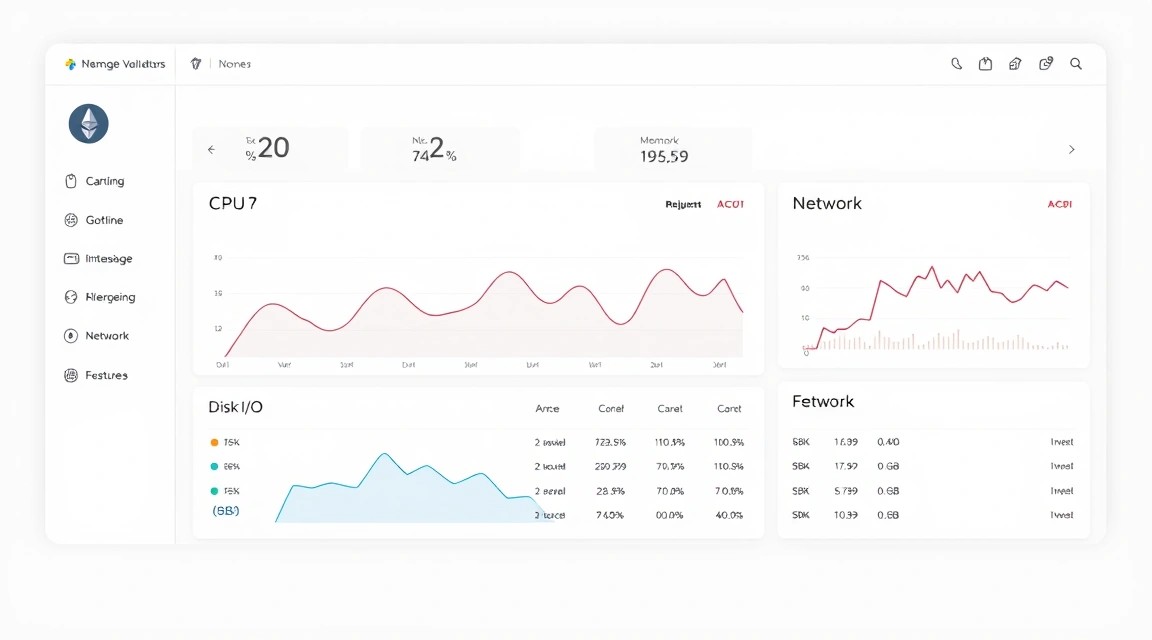
Advanced Monitoring: Set up Prometheus and Grafana to visualize your client metrics. This will allow you to monitor performance, resource usage, and validator status in real-time, preventing potential problems.
Exploring MEV-Boost: Investigate the possibility of integrating MEV-Boost to maximize your rewards. MEV-Boost allows validators to earn additional income from "maximal extractable value" (MEV) by collaborating with relay services.
Enhancing Security: Consider additional security measures such as two-factor authentication for SSH, using hardware security modules (HSM) to protect validator keys (if applicable to your infrastructure), or more advanced firewall configurations.
Automating Updates: Explore tools for automated but controlled software updates to minimize manual intervention and risks.
Was this guide helpful?
Your feedback helps us improve our guides.
Share this post:
Send this guide to someone who may find it useful.