How Many GPUs Are Needed for an LLM: Model → VRAM → GPU Table
TL;DR
For running an LLM, the available VRAM matters more than the number of GPUs itself: the model must fit in memory along with the KV cache, service buffers, and headroom for parallel requests. A quantized 7–8B model is typically run on a single GPU with 12–16 GB of VRAM, a 14B model on 16–24 GB, a 32B model on 24–48 GB, while 70B models require 48–80 GB of VRAM or multiple GPUs.
- For a personal chatbot and RAG, one GPU with 24 GB of VRAM is usually sufficient.
- Q4 quantization reduces memory requirements by approximately 2–4 times compared to FP16.
- Context, KV cache, and the number of concurrent users may require more VRAM than the model weights themselves.
- Two GPUs are useful for 70B models, high availability, or increased concurrency, but they do not always speed up a single request proportionally.
- For production inference, use vLLM with CUDA, an OpenAI-compatible API, and an HTTPS proxy.
- Before renting a server, select the model, quantization, target context, and expected number of concurrent requests.
What We Are Setting Up and Why
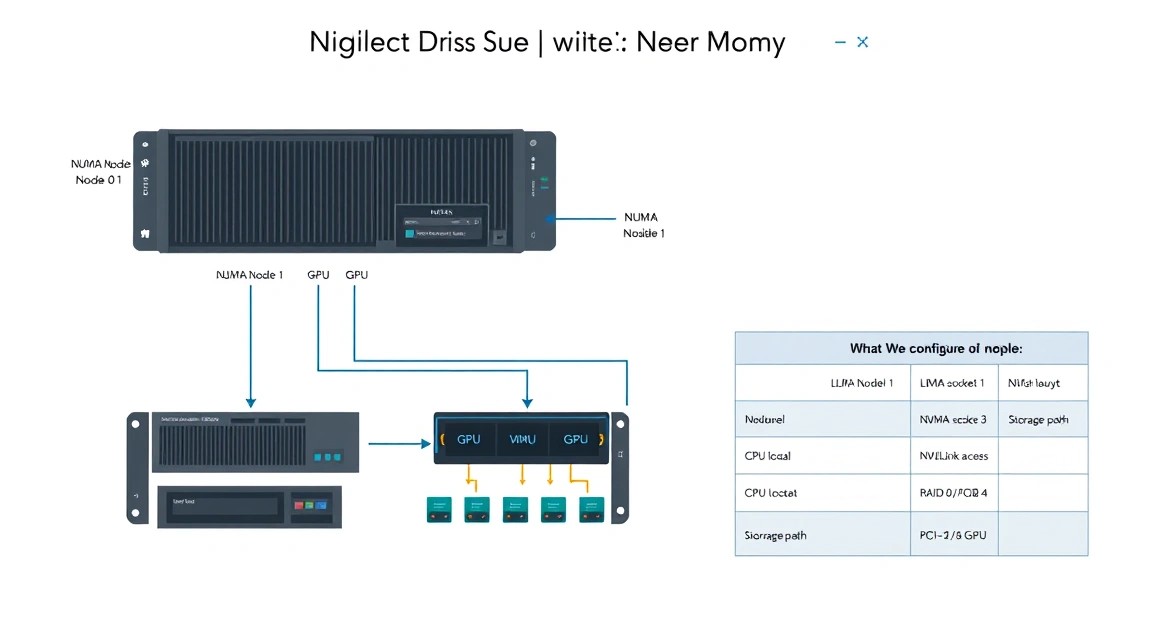
In this guide, we deploy our own LLM inference server: the model runs on a GPU, accepts requests via API, responds in an OpenAI-compatible format, and can be used by a web interface, bot, IDE plugin, RAG system, or internal SaaS. vLLM will be used as the inference engine: it efficiently manages the KV cache, supports request batching, and is suitable for models from the Llama, Qwen, Mistral, Gemma, DeepSeek, and many other families.
The main task before installation is to calculate GPU requirements correctly. An estimation error usually looks like this: the model “almost fits” in VRAM, but the server terminates with CUDA out of memory during the first long conversation, with several users, or when a large context is enabled. Therefore, you need to account not only for the weight size but also for runtime memory.
What VRAM Consumption Consists Of
Memory consumption during LLM inference can be represented as follows:
VRAM = model weights + KV cache + CUDA graphs and working buffers + headroom- Model weights — neural network parameters. This is the main, but not the only component.
- KV cache — conversation history memory. It grows with context length and the number of parallel requests.
- Working buffers — temporary memory for CUDA, attention operations, the loader, and graph compilation.
- Headroom — a practical 10–20% reserve that reduces the likelihood of OOM during peak requests.
In FP16 or BF16, one parameter occupies 2 bytes. Consequently, an 8B model requires about 16 GB for raw weights alone. In practice, FP16 8B requires a GPU with at least 20–24 GB because the KV cache and service memory remain. With Q4 quantization, the same weights typically occupy 5–6 GB, but total consumption may still be 8–12 GB.
Table: Model → VRAM → Suitable GPU
Below are practical guidelines for a single-user or lightly loaded service with a context of up to 8–16 thousand tokens. The values are not official specifications: actual usage depends on the architecture, GGUF/AWQ/GPTQ/FP8 format, engine version, context length, and launch parameters.
| Model size | Example models | VRAM in Q4 | VRAM in FP16/BF16 | Practical GPU | Typical use case |
|---|---|---|---|---|---|
| 1–3B | Qwen 2.5 3B, Llama 3.2 3B | 4–6 GB | 8–10 GB | RTX 3060 12GB, RTX 4060 Ti 16GB | Classification, simple bots, edge |
| 7–8B | Llama 3.1/3.2 8B, Mistral 7B, Qwen 7B | 7–10 GB | 18–22 GB | RTX 3060 12GB for Q4; RTX 3090/4090 24GB for BF16 | Chat, RAG, code, personal assistant |
| 12–14B | Qwen 14B, Phi-4 14B | 10–14 GB | 30–34 GB | RTX 4060 Ti 16GB for Q4; RTX 6000 Ada 48GB for BF16 | High-quality chat and RAG |
| 20–24B | Mistral Small, Qwen 32B in aggressive quantization | 16–22 GB | 48–56 GB | RTX 3090/4090 24GB for Q4; L40S 48GB at the limit | Advanced local assistant |
| 30–34B | Qwen 2.5 32B, CodeLlama 34B | 22–28 GB | 68–76 GB | L40S 48GB for Q4; A100/H100 80GB for BF16 | Code, analytics, high-quality RAG |
| 70–72B | Llama 3.3 70B, Qwen 72B | 42–52 GB | 145–160 GB | A100/H100 80GB for Q4; 2×80GB for BF16 | High quality, agent systems |
| 100B+ | Large MoE and dense models | 70 GB and above | 200 GB and above | 2–8 GPU with NVLink/NVSwitch | Enterprise inference |
For Mixture of Experts models, you cannot rely only on the number of active parameters. For example, an MoE may activate relatively few experts per token, but inference usually requires the weights of all experts to be present in memory. Therefore, a model labeled “8×7B” may require significantly more VRAM than a 7B dense model.
How to Choose Quantization
| Format | Memory | Quality | When to use |
|---|---|---|---|
| BF16 / FP16 | About 2 bytes per parameter | Original | Production, fine-tuning, large VRAM |
| FP8 | About 1 byte per parameter | Very close to original | Modern server GPUs with FP8 support |
| INT8 | About 1 byte per parameter | Usually high | A compromise for server inference |
| AWQ / GPTQ 4-bit | About 0.5–0.7 bytes per parameter with metadata | Good | vLLM, TensorRT-LLM, limited VRAM |
| GGUF Q4 | Low | From acceptable to good | llama.cpp, CPU/GPU offload, home servers |
For your first server, a sensible strategy is as follows: if you have 24 GB of VRAM, start with Qwen 32B in Q4 or 8–14B in BF16. The first option provides a more capable model, while the second offers higher speed, a longer context, and more concurrent users. For programming, Russian-language responses, and RAG, be sure to compare models using your own documents: parameter count alone does not guarantee the best result.
Self-hosted, Managed API, or Hybrid
A managed API is convenient if the load is unpredictable, you need a quick start, or you do not want to administer GPUs. Its disadvantages are the cost at high token volumes, dependency on an external service, and data transfer outside your perimeter.
A self-hosted LLM on a GPU server is justified when requests contain internal code, personal data, commercial documents, or when the load is sufficiently consistent. You control the model, log retention, limits, API version, and costs. A hybrid approach is also practical: a local 8–32B model handles the main flow, while rare complex requests are routed to an external API.
What VPS Configuration Is Needed for This Task
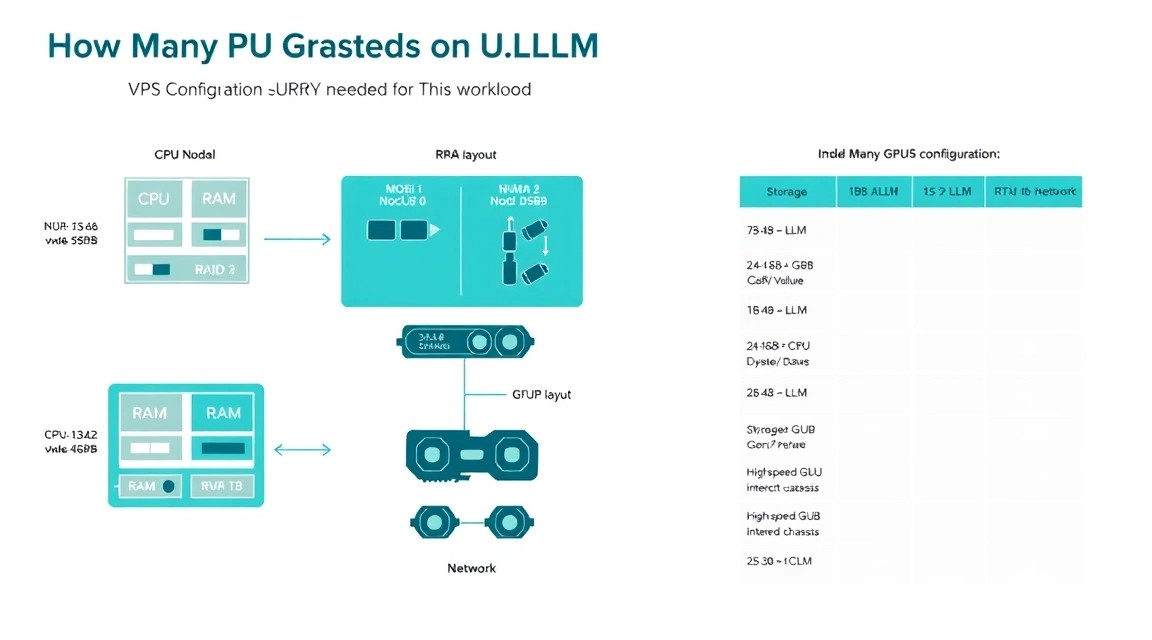
A standard VPS without a GPU is not suitable for fast LLM inference: it is possible to run a model on a CPU, but generating with a 32B or 70B model will be too slow for interactive chat. You need a GPU VPS, GPU cloud instance, or dedicated server with a passed-through graphics card. Check that the GPU is fully allocated to you or has guaranteed VRAM, and that the NVIDIA driver is available inside the virtual machine.
| Scenario | GPU and VRAM | CPU | RAM | NVMe | Network |
|---|---|---|---|---|---|
| Tests, 3–8B Q4 | 12–16 GB VRAM | 4 vCPU | 16–32 GB | 80–150 GB | 100 Mbps+ |
| Chat and RAG, 8–14B | 24 GB VRAM | 8 vCPU | 32–64 GB | 200 GB | 1 Gbps |
| 32B Q4, multiple users | 48 GB VRAM | 12–16 vCPU | 64–128 GB | 300–500 GB | 1 Gbps |
| 70B Q4 | 80 GB VRAM or 2×48 GB | 16+ vCPU | 128 GB | 500 GB+ | 1–10 Gbps |
| 70B BF16 / high load | 2×80 GB and more | 32+ cores | 256 GB+ | 1 TB+ | 10 Gbps |
To start with an 8–14B model in Q4 or BF16, a server with a 24 GB VRAM GPU, 8 vCPU, 64 GB RAM, and 200 GB NVMe is a sensible choice. One option is to use a VPS with the specified characteristics, provided that the selected instance actually offers an NVIDIA GPU with 24 GB of video memory.
Why System RAM Also Matters
System memory does not replace VRAM during GPU inference. Offloading part of the model to RAM is possible in llama.cpp, but it drastically reduces speed because of data transfer over PCIe. RAM is needed for the operating system, Docker, model loading, tokenizers, the vector database, caches, and file downloads. For one GPU with 24 GB, 32 GB of RAM is the minimum, but 64 GB is better for a stable RAG server.
When You Need Dedicated Rather Than VPS
Dedicated is preferable for two or more GPUs, a need for NVLink, non-standard drivers, 24/7 load with predictable performance, or storing large model collections. Virtual GPUs may have limitations on P2P, MIG, power limits, and PCIe bandwidth. For a single 24–48 GB GPU and moderate load, a GPU VPS is usually easier and less expensive to operate.
If you plan tensor parallel for a 70B model across two GPUs, check the topology using nvidia-smi topo -m. An NVLink connection is preferable, but PCIe also works; latency and generation speed may simply be worse. Do not combine GPUs with significantly different VRAM capacities: the model will be limited by the smaller GPU, and inefficient distribution schemes will arise.
Location and Latency
Location affects the latency to the first byte of the response, not the speed of token generation itself. For users in Europe, usually choose a European data center; for users in Russia and the CIS, choose a location with good network connectivity to their providers. If the server receives documents through a RAG pipeline or accesses internal databases, place it closer to those systems. Consider legal requirements for personal data and backup storage locations.
Server Preparation
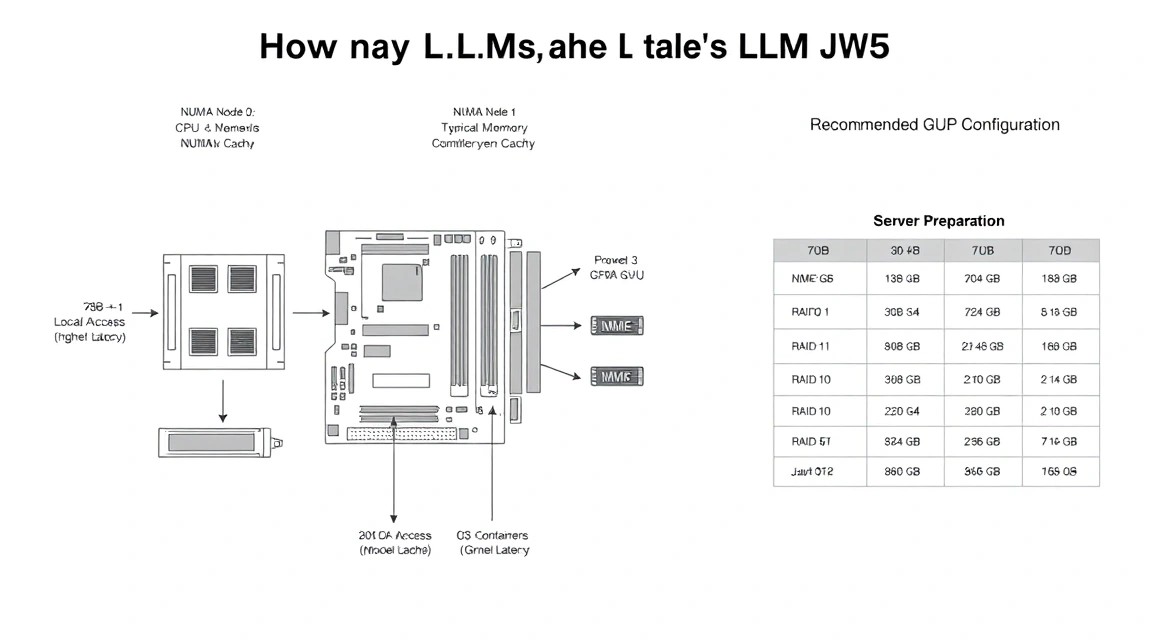
Ubuntu Server 24.04 LTS is used below. This version is suitable for current Docker branches, NVIDIA Container Toolkit, CUDA 12.x, and modern vLLM images. Perform the initial setup from the provider console or via SSH as a user with root privileges.
Create a dedicated administrator
# Создаёт пользователя llmadmin, добавляет его в группу sudo и готовит каталог SSH.
adduser llmadmin
usermod -aG sudo llmadmin
install -d -m 700 -o llmadmin -g llmadmin /home/llmadmin/.ssh
Add the public SSH key to the /home/llmadmin/.ssh/authorized_keys file. Do not copy the private key to the server or store it in Docker images or the repository.
# Записывает публичный ключ администратора и задаёт безопасные права доступа.
nano /home/llmadmin/.ssh/authorized_keys
chown llmadmin:llmadmin /home/llmadmin/.ssh/authorized_keys
chmod 600 /home/llmadmin/.ssh/authorized_keys
Update the system and install basic utilities
# Обновляет пакеты Ubuntu и устанавливает утилиты диагностики, firewall и fail2ban.
apt update && apt full-upgrade -y
apt install -y ca-certificates curl gnupg lsb-release jq htop nvtop \
  ufw fail2ban unattended-upgrades git vim
After updating, reboot the server, especially if the kernel was updated. Then reconnect as the newly created user and verify that sudo works.
# Перезагружает сервер, чтобы применить обновлённое ядро и драйверы.
reboot
Configure SSH and the firewall
First, make sure key-based login works in a second terminal. Only then disable password authentication. If you make a mistake in the SSH configuration, access can be restored through the out-of-band console.
# Отключает root-вход и парольную аутентификацию, оставляя вход только по SSH-ключу.
sudo tee /etc/ssh/sshd_config.d/99-hardening.conf > /dev/null <<'EOF'
PermitRootLogin no
PasswordAuthentication no
KbdInteractiveAuthentication no
PubkeyAuthentication yes
X11Forwarding no
AllowUsers llmadmin
EOF

sudo sshd -t && sudo systemctl restart ssh
# Открывает только SSH, HTTP и HTTPS; API vLLM наружу не публикуется.
sudo ufw default deny incoming
sudo ufw default allow outgoing
sudo ufw allow OpenSSH
sudo ufw allow 80/tcp
sudo ufw allow 443/tcp
sudo ufw --force enable
sudo systemctl enable --now fail2banDo not expose the vLLM port, usually 8000, to the internet. It will listen only on 127.0.0.1, while external access will be provided through Caddy with TLS and an API key. This protects the server from accidental public inference, which can quickly exhaust VRAM and bandwidth.
Check the GPU before installing containers
# Показывает модель GPU, объём VRAM, драйвер NVIDIA и активные процессы.
nvidia-smi
If the command is not found or does not display the GPU, first install the recommended NVIDIA driver from the Ubuntu repository or consult the platform documentation. Do not install CUDA Toolkit solely for vLLM: the vLLM container includes the required CUDA userspace, while the host requires a compatible NVIDIA driver.
Software Installation — Step by Step
For a production-like deployment, use Docker Compose. It isolates dependencies, simplifies updates, and lets you reproducibly pin the image version. As of 2026, current Docker Engine 28+, NVIDIA Container Toolkit 1.17+, and vLLM 0.10+ branches should be checked against the official release notes before updating a production server.
Install Docker Engine
# Добавляет официальный репозиторий Docker для Ubuntu 24.04.
sudo install -m 0755 -d /etc/apt/keyrings
curl -fsSL https://download.docker.com/linux/ubuntu/gpg | \
  sudo gpg --dearmor -o /etc/apt/keyrings/docker.gpg
sudo chmod a+r /etc/apt/keyrings/docker.gpg

echo "deb [arch=$(dpkg --print-architecture) signed-by=/etc/apt/keyrings/docker.gpg] \
https://download.docker.com/linux/ubuntu $(. /etc/os-release && echo "$VERSION_CODENAME") stable" | \
sudo tee /etc/apt/sources.list.d/docker.list > /dev/null
# Устанавливает Docker Engine, Compose plugin и containerd из официального репозитория.
sudo apt update
sudo apt install -y docker-ce docker-ce-cli containerd.io \
docker-buildx-plugin docker-compose-plugin
sudo usermod -aG docker $USER
newgrp dockerVerify that Docker works without sudo. Run newgrp docker only in the current session; after a new SSH login, the group will apply automatically.
# Запускает тестовый контейнер и проверяет доступ пользователя к Docker daemon.
docker run --rm hello-world
Install NVIDIA Container Toolkit
# Добавляет официальный репозиторий NVIDIA Container Toolkit.
curl -fsSL https://nvidia.github.io/libnvidia-container/gpgkey | \
  sudo gpg --dearmor -o /usr/share/keyrings/nvidia-container-toolkit-keyring.gpg

curl -s -L https://nvidia.github.io/libnvidia-container/stable/deb/nvidia-container-toolkit.list | \
  sed 's#deb https://#deb [signed-by=/usr/share/keyrings/nvidia-container-toolkit-keyring.gpg] https://#g' | \
  sudo tee /etc/apt/sources.list.d/nvidia-container-toolkit.list
# Устанавливает runtime NVIDIA и перезапускает Docker с поддержкой GPU-контейнеров.
sudo apt update
sudo apt install -y nvidia-container-toolkit
sudo nvidia-ctk runtime configure --runtime=docker
sudo systemctl restart docker# Проверяет, что контейнер видит GPU и драйвер хоста.
docker run --rm --gpus all nvidia/cuda:12.8.0-base-ubuntu24.04 nvidia-smiThe CUDA image tag may change after new versions are released. Most importantly, the driver version on the host must support the CUDA runtime inside the container. If the test command ends with a compatibility error, update the NVIDIA driver on the host rather than trying to manually copy CUDA libraries into the container.
Create the working structure
# Создаёт отдельный каталог, где будут compose-файл, секреты и конфигурация Caddy.
sudo mkdir -p /opt/llm-server/{caddy-data,caddy-config}
sudo chown -R $USER:$USER /opt/llm-server
cd /opt/llm-server
umask 077
For the initial deployment, use an 8B instruction model in Hugging Face format. Closed or gated models require a Hugging Face token with model download permissions. For public models, you can omit the token, but API key restrictions for clients are still required.
# Генерирует секретный ключ для клиентов API и создаёт файл переменных окружения.
openssl rand -hex 32
nano /opt/llm-server/.env
chmod 600 /opt/llm-server/.env
Add the generated key to the .env file. Do not publish this file or add it to Git.
VLLM_API_KEY=insert_a_random_64-character_string_here
HF_TOKEN=
DOMAIN=llm.example.com
Configuration
The configuration below runs vLLM on localhost and Caddy on public ports 80/443. Caddy automatically obtains and renews a Let’s Encrypt certificate if the domain's A/AAAA record already points to the server IP and ports 80 and 443 are externally accessible.
Create a Docker Compose file
The example is designed for a single 24 GB GPU and an 8B model. The gpu_memory_utilization parameter is deliberately set to 0.88 rather than 1.0: the reserve reduces the risk of OOM. For 48–80 GB GPUs and higher loads, you can gradually raise the value to 0.92–0.95 after validating the server with a prolonged test.
services:
  vllm:
    image: vllm/vllm-openai:v0.10.0
    container_name: vllm
    restart: unless-stopped
    env_file:
      - .env
    environment:
      HF_TOKEN: ${HF_TOKEN}
      NVIDIA_VISIBLE_DEVICES: all
      NVIDIA_DRIVER_CAPABILITIES: compute,utility
    command:
      - --model
      - Qwen/Qwen2.5-7B-Instruct
      - --served-model-name
      - qwen-7b
      - --host
      - 127.0.0.1
      - --port
      - "8000"
      - --api-key
      - ${VLLM_API_KEY}
      - --dtype
      - auto
      - --max-model-len
      - "8192"
      - --gpu-memory-utilization
      - "0.88"
      - --max-num-seqs
      - "8"
    ports:
      - "127.0.0.1:8000:8000"
    volumes:
      - huggingface-cache:/root/.cache/huggingface
    gpus: all
    ipc: host

  caddy:
    image: caddy:2.10.0-alpine
    container_name: caddy
    restart: unless-stopped
    depends_on:
      - vllm
    env_file:
      - .env
    ports:
      - "80:80"
      - "443:443"
    volumes:
      - ./Caddyfile:/etc/caddy/Caddyfile:ro
      - ./caddy-data:/data
      - ./caddy-config:/config

volumes:
  huggingface-cache:
The image tag is intentionally pinned so that an update does not occur automatically and break API or CUDA compatibility. Before use, verify that the specified tag is available in the official vLLM registry. After testing, update the version in a controlled manner during a maintenance window.
Create a Caddyfile
{$DOMAIN} {
    encode zstd gzip

    @api path /v1/ /health
    handle @api {
        reverse_proxy vllm:8000
    }

    respond "LLM API is available at /v1" 200
}
Caddy does not replace vLLM API authentication: it is responsible only for TLS and reverse proxying. vLLM will check the Authorization: Bearer header. Do not add the key to the Caddyfile, because configuration files are usually easier to accidentally expose through a backup or repository.
Start the service and check the logs
# Скачивает образы, запускает контейнеры в фоне и показывает их текущее состояние.
cd /opt/llm-server
docker compose up -d
docker compose ps
The first startup may take from several minutes to an hour: the container downloads the model into the cache volume and initializes CUDA. Monitor the log until you see the API server startup message.
# Показывает поток логов vLLM; Ctrl+C завершает только просмотр, а не контейнер.
docker compose logs -f vllm
# Проверяет, что модель загружена, а GPU-память занята процессом контейнера.
nvidia-smi
curl -s http://127.0.0.1:8000/v1/models \
-H "Authorization: Bearer $(grep VLLM_API_KEY .env | cut -d= -f2)" | jqTest generation over HTTPS
After the TLS certificate is issued, make a request from your local machine or directly from the server. Replace the domain with your own. In production, do not pass keys in shell history on shared servers; it is safer to use an environment variable in the current session.
# Отправляет тестовый chat completion через публичный HTTPS endpoint.
export API_KEY="$(grep VLLM_API_KEY /opt/llm-server/.env | cut -d= -f2)"

curl -sS https://llm.example.com/v1/chat/completions \
  -H "Content-Type: application/json" \
  -H "Authorization: Bearer $API_KEY" \
  -d '{
    "model": "qwen-7b",
    "messages": [
      {"role": "system", "content": "Отвечай кратко и по-русски."},
      {"role": "user", "content": "Объясни, что такое KV-кэш в LLM."}
    ],
    "temperature": 0.3,
    "max_tokens": 180
  }' | jq '.choices[0].message.content'
How to switch to another model
To move to a 14B or 32B model, change the --model parameter, then adjust --max-model-len, --max-num-seqs, and the GPU memory limit. Do not change all parameters at once: run a load test after each change. If the model does not fit, first reduce the maximum context length and number of concurrent sequences, then switch to a quantized version.
# Перезапускает только vLLM после изменения compose-файла и показывает последние сообщения старта.
cd /opt/llm-server
docker compose up -d --force-recreate vllm
docker compose logs --tail=100 vllm
For two identical GPUs, use tensor parallelism. For example, add --tensor-parallel-size with a value of 2 to the command. Ensure that both GPUs are visible inside the container and that the total VRAM is sufficient with headroom. For independent models or fault tolerance, it is often more beneficial to run two separate single-GPU instances behind a load balancer.
Backups and Maintenance
The model weights themselves usually do not need to be copied in a daily backup: they are large, can be reproducibly downloaded from the official repository, and may occupy tens or hundreds of gigabytes. However, if you use your own fine-tuned model, LoRA adapters, a private checkpoint, or manually prepared quantized files, backing up this data is mandatory.
What needs to be backed up
- Configuration:
compose.yaml,Caddyfile, systemd units, deployment scripts. - Secrets: the
.envfile, preferably in encrypted storage. - Caddy TLS data: the
caddy-datadirectory, to preserve certificates and the ACME account. - Custom models and LoRA: a separate directory or volume with checksums.
- RAG data: the vector database, source documents, metadata, and PostgreSQL/SQLite if present.
- Audit logs: only if permitted by the privacy policy; do not retain user prompts indefinitely without a reason.
Simple backup via restic to S3
Restic encrypts data on the server side before sending it to S3-compatible storage. Store S3 access secrets and the repository password in a root-only file. Before enabling cron, manually verify the recovery of at least one file.
# Устанавливает restic и создаёт каталог для закрытых параметров резервного копирования.
sudo apt install -y restic
sudo install -d -m 700 /root/.config/restic
sudo nano /root/.config/restic/llm-backup.env
sudo chmod 600 /root/.config/restic/llm-backup.env
RESTIC_REPOSITORY=s3:https://s3.example.net/llm-backups
RESTIC_PASSWORD=длинный_уникальный_пароль_репозитория
AWS_ACCESS_KEY_ID=access_key
AWS_SECRET_ACCESS_KEY=secret_key# Инициализирует зашифрованный restic-репозиторий в удалённом S3-хранилище.
sudo bash -c 'source /root/.config/restic/llm-backup.env && restic init'# Создаёт скрипт бэкапа конфигурации, TLS-данных и пользовательских моделей.
sudo tee /usr/local/sbin/backup-llm.sh > /dev/null <<'EOF'
#!/usr/bin/env bash
set -euo pipefail
source /root/.config/restic/llm-backup.env
restic backup \
/opt/llm-server/compose.yaml \
/opt/llm-server/Caddyfile \
/opt/llm-server/.env \
/opt/llm-server/caddy-data \
/srv/llm-models \
--exclude-caches
restic forget --keep-daily 7 --keep-weekly 4 --keep-monthly 6 --prune
EOF
sudo chmod 700 /usr/local/sbin/backup-llm.sh
sudo /usr/local/sbin/backup-llm.shIf the /srv/llm-models directory does not exist, remove it from the script or create it for custom models. The Docker named volume with the Hugging Face cache is intentionally not backed up in this example: it is a cache that can be downloaded again. For private models that may disappear from external access, keep a verified copy in a separate directory included in backups.
# Добавляет ежедневный запуск в 03:25 и пишет журнал в защищённый системный лог-файл.
echo '25 3    root /usr/local/sbin/backup-llm.sh >> /var/log/llm-backup.log 2>&1' | \
  sudo tee /etc/cron.d/llm-backup
Recovery verification
# Показывает снимки и восстанавливает конфигурацию в тестовую директорию без перезаписи production.
sudo bash -c 'source /root/.config/restic/llm-backup.env && restic snapshots'
sudo mkdir -p /tmp/llm-restore
sudo bash -c 'source /root/.config/restic/llm-backup.env && restic restore latest --target /tmp/llm-restore'
A non-working backup is worse than no backup: it creates a false sense of security. Once a month, verify that secrets, configuration, and custom models can actually be restored to a separate machine or test directory.
Updates and maintenance window
Updates to the NVIDIA driver, Docker, vLLM, and the model may change performance, API format, and VRAM consumption. For a single server, use a maintenance window: stop incoming traffic, create a backup, update one component, perform a smoke test, and only then return the service to operation.
A rolling update is possible with two independent instances behind a reverse proxy or load balancer: first update one node and run the tests, then switch traffic to it. Do not use automatic updates of the latest tag for the inference engine: even a minor release may require a new driver or change quantization behavior.
Troubleshooting + FAQ
What is the minimum suitable VPS configuration?
For a first 7–8B LLM in Q4, you minimally need a GPU with 12 GB of VRAM, 4 vCPUs, 16–32 GB of RAM, and 80 GB of NVMe. This option is suitable for one user, a short context, and experimentation. For a stable chatbot, RAG, and 8–14B models, it is more practical to choose 24 GB of VRAM, 8 vCPUs, 64 GB of RAM, and 200 GB of NVMe from the start. System RAM cannot compensate for insufficient VRAM without a significant drop in speed.
vLLM exits with CUDA out of memory. What should I check?
First, run nvidia-smi and check whether the GPU is occupied by another process. Then reduce --max-model-len, for example from 8192 to 4096, and lower --max-num-seqs. The KV cache is often what causes OOM after the weights load successfully. Reduce --gpu-memory-utilization to 0.80–0.85 if the error appears during graph initialization. If that is not enough, use an AWQ/GPTQ/FP8/Q4 version of the model or a GPU with more VRAM.
The container does not see the GPU and reports “could not select device driver”.
Check the GPU on the host with nvidia-smi. If it does not work, the problem is with the NVIDIA driver or the GPU VPS configuration. If everything is fine on the host, make sure NVIDIA Container Toolkit is installed, the nvidia-ctk runtime configure --runtime=docker command has been run, and Docker has been restarted. Then test the CUDA container using the command from the installation section. Launch vLLM only after the test succeeds.
The model loads but responds very slowly. How can I find the cause?
Compare the token-per-second rate in the vLLM logs with GPU utilization using nvtop or nvidia-smi dmon. If the GPU utilization is low, check whether CPU offload is occurring and whether the container is limited by CPU. If the GPU is at 100% utilization, the model or context is too large for the desired latency. Use a more compact model, reduce the context, enable quantization, or install a more powerful GPU. For multiple requests, vLLM is usually more efficient than ordinary sequential execution.
Why does 70B Q4 not fit on a 48 GB GPU even though the file is about 40 GB?
File size on disk is not equal to peak VRAM consumption. After loading, quantization metadata, the KV cache, attention buffers, CUDA graphs, and memory fragmentation are added. On a 48 GB card, 70B Q4 may start only with a very short context and minimal parallelism, but this is an unstable configuration. For practical use, 70B Q4 is better suited to 80 GB of VRAM or two GPUs with correctly configured tensor parallel.
Which should I choose — VPS or dedicated for this task?
A GPU VPS is convenient for a single GPU, testing, 8–32B models, and changing workloads: it is easier to deploy quickly or shut down. Dedicated is better for consistently high workloads, two or more GPUs, NVLink requirements, large local NVMe, and predictable performance. If you are only evaluating the product economics, start with a VPS. If the server is already serving users continuously and the GPU is loaded most of the day, compare the cost with a dedicated configuration.
Can I run a model on multiple GPUs with different memory capacities?
Technically, some engines and offload schemes allow this, but such a setup is undesirable for production. Tensor parallel distributes layers or tensors across the cards, and the weaker or smaller GPU becomes the bottleneck. Different GPU architectures may also limit dtype, FlashAttention, and performance. For 70B, it is better to use identical cards with the same amount of VRAM, identical drivers, and the fastest possible inter-GPU connection.
How can I safely expose an API to an application without turning it into a public free LLM?
Do not publish port 8000 directly: bind it to 127.0.0.1. Expose only HTTPS through Caddy and enable the vLLM API key. Additionally, restrict access with firewall rules by IP if clients have static addresses, or use WireGuard for the internal API. Do not pass the key to the frontend of a browser application: the browser should call your backend, and the backend should call the LLM API.
Conclusions and Next Steps
You now have a practical framework for choosing a GPU for an LLM and a basic secure vLLM server with an HTTPS API. For most personal and small-team tasks, one GPU with 24 GB of VRAM remains the optimal starting point: it allows you to choose between fast 8–14B models in BF16 and larger models in Q4.
- Test 2–3 models with real requests, not only public benchmarks.
- Add metrics for response time, tokens/sec, VRAM utilization, and the number of OOM errors.
- As the workload grows, separate the API, RAG vector database, and inference onto different nodes, or add a second GPU instance behind a load balancer.