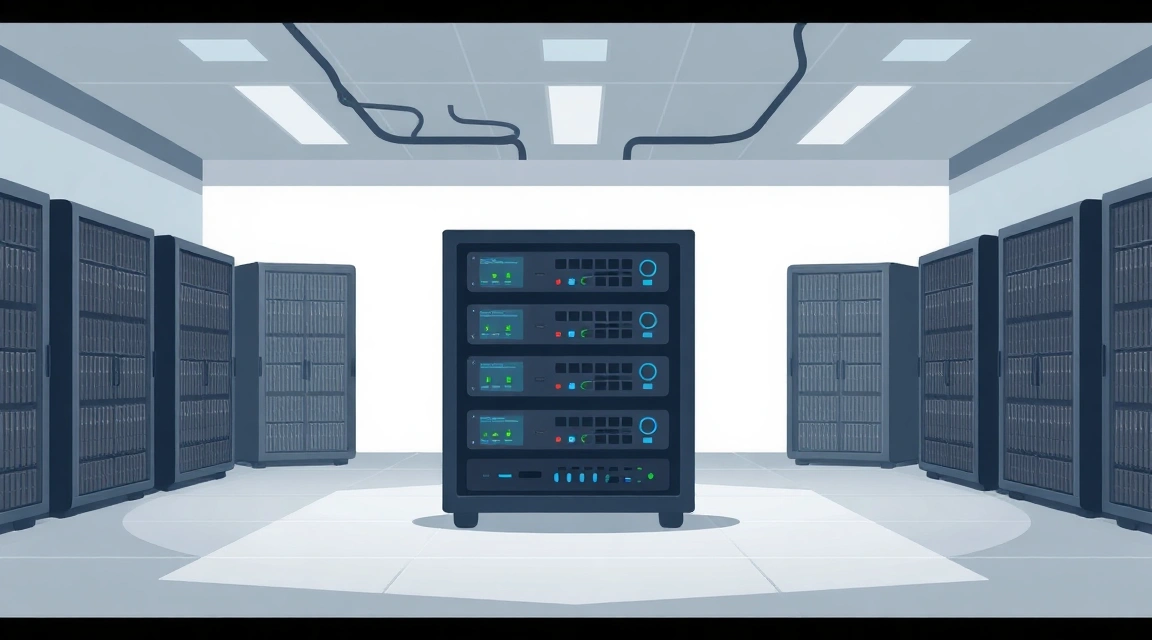
Why use a dedicated server for video streaming?
Video workloads combine high disk throughput, continuous network transfer, and computationally expensive encoding. A server may need to ingest a live feed, create several output resolutions, package segments for HLS or DASH, store the media library, and deliver content to viewers at the same time. These tasks create sustained load rather than short bursts.
A dedicated server gives the workload reserved CPU cores, memory, storage I/O, and network capacity. That isolation matters because a transcoder can consume every available CPU thread during a conversion. On a shared virtual host, noisy neighbors, CPU scheduling, or storage contention can produce dropped frames, slow jobs, and inconsistent playback.
Typical uses include live event streaming, an educational video platform, a private media library, video-on-demand hosting, security-camera archives, sports broadcasts, remote production, and a streaming backend for a mobile or web application. The correct design depends on whether the server transcodes video, delivers already-encoded files, or performs both jobs.
VPS or dedicated server?
When a VPS is enough
A VPS is suitable for a small video library, a staging environment, a media API, or a handful of prerecorded streams. It can also run Nginx, Caddy, or a media server such as Jellyfin, Emby, or ownCloud while video is encoded elsewhere. For example, up to 3 concurrent 1080p direct-play streams and occasional software encoding can fit on a 4 vCPU, 8 GB RAM VPS with 100 GB NVMe storage and at least 2 TB monthly transfer.
VPS hosting is also a sensible starting point when the audience is unpredictable but the workload is not yet large. It reduces the initial cost and makes it easy to resize CPU, RAM, storage, or bandwidth. Select a VPS with guaranteed CPU allocation rather than an oversubscribed burst-only plan if live transcoding is part of the service.
When bare metal is the better choice
Move to a dedicated server when encoding runs continuously, when several output renditions must be produced in real time, or when playback quality depends on consistent latency. Dedicated hardware is particularly appropriate for more than 10 simultaneous 1080p streams, multiple 4K streams, high-volume VOD conversion, or a large media library with frequent uploads and downloads.
Bare metal is also preferable when you need a GPU encoder, hardware RAID or ZFS, a high sustained network port, strict data isolation, or predictable performance during a live event. A dedicated server avoids contention with unrelated tenants and gives you control over CPU pinning, encoder settings, kernel tuning, and storage layout.
Recommended hardware by workload scale
Capacity estimates vary with codec, frame rate, preset, bitrate, and whether viewers direct-play or require transcoding. H.264 software encoding uses substantially more CPU than direct file delivery, while AV1 generally requires more encoding time than H.264. The following planning table assumes HLS or DASH delivery, 1080p output, and a mix of direct playback and live transcoding.
For up to 5 concurrent 1080p streams a 4 vCPU / 8 GB / 100 GB NVMe VPS is enough; beyond 20 streams or continuous multi-rendition encoding, use a dedicated 16-core / 64 GB server.
| Concurrent 1080p streams and encoding load | vCPU or CPU | RAM | Disk | Monthly bandwidth |
|---|---|---|---|---|
| Up to 5 streams; occasional transcoding | 4 vCPU | 8 GB | 100 GB NVMe | 3 TB |
| 6-20 streams; 2-4 output renditions | 8 dedicated cores | 32 GB | 480 GB NVMe | 10 TB |
| 21-60 streams; continuous transcoding | 16 dedicated cores or 8 cores plus GPU | 64 GB | 960 GB NVMe | 30 TB |
| 61-150 streams; multi-channel live or VOD jobs | 24-32 dedicated cores plus GPU | 128 GB | 1.92 TB NVMe | 60 TB |
CPU, GPU, memory, and storage choices
CPU encoding
CPU transcoding is flexible and works with FFmpeg, GStreamer, and most media platforms. A modern server CPU with high sustained clock speed is useful for low-latency live encoding, while a high core count improves batch VOD processing. Do not size a server from its advertised maximum turbo frequency alone. Encoding can run for hours, so sustained all-core performance and cooling are more relevant.
Use the ultrafast or veryfast FFmpeg presets when latency matters and the available CPU is limited. Slower presets can improve compression efficiency but increase processing time and cost. For a live service, reserve enough CPU headroom to absorb scene changes, reconnects, thumbnail generation, and monitoring tasks. Keeping average CPU utilization below about 70% leaves useful room for bursts.
GPU-assisted transcoding
A GPU can encode many simultaneous streams using hardware H.264, HEVC, or AV1 engines. NVIDIA T4, A10, L4, and newer data-center GPUs are common choices, but encoder session limits, codec support, driver compatibility, and licensing must be checked before deployment. GPU encoding does not eliminate the need for a capable CPU: demuxing, scaling, audio processing, encryption, packaging, and disk I/O still consume system resources.
Hardware encoding often produces a different quality-to-bitrate result from software x264 or x265 at the same nominal bitrate. Test representative footage before selecting a GPU. A GPU server is most useful for many parallel, predictable encoding jobs; a CPU-only server may be simpler and more economical for a small number of high-quality VOD conversions.
RAM
RAM holds application buffers, operating-system cache, media metadata, and active FFmpeg processes. Eight gigabytes is reasonable for a small streaming node, while 32 GB supports a moderate service with several concurrent jobs. Choose 64 GB or more for large libraries, multiple worker processes, or a database and object-storage gateway on the same machine. Memory capacity does not directly determine stream count, so adding RAM will not fix a CPU encoder bottleneck.
NVMe and bulk storage
NVMe SSDs are ideal for upload staging, HLS segments, thumbnails, temporary files, and active transcode jobs. Use at least 100 GB for a small node, 480 GB for a moderate installation, and 960 GB or more when several source files and renditions remain local. Keep at least 20% of the filesystem free to preserve write performance.
Large media libraries may use separate HDDs, a storage server, or object storage for source files and completed assets. A practical layout places the operating system and active workspace on mirrored NVMe drives, then stores the long-term library on redundant high-capacity disks. RAID improves availability but is not a backup. Retain an independent copy and test restoration.
Network capacity
Estimate outbound traffic with this formula: bitrate in Mbps multiplied by concurrent viewers, divided by 8, then multiplied by seconds in the billing period. A 5 Mbps stream delivered to 20 viewers requires roughly 100 Mbps before protocol overhead. Add 20% to 30% for HLS segment overhead, retransmissions, management traffic, and traffic spikes.
A 1 Gbps port can theoretically deliver about 12.5 TB per month at continuous full utilization, although provider limits and practical overhead reduce that figure. Thirty terabytes of monthly transfer supports many low-bitrate streams but may be inadequate for a popular 4K service. For large public audiences, use a CDN or regional edge servers so the origin does not send every viewer connection directly.
Step-by-step setup
1. Choose the operating system and architecture
Use a current long-term-support Linux release such as Ubuntu Server 24.04 LTS or Debian 12. Select a 64-bit installation and record the server IP, gateway, DNS records, port speed, storage devices, and GPU model. Keep the transcoder separate from the public application if a failure in one component must not interrupt the other.
2. Update the server and create an administrator account
Log in using the provider's temporary credentials, create a non-root administrator, install security updates, and disable direct root SSH access after testing the new account.
3. Install FFmpeg and inspect hardware acceleration
Install FFmpeg from the distribution repository or a trusted vendor build. Verify the available codecs and, for NVIDIA hardware, confirm that the driver and NVENC support are visible before configuring production jobs.
4. Configure the media server or streaming origin
Choose an application that matches the workflow. Nginx can serve HLS files, while SRS, MediaMTX, and similar media servers can accept RTMP, SRT, or WebRTC inputs. For VOD platforms, a job queue should place source files in a staging directory and move completed renditions into a controlled library.
5. Create a basic HLS transcode test
Test with a short, legally authorized source file before opening public access. A 1080p HLS example using two output sizes is:
ffmpeg -i input.mp4 -filter_complex '[0:v]split=2[v1][v2];[v1]scale=w=1920:h=1080[v1080];[v2]scale=w=1280:h=720[v720]' -map '[v1080]' -map 0:a:0 -c:v:0 libx264 -b:v:0 5M -map '[v720]' -map 0:a:0 -c:v:1 libx264 -b:v:1 3M -c:a aac -b:a 128k -f hls -hls_time 6 -hls_playlist_type event -var_stream_map 'v:0,a:0 v:1,a:1' -master_pl_name master.m3u8 -hls_segment_filename 'stream_%v_%03d.ts' 'stream_%v.m3u8'6. Secure ingress and egress
Allow only required ports through the firewall, use TLS for dashboards and playback endpoints, restrict publishing credentials, and limit administrative access to trusted IP addresses or a VPN. Use signed URLs or token authentication for private media. Do not expose FFmpeg control interfaces or database ports to the public internet.
7. Add monitoring and restart policies
Track CPU utilization, GPU encoder sessions, disk space, disk latency, network throughput, ingest health, segment creation time, and playback errors. Configure systemd or a process supervisor to restart failed workers, but retain logs so a restart does not hide the underlying fault.
8. Load-test before a live event
Replay representative input files and simulate expected viewers from an authorized test environment. Confirm that the server maintains segment generation ahead of playback, that disk space remains stable, and that bandwidth stays within the monthly allowance. Test failover, source reconnection, and restoration from backup before announcing the service.
Performance optimization tips
- Separate workloads: Put encoding workers, the streaming origin, the database, and public web applications on separate servers when one workload can affect another.
- Use a rendition ladder: Offer practical bitrates such as 5 Mbps for 1080p, 3 Mbps for 720p, and 1.5 Mbps for 480p, then adjust them after measuring quality and viewer bandwidth.
- Choose a segment length deliberately: Six-second HLS segments are a common balance between startup time, request volume, and encoding stability. Low-latency workflows need different packaging and more careful testing.
- Use hardware decoding and encoding selectively: GPU acceleration can reduce CPU usage, but compare quality and monitor encoder sessions, GPU memory, and driver errors.
- Keep temporary files local: Write active segments and intermediate files to NVMe rather than a remote mount with unpredictable latency.
- Cache popular content: A CDN or reverse proxy can absorb repeated delivery of the same segments and reduce origin bandwidth.
- Control concurrency: Use a queue for VOD jobs and set a worker limit so batch processing cannot starve live streams.
- Tune the filesystem: Monitor inode usage, use a dedicated work directory, rotate logs, and alert before storage reaches 80% capacity.
- Measure quality: Inspect dropped frames, encoder speed, bitrate variance, audio/video sync, and startup delay rather than relying only on CPU graphs.
Common pitfalls
Underestimating bandwidth
Administrators often calculate storage but forget that every viewer consumes outbound transfer. A modest 5 Mbps stream multiplied by 100 viewers is already 500 Mbps before overhead. Confirm the provider's port speed, monthly transfer policy, burst rules, and overage terms.
Using RAID as a backup
RAID protects availability against some disk failures but does not protect against accidental deletion, ransomware, filesystem corruption, or an application bug. Keep encrypted backups in a separate location and perform restore tests.
Ignoring codec and device compatibility
AV1 and HEVC can reduce bandwidth, but older browsers, televisions, and mobile devices may not decode them. H.264 with AAC remains the broadest compatibility baseline. Provide a fallback rendition when the audience includes older clients.
Running live and batch jobs without limits
A VOD queue that launches unlimited FFmpeg processes can consume all cores and I/O, causing live playback to stall. Assign separate worker limits or place batch jobs on another server.
Skipping security controls
Open RTMP publishing endpoints attract unauthorized use and can create an unexpected bandwidth bill. Require stream keys, rotate credentials, rate-limit publishing, patch the operating system, and review access logs.
Choosing hardware only by core count
Two CPUs with the same number of cores can differ substantially in sustained performance, memory bandwidth, instruction support, and power limits. Check benchmark results for the exact encoding workload and verify GPU encoder capacity if hardware acceleration is required.
Dedicated streaming server checklist
- Reserve CPU capacity for the highest expected simultaneous transcode load.
- Use NVMe for active media processing and keep at least 20% free space.
- Calculate bandwidth from bitrate multiplied by viewers, not from file size alone.
- Use a CDN for large public audiences or geographically distributed viewers.
- Protect ingest endpoints with authentication, firewall rules, and TLS where supported.
- Monitor encoder health, segment latency, storage, network usage, and playback errors.
- Maintain independent backups of source media, configuration, and stream metadata.