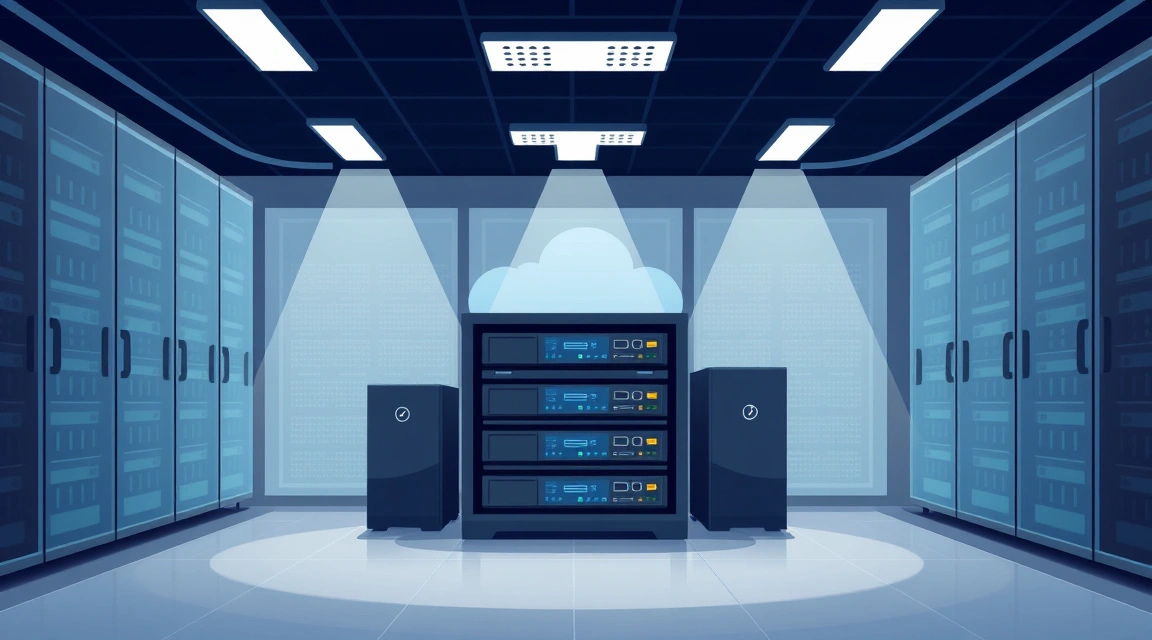
Why Choose a Dedicated Server for Backup and Disaster Recovery?
When it comes to protecting your critical data and ensuring business continuity, the stakes are incredibly high. A dedicated server provides a superior environment for backup and disaster recovery compared to shared hosting, VPS, or even some generic cloud storage solutions. Here’s why a bare-metal dedicated server is the intelligent choice:
Unmatched Control and Security
- Exclusive Resources: Unlike shared environments, a dedicated server means all hardware resources—CPU, RAM, storage, and network—are exclusively yours. This eliminates the 'noisy neighbor' effect, guaranteeing consistent performance for your backup and recovery operations.
- Enhanced Security Perimeter: With full root access, you have complete control over your server's security configuration. You can implement custom firewalls, intrusion detection systems, and encryption protocols tailored precisely to your security policies, minimizing vulnerabilities and ensuring data integrity.
- Data Isolation: Your sensitive backup data is physically isolated on your dedicated hardware, reducing the risk of compromise from other tenants or shared infrastructure issues. This level of isolation is paramount for compliance and peace of mind.
Superior Performance for Critical Operations
- High-Speed Data Transfers: Backup and recovery operations are inherently I/O-intensive. A dedicated server, especially one with high-performance storage (SSD arrays) and ample network bandwidth, can handle large data volumes quickly and efficiently, drastically reducing backup windows and recovery time objectives (RTO).
- Optimized for Specific Workloads: You can fine-tune the server's operating system and software stack specifically for backup tasks, ensuring maximum efficiency for compression, encryption, and data deduplication processes without contention from other applications.
- Rapid Recovery: In a disaster scenario, every second counts. A dedicated server's predictable high performance ensures that data restoration happens as fast as possible, minimizing downtime and its associated costs.
Scalability and Predictable Costs
- Scalable Storage: Dedicated servers can be configured with vast amounts of storage, and many providers offer flexible upgrade paths to accommodate future data growth. This allows you to scale your backup solution without migrating to an entirely new platform.
- Transparent Pricing: Unlike some pay-as-you-go cloud models where costs can fluctuate based on usage, a dedicated server offers predictable monthly pricing. This makes budgeting for your backup and DR infrastructure straightforward and helps avoid unexpected expenses.
Compliance and Data Sovereignty
- Meeting Regulatory Requirements: Many industries are subject to strict data residency and compliance regulations (e.g., GDPR, HIPAA). A dedicated server allows you to select the exact geographical location of your data center, ensuring your backups remain compliant with local and international laws.
- Full Data Ownership: You retain complete ownership and control over your data, with no third-party access or shared infrastructure policies dictating how your data is handled. This is crucial for organizations with sensitive intellectual property or customer data.
Reliability and Isolation
A dedicated server provides a robust, single-tenant environment designed for continuous operation. The hardware is yours alone, meaning no resource contention or performance degradation from other users. This isolation is a critical factor when your backup server needs to be consistently available and performant, both for routine backups and, more importantly, during a critical recovery event.
Recommended Dedicated Server Specifications for Backup and DR
Choosing the right hardware for your dedicated backup and disaster recovery server is crucial. The specifications will directly impact backup windows, recovery times, and overall data integrity. Here’s a breakdown of key components to consider:
Processor (CPU)
While a backup server isn't typically CPU-bound like a high-traffic web server or a complex database, a capable processor is still important, especially for:
- Data Compression: Many backup solutions use CPU-intensive compression algorithms to reduce storage footprint and transfer times.
- Encryption: Encrypting backup data for security also consumes CPU cycles.
- Deduplication: Advanced backup software that performs inline or post-process data deduplication can be CPU-intensive.
Recommendation: A modern multi-core processor (e.g., Intel Xeon E-series or similar AMD EPYC) with 4-8 cores is typically sufficient. Prioritize clock speed over an excessive number of cores unless you plan extensive parallel processing for very large, concurrent backup jobs.
Memory (RAM)
RAM is vital for the operating system, backup software, and especially for caching, which can significantly improve I/O performance.
- Backup Software: Most backup applications benefit from ample RAM for their operations, metadata handling, and internal caches.
- Filesystem Caching: The operating system uses RAM to cache frequently accessed data, speeding up read and write operations to storage. This is particularly beneficial during restores.
- Deduplication Tables: If your backup solution uses deduplication, the deduplication tables often reside in RAM for faster lookups.
Recommendation: Start with at least 16GB of DDR4 RAM. For larger environments, or if using ZFS with deduplication, 32GB, 64GB, or even 128GB may be necessary to ensure optimal performance and prevent bottlenecks.
Storage: The Cornerstone of Your Backup Strategy
Storage is arguably the most critical component of a dedicated backup server. You need ample capacity, speed, and redundancy.
Capacity Planning
Calculating your storage needs is more than just knowing your current data size. Consider:
- Source Data Size: The total amount of data you need to back up.
- Retention Policy: How many versions of backups you need to keep and for how long (e.g., daily for 7 days, weekly for 4 weeks, monthly for 12 months).
- Growth Factor: Your estimated data growth over the next 1-3 years.
- Compression/Deduplication Ratios: Factor in expected space savings from these technologies (though always plan for a buffer).
- Overhead: Filesystem overhead, operating system, and application space.
Recommendation: A common formula is (Source Data Size * Retention Factor * Growth Factor) / Compression Ratio. Always add a 20-30% buffer. For example, if you have 5TB of data, need 30 days of daily backups, expect 20% growth per year, and a 2:1 compression ratio, your initial requirement could be significant.
Storage Types: HDD vs. SSD
- Hard Disk Drives (HDDs): Cost-effective for bulk storage. Ideal for long-term archives and large datasets where raw capacity is prioritized over ultra-high IOPS. Modern HDDs offer excellent sequential read/write speeds.
- Solid State Drives (SSDs): Provide significantly higher IOPS and lower latency than HDDs. Excellent for smaller, critical backups requiring very fast recovery, or for storing backup software databases and metadata. Can also be used as a cache tier for large HDD arrays.
Recommendation: A hybrid approach is often best: large capacity HDDs for primary backup storage, and smaller, fast SSDs for the OS, backup software, and potentially as a write cache or for frequently accessed recovery points.
RAID Configurations for Data Integrity
RAID (Redundant Array of Independent Disks) is essential for protecting the backup server's own data against drive failure. Never rely on a single drive for your backups.
- RAID 1 (Mirroring): Excellent for smaller, critical data. Provides redundancy by duplicating data across two drives. High read performance, moderate write performance.
- RAID 5 (Striping with Parity): Good balance of performance, capacity, and redundancy. Requires at least three drives and can withstand one drive failure.
- RAID 6 (Striping with Dual Parity): Similar to RAID 5 but can withstand two drive failures, offering higher fault tolerance for very large arrays. Requires at least four drives.
- RAID 10 (Stripe of Mirrors): Combines RAID 1 and RAID 0. Offers excellent performance and redundancy (can withstand multiple drive failures, as long as they are not on the same mirror). Requires at least four drives.
Recommendation: For most backup servers with multiple drives, RAID 6 or RAID 10 offers the best combination of data protection and performance. Always use a hardware RAID controller with a battery-backed cache (BBU) for optimal performance and data safety during power outages.
Network Bandwidth
The speed of your network connection directly impacts how quickly you can transfer backups to your server and, critically, how fast you can restore data. Symmetric bandwidth is key.
- Backup Ingestion: High upload speeds on your source servers and high download speeds on your backup server are necessary to complete backups within your designated windows.
- Disaster Recovery: High download speeds on your backup server are paramount for rapid data restoration to your production environment or a recovery site.
Recommendation: Start with at least a 1 Gbps dedicated port. For very large datasets or aggressive RTOs, consider a 10 Gbps dedicated port. Ensure the bandwidth is unmetered or has a very high allowance to avoid unexpected costs during large transfers.
Step-by-Step Setup Recommendations for Your Backup Server
Setting up a dedicated server for backup and disaster recovery requires careful planning and execution. Follow these steps for a robust and reliable solution:
1. Server Provisioning and OS Selection
- Choose Your OS: Linux distributions like Ubuntu Server, Debian, or CentOS are popular choices due to their stability, security features, and extensive tooling for backup (e.g., rsync, ZFS, Bacula). Windows Server is suitable if your environment is primarily Windows-based and you plan to use Windows-specific backup solutions like Veeam Agent for Windows.
- Initial Configuration: Ensure the OS is installed on a separate drive or partition from your main backup storage. Configure basic network settings and time synchronization (NTP).
2. Hardening Your Backup Server's Security
Your backup server holds your most critical data, making it a prime target. Security is paramount:
- Firewall: Configure a robust firewall (e.g., UFW, iptables, Windows Firewall) to allow only necessary inbound connections (SSH, backup software ports).
- SSH Key Authentication: Disable password-based SSH login and enforce SSH key authentication for all administrative access.
- Disable Root Login: Configure SSH to disallow direct root login; use
sudofor administrative tasks. - Regular Updates: Keep the operating system and all software patched and up-to-date to protect against known vulnerabilities.
- Auditing and Logging: Enable comprehensive logging and regularly review logs for suspicious activity.
3. Storage Configuration and Filesystem Choice
- RAID Setup: Implement your chosen RAID configuration (e.g., RAID 6 or RAID 10) at the hardware level if using a hardware RAID controller, or via software RAID (e.g., MDADM on Linux).
- Filesystem Selection:
- ZFS: Highly recommended for its data integrity features (checksumming, self-healing), snapshot capabilities, and built-in compression/deduplication. Requires more RAM.
- Btrfs: Another modern Linux filesystem with snapshot and checksumming features.
- ext4/XFS: Reliable and widely used, but lack ZFS/Btrfs advanced data integrity features. Use with caution for critical backup storage without additional integrity checks.
- ReFS (Windows): Resilient File System for Windows Server, offering data integrity features.
- Volume Management: Use LVM (Logical Volume Manager) on Linux for flexible storage management, allowing you to resize volumes as needed.
4. Implementing Backup Software and Strategies
- Choose Your Software:
- Open Source: rsync (for file synchronization), Bacula/Bareos (enterprise-grade client-server backup), UrBackup (client-server, image/file backup), Restic (deduplicated, encrypted backups).
- Commercial: Veeam Agent, Acronis Cyber Protect, Duplicati (cross-platform), CrashPlan.
- Backup Strategy: Define your backup types (full, incremental, differential), frequency, and retention policies (e.g., Grandfather-Father-Son rotation).
- Encryption: Ensure all backup data is encrypted in transit and at rest, even on your dedicated server.
5. Network Configuration for Secure Transfers
- Secure Protocols: Always use secure protocols for data transfer (e.g., SFTP, rsync over SSH, VPN tunnels).
- VPN: Set up a VPN (e.g., OpenVPN, WireGuard) between your production environment and the backup server for an encrypted and isolated backup network.
- Bandwidth Allocation: If possible, configure QoS (Quality of Service) to prioritize backup traffic during off-peak hours and de-prioritize it during peak production hours.
6. Scheduling, Monitoring, and Alerting
- Automated Scheduling: Use cron jobs (Linux) or Task Scheduler (Windows) to automate backup jobs. Stagger backups to avoid overloading the network or server.
- Monitoring Tools: Implement monitoring for disk space, CPU, RAM, network usage, and backup job status. Tools like Prometheus, Grafana, Zabbix, or Nagios can provide vital insights.
- Alerting: Configure alerts for failed backups, low disk space, or any critical system events. Ensure alerts are sent to the appropriate personnel via email, SMS, or Slack.
7. Crucial: Regular Testing of Backups and Recovery
A backup is only as good as its ability to be restored. This step is non-negotiable:
- Restore Drills: Periodically perform full or partial restore drills to a separate, isolated environment (e.g., a test server or virtual machine).
- Data Integrity Checks: Verify the integrity of restored data.
- Documentation: Document your entire backup and recovery process, including step-by-step instructions for various recovery scenarios.
- RTO/RPO Validation: Ensure your recovery time objectives (RTO) and recovery point objectives (RPO) are being met.

Performance Optimization Tips for Dedicated Backup Servers
Maximizing the efficiency of your dedicated backup server ensures faster backups, quicker restores, and a more robust DR strategy. Here are some key optimization tips:
Optimize Network Throughput
- Dedicated Network Interfaces: If your server has multiple network cards, consider dedicating one for backup traffic to avoid contention with other services.
- Jumbo Frames: If supported by your network infrastructure, enabling jumbo frames (larger MTU size) can reduce CPU overhead and improve throughput for large data transfers.
- Traffic Shaping/QoS: Implement Quality of Service (QoS) rules to prioritize backup traffic during off-peak hours and ensure it doesn't starve critical production traffic during peak times.
- Network Path Optimization: Ensure the network path between your source servers and the backup server is as direct and low-latency as possible.
Enhance Storage Performance
- Appropriate RAID Level: As discussed, choose RAID 6 or RAID 10 for a balance of performance and redundancy. Use a hardware RAID controller with BBU.
- Filesystem Tuning: Optimize filesystem block sizes to match your typical backup file sizes. For ZFS, tune
recordsizeand use appropriate compression algorithms (e.g.,lz4for speed,gzipfor higher compression). - SSD Caching: For large HDD arrays, consider using SSDs as a read/write cache (e.g., ZFS L2ARC/SLOG or hardware RAID controller cache) to significantly boost I/O performance.
- Defragmentation: While less critical for modern filesystems, ensure large filesystems don't suffer from excessive fragmentation.
- Disk I/O Schedulers: On Linux, experiment with different I/O schedulers (e.g.,
noopfor SSDs,deadlineorcfqfor HDDs) to find the best performance for your workload.
Software-Level Optimizations
- Compression: Enable compression within your backup software or at the filesystem level (e.g., ZFS compression). This reduces the amount of data transferred and stored, but consumes CPU. Choose a fast algorithm like
lz4if CPU is a concern. - Deduplication: Implement deduplication (either inline or post-process) to save significant storage space, especially for similar data across multiple backups. Be mindful of the RAM requirements for deduplication tables.
- Incremental/Differential Backups: Utilize incremental or differential backups after an initial full backup to only transfer changed data, drastically reducing backup windows.
- Snapshotting: Leverage filesystem snapshots (e.g., ZFS, LVM) for near-instantaneous point-in-time recovery and to ensure data consistency during backups.
Strategic Scheduling
- Off-Peak Hours: Schedule large full backups during periods of low network and server utilization to minimize impact on production systems.
- Staggered Backups: If backing up multiple systems, stagger their backup times to avoid overwhelming the backup server or network simultaneously.
- Prioritization: Prioritize critical system backups over less critical ones.
Common Pitfalls to Avoid in Your Backup and DR Strategy
Even with a dedicated server, a poorly planned or executed strategy can undermine your efforts. Be aware of these common pitfalls:
Neglecting Backup and Recovery Testing
This is by far the most critical mistake. A backup that cannot be restored is useless. Regularly test your recovery procedures, ideally to an isolated test environment, to ensure data integrity and validate your RTO/RPO.
Underestimating Storage and Bandwidth Needs
Data grows, and so do backup files. Underestimating future storage requirements leads to costly emergency upgrades or insufficient retention. Similarly, inadequate bandwidth will cause backups to fail or exceed their windows, and recovery to be painfully slow.
Creating Single Points of Failure
While a dedicated server is robust, the backup server itself can become a single point of failure if not properly protected. Ensure the backup server's own drives are in a redundant RAID configuration, consider redundant power supplies, and network connectivity. For ultimate resilience, implement offsite replication of your backups.
Inadequate Security Measures
Your backup server holds copies of all your valuable data, making it a prime target for attackers. Failing to secure it with strong passwords, SSH keys, firewalls, and regular updates leaves your entire data archive vulnerable.
Poor Retention Policy Management
Having too few recovery points means you might not be able to recover data from a specific time before corruption occurred. Conversely, keeping too many old backups can quickly exhaust storage and make management cumbersome. Define and adhere to a clear, well-communicated retention policy.
Lacking Offsite or Geographically Redundant Backups
While your dedicated server provides excellent local protection, a catastrophic event at the data center could compromise all your backups. Always implement an offsite backup strategy, replicating critical data to a secondary location or cloud storage for true disaster recovery.
Overly Complex Recovery Procedures
During a disaster, stress levels are high. Complex, undocumented, or poorly understood recovery procedures can lead to delays, errors, and further data loss. Keep your DR plan clear, concise, well-documented, and regularly practiced.
Ignoring Regulatory Compliance
Depending on your industry and the type of data you handle, there may be strict regulatory requirements (e.g., GDPR, HIPAA, PCI DSS) for data storage, encryption, and retention. Failing to comply can result in severe penalties. Ensure your backup strategy meets all relevant compliance standards, including data residency requirements.