bolt Valebyte VPS from $4/mo — NVMe, 60s deploy.

Get a VPS arrow_forward
eco Beginner Tutorial/How-to

vLLM on a GPU Server: OpenAI-Compatible API for Your LLM

calendar_month Sep 17, 2026 schedule 19 min read visibility 728 views
vLLM на GPU-сервере: OpenAI-совместимый API для своей LLM
info

Need a server for this guide? We offer dedicated servers and VPS in 50+ countries with instant setup.

Need a server for this guide?

Deploy a VPS or dedicated server in minutes.

vLLM on a GPU Server: OpenAI-Compatible API for Your Own LLM

TL;DR

In this guide, you will deploy vLLM on a GPU server using Docker, launch a local language model, and get a secure OpenAI-compatible API at /v1/chat/completions. You can connect this server to your own application, LangChain, OpenWebUI, bots, and internal services without sending prompts to a third-party AI provider.

  • vLLM serves LLMs faster than standard Hugging Face inference thanks to PagedAttention and continuous batching.
  • For the first launch, a model such as Qwen3-8B or Llama 3.1 8B on a GPU with 16–24 GB of VRAM will work well.
  • The vLLM API is compatible with the OpenAI format: /v1/models, /v1/chat/completions, /v1/completions.
  • The model, API key, and configuration are launched via Docker Compose and the .env file.
  • External access is protected by a Caddy TLS proxy, while the vLLM port remains available only locally.
  • For production, you need to save the configuration, model list, API keys, and, if necessary, the Hugging Face cache.

What We Are Setting Up and Why

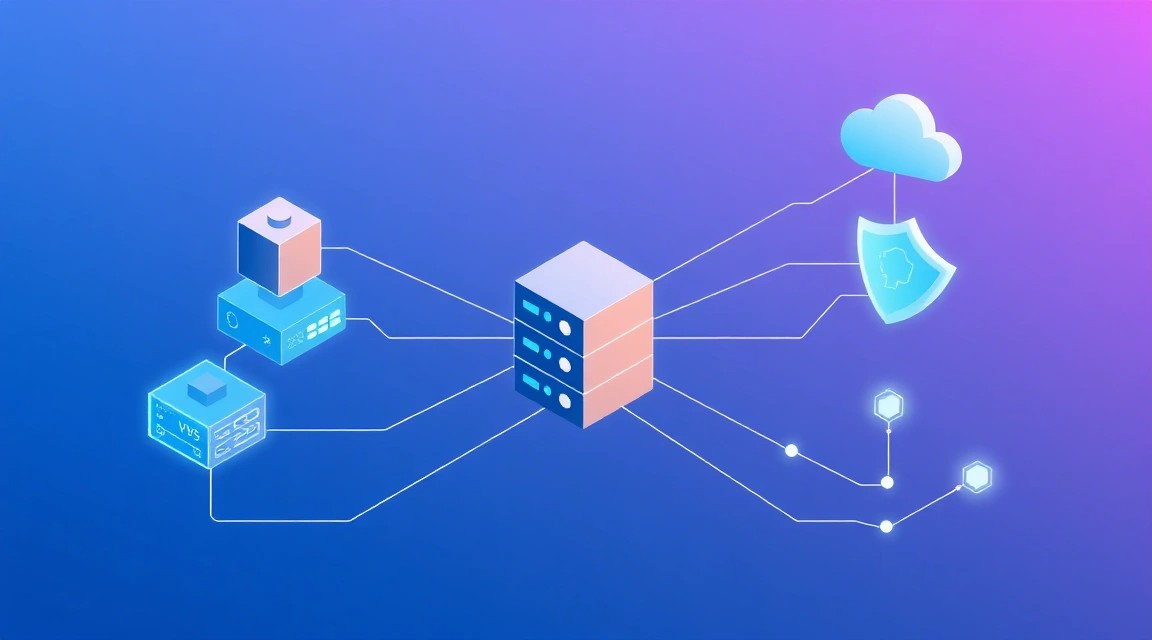
Схема: Что мы настраиваем и зачем
Diagram: What We Are Setting Up and Why

vLLM is an inference server for large language models. It loads a model into GPU memory, accepts HTTP requests, and returns generated text. The main practical feature of vLLM is compatibility with the OpenAI API. An application that can work with the OpenAI SDK can usually be switched to your own server by replacing the base_url and API key.

In this scenario, the GPU server acts as a private endpoint for one or more LLMs. For example, you can use Qwen3-8B for an internal chatbot, Llama 3.1 8B for document summarization, DeepSeek-R1-Distill for reasoning, or an embedding model for knowledge base search. vLLM itself is not a web chat interface: it is an API layer. An interface for employees or customers is connected separately.

What You Will Get

  • An Ubuntu 24.04 LTS server with the NVIDIA driver, Docker, and NVIDIA Container Toolkit installed.
  • A vllm/vllm-openai container using the GPU through Docker.
  • The Qwen/Qwen3-8B model, automatically downloaded to the local Hugging Face cache.
  • An OpenAI-compatible API: https://llm.example.com/v1/chat/completions.
  • Bearer token authentication verified by vLLM itself.
  • A Let’s Encrypt TLS certificate automatically managed by Caddy.
  • A clear approach to updates, backups, and GPU error diagnostics.

Why vLLM Instead of Running Transformers Directly

Running a model through the Python Transformers library is convenient for experimentation, but poorly suited to a persistent API. With multiple simultaneous requests, a Python application often sits idle or processes requests sequentially. vLLM uses continuous request batching: the GPU generates tokens for different users in a single compute cycle.

vLLM also manages the KV cache more efficiently—the memory where the model stores conversation context. For chats with a long history, the KV cache often becomes a limitation before the model weights themselves do. PagedAttention divides this cache into blocks and reduces VRAM fragmentation.

Self-Hosted or Managed API

Criterion Managed API Your Own vLLM on a GPU Server
Getting started Requires a key and billing Requires a server, GPU, and setup
Prompt data Sent to an external provider Remains in your infrastructure
Model choice Limited to the service catalog You can choose compatible open models
Cost under continuous load Depends on the number of tokens Fixed cost of the GPU server
Maintenance Handled by the provider You are responsible for security, updates, and monitoring

The self-hosted option is justified when data cannot be sent to an external API, the workload is predictable, a specific open-weight model is required, or you need full control over limits, logging, and versions. If traffic is infrequent and unpredictable, a managed API is usually more cost-effective: the GPU should not remain idle around the clock.

Important: not every model on Hugging Face has a license for commercial use. Before integrating a model into a product, check its license, attribution requirements, and access conditions for gated repositories.

What VPS Configuration Is Required for This Task

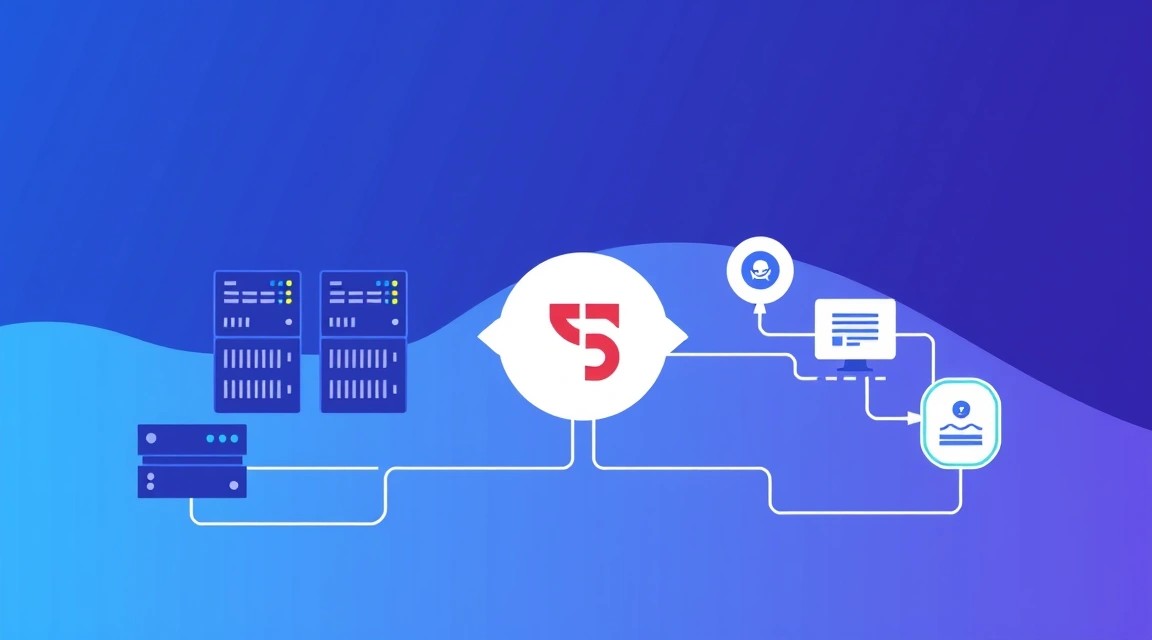
Схема: Какой VPS-конфиг нужен под эту задачу
Diagram: What VPS Configuration Is Required for This Task

For vLLM, the amount and type of GPU memory matter more than the number of CPU cores. VRAM must simultaneously hold the model weights, the context KV cache, temporary tensors, and a margin for fragmentation. Server RAM is used to load model files, Docker, the cache, and the operating system.

Estimating Model Memory

A rough formula for weights is the number of parameters multiplied by the size of one parameter. A model with 8 billion parameters in FP16 requires about 16 GB for weights alone. In 4-bit AWQ or GPTQ format, it requires approximately 5–7 GB, but the exact value depends on the architecture, quantization configuration, and engine version.

Task GPU and VRAM RAM NVMe Disk Practical Result
Testing, 7B–8B in 4-bit NVIDIA L4 24 GB or RTX 4090 24 GB 32 GB 100 GB Small chat and development
8B FP16, multiple users 24–48 GB VRAM 64 GB 200 GB High-quality shared API
32B in 4-bit 48 GB VRAM 64–128 GB 300 GB Serious tasks and long context
70B in 4-bit 80 GB VRAM or multiple GPUs 128 GB 500 GB High quality with expensive inference

For this guide, a server with one GPU with 24 GB of VRAM, 8 vCPUs, 32–64 GB of RAM, 200 GB of NVMe storage, and a network connection of at least 1 Gbit/s is optimal. This configuration provides headroom for Qwen3-8B, Llama 3.1 8B, and comparable models. As one neutral option, you can choose a VPS with the specified characteristics, provided its description explicitly guarantees a dedicated NVIDIA GPU, the VRAM capacity, and access to it from the virtual machine.

Why You Cannot Rely Only on the GPU Name

Verify the amount of VRAM, not just the accelerator model. For example, data center GPUs may be available in configurations with different memory capacities. Confirm that the GPU is dedicated entirely to you and is not shared among customers without a guaranteed allocation. Also make sure that the provider allows Docker and provides an NVIDIA driver or compatible GPU passthrough.

When You Need Dedicated Instead of a GPU VPS

A dedicated server is required for multiple GPUs, models with 70B parameters or more, high continuous workloads, strict isolation requirements, or the need for full control over PCIe topology. It is also useful if you want to run separate models on multiple GPUs or serve dozens of concurrent users.

A GPU VPS is a sensible choice for one GPU and a moderate workload: it is easier to launch, cheaper to get started with, and easier to scale by changing the configuration. For a single 8B model, dedicated hardware is usually excessive.

Choosing a Location

Location affects API latency. If users and the application are located in Europe, a server in a European data center will usually provide network latency of 10–60 ms instead of hundreds of milliseconds. For LLMs, this is not the only factor: generating each token also takes time. However, a remote server noticeably worsens the sense of responsiveness in streaming chat.

If the API processes personal data, take jurisdictional and data storage requirements into account. Do not send request logs to regions where their storage conflicts with your agreements or data processing policies.

Server Preparation

Diagram: Server Preparation

Ubuntu 24.04 LTS is used below. At the time this guide was prepared, it is a practical baseline choice for GPU workloads: the system has a long support lifecycle and is compatible with current NVIDIA drivers, Docker Engine 29, and NVIDIA Container Toolkit. Perform the initial setup as a user with sudo privileges, not as root.

Create a user and configure an SSH key

Connect to the server using the initial method provided by the hosting provider. On your computer, create a key if you do not already have one, then add the public part to the server. Do not close the current SSH session until you have verified login as the new user.

# On the server: create a separate administrator and add them to sudo
sudo adduser deploy
sudo usermod -aG sudo deploy

# On the local computer: copy the public SSH key to the server
ssh-copy-id deploy@SERVER_IP

Verify login in a new terminal window:

# On the local computer: verify key-based login
ssh deploy@SERVER_IP

Update the system and install basic tools

# Update Ubuntu packages and install diagnostic utilities
sudo apt update && sudo apt full-upgrade -y
sudo apt install -y ca-certificates curl gnupg git jq htop tmux \
  fail2ban ufw unzip ncdu

After updating the kernel or NVIDIA driver, reboot the server. On GPU nodes, rebooting is especially important: the loaded driver must match the installed libraries.

# Reboot the server if the kernel or driver was updated
sudo reboot

Close unnecessary network ports

By default, vLLM listens on HTTP port 8000. Do not expose it directly to the internet: an API key does not replace a network perimeter, and unencrypted HTTP transmits requests and the token in plain text. Only SSH, HTTP for certificate issuance, and HTTPS will be accessible externally.

# Allow SSH, HTTP, and HTTPS; deny all other incoming connections
sudo ufw default deny incoming
sudo ufw default allow outgoing
sudo ufw allow OpenSSH
sudo ufw allow 80/tcp
sudo ufw allow 443/tcp
sudo ufw enable
sudo ufw status verbose

Configure Fail2ban and disable password login

Fail2ban blocks sources with a series of failed SSH login attempts. After verifying the SSH key, disable password authentication. If you lose the private key and do not have console access through the server panel, recovery will require provider intervention.

# Enable SSH protection and create a local Fail2ban configuration
sudo systemctl enable --now fail2ban
sudo tee /etc/fail2ban/jail.d/sshd.local > /dev/null <<'EOF'
[sshd]
enabled = true
maxretry = 5
findtime = 10m
bantime = 1h
EOF
sudo systemctl restart fail2ban
sudo fail2ban-client status sshd
# Disable SSH passwords and root login only after verifying the key
sudo tee /etc/ssh/sshd_config.d/99-hardening.conf > /dev/null <<'EOF'
PasswordAuthentication no
KbdInteractiveAuthentication no
PermitRootLogin no
PubkeyAuthentication yes
EOF
sudo sshd -t && sudo systemctl reload ssh

Also check firewall rules in the server panel itself, if they exist. The external firewall must match UFW: allow 22, 80, and 443, but do not open 8000.

Software Installation — Step by Step

Diagram: Software Installation — Step by Step

Before installing the container, make sure the GPU is visible to the operating system. Many GPU VPS instances come with an NVIDIA driver preinstalled. If the nvidia-smi command does not work, first install the recommended driver from the Ubuntu repository or consult the server image documentation.

Check the NVIDIA driver

# Display the GPU model, driver version, and available VRAM
nvidia-smi

You should see a table with the GPU and driver version. Modern vLLM images with CUDA 12 typically require an NVIDIA driver from the 535 series or newer; in practice, 550, 570, or newer branches compatible with your OS are preferred. Do not install CUDA Toolkit on the host unless necessary: the vLLM container already includes the required user-space CUDA libraries.

Install Docker Engine

Install Docker from the official Docker repository, not the outdated docker.io package from the base Ubuntu repository. This provides the current Docker Engine 29.x and the Docker Compose plugin.

# Add the official GPG key and Docker repository for Ubuntu
sudo install -m 0755 -d /etc/apt/keyrings
curl -fsSL https://download.docker.com/linux/ubuntu/gpg | \
  sudo gpg --dearmor -o /etc/apt/keyrings/docker.gpg
sudo chmod a+r /etc/apt/keyrings/docker.gpg

echo "deb [arch=$(dpkg --print-architecture) signed-by=/etc/apt/keyrings/docker.gpg] \
https://download.docker.com/linux/ubuntu $(. /etc/os-release && echo "$VERSION_CODENAME") stable" | \
sudo tee /etc/apt/sources.list.d/docker.list > /dev/null

sudo apt update
sudo apt install -y docker-ce docker-ce-cli containerd.io \
  docker-buildx-plugin docker-compose-plugin
# Allow the deploy user to run Docker without sudo and check the version
sudo usermod -aG docker deploy
newgrp docker
docker version
docker compose version

Install NVIDIA Container Toolkit

NVIDIA Container Toolkit passes the GPU from the host into Docker containers. The repository and key below are used for current toolkit packages. Docker daemon is restarted after installation, so any already running containers will stop briefly.

# Connect the official NVIDIA Container Toolkit repository
curl -fsSL https://nvidia.github.io/libnvidia-container/gpgkey | \
  sudo gpg --dearmor -o /usr/share/keyrings/nvidia-container-toolkit-keyring.gpg

curl -s -L https://nvidia.github.io/libnvidia-container/stable/deb/nvidia-container-toolkit.list | \
  sed 's#deb https://#deb [signed-by=/usr/share/keyrings/nvidia-container-toolkit-keyring.gpg] https://#g' | \
  sudo tee /etc/apt/sources.list.d/nvidia-container-toolkit.list

sudo apt update
sudo apt install -y nvidia-container-toolkit
sudo nvidia-ctk runtime configure --runtime=docker
sudo systemctl restart docker

Check the GPU inside a container

# Run the official CUDA container and verify that the GPU is passed to Docker
docker run --rm --gpus all nvidia/cuda:12.8.0-base-ubuntu24.04 nvidia-smi

If the output inside the container shows your GPU, the base infrastructure is ready. The error could not select device driver "" with capabilities: [[gpu]] usually means that the toolkit is not installed or Docker was not restarted.

Prepare the application directory

Separate application data from container data. The project directory will contain the Compose file, Caddyfile, environment variables, and scripts. The Hugging Face cache is placed in a separate volume so that tens of gigabytes of model data do not need to be downloaded again after recreating the container.

# Create the vLLM project structure and directories for persistent data
sudo mkdir -p /opt/vllm/{caddy,data/hf-cache,backups,scripts}
sudo chown -R deploy:deploy /opt/vllm
cd /opt/vllm

Get a Hugging Face token if needed

A token is usually not required for public Qwen3-8B. However, it will be needed for gated models, such as some Llama variants. Create an access token with the minimum Read permission in your Hugging Face account and save it only in .env. Do not put such a token in Git, a Docker image, or a Compose file.

Configuration

Diagram: Configuration

This example uses the vLLM OpenAI server and the Qwen/Qwen3-8B model. The image is pinned to the specific v0.10.2 tag so that an update does not silently change behavior. Before a new deployment, check the current stable tag in the official vLLM registry and test it in a separate environment; do not use latest in production.

Create an environment variables file

Generate a long random API key. Client applications will pass it in the Authorization: Bearer ... header. The VLLM_MAX_MODEL_LEN value limits the context: 8192 tokens is a safe initial setting for a GPU with 24 GB of VRAM.

# Генерируем секреты и создаём .env с правами только для владельца
cd /opt/vllm
umask 077
cat > .env <<EOF
DOMAIN=llm.example.com
VLLM_API_KEY=$(openssl rand -hex 32)
HF_TOKEN=
MODEL_NAME=Qwen/Qwen3-8B
SERVED_MODEL_NAME=qwen3-8b
VLLM_MAX_MODEL_LEN=8192
GPU_MEMORY_UTILIZATION=0.88
EOF
chmod 600 .env

# Просматриваем ключ только локально; не копируйте его в публичные чаты и репозитории
grep VLLM_API_KEY .env

Replace llm.example.com with your domain. Before starting Caddy, create an A DNS record pointing to the server's public IPv4 address. If IPv6 is used, add an AAAA record and make sure port 443 is accessible over IPv6.

Create the Docker Compose configuration

Port 8000 is bound to 127.0.0.1, so it cannot be accessed directly from the internet. Caddy and vLLM are on the same Docker network. The HF_TOKEN variable is passed to the container only if you specified it in .env.

services:
  vllm:
    image: vllm/vllm-openai:v0.10.2
    container_name: vllm-api
    restart: unless-stopped
    env_file:
      - .env
    environment:
      HF_HOME: /root/.cache/huggingface
      HUGGING_FACE_HUB_TOKEN: ${HF_TOKEN}
      TOKENIZERS_PARALLELISM: "false"
    volumes:
      - ./data/hf-cache:/root/.cache/huggingface
    ports:
      - "127.0.0.1:8000:8000"
    ipc: host
    gpus: all
    command:
      - --model
      - ${MODEL_NAME}
      - --served-model-name
      - ${SERVED_MODEL_NAME}
      - --host
      - 0.0.0.0
      - --port
      - "8000"
      - --api-key
      - ${VLLM_API_KEY}
      - --max-model-len
      - ${VLLM_MAX_MODEL_LEN}
      - --gpu-memory-utilization
      - ${GPU_MEMORY_UTILIZATION}
      - --enable-prefix-caching
    healthcheck:
      test: ["CMD-SHELL", "python3 -c \"import urllib.request; urllib.request.urlopen('http://127.0.0.1:8000/health', timeout=5)\""]
      interval: 30s
      timeout: 10s
      retries: 10
      start_period: 180s

  caddy:
    image: caddy:2.10-alpine
    container_name: vllm-caddy
    restart: unless-stopped
    env_file:
      - .env
    ports:
      - "80:80"
      - "443:443"
      - "443:443/udp"
    volumes:
      - ./Caddyfile:/etc/caddy/Caddyfile:ro
      - ./data/caddy-data:/data
      - ./data/caddy-config:/config
    depends_on:
      vllm:
        condition: service_started

Save this file as /opt/vllm/compose.yml. The --gpu-memory-utilization 0.88 parameter does not reserve all VRAM, leaving headroom for CUDA and system processes. If the model does not fit, first reduce the context, then lower this value to 0.80–0.85 or choose a quantized model.

Configure Caddy and HTTPS

Caddy will automatically request and renew a TLS certificate if the domain already points to the server and ports 80 and 443 are open. Only the API and health endpoint are proxied below. Do not enable detailed HTTP request logs unless necessary: user prompts may end up in the logs.

{
    email [email protected]
}

{$DOMAIN} {
    encode zstd gzip

    @api {
        path /v1/ /health
    }

    handle @api {
        reverse_proxy vllm:8000 {
            flush_interval -1
        }
    }

    respond "Not found" 404
}

Save the configuration as /opt/vllm/Caddyfile and replace the email with a valid address for Let’s Encrypt notifications. Caddy does not add authorization itself: vLLM validates the Bearer token through the --api-key parameter.

Start the service

# Скачиваем образы и запускаем Caddy с сервером модели в фоне
cd /opt/vllm
docker compose -f compose.yml pull
docker compose -f compose.yml up -d

# Смотрим прогресс скачивания модели и загрузки движка vLLM
docker compose -f compose.yml logs -f vllm

The first startup may take anywhere from several minutes to an hour, depending on network speed, model size, and CUDA kernel compilation. When the log displays a message that the API server has started, stop viewing it with Ctrl+C; the container will continue running in the background.

Test the API locally and over HTTPS

# Проверяем readiness напрямую с сервера, не раскрывая API наружу
curl -s http://127.0.0.1:8000/health && echo

# Получаем перечень моделей через публичный HTTPS endpoint
source /opt/vllm/.env
curl -s https://$DOMAIN/v1/models \
  -H "Authorization: Bearer $VLLM_API_KEY" | jq

The request should return an object containing the qwen3-8b model. Now send a test request in Chat Completions format:

# Отправляем тестовый запрос к OpenAI-совместимому API
source /opt/vllm/.env
curl -s https://$DOMAIN/v1/chat/completions \
  -H "Content-Type: application/json" \
  -H "Authorization: Bearer $VLLM_API_KEY" \
  -d '{
    "model": "qwen3-8b",
    "messages": [
      {"role": "system", "content": "Отвечай кратко и технически."},
      {"role": "user", "content": "Что такое KV-кеш в LLM?"}
    ],
    "temperature": 0.2,
    "max_tokens": 180
  }' | jq '.choices[0].message.content'

For a Python client, use the official OpenAI SDK, but point it to your own address:

from openai import OpenAI
import os

client = OpenAI(
    base_url="https://llm.example.com/v1",
    api_key=os.environ["VLLM_API_KEY"],
)

response = client.chat.completions.create(
    model="qwen3-8b",
    messages=[{"role": "user", "content": "Составь план резервного копирования."}],
    temperature=0.3,
)

print(response.choices[0].message.content)

Restrict application access

One shared key is convenient at the start, but insufficient for a team or public SaaS. vLLM validates the key but does not provide full quotas, roles, separate keys, or billing. For these tasks, place an API gateway in front of it, such as Kong, Traefik with middleware, or a separate backend that issues keys, counts tokens, and applies rate limits.

Do not send the key to the browser. A client-side web application must communicate with your backend, and the backend with vLLM. Otherwise, any visitor can extract the token from JavaScript or developer tools and use the GPU at your expense.

Backups and maintenance

Diagram: Backups and maintenance

The model weights can be downloaded again, so they are not the primary backup target. The critical files are .env, compose.yml, Caddyfile, Caddy TLS data, and maintenance scripts. If you add RAG, vector search databases, user files, or custom LoRA adapters, they must be included in a separate backup plan.

What to save

Data Should be backed up Reason
.env Yes, encrypted Contains the API key and model settings
compose.yml, Caddyfile Yes Fast infrastructure recovery
Caddy data Yes TLS certificates and ACME state
HF cache Optional Saves download time but is easy to restore
Request logs Usually no May contain sensitive prompts
Vector database and RAG documents Required These are unique business data

Backing up with restic

Restic encrypts archives before sending them to S3-compatible storage, a separate server over SFTP, or a supported cloud backend. An S3 option is shown below. Do not store the repository password in the same public Git repository that contains the infrastructure code.

# Устанавливаем restic и создаём каталог для секретов резервного копирования
sudo apt install -y restic
sudo install -d -m 700 /root/.config/restic

# Создаём файл окружения; замените значения своими S3-реквизитами
sudo tee /root/.config/restic/vllm.env > /dev/null <<'EOF'
export RESTIC_REPOSITORY="s3:https://s3.example.net/vllm-backups"
export RESTIC_PASSWORD="CHANGE_THIS_TO_A_LONG_UNIQUE_SECRET"
export AWS_ACCESS_KEY_ID="CHANGE_ME"
export AWS_SECRET_ACCESS_KEY="CHANGE_ME"
EOF
sudo chmod 600 /root/.config/restic/vllm.env

# Инициализируем зашифрованный репозиторий один раз
sudo bash -c 'source /root/.config/restic/vllm.env && restic init'
# Создаём ежедневный скрипт: конфиги и сертификаты сохраняются, кеш модели исключается
sudo tee /opt/vllm/scripts/backup.sh > /dev/null <<'EOF'
#!/usr/bin/env bash
set -euo pipefail

source /root/.config/restic/vllm.env

restic backup /opt/vllm \
  --exclude /opt/vllm/data/hf-cache \
  --exclude /opt/vllm/backups \
  --tag vllm-config

restic forget --keep-daily 7 --keep-weekly 4 --keep-monthly 6 --prune
restic check
EOF
sudo chmod 700 /opt/vllm/scripts/backup.sh

# Выполняем первый бэкап вручную и убеждаемся, что он завершается без ошибок
sudo /opt/vllm/scripts/backup.sh
# Запускаем бэкап ежедневно в 03:20 и сохраняем технический журнал в syslog
sudo crontab -e

# Добавьте следующую строку в открывшийся файл:
20 3    /opt/vllm/scripts/backup.sh >> /var/log/vllm-backup.log 2>&1

Verify not only that the backup completes successfully, but also that restoration works. Once per quarter, deploy the configuration on a test machine or run restic restore latest --target /tmp/vllm-restore without overwriting production data.

Updates without surprises

For a single GPU server, a maintenance window is safer: stop the API, update the image, start it, and run a test request. A rolling update makes sense with two or more replicas behind a load balancer, when servers can be removed from traffic one at a time.

# Перед обновлением фиксируем текущий статус и делаем бэкап
cd /opt/vllm
docker compose -f compose.yml ps
sudo /opt/vllm/scripts/backup.sh

# После изменения тега образа в compose.yml перезапускаем только сервисы проекта
docker compose -f compose.yml pull
docker compose -f compose.yml up -d
docker compose -f compose.yml logs --tail=100 vllm

Do not update Ubuntu, the NVIDIA driver, Docker, CUDA base images, and vLLM at the same time before an important release. Change one layer at a time, pin the version, check nvidia-smi, then run an API smoke test.

Troubleshooting + FAQ

Why can't the vLLM container see the GPU?

If the logs contain a message about an unavailable CUDA device, first run nvidia-smi on the host. If it does not work, the issue is with the driver or GPU passthrough. If the GPU is visible on the host but not in Docker, check the command docker run --rm --gpus all nvidia/cuda:12.8.0-base-ubuntu24.04 nvidia-smi. Reinstall NVIDIA Container Toolkit, run sudo nvidia-ctk runtime configure --runtime=docker, and restart Docker.

CUDA out of memory error when loading a model — what should I do?

The CUDA out of memory error means there is not enough VRAM for weights, the KV cache, or service buffers. First reduce VLLM_MAX_MODEL_LEN, for example from 8192 to 4096, and lower GPU_MEMORY_UTILIZATION to 0.80. Then use a smaller or quantized AWQ/GPTQ model compatible with vLLM. Check nvidia-smi: memory may be occupied by another container or a stuck process.

The API returns 401 Unauthorized even though the key seems correct

Check that the header is sent in the format Authorization: Bearer YOUR_KEY, without quotes or extra spaces. Then compare the key with the contents of /opt/vllm/.env. After changing .env, a restart is required: docker compose -f compose.yml up -d --force-recreate vllm. Do not use a variable with an empty value from another shell session; run source /opt/vllm/.env before curl.

Why is Caddy not issuing an HTTPS certificate?

Most often, the domain's DNS record does not yet point to the server IP, or port 80 is blocked by the cloud firewall. Check dig +short llm.example.com, then sudo ufw status and the network rules in the server panel. Check docker logs vllm-caddy: it will show the cause of the ACME error. For HTTP-01 validation, the domain must be externally accessible on port 80, even if the main API works only over HTTPS.

The model responds too slowly. What should I check?

Separate latency into time to first token and generation speed. Check GPU Utilization and VRAM with watch -n 1 nvidia-smi, vLLM logs, and CPU load. Excessively long context, high concurrency, and reasoning models increase latency. Reduce max_tokens, limit the context, and enable streaming mode stream: true in the client. If the GPU is idle, make sure requests are actually reaching vLLM rather than being blocked by the proxy or application.

What is the minimum suitable VPS configuration?

For an educational or personal API with a 7B–8B model in 4-bit, the minimum reasonable option is one NVIDIA GPU with 16 GB of VRAM, 4–8 vCPUs, 32 GB of RAM, and 100 GB of NVMe storage. However, it is more comfortable to start with 24 GB of VRAM: this leaves headroom for context and several simultaneous requests. For FP16 weights of an 8B model, 16 GB is usually insufficient, since memory is needed not only for the weights themselves.

Which should I choose for this task — VPS or dedicated?

For one GPU, models up to 8B–14B, and an internal API, choose a GPU VPS if the platform guarantees accelerator access and allows Docker to run. Dedicated hardware is needed for multiple GPUs, 48–80 GB of VRAM, 32B–70B models, high sustained load, and strict isolation requirements. Start with a VPS, measure actual tokens per second, peak concurrency, and VRAM usage, then move to dedicated hardware when the need is confirmed.

Can I expose the API directly on port 8000?

Technically, yes, but this is poor practice for production. Direct HTTP does not encrypt the Bearer token or prompt contents, and the port can more easily be accidentally left unrestricted. Keep 127.0.0.1:8000:8000 in Compose and expose only Caddy on port 443 externally. If the API is only for you, it is even safer not to expose 443 at all and connect through WireGuard or an SSH tunnel.

How do I change the model without reconfiguring the entire server?

Change MODEL_NAME and, if necessary, SERVED_MODEL_NAME in .env, then restart the container with docker compose -f compose.yml up -d --force-recreate vllm. Consider the new model's VRAM requirements, chat template, license, and Hugging Face token. You can keep the old cache: it does not interfere with operation, but it takes up disk space. Before replacing the model, save the current configuration and test the new option in a separate maintenance window.

Conclusions and next steps

Diagram: Conclusions and next steps

You now have your own OpenAI-compatible API based on vLLM: the model runs on a dedicated GPU, the API is protected by a token and TLS, and the configuration is reproducible through Docker Compose. This setup is suitable for internal assistants, RAG systems, development automation, and private AI applications.

  1. Measure actual load: tokens per second, time to first token, VRAM usage, and the number of concurrent requests.
  2. Add an API gateway with separate keys, rate limits, and metrics if several teams or clients use the service.
  3. For document search, connect an embedding model and a vector database, and as load grows, deploy multiple vLLM replicas behind a load balancer.

Was this guide helpful?

Your feedback helps us improve our guides.

Share this post:

Send this guide to someone who may find it useful.

Telegram VKVK WhatsApp Facebook LinkedIn XX

vLLM on a GPU server: OpenAI-compatible API for your own LLM
support_agent
Valebyte Support
Usually replies within minutes
Hi there!
Send us a message and we'll reply as soon as possible.