
Installing and Configuring Forgejo on a VPS: Creating Your Own Git Hosting with Docker Registry and CI/CD
TL;DR
In this guide, we will deploy Forgejo—a lightweight, fully open-source fork of Gitea—on your own VPS. We will set up a complete development ecosystem: secure code storage, a built-in Docker container registry, and the Forgejo Actions automation system (a GitHub Actions alternative). By the end of the tutorial, you will have a professional self-hosted Git service with an automatic SSL certificate and a configured backup system.
- Stack: Docker Compose, Forgejo 10.x, PostgreSQL 16+, Caddy (Reverse Proxy), Forgejo Runner.
- Security: SSH keys, Fail2Ban, Firewall (UFW), container isolation.
- CI/CD: Full support for GitHub Actions-like workflows inside your server.
- Registry: Storage for Docker images and packages (npm, PyPI, Go) without third-party services.
- Setup time: 40-60 minutes when following the instructions.
1. What is Forgejo and why it's the best choice in 2026
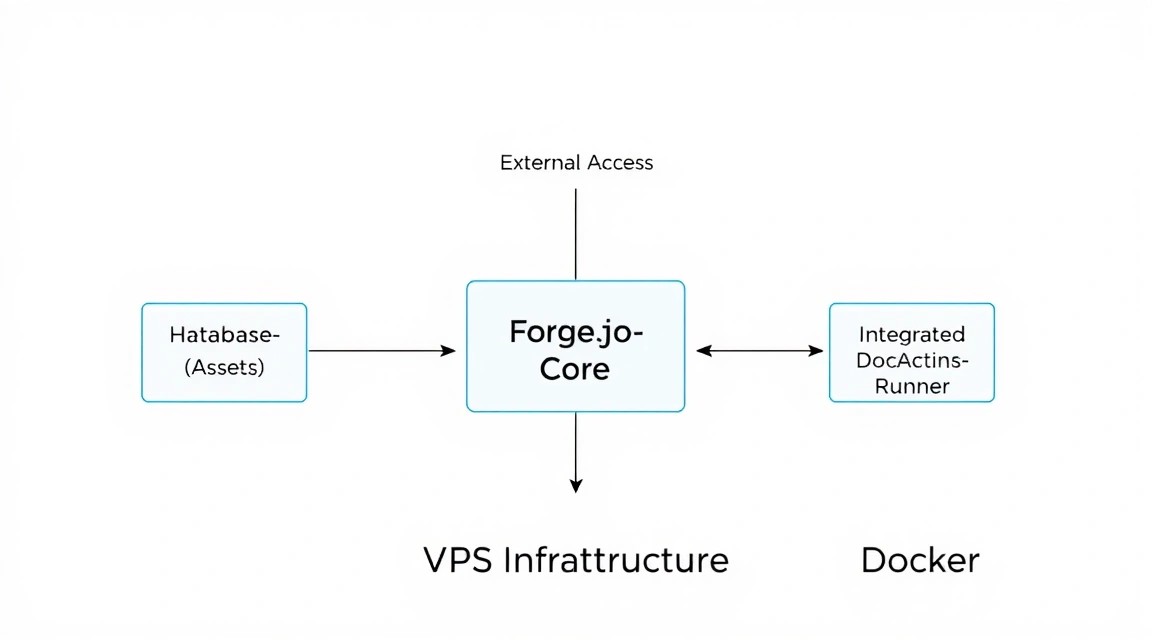
Forgejo (pronounced "for-jay-oh") is a community-driven fork of Gitea, created in response to the commercialization of the original project. In 2026, Forgejo has become the de facto standard for those seeking a "middle ground" between the heavyweight GitLab and overly ascetic solutions like SourceHut.
The core philosophy of Forgejo is "Liberated Software". This means all features, including advanced CI/CD and a package registry, are available for free and as open source. Unlike Gitea, where some enterprise features may be limited or targeted at paid clients, Forgejo evolves as a community-owned project.
Key advantages for a VPS owner:
- Low resource consumption: In standby mode, Forgejo consumes less than 200 MB of RAM.
- Binary compatibility: If you previously used Gitea, migrating to Forgejo takes 5 minutes without data loss.
- Built-in CI/CD: No more need to set up complex integrations with Jenkins or Drone CI. Forgejo Actions understands GitHub Actions YAML syntax.
- All-in-one tool: Code, issues, kanban boards, wiki, and container registry are all in one interface.
2. Comparing Forgejo with alternatives (GitLab, Gitea, GitHub)
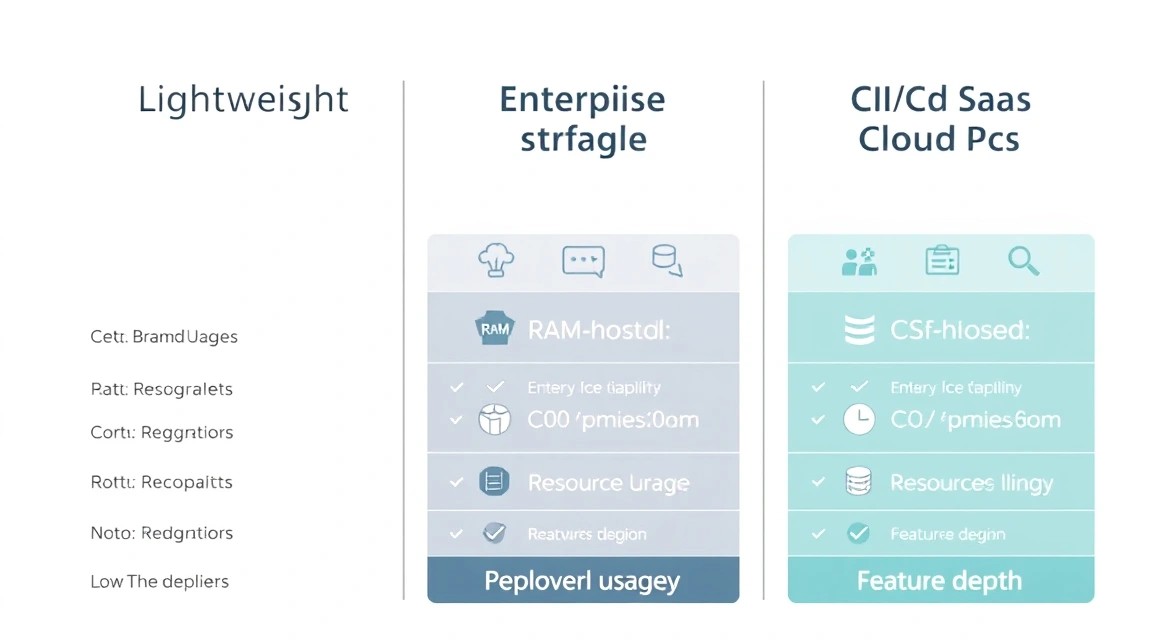
When choosing a Git platform for self-hosting, it's important to understand the difference in resource costs and functionality. Below is a comparison table of current solutions for 2026.
| Feature | Forgejo | GitLab CE | Gitea | GitHub (Cloud) |
|---|---|---|---|---|
| Min. RAM | 1 GB (comfortable 2 GB) | 4 GB (comfortable 8 GB) | 1 GB | N/A |
| CI/CD | Built-in (Actions) | Built-in (Runner) | Built-in (Actions) | GitHub Actions |
| License | GPLv3+ (Community) | MIT (Open Core) | MIT (Commercial focus) | Proprietary |
| Package Registry | Yes (Docker, npm, etc) | Yes (Advanced) | Yes | Yes |
| Installation complexity | Low (1 container) | High (many components) | Low | N/A |
GitLab is a powerful "all-in-one" tool, but installing it on a cheap VPS often leads to freezes due to lack of memory. Forgejo, on the other hand, is ideal for individual developers and teams of up to 50 people working on budget hardware.
3. What VPS configuration is needed for this task
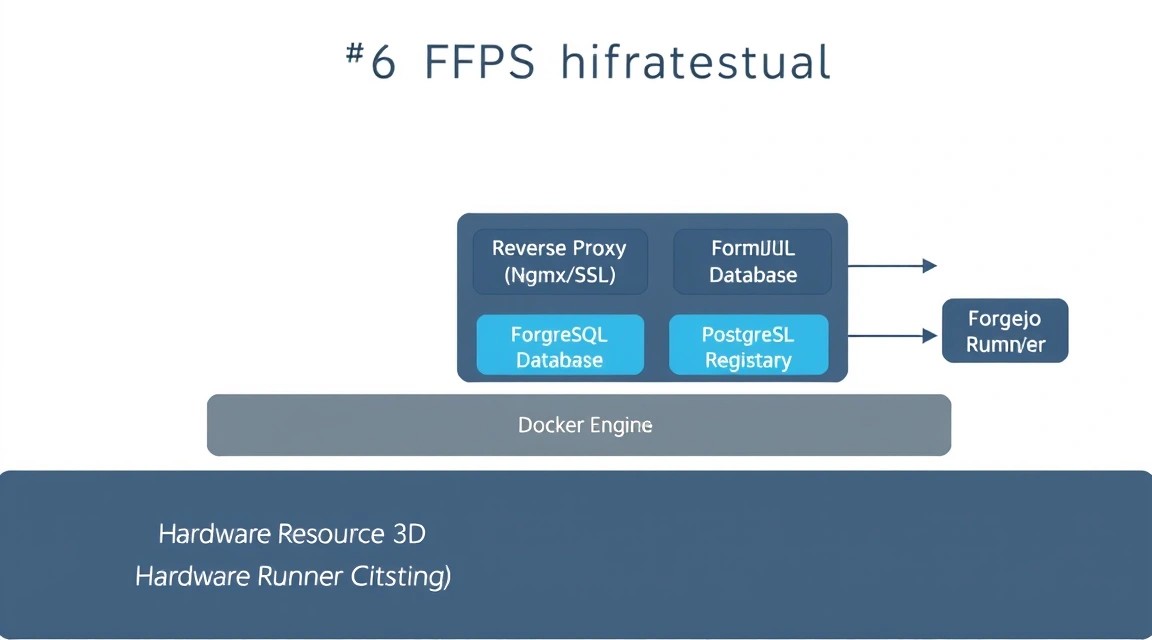
Although Forgejo is extremely undemanding, the performance of your Git hosting will directly depend on the speed of the disk subsystem and the amount of RAM for caching Git objects.
Minimum requirements (1-3 users, small projects):
- CPU: 1 core
- RAM: 1 GB
- Disk: 20 GB SSD/NVMe
- OS: Ubuntu 24.04 LTS or Debian 13
Recommended requirements (team, CI/CD, Docker Registry):
- CPU: 2-4 cores (important for fast container builds in CI/CD)
- RAM: 4 GB (allows keeping the DB in cache and efficient runner operation)
- Disk: 50+ GB NVMe (volume depends on the number of stored Docker images)
- Network: 1 Gbps (for fast upload/download of large repositories)
For stable system operation, especially if you plan to actively use Forgejo Actions for building projects, a suitable VPS with dedicated resources is best, so that build processes do not slow down the web interface.
Server location also matters: choose a data center with minimum ping to your developers, as Git protocols (SSH/HTTPS) are sensitive to latency when transferring many small files.
4. Server preparation: basic security and system utilities
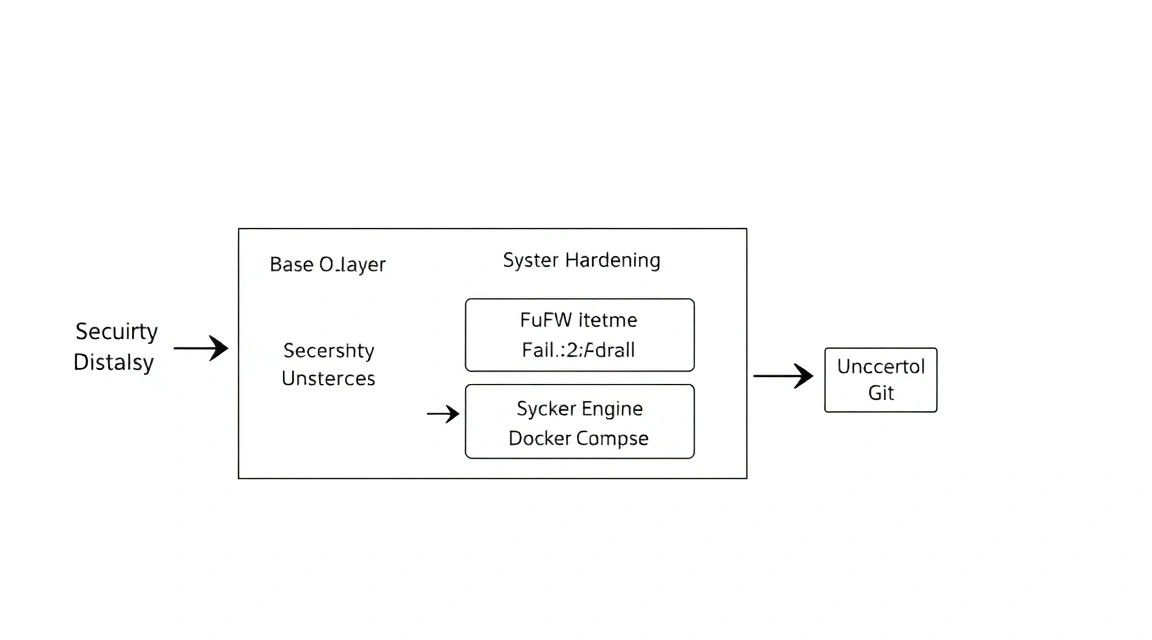
Before installing Docker, it is necessary to secure the server. We will set up a firewall, create a separate user, and install brute-force protection.
Update the package list and the system to the latest state:
sudo apt update && sudo apt upgrade -yInstall the necessary basic tools:
sudo apt install -y curl wget git vim ufw fail2ban software-properties-commonConfigure the UFW firewall. We will need ports 22 (SSH), 80 (HTTP), 443 (HTTPS), and port 2222 for Git via SSH (to avoid conflict with the system's main SSH server):
sudo ufw allow 22/tcp
sudo ufw allow 80/tcp
sudo ufw allow 443/tcp
sudo ufw allow 2222/tcp
sudo ufw enable
Configuring Fail2Ban will help protect SSH from password brute-forcing. Create a local config:
sudo cp /etc/fail2ban/jail.conf /etc/fail2ban/jail.local
sudo systemctl enable fail2ban
sudo systemctl start fail2ban
Create a system user under which Forgejo will run (for security, it is not recommended to run the service as root, even inside a container):
sudo adduser --disabled-password --gecos "" git5. Installing Docker and Docker Compose
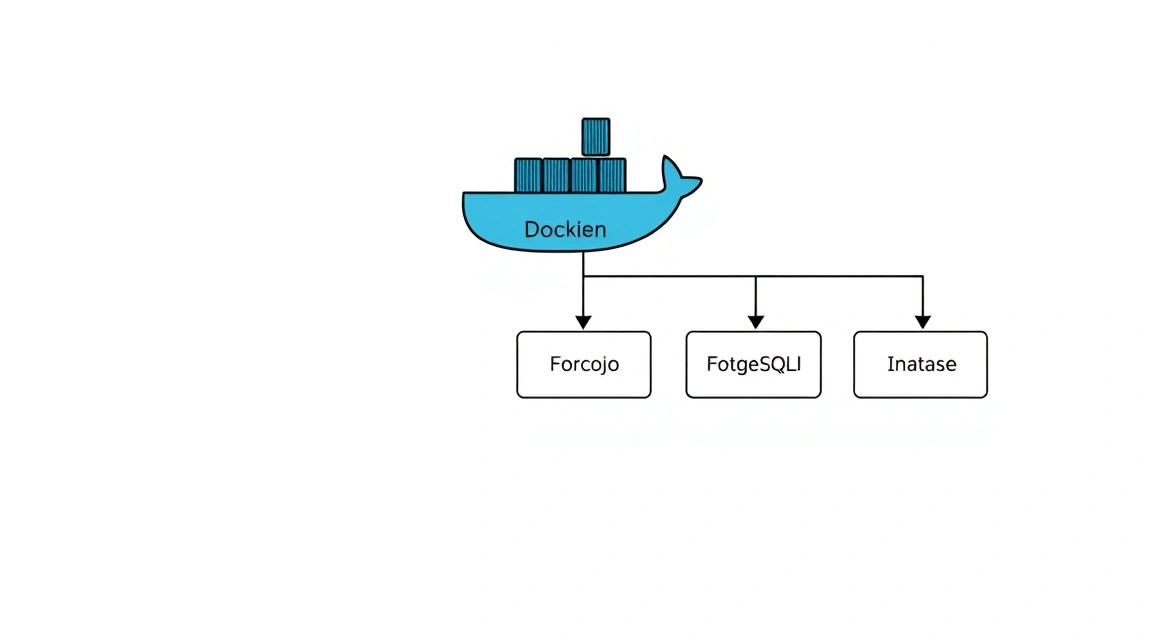
In 2026, using Docker is the standard for self-hosted services. This simplifies updating and migrating Forgejo to another server.
Install the official Docker repository:
install -m 0755 -d /etc/apt/keyrings
curl -fsSL https://download.docker.com/linux/ubuntu/gpg | sudo gpg --dearmor -o /etc/apt/keyrings/docker.gpg
sudo chmod a+r /etc/apt/keyrings/docker.gpg

echo \
  "deb [arch=$(dpkg --print-architecture) signed-by=/etc/apt/keyrings/docker.gpg] https://download.docker.com/linux/ubuntu \
  $(. /etc/os-release && echo "$VERSION_CODENAME") stable" | \
  sudo tee /etc/apt/sources.list.d/docker.list > /dev/null
Install Docker Engine and Docker Compose Plugin:
sudo apt update
sudo apt install -y docker-ce docker-ce-cli containerd.io docker-buildx-plugin docker-compose-plugin
Add the current user to the docker group to run commands without sudo:
sudo usermod -aG docker $USERNote: after this command, you need to log in again to the terminal.
6. Deploying Forgejo: Docker Compose and database
6. Deploying Forgejo: Docker Compose and Database
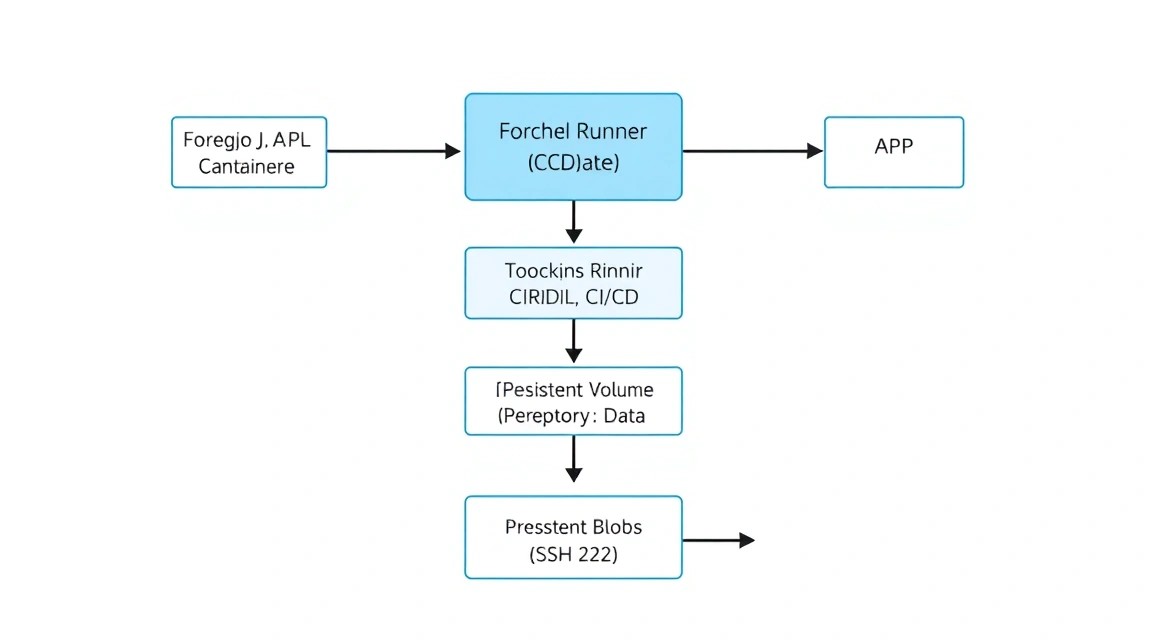
We will use PostgreSQL as the database because it is more reliable than SQLite as the number of repositories grows and CI/CD is actively used.
Create a working directory:
mkdir -p ~/forgejo && cd ~/forgejoCreate a docker-compose.yml file with the following configuration:
services:
  server:
    image: codeberg.org/forgejo/forgejo:10
    container_name: forgejo
    restart: always
    environment:
      - USER_UID=1001
      - USER_GID=1001
      - FORGEJO__database__DB_TYPE=postgres
      - FORGEJO__database__HOST=db:5432
      - FORGEJO__database__NAME=forgejo
      - FORGEJO__database__USER=forgejo
      - FORGEJO__database__PASSWD=your_strong_password
    volumes:
      - ./data:/data
      - /etc/timezone:/etc/timezone:ro
      - /etc/localtime:/etc/localtime:ro
    ports:
      - "127.0.0.1:3000:3000"
      - "2222:22"
    depends_on:
      - db

  db:
    image: postgres:16-alpine
    restart: always
    environment:
      - POSTGRES_USER=forgejo
      - POSTGRES_PASSWORD=your_strong_password
      - POSTGRES_DB=forgejo
    volumes:
      - ./postgres:/var/lib/postgresql/data
Important: Replace your_strong_password with a real password. Note that we are mapping the Forgejo web interface to 127.0.0.1:3000. This is done so that it is not accessible from the outside directly, but only through our Reverse Proxy (Caddy).
Start the containers:
docker compose up -d7. Configuring Reverse Proxy and Automatic HTTPS via Caddy
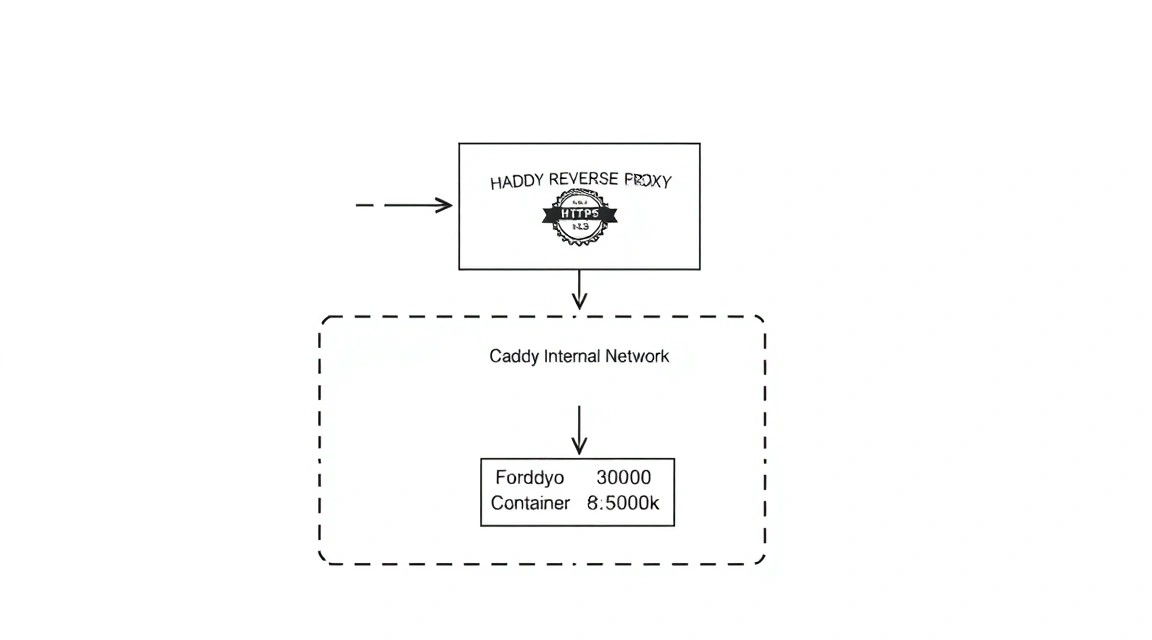
Caddy is a modern web server that automatically obtains and renews SSL certificates from Let's Encrypt. This is much simpler than configuring Nginx with Certbot.
Install Caddy:
sudo apt install -y debian-keyring debian-archive-keyring apt-transport-https
curl -1sLf 'https://dl.cloudsmith.io/public/caddy/stable/gpg.key' | sudo gpg --dearmor -o /usr/share/keyrings/caddy-stable-archive-keyring.gpg
curl -1sLf 'https://dl.cloudsmith.io/public/caddy/stable/debian.deb.txt' | sudo tee /etc/apt/sources.list.d/caddy-stable.list
sudo apt update
sudo apt install caddy
Edit /etc/caddy/Caddyfile:
git.yourdomain.com {
    reverse_proxy localhost:3000

    header {
        # Security settings
        Strict-Transport-Security "max-age=31536000;"
        X-Content-Type-Options nosniff
        X-Frame-Options DENY
        Referrer-Policy no-referrer-when-downgrade
    }
}
Replace git.yourdomain.com with your real domain, which should point to your VPS IP (A record). Restart Caddy:
sudo systemctl restart caddyNow you can open https://git.yourdomain.com in your browser and complete the Forgejo installation via the web interface. The first registered user will automatically become the administrator.
8. Configuring Forgejo Actions: Running a CI/CD Runner
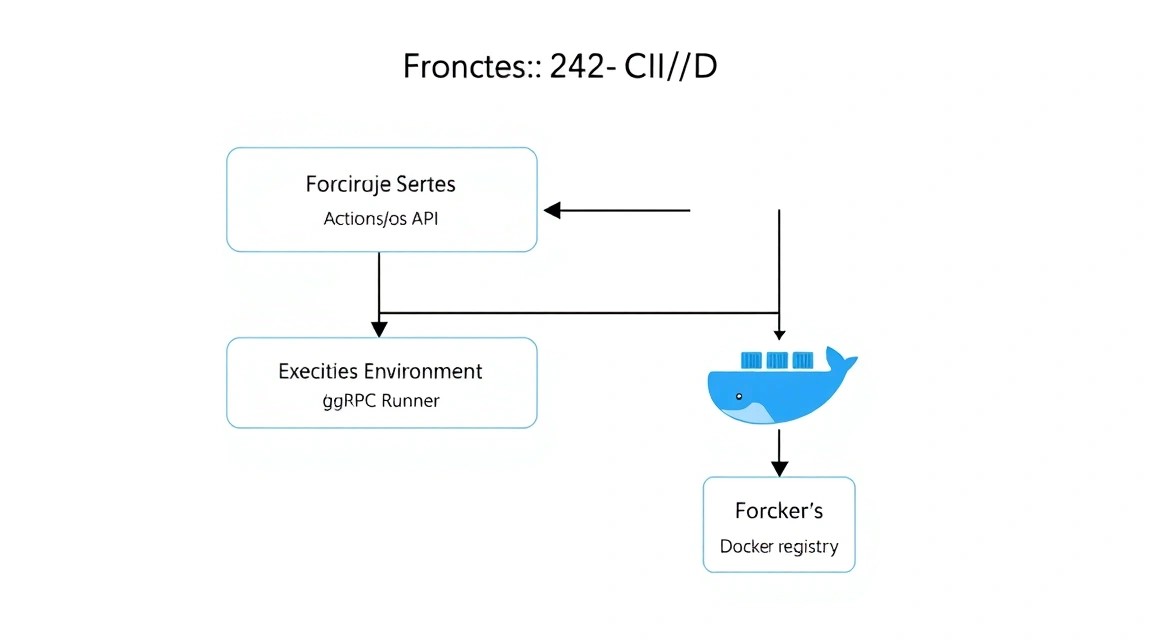
Forgejo Actions is a powerful built-in automation system. It requires a separate component — a Runner — to execute build commands.
First, enable Actions support in Forgejo. Open the configuration file inside the container or add an environment variable to docker-compose.yml:
# Add to the environment section of the server service in docker-compose.yml:
- FORGEJO__actions__ENABLED=true
Now let's add the runner service to our docker-compose.yml:
  runner:
    image: codeberg.org/forgejo/runner:6.0
    container_name: forgejo-runner
    restart: always
    depends_on:
      - server
    volumes:
      - ./runner-data:/data
      - /var/run/docker.sock:/var/run/docker.sock
    environment:
      - FORGEJO_INSTANCE_URL=https://git.yourdomain.com
      - FORGEJO_RUNNER_REGISTRATION_TOKEN=YOUR_TOKEN_FROM_ADMIN_PANEL
      - FORGEJO_RUNNER_NAME=vps-runner
      - FORGEJO_RUNNER_LABELS=ubuntu-latest:docker://node:20-bullseye,debian-latest:docker://debian:bookworm
To obtain the FORGEJO_RUNNER_REGISTRATION_TOKEN, go to the Forgejo control panel: Site Administration -> Actions -> Runners -> Create new Runner.
Start the runner:
docker compose up -d runnerNow any repository containing a .forgejo/workflows/build.yml file will automatically trigger a build on your VPS.
9. Configuring the Built-in Docker Registry
Forgejo allows you to store Docker images directly in the project repository. This eliminates the need to use Docker Hub or paid alternatives.
By default, the package registry is enabled. To authenticate with it from your local machine, use the standard docker login command:
docker login git.yourdomain.comUse your username and password (or a Personal Access Token, which is more secure). Example of tagging and pushing an image:
docker tag my-app:latest git.yourdomain.com/username/my-app:latest
docker push git.yourdomain.com/username/my-app:latest
All images are stored in the /data/packages folder inside the Forgejo container, making it easy to manage disk space.
10. Backups and Maintenance Schedule
Lack of backups is the main mistake in self-hosting. In Forgejo, you need to back up three things: the database, configuration files (app.ini), and the repositories themselves.
Create a simple backup script backup.sh:
#!/bin/bash
BACKUP_DIR="/home/user/backups"
TIMESTAMP=$(date +"%Y%m%d_%H%M%S")
mkdir -p $BACKUP_DIR

# Database backup
docker exec forgejo-db-1 pg_dump -U forgejo forgejo > $BACKUP_DIR/db_$TIMESTAMP.sql

# Forgejo data backup (configs and repositories)
tar -czf $BACKUP_DIR/data_$TIMESTAMP.tar.gz ./data

# Deleting old backups (older than 7 days)
find $BACKUP_DIR -type f -mtime +7 -delete
Add the script execution to crontab (crontab -e) so it runs every night at 3:00:
0 3 * /bin/bash /home/user/forgejo/backup.shUpdating Forgejo: The update process is extremely simple thanks to Docker. Just change the image version in docker-compose.yml and run:
docker compose pull
docker compose up -d
11. Troubleshooting + FAQ
Error: "SSH connection refused" when attempting git push
Check that you are using the correct port. By default, SSH in our config works on port 2222. Your repository URL should look like this: ssh://[email protected]:2222/user/repo.git. Also, make sure your public SSH key is added to your Forgejo profile.
What is the minimum VPS configuration suitable for Forgejo?
For a single developer to work comfortably, 1 GB of RAM and 1 CPU core are sufficient. However, if you enable Forgejo Actions (CI/CD), memory consumption can instantly spike to 2-4 GB during compilation (e.g., for Go or Rust). For such tasks, it's better to choose a plan with 4 GB of RAM.
What to choose — VPS or dedicated for this task?
For most teams of up to 20 people, a VPS is the ideal choice. A dedicated server should only be considered in two cases: if your code and artifacts (Docker Registry) volume exceeds 1-2 TB, or if you need absolute resource isolation for heavy CI/CD processes that should not affect the responsiveness of the Git interface.
How to restrict new user registration?
After creating your administrator account, go to Site Administration -> Configuration and set DISABLE_REGISTRATION = true. This will prevent strangers from creating accounts on your public server.
Forgejo is consuming too much disk space, what should I do?
The main space consumers are usually the Docker Registry and build logs. Regularly clean up old images and set up a Retention Policy in the Forgejo package settings. Also, check the /data/tmp folder; sometimes temporary files can accumulate there after failed imports.
Can I migrate data from GitHub?
Yes, Forgejo has a built-in migration tool. It allows you to import not only code but also Issues, Pull Requests, Wiki, and even Milestones. To do this, simply provide the GitHub repository URL and your Personal Access Token.
12. Conclusions and Next Steps
We have successfully deployed a professional development environment on our own VPS. Now you have full control over your code, container images, and automation processes, without depending on the policies of third-party cloud providers.
What we achieved:
- Private Git hosting with high performance.
- Automatic SSL via Caddy.
- Own CI/CD system compatible with GitHub Actions.
- Docker Registry for storing private images.
Where to go next:
- Monitoring: Set up Forgejo metrics export to Prometheus and visualize them in Grafana to track server load.
- Security: Set up two-factor authentication (2FA) for your account.
- External Storage: If you plan to store terabytes of data, set up object storage (LFS and packages) in an S3-compatible storage.
Self-hosting is not just about cost savings, but also an important step toward the digital sovereignty of your team or project. Forgejo provides all the necessary tools for this while remaining a simple and reliable solution.