Installing and Configuring a RustDesk Server on a VPS: Creating a Secure Alternative to TeamViewer
TL;DR
In this guide, we look at the process of deploying your own RustDesk server (ID and Relay servers) on a Linux-based virtual server. This allows you to completely move away from third-party proprietary solutions like TeamViewer or AnyDesk, ensuring maximum privacy, no session time limits, and minimal latency by hosting the server in an optimal location. We will set up the server side via Docker Compose, protect the connection with NaCl encryption, and configure the firewall for secure operation in 2026.
- Full Control: Your data and ID addresses do not pass through centralized developer servers.
- Performance: Using your own Relay server eliminates the lags typical of free public servers.
- Security: Enforced encryption and operation via a private key prevent unauthorized access.
- Savings: A self-hosted VPS-based solution is significantly cheaper than corporate licenses for commercial software.
- Flexibility: The ability to customize for team needs or personal use.

1. What we are setting up and why: advantages of RustDesk
In today's digital environment, remote access tools have become critical for both businesses and private users. However, popular solutions like TeamViewer, AnyDesk, or Microsoft Remote Desktop (RDP) have several significant drawbacks: from high license costs to sudden session blocks and potential security risks associated with storing data on third-party servers. RustDesk is an open-source alternative that allows you to deploy your own remote desktop infrastructure.
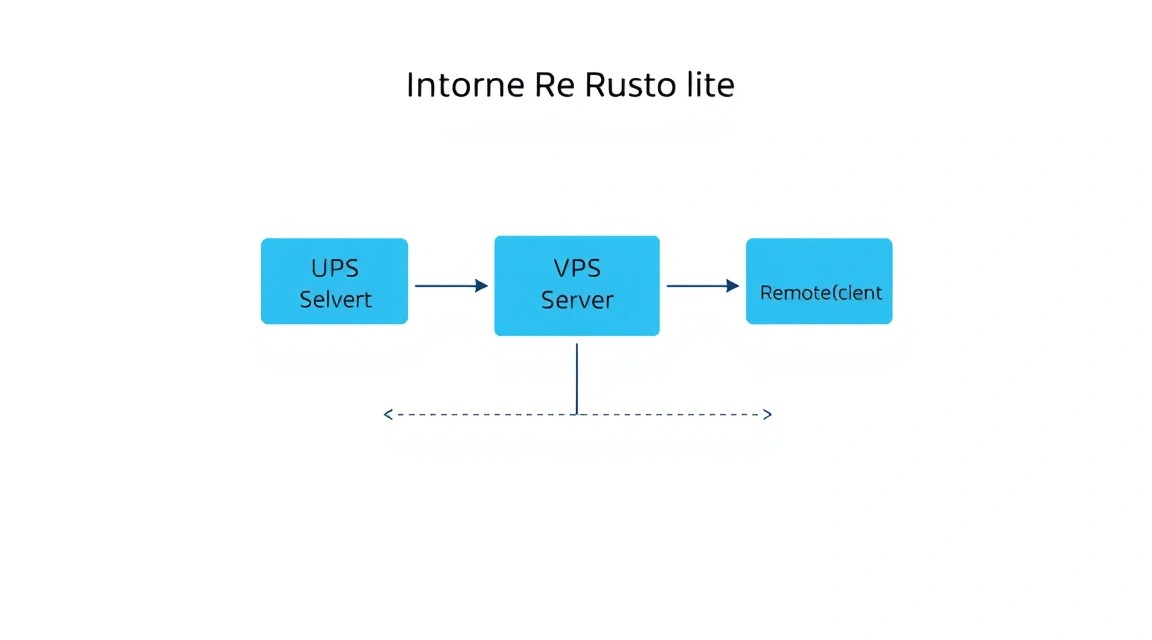
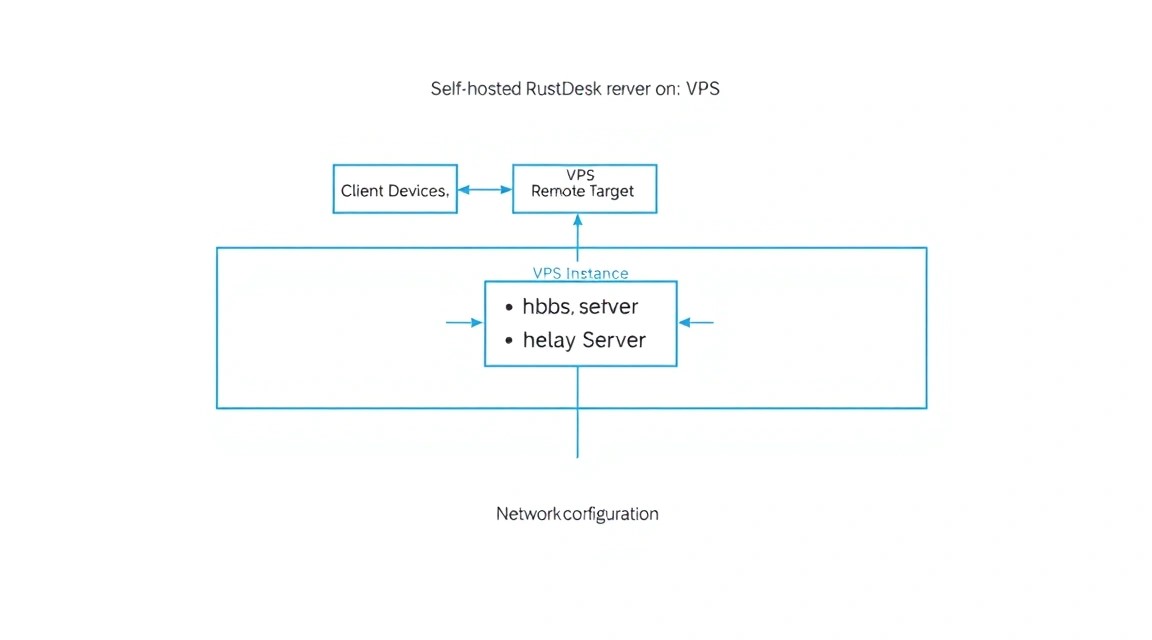
The main task we solve in this guide is the installation of the server components hbbs (ID server for client registration) and hbbr (Relay server for traffic transmission if a direct P2P connection is impossible). When you use public RustDesk servers, you share resources with thousands of other users, which leads to delays. Your own server on a VPS guarantees that the entire bandwidth belongs only to you.
Why choose a self-hosted solution on a VPS:
- Privacy: Your device list and connection history are stored only on your server.
- No NAT issues: A VPS with a public IP address acts as an intermediary, allowing connections to computers behind complex routers and corporate firewalls.
- Speed: By choosing a server in the nearest data center, you minimize input lag, which is critical for comfortable work.
2. What VPS configuration is needed for this task
RustDesk is extremely lightweight software. The main load falls on the network, not the CPU or disk. Nevertheless, stable operation under modern Linux distributions (e.g., Ubuntu 24.04 or 26.04 LTS) requires certain resources.
| Characteristic | Minimum Requirements | Recommended (for teams) |
|---|---|---|
| Processor (CPU) | 1 core (Shared) | 2 cores (Dedicated threads) |
| RAM | 1 GB | 2-4 GB |
| Disk Space | 10 GB SSD/NVMe | 40 GB SSD (for logs and session recordings) |
| Network | 100 Mbps, unlimited traffic | 1 Gbps, priority channel |
| IP Address | 1 x IPv4 (required) | IPv4 + IPv6 |
For most tasks—from supporting relatives to administering a small fleet of servers—entry-level resources are sufficient. You can rent a suitable VPS that will cover all RustDesk needs and allow you to run additional monitoring utilities in parallel.
When should you consider a Dedicated server? If you plan to use RustDesk for streaming high-quality video, working with heavy graphics via remote desktop 24/7, or if the number of simultaneous sessions exceeds 50-100. In other cases, virtualization (KVM) handles it perfectly.
Server location: This is a crucial parameter. If you are in Moscow and connecting to a computer in Berlin, it is better to locate the server at one of these points or in the middle (e.g., Warsaw). The lower the ping between the client, server, and host, the better the mouse cursor "responsiveness" will be.
3. Server preparation: basic security settings
Before installing RustDesk, the operating system must be prepared. We will use Ubuntu as the most standard and documented distribution.
First, let's update the packages to the current state:
sudo apt update && sudo apt upgrade -y
We will create a separate user with sudo privileges to avoid working as root. This is a 2026 security standard:
# Create user
sudo adduser rustadmin
# Add to sudo group
sudo usermod -aG sudo rustadmin
# Switch to user
su - rustadmin
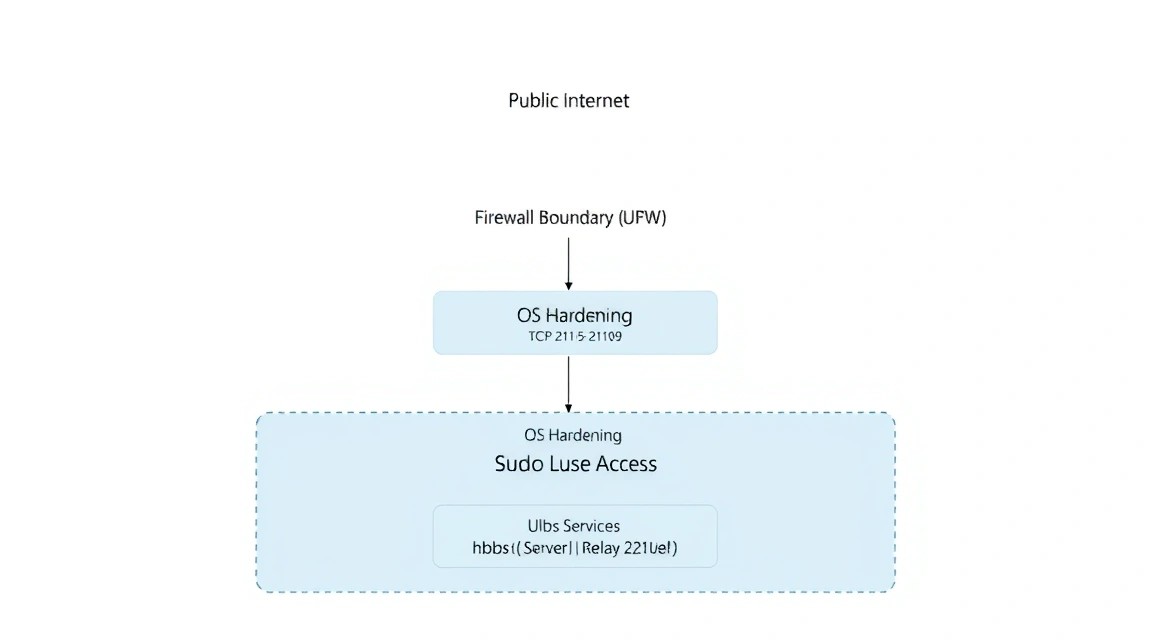
Firewall configuration (UFW) is a critical stage. RustDesk uses several ports for different tasks. We need to open them:
- 21115 (TCP): NAT testing.
- 21116 (TCP/UDP): Main ID server (TCP for requests, UDP for heartbeat/ID registration).
- 21117 (TCP): Relay server (data transmission).
- 21118/21119 (TCP): Web client and WebSocket support (if you plan to use the browser version).
sudo ufw allow 22/tcp
sudo ufw allow 21115:21119/tcp
sudo ufw allow 21116/udp
sudo ufw enable
To protect against SSH brute force, we recommend installing Fail2Ban:
sudo apt install fail2ban -y
sudo systemctl enable fail2ban
sudo systemctl start fail2ban
4. Installing Docker and necessary dependencies
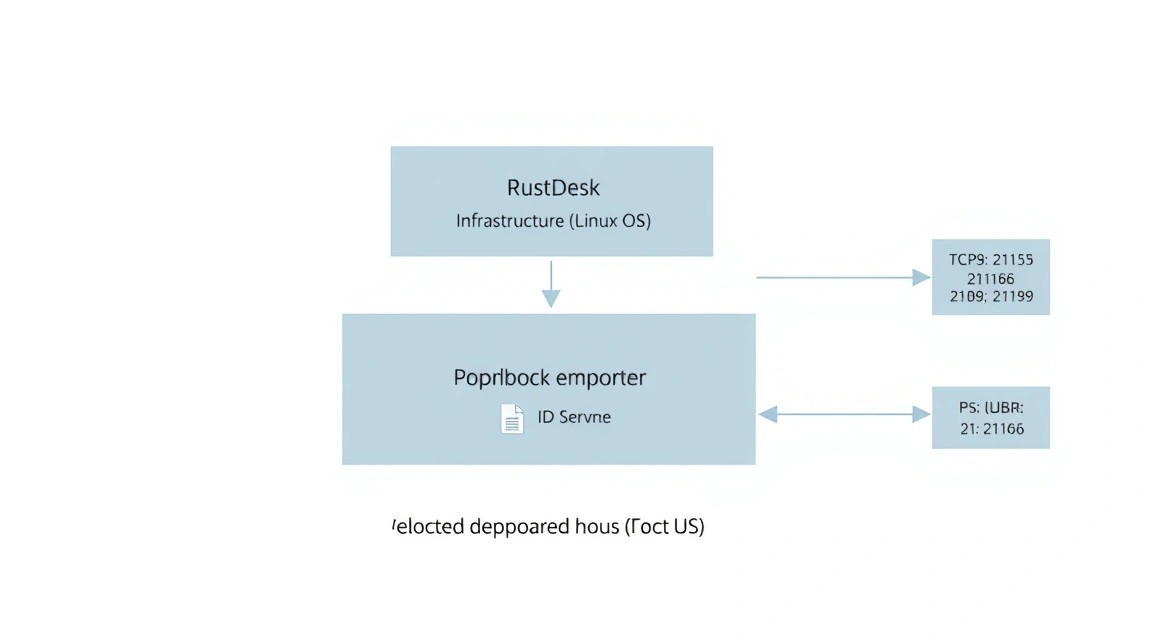
Using Docker is the most reliable way to deploy RustDesk. This isolates the application from the system and simplifies the update process. In 2026, Docker Compose is the de facto standard for orchestrating small self-hosted services.
Let's install Docker via the official repository:
# Installing dependencies
sudo apt install ca-certificates curl gnupg lsb-release -y

# Adding GPG key
sudo mkdir -p /etc/apt/keyrings
curl -fsSL https://download.docker.com/linux/ubuntu/gpg | sudo gpg --dearmor -o /etc/apt/keyrings/docker.gpg

# Configuring repository
echo "deb [arch=$(dpkg --print-architecture) signed-by=/etc/apt/keyrings/docker.gpg] https://download.docker.com/linux/ubuntu $(lsb_release -cs) stable" | sudo tee /etc/apt/sources.list.d/docker.list > /dev/null

# Installing Docker Engine
sudo apt update
sudo apt install docker-ce docker-ce-cli containerd.io docker-compose-plugin -y
Let's check the installation correctness:
docker --version && docker compose version
5. Step-by-step installation of the RustDesk server (hbbs and hbbr)
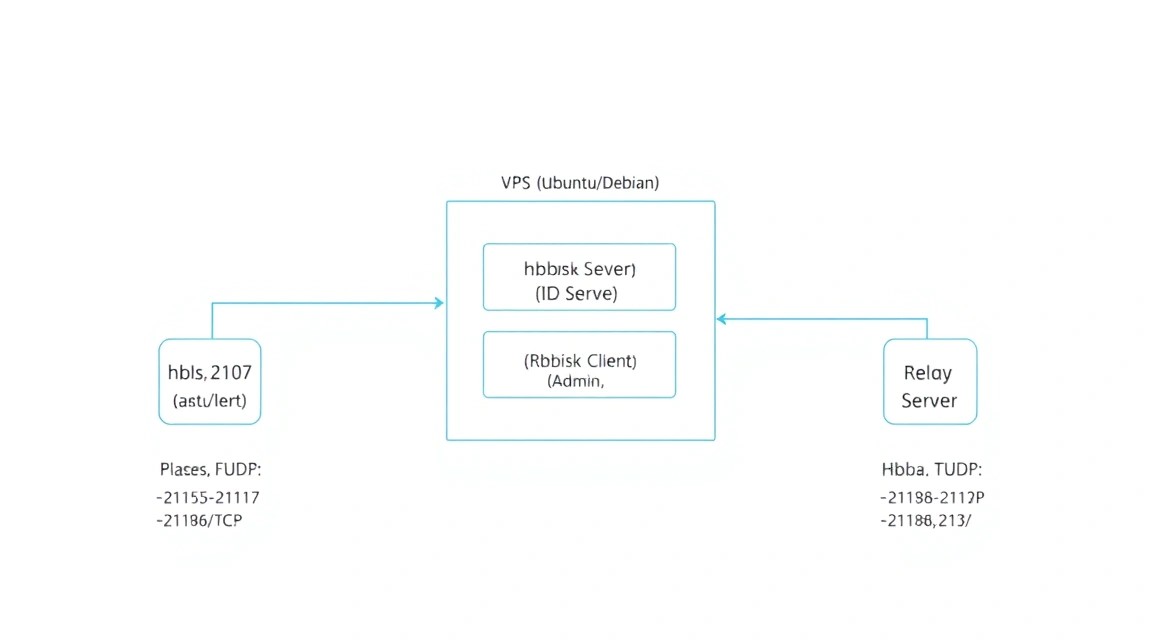
We will create a directory for the project and describe the configuration in the docker-compose.yml file. This will allow running both necessary components with a single command.
mkdir ~/rustdesk-server && cd ~/rustdesk-server
nano docker-compose.yml
Insert the following content into the file. Replace rustdesk.example.com with your VPS IP or your domain:
version: '3'

services:
  hbbs:
    container_name: hbbs
    image: rustdesk/rustdesk-server:latest
    command: hbbs -r rustdesk.example.com:21117 -k _
    volumes:
      - ./data:/root
    network_mode: host
    depends_on:
      - hbbr
    restart: unless-stopped

  hbbr:
    container_name: hbbr
    image: rustdesk/rustdesk-server:latest
    command: hbbr
    volumes:
      - ./data:/root
    network_mode: host
    restart: unless-stopped
Parameter breakdown:
hbbs -r <host>:21117: Tells the ID server the address of the Relay server. This is critical for correct traffic routing.-k _: This flag forces the server to require the mandatory use of a public key when clients connect. This protects your server from unauthorized use by third parties.network_mode: host: Used for maximum performance and to avoid issues with UDP port forwarding within the Docker network.
Let's start the containers:
docker compose up -d
6. Configuring Encryption and Key-Based Authorization
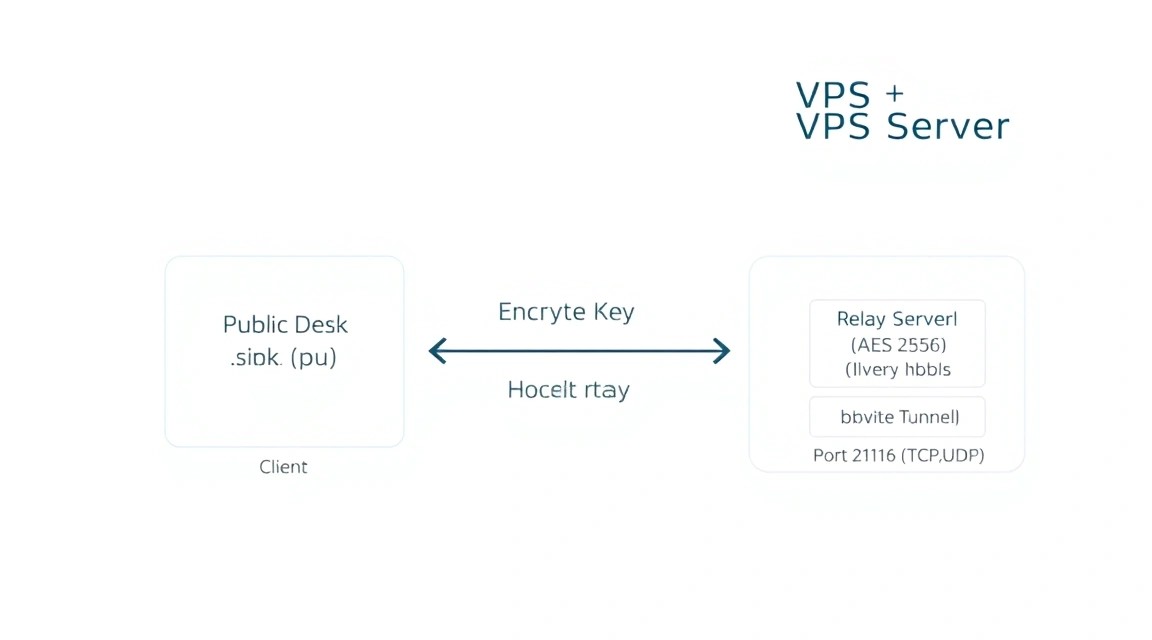
After the first run, encryption keys will appear in the ./data directory. We need the file with the .pub extension. This is the key we will enter in the client settings.
cat ./data/id_ed25519.pub
Copy the output of this command. Without this key, no one will be able to connect via your server, even if they know its IP address. This implements a Zero-Trust architecture, where the server acts only as a mediator with no access to the session content.
Why is this important? In public versions of RustDesk, encryption can be optional. In our configuration, we have made it mandatory. All traffic between the operator and the remote host is encrypted using the NaCl (libsodium) library, making data interception pointless.
7. Client Fine-Tuning and Network Optimization
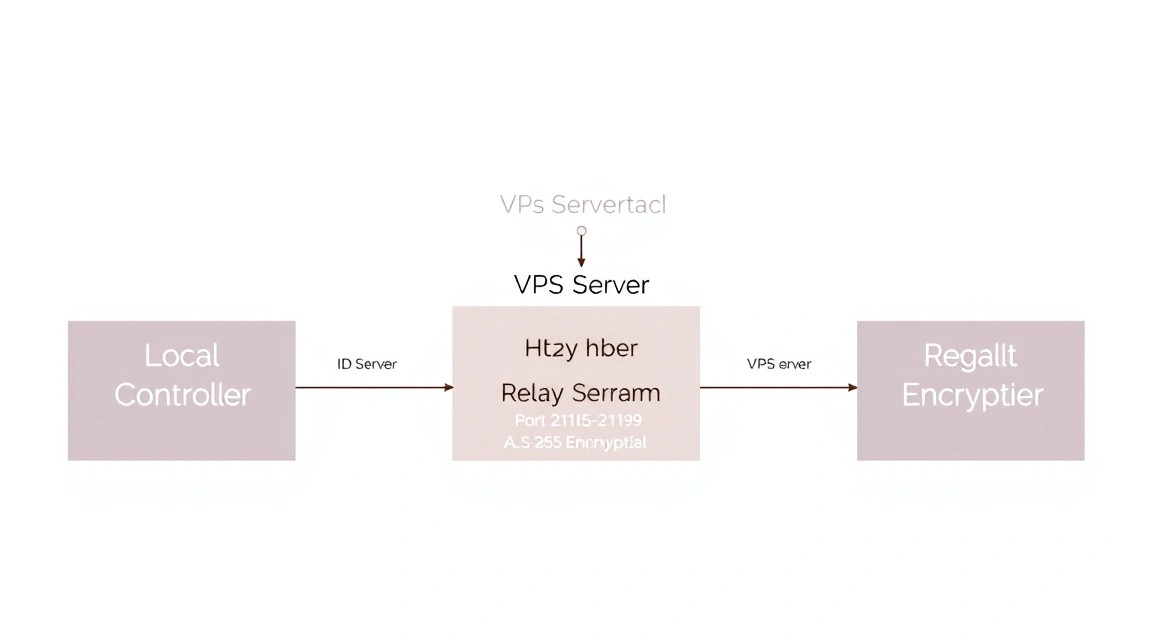
Now that the server is running, you need to configure the client application on your devices (Windows, macOS, Linux, Android, or iOS).
- Open RustDesk on your computer.
- Go to Settings -> Network.
- Click "Unlock network settings".
- In the ID Server field, enter the IP address or domain of your VPS.
- In the Relay Server field, enter the same address (port 21117 will be filled automatically unless specified otherwise).
- In the Key field, paste the contents of the
id_ed25519.pubfile obtained in the previous step. - Click "Apply".
If everything is configured correctly, a "Ready" status with a green indicator will appear at the bottom of the RustDesk window. Now you can share this same ID and password (or set up a permanent password) to access the remote device.
Optimization for slow connections: If you are working via mobile internet, select the VP9 or AV1 codec in the session settings (if supported by hardware) and set the "Optimize reaction time" mode. This will reduce the bitrate while maintaining interface responsiveness.
8. Backups, Monitoring, and System Maintenance
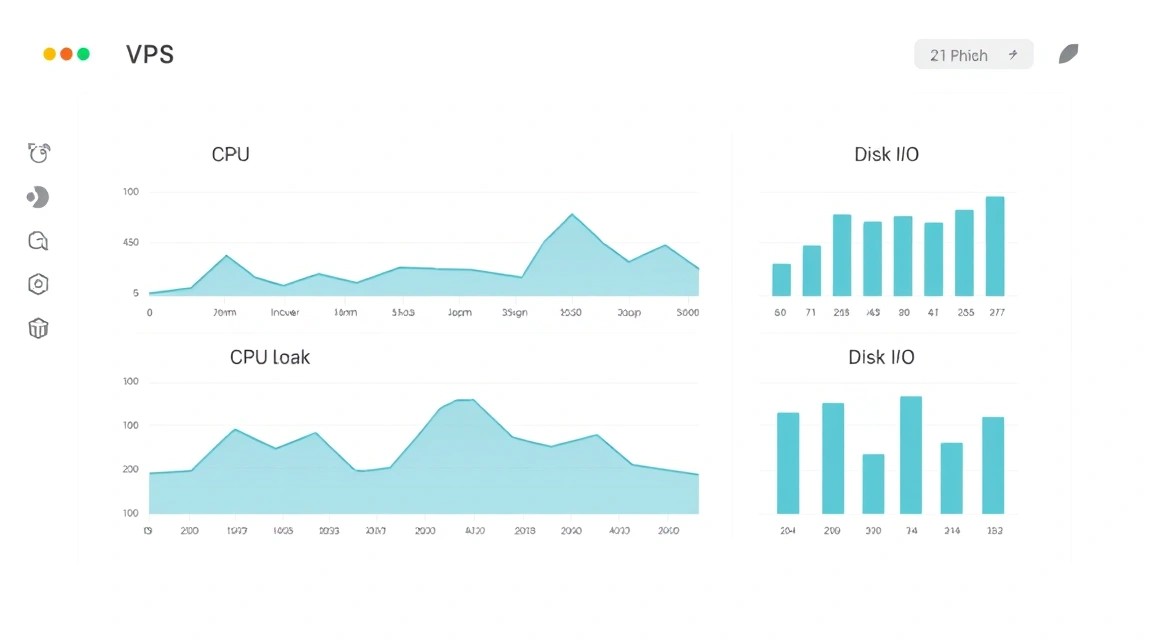
The RustDesk server requires almost no maintenance, but to ensure 99.9% reliability, it is worth implementing basic operational practices.
Data Backup
The most important thing is to save the keys and the ID database. If you lose the id_ed25519 file (private key), you will have to reconfigure all clients from scratch, as the public key will change.
# Simple script to backup to an archive
tar -czvf rustdesk_backup_$(date +%F).tar.gz ~/rustdesk-server/data
It is recommended to set up a cron job for weekly copying of this archive to external storage (e.g., S3 or another VPS).
Server Update
To update RustDesk to the latest version, simply run:
cd ~/rustdesk-server
docker compose pull
docker compose up -d
Monitoring
To track the server status, you can use a simple port check. If port 21116 (UDP) is not responding, it means the ID server is down and clients will not be able to find each other.
9. Troubleshooting + FAQ: Solving Common Issues
Why is the client status "Not Ready"?
Most often, this is due to closed ports on the VPS side. Ensure that your provider is not blocking incoming traffic at the external control panel level (Security Groups). Check the UFW status: sudo ufw status. Also, make sure there are no extra spaces or newline characters in the Key field of the client settings.
What latency is considered normal?
When working within the same region (e.g., Europe-Europe), latency should be 20-50 ms. If the ping is above 150 ms, the experience will be uncomfortable. In this case, check the CPU load on the VPS and ensure you are not using a public Relay server by mistake.
Can I use a domain instead of an IP?
Yes, this is recommended. If your VPS IP changes, you won't have to reconfigure all clients. Simply update the A-record in your domain's DNS.
How to limit the list of people who have access to the server?
RustDesk Server Pro (paid version) supports detailed ACLs. In the free version we installed, protection is based on knowing the Key. Do not share the public key with third parties. Additionally, you can restrict access at the UFW level by allowing connections only from specific IP addresses if they are static.
What is the minimum VPS configuration required?
A minimum of 1 CPU core and 1 GB of RAM is sufficient. RustDesk is written in Rust, which ensures high memory efficiency. The main resource is network bandwidth. For the comfortable work of 2-3 simultaneous users, even the most budget-friendly plan will suffice.
What to choose — VPS or dedicated for this task?
For 95% of scenarios (personal support, administration of up to 200 PCs), a VPS is the ideal choice. A dedicated server should only be considered if you are building a global remote support service with thousands of simultaneous sessions, requiring a guaranteed bandwidth of 1-10 Gbps without the influence of "neighbors" on the hypervisor.
10. Conclusions and Next Steps
We have successfully deployed our own RustDesk server, ensuring independence from foreign cloud services and corporate restrictions. Now you have a secure communication channel that is fully controlled by you — from encryption keys to connection logs.
As next steps for infrastructure optimization, we recommend:
- Set up your own Address Book if you have many devices.
- Deploy a web client to access desktops directly from the browser without installing software.
- Integrate monitoring (e.g., Prometheus + Grafana) to track network traffic and Relay server load.
Remember that the security of self-hosted solutions is an ongoing process. Regularly update Docker images and stay tuned for security updates for your operating system on the VPS.