How to Quickly Restore a MySQL Database from a Backup?

Restoring a MySQL database from a backup can be necessary in case of accidental data deletion, database failure, or other issues. In this article, we will look at several ways to quickly restore a MySQL database from a backup.
Let's get started!
1. Use the mysql command to restore the database from a dump.
To do this, you need to execute the following command:
dnsA server for this guide
Matching plans from verified providers, prices updated daily.
 VultrDedicated from $120/mo
Visit
 ContaboDedicated from $141.76/mo
Visit
 UltaHostDedicated from $93.50/mo
Visit
Compare:Vultr vs ContaboVultr vs UltaHostAll dedicated servers
Affiliate links: we may earn a commission, your price stays the same.
mysql -u username -p database_name < backup.sql
Where:
username- your MySQL username;database_name- the name of the database in MySQL;backup.sql- the name of the file with the backup.
After executing this command, your database will be successfully restored from the backup.
2. Restoring a database using MySQL Workbench.
If you have MySQL Workbench installed, you can easily restore a database from a backup by following a few simple steps:
Step 1: Launch MySQL Workbench and connect to your MySQL server.
Step 2: Select the "Server" tab and go to the "Data Import" section.
Step 3: Select the "Import from Self-Contained File" option and specify the path to your backup file.
Step 4: Click the "Start Import" button and wait for the restore process to complete.
After completing these steps, your database will be successfully restored from the backup using MySQL Workbench.
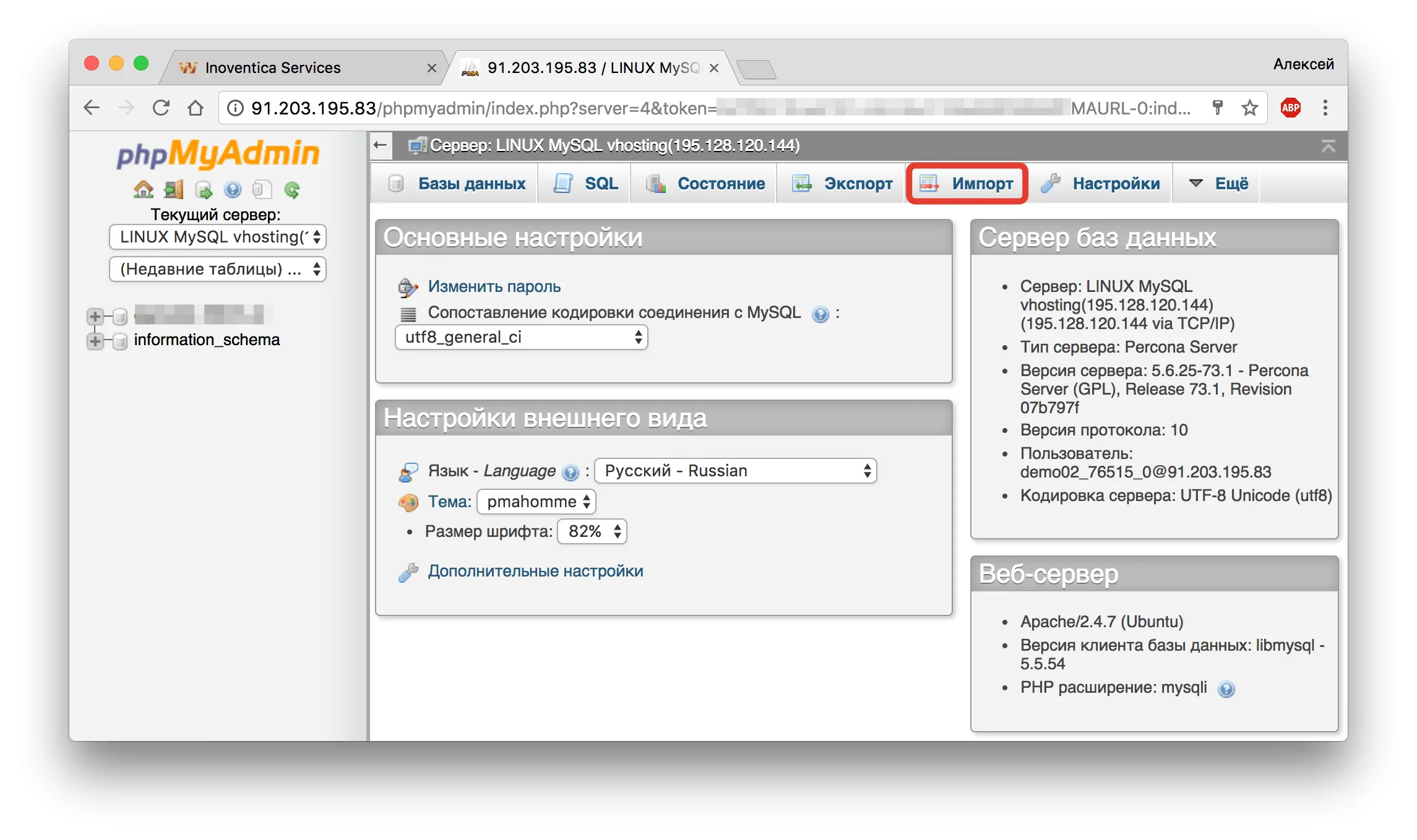
3. Use phpMyAdmin to restore the database.
If you have phpMyAdmin installed on your web server, you can also restore a database from a backup using it.
Step 1: Launch phpMyAdmin and select the database you want to import the data into.
Step 2: Select the "Import" tab and specify the path to the backup file in the "File to Import" section.
Step 3: Click the "Go" button and wait for the restore process to complete.
After completing these steps, your database will be successfully restored from the backup using phpMyAdmin.
Now you have several ways to quickly restore a MySQL database from a backup. Choose the one that suits you best and restore your data in a few simple steps.
Good luck!