APT Error: unpacking of archive failed on file in Debian 12
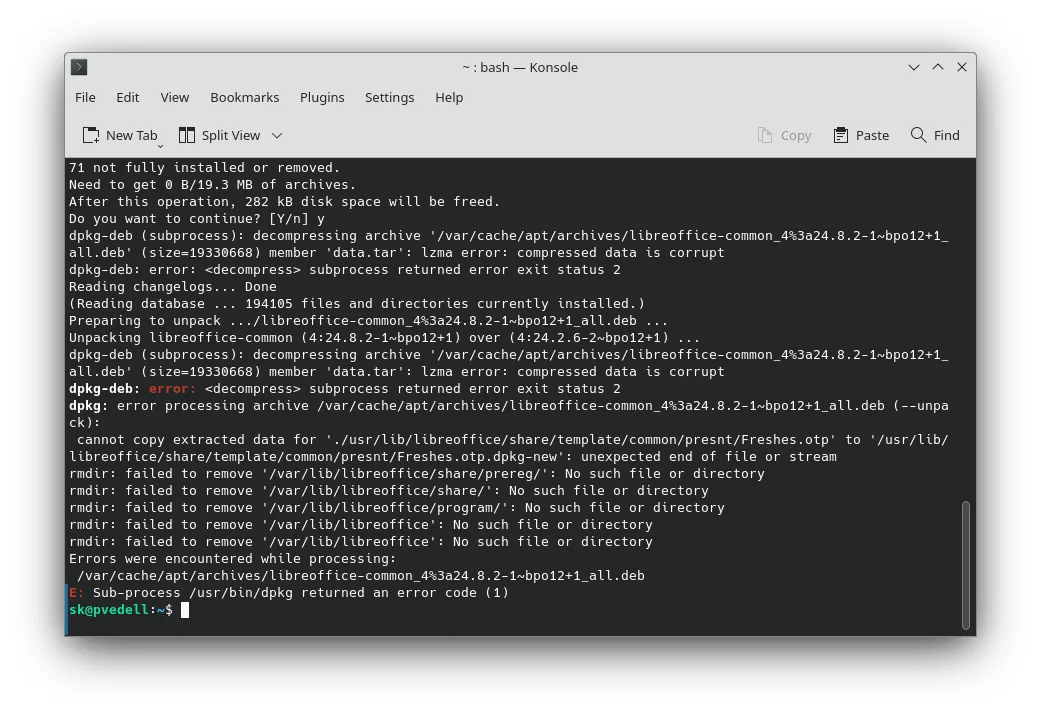
Welcome! Today, we'll look at a common problem that Debian 12 users may encounter - the APT error: unpacking of archive failed on file. This error can occur during package updates or when installing new applications via the APT package manager. Let's figure out why it happens and how to fix it.
Causes of the Error
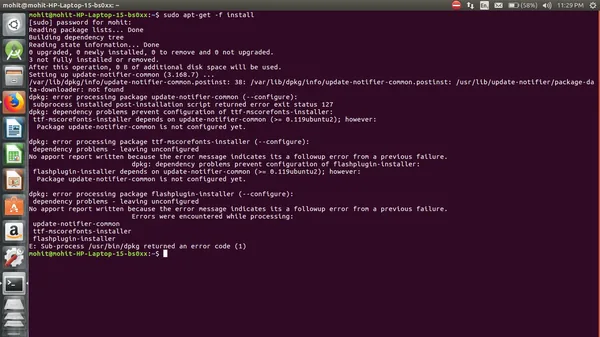
The main cause of the APT error: unpacking of archive failed on file in Debian 12 is a corrupted package archive. This can happen due to an unstable internet connection while downloading packages, errors in the package itself, file system problems, or lack of disk space. In addition, incorrectly installed dependencies or conflicts between packages can also lead to this error.
How to Fix APT Error: unpacking of archive failed on file
To fix the APT error: unpacking of archive failed on file in Debian 12, you can try the following:
sudo apt clean: clears the local cache of downloaded packages, which can help eliminate potential problems with corrupted archives.sudo apt update: updates the list of packages and their versions, which can also help fix the error.sudo apt upgrade: performs an update of all installed packages to the latest versions, which can resolve conflicts and dependency issues.- Check for free disk space, as a lack of space can also cause errors when unpacking archives.
- Check the integrity of the disk and file system using the
fsckcommand.
If the above steps did not solve the problem, try contacting the Debian community or the software developers for further assistance. Often, more complex problems require a professional approach.
dnsA server for this guide
Matching plans from verified providers, prices updated daily.



Compare:Vultr vs DigitalOceanVultr vs ContaboAll VPS by price
Affiliate links: we may earn a commission, your price stays the same.
Conclusion
The APT error: unpacking of archive failed on file in Debian 12 can occur for various reasons, but most often it can be fixed with simple actions such as clearing the APT cache and updating packages. If the problem cannot be resolved, don't despair, but rather seek help from professionals.