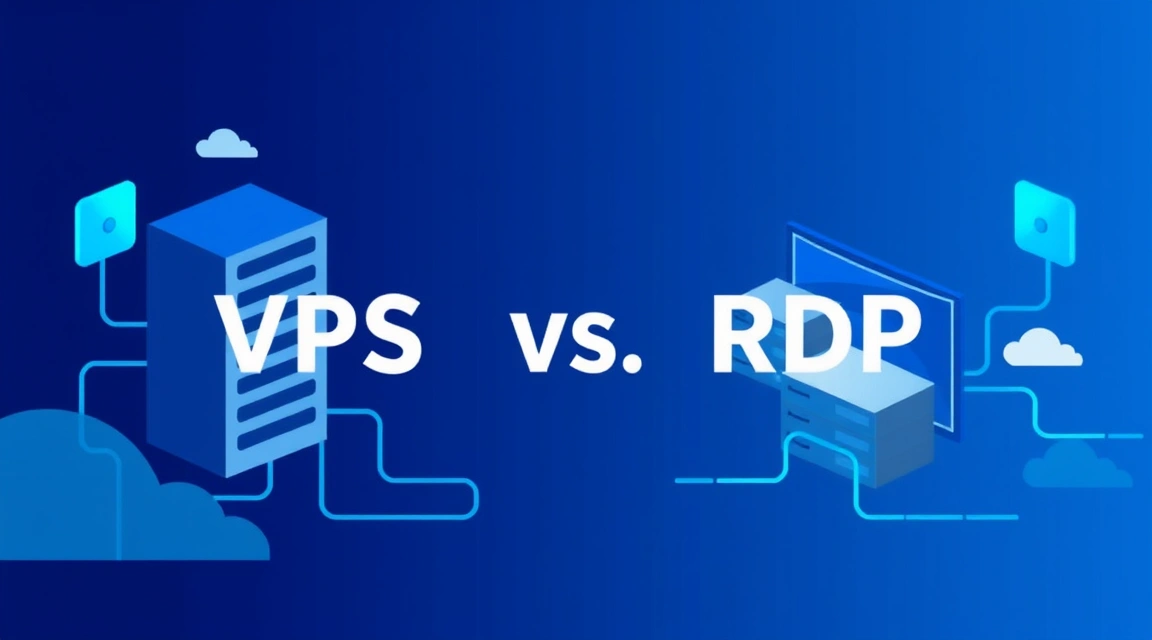
RDP (Remote Desktop Protocol) is a protocol for remote graphical access to a computer or server, typically operating on port 3389, whereas a VPS (Virtual Private Server) is a complete virtual server with isolated resources that can host a Windows Server OS, which then provides RDP access.
In the services market, confusion often arises between these two concepts, as some providers offer "buy RDP," implying access to a remote desktop on a shared machine. However, the fundamental difference between VDS and VPS, and even more so between a protocol and a full-fledged server, is enormous and determines the functionality, security, and reliability of your remote solution.
This article will help you understand how RDP differs from VPS, when it is appropriate to use each option, and what risks are involved in choosing "cheap RDP" instead of a full Windows VPS with RDP access.
What is RDP vs. VPS? Understanding the Core Concepts
Before delving into comparisons, it's crucial to clearly define what RDP and VPS are individually. Understanding these basic concepts will help you avoid many mistakes when choosing a solution for your needs.
RDP (Remote Desktop Protocol): A Protocol, Not a Server
RDP (Remote Desktop Protocol) is a proprietary protocol developed by Microsoft that allows a user to access the graphical interface (desktop) of a remote computer over a network connection. Simply put, it's a technology that enables you to work on a computer located elsewhere as if you were sitting directly in front of it. Everything you see on the screen and all your actions (mouse movements, key presses) are transmitted over the internet. The standard port for RDP connections is 3389/TCP.
Key features of RDP:
- Graphical Access: Provides full access to the remote machine's desktop, including all installed programs and files.
- Client-Server Architecture: Requires an RDP server (a remote computer with RDP enabled) and an RDP client (a program on your local computer, such as "Remote Desktop Connection" in Windows, Remmina in Linux, or third-party applications on macOS and mobile devices).
- Encryption: Transmitted data is encrypted to ensure security.
- Resource Redirection: Allows redirection of local resources (printers, drives, COM ports, audio) to the remote computer.
It's important to understand: RDP itself is not a server or hosting. It is merely a tool for interacting with a server or computer that already exists and is running.
VPS (Virtual Private Server): An Isolated Virtual Server
VPS (Virtual Private Server), or virtual private server, represents a virtual machine running on a physical server. Using virtualization technologies (e.g., KVM, VMware ESXi, Hyper-V), a single powerful physical server is divided into several isolated virtual servers. Each VPS functions as a separate, independent server with its own operating system (Windows Server, Linux distributions), dedicated resources (CPU, RAM, disk space), and full administrative access.
Key features of VPS:
- Isolation: Each VPS is completely isolated from other VPS instances on the same physical server. This means that problems with one VPS do not affect the operation of another.
- Guaranteed Resources: Dedicated CPU, RAM, and disk resources are guaranteed and available only to your VPS, ensuring stable performance.
- Full Control: You get root access (for Linux) or administrative access (for Windows Server), allowing you to install any software, configure system parameters, reboot the server, and manage it as you see fit.
- Own IP Address: Each VPS typically has its own unique public IP address.
- Flexibility: The ability to choose an operating system and scale resources (increase or decrease CPU/RAM/disk) as needed.
Thus, a VPS is a full-fledged, albeit virtual, computer that you rent and manage. If it has a Windows Server OS installed, access to it is most often provided via the RDP protocol.
"Buy RDP" vs. "Buy Windows VPS": What's the Key Difference?
Here lies the main terminological trap. When providers offer to "buy RDP," they typically mean renting an account with remote desktop access on a *shared* physical or virtual server, where dozens or hundreds of other users are simultaneously working. In contrast, "buy Windows VPS" means renting *your personal, isolated* virtual server with a Windows Server operating system installed, to which you gain full RDP access.
When "RDP is Sold": The Hidden Details of Shared Hosting
Offers for "cheap RDP" or "RDP affordably" usually imply access to what is known as "Shared RDP." In this case, you get a regular user account on a server that is shared by many other clients. This is similar to using a public computer in an internet cafe, but remotely.
Main characteristics of "Shared RDP":
- Limited Permissions: You are not the system administrator. Your rights are limited to a regular user, meaning you cannot install system programs, change critical settings, access other users' files, or reboot the server.
- Shared Resources: Resources (CPU, RAM, disk I/O) are shared among all users on the same physical or virtual server. If one user runs a resource-intensive application, performance for everyone else can significantly decrease.
- Shared IP Address: All users on this server use the same public IP address. This can lead to serious IP reputation issues, which we will discuss below.
- Lack of Isolation: Your files and data could theoretically be accessible to other users (although system rules should prevent this, vulnerabilities or configuration errors can create risks).
- Low Price: The main advantage is the extremely low cost, achieved through maximum resource utilization and lack of isolation.
Windows VPS with RDP Access: Your Personal Server
When you buy a Windows VPS, you get a full-fledged virtual server that belongs only to you. It has a Windows Server operating system installed, and you get full administrative access to it via RDP. It's like buying a physical server and installing Windows on it, but without the need for physical placement and maintenance.
Main characteristics of Windows VPS with RDP access:
- Full Administrative Control: You are the administrator of the server. This gives you the right to install any software, configure system services, modify the registry, create and delete users, manage the firewall, and perform any other administrative tasks.
- Guaranteed Resources: The vCPU, RAM, and disk space allocated to you are guaranteed and available only to your VPS. Your server's performance does not depend on the actions of other provider clients.
- Own IP Address: Your VPS receives a unique public IP address, whose reputation you control exclusively. This is critically important for many online activities.
- Complete Isolation: Your VPS is completely isolated from other virtual machines on the physical server. This ensures the security, stability, and confidentiality of your data.
- Scalability: You can easily increase or decrease your VPS resources (CPU, RAM, disk) as your needs change.
Thus, the main difference between VPS and RDP (in the context of "buying RDP") comes down to whether you get a full-fledged, isolated server with complete control, or just an account on a shared computer with limited permissions and shared resources.
Looking for a reliable server for your projects?
VPS from $10/month and dedicated servers from $9/month with NVMe, DDoS protection, and 24/7 support.
View Offers →Isolation, Permissions, and Resources: Why Windows VPS with RDP Access is Superior to Shared RDP
The choice between a full Windows VPS and "Shared RDP" is largely determined by the level of control, performance, and security you require. In most serious use cases, a Windows VPS with RDP access significantly outperforms shared solutions.
Full Administrative Control and Root Access
On a Windows VPS, you get an account with administrator privileges. This means you can:
- Install any software: From specialized trading terminals to browsers and automation utilities. You are not limited by a list of allowed programs.
- Configure the system: Change security settings, network settings, install and configure services, manage the Windows firewall.
- Create users: If you need to grant access to multiple employees, you can create separate accounts for them with the necessary permissions.
- Reboot the server: You have full control over the lifecycle of your virtual machine, which is critical for installing updates or troubleshooting issues.
In the case of "Shared RDP," you typically operate under a regular user account. You do not have the rights to install programs, change system settings, or reboot the server. This severely limits functionality and flexibility of use.
Guaranteed Resources and Performance
An important aspect that distinguishes RDP from a Windows VPS is resource management. With a VPS, you get a guaranteed amount of CPU, RAM, and disk space (often on fast NVMe or SSD drives). This means your server will operate stably, and its performance will not depend on "noisy neighbors" (other clients on the same physical server).
When using "Shared RDP," all users share the same resources. If one of your "neighbors" runs a powerful script, performs extensive calculations, or loads the disk with intensive I/O operations, your desktop performance can sharply decline. This makes Shared RDP unsuitable for tasks requiring stable and predictable operation, such as stock trading or running automated scripts.
For example, to check resource utilization on a Windows VPS, you can use Task Manager. In the case of Shared RDP, you will see overall utilization but won't be able to understand who is consuming resources, let alone influence it.
Network Isolation and IP Address Reputation
Each Windows VPS receives its own unique public IP address. This is critically important for several reasons:
- IP Reputation: You have full control over the reputation of your IP address. If you use it for spamming or other undesirable activities, only your IP will be blacklisted. In the case of "Shared RDP," you share an IP address with other users. If one of them engages in spamming, brute-forcing, or other questionable activity, the shared IP may be blocked on various services (mail servers, websites, social networks). This can lead to you being unable to send emails, register on websites, or even access certain resources. For digital agencies, for example, this can be catastrophic.
- Security: Your own IP address allows you to configure individual firewall rules and enhance overall server security. You can monitor network activity using commands like
netstat -anand ensure that only your applications use network ports. - Access to Services: Some services and websites may block access from IP addresses frequently used for VPN/proxies or those with a poor reputation. With your own clean IP on a VPS, you minimize such risks.
On "Shared RDP," you are deprived of these advantages, and your online activity directly depends on the behavior of other, often unknown, users.

Comparison Table: Windows Server VPS vs. Shared RDP
To clearly demonstrate how RDP differs from VPS, we have prepared a comparison table that covers key aspects of use.
| Characteristic | Windows VPS with RDP Access | Shared RDP ("RDP for Sale") |
|---|---|---|
| Isolation | Full isolation at the virtual machine level. Your server is completely separate from others. | None. You share resources and environment with other users on the same server. |
| Access Rights | Full administrative access (Administrator). Ability to create other users. | Limited regular user rights. Cannot install system software, change settings. |
| Guaranteed Resources | Yes. Dedicated CPU, RAM, disk space (NVMe/SSD) are guaranteed and available only to you. | No. Resources are shared among all users, performance is unpredictable. |
| IP Address | Unique dedicated public IP address. You control its reputation. | Shared public IP address, used by many users. Reputation depends on everyone. |
| Security and Confidentiality | High. You are fully responsible for the security of your server and data. | Low. Risks of data leakage, malware infection from "neighbors," blocking due to others' activity. |
| Software Installation | Any software compatible with Windows Server. | Only software allowed by the server administrator, or portable software. |
| Price (approximate) | From $5-10/month for a basic plan. | From $1-5/month, but with significant limitations. |
| Scalability | Easy to increase or decrease resources (CPU, RAM, disk). | Virtually none, you are tied to the current plan and shared resources. |
| Applicability | Trading, bots, automation, remote workstation, business applications, development. | Simple web browsing, single non-critical tasks, very limited use. |
When Shared RDP Might Be "Enough" and Why Cheap Solutions Are Risky
Despite all the drawbacks, there are extremely specific and limited scenarios where "Shared RDP" might be considered. However, in most cases, its use carries serious risks.
Limited Use Cases for Shared RDP
Using "Shared RDP" can only be justified in the following, very narrow and non-critical, cases:
- Simple Web Browsing: If you just need a remote browser to visit websites where no confidential data entry is required and IP reputation is not important.
- Single, Non-Critical Tasks: For example, downloading a file unavailable in your region, or running a very light script for a short time.
- Extremely Limited Budget: If cost is the sole and decisive factor, and you are willing to tolerate all risks and limitations.
It is important to understand that even in these cases, risks remain. Never use "Shared RDP" for banking operations, accessing personal accounts, storing confidential information, or any activity where security, stability, and confidentiality are important.
Risks and Pitfalls of Cheap Shared RDP
The low cost of "Shared RDP" is achieved through compromises that can lead to serious problems:
- Performance Issues: As mentioned, shared resources mean your desktop can "lag" or freeze due to the actions of other users. This makes Shared RDP unsuitable for any tasks requiring stable operation.
- IP Address Blacklisting: This is perhaps the most common and painful risk. If one of your "neighbors" on Shared RDP uses the IP for spam, phishing, brute-force attacks, or other policy-violating activities, that shared IP address will be blacklisted. As a result, you may find that you cannot access necessary websites, send emails, use online services, or even log into some applications. For digital agencies, for example, this can be catastrophic.
- Security and Confidentiality Risks: Although operating systems have user isolation mechanisms, on Shared RDP there is always a theoretical risk of access to your data or infection of your session with malware through vulnerabilities or configuration errors. You do not control the system and cannot be sure of its integrity.
- Instability and Downtime: Server overload by one user, system failures, or even administrative actions by the provider (e.g., rebooting the entire server without warning) can lead to sudden disconnections and downtime, which is unacceptable for most business tasks.
- Software Limitations: You will not be able to install the software you need if it is not on the server or if it requires administrative rights. This severely narrows the range of tasks for which such RDP can be used.
In general, saving money on "Shared RDP" often results in wasted time, stress, and potential financial losses due to unstable operation, blacklisting, and security risks.
Choosing Between VPS and RDP for Specific Use Cases
Making the right choice between purchasing a full Windows VPS and so-called "RDP" (Shared RDP) is critical for the successful execution of your tasks. Let's consider popular scenarios.
VPS for Trading Bots and Algorithmic Trading
For running trading bots, MetaTrader 4/5, QUIK, and other trading platforms, a full-fledged Windows VPS is absolutely necessary. The reasons are clear:
- 24/7 Stability: Trading operations require round-the-clock operation without interruptions. Guaranteed VPS resources ensure this.
- Low Latency: Placing the VPS as close as possible to the broker's servers minimizes latency, which is critical for high-frequency trading.
- Dedicated IP: A clean, dedicated IP address eliminates the risks of blacklisting or access issues with trading platforms.
- Full Control: The ability to install any necessary indicators, expert advisors, scripts, and configure the system for specific needs.
On Shared RDP, your bots will suffer from unstable performance, sudden disconnections, and potential IP blacklisting, leading to missed trades and financial losses.
Windows VPS for Browser Automation and SEO Tools
If you are involved in SEO, parsing, SMM, or use browser bots (e.g., with Selenium, Puppeteer, Zennoposter), you also need a Windows VPS with RDP access. Here's why:
- GUI and Browser Installation: Most such tools require a graphical interface and the ability to install full versions of Chrome, Firefox, or other browsers.
- Dedicated Resources: Browser automation can be resource-intensive. A VPS ensures that your scripts run stably, without competing for CPU and RAM with other users.
- Dedicated IP and Proxies: You can bind multiple additional IP addresses to your VPS or use proxy servers, configuring them exactly as you need, without risking the reputation of your primary IP.
- Software Installation Freedom: You can install any necessary libraries, frameworks, and specialized automation software.
Shared RDP, with its limitations and shared IP, is simply unsuitable for such tasks, as any serious automation attempts will quickly lead to blocks or extremely unstable operation.
Remote Workstations and Business Applications (1C, QuickBooks)
For setting up a remote workstation, running accounting software like 1C, QuickBooks, Sage, and other resource-demanding business applications, the choice is obvious — a Windows VPS.
- Stable GUI Performance: Important business applications require a stable and responsive graphical interface.
- Guaranteed Performance: Working with databases and complex calculations requires stable CPU, RAM, and fast disks.
- Data Security: An isolated VPS provides a high level of security and confidentiality for your commercial information.
- Full Control: You can configure the server to meet the specific requirements of your software, create backups, and manage employee access.
Using Shared RDP for such tasks is a direct path to data loss, unstable operation, and a threat to the security of confidential information. The best Windows VPS with GUI significantly increases the efficiency of working with such systems.
For 50 concurrent users working with office applications or light web browsing, 8 vCPU, 16 GB RAM, and a 200 GB NVMe disk are sufficient. However, for resource-intensive tasks, requirements may be higher.
| Task / Users | vCPU | RAM | Disk | Port | Price ($/mo) |
|---|---|---|---|---|---|
| Light Trading (1-2 terminals) | 2 | 4 GB | 60 GB NVMe | 1 Gbps | $10-15 |
| Browser Automation (3-5 threads) | 4 | 8 GB | 80 GB NVMe | 1 Gbps | $20-30 |
| Remote Workstation (1-2 users, MS Office) | 4 | 8 GB | 100 GB NVMe | 1 Gbps | $20-30 |
| Business Applications (1C, QuickBooks, 1 user) | 4 | 8 GB | 120 GB NVMe | 1 Gbps | $25-40 |
| Multi-threaded Parsing / SEO (10+ threads) | 8 | 16 GB | 200 GB NVMe | 1 Gbps | $50-80 |
How to Choose the Best Windows VPS for RDP Access
Choosing the right Windows VPS is an investment in the stability and efficiency of your work. Here are the key parameters to consider when renting a server for RDP access:
Key Parameters: CPU, RAM, NVMe/SSD, Network Bandwidth
- Processor (vCPU): The number of virtual cores. For most tasks requiring RDP access, such as trading or automation, a minimum of 2 vCPU is recommended. More demanding applications or multiple users will require 4 vCPU or more. Pay attention to core frequency (higher is better) and processor type (Intel Xeon E-series or similar AMD EPYC).
- RAM (Random Access Memory): For Windows Server, a minimum of 2 GB RAM is required, but for comfortable GUI operation and running applications, 4 GB RAM or more is recommended. For trading with multiple terminals or business applications like 1C, it's better to choose 8 GB RAM and above.
- Disk Space:
- Disk Type: Always choose a VPS with NVMe or SSD drives. They provide significantly higher read/write speeds compared to traditional HDDs, which is critical for operating system and application performance.
- Volume: For Windows Server with GUI and several applications, a minimum of 60-80 GB of disk space will be needed. If you plan to store large amounts of data or install many applications, choose 100-200 GB.
- Network Bandwidth: The speed of the internet connection port. Most providers offer 1 Gbps, which is more than sufficient for RDP access and most online tasks. More important than peak speed is stability and low latency.
- Windows Server License: Ensure that the provider offers an activated Windows Server license (e.g., Windows Server 2019 or 2022). This guarantees legal use and access to updates.
Location and Provider: Reliability and Support
- Server Location: Choose a data center located as close as possible to your target servers (e.g., exchanges for trading) or to your geographical location to minimize RDP connection latency. For example, for users in Europe, data centers in Germany, Netherlands, or Finland would be suitable.
- Provider Reliability: Research provider reviews, reputation, years in business, and support quality. A reliable provider will ensure stable server operation and promptly assist with any issues.
- Support: High-quality 24/7 technical support is key to peace of mind. Ensure the provider offers prompt assistance with VPS and RDP access issues, as well as Windows VPS configuration.
- Backup Services: Find out if the provider offers automatic backup services. This can save your data in case of unforeseen failures.
A careful approach to VPS selection will help you get a powerful, stable, and secure tool for your tasks.
Conclusion
The difference between RDP and VPS is fundamental: RDP is merely a protocol for remote access, while a VPS is a full-fledged, isolated virtual server with guaranteed resources and administrative control. For most serious tasks, be it trading, automation, or a remote workstation, the choice should unequivocally be a Windows VPS with RDP access, which provides stability, security, and full control. "Shared RDP," on the other hand, is only suitable for extremely non-critical and temporary tasks, carrying high risks.
Frequently Asked Questions
What is RDP access and how does it differ from VPN?
RDP access (Remote Desktop Protocol) allows you to obtain a graphical interface of a remote computer, working with it as if it were local. VPN (Virtual Private Network) creates an encrypted tunnel for secure network connection, masking your IP address, but does not provide direct desktop access. RDP typically operates on port 33389, while VPN uses other ports and protocols.
How much RAM is needed for a Windows VPS with RDP?
For a basic Windows VPS with RDP access and light tasks (e.g., web browsing), 4 GB RAM is usually sufficient. If you plan to run trading terminals, browser automation, or business applications like 1C, a minimum of 8 GB RAM is recommended, and for multiple users or resource-intensive tasks, 16 GB or more.
Can I install my own software on "cheap RDP"?
Generally, on "cheap RDP" (Shared RDP), you cannot install arbitrary software because you lack administrative rights. You are limited to programs already installed by the provider or those that can run in portable mode without system installation. For complete freedom to install software, a full Windows VPS is required.
What is the main advantage of Windows VPS over Shared RDP for trading?
The main advantage of a Windows VPS for trading is guaranteed and isolated resources (CPU, RAM, NVMe disk) and a dedicated IP address. This ensures stable operation of trading terminals 24/7, minimizes latency, and eliminates the risk of IP address blacklisting due to other users' actions, which is critically important for financial operations.
How can I secure RDP access to my VPS?
To secure RDP access to your VPS, you should use strong passwords, regularly update the operating system, configure the Windows firewall (e.g., allow access to port 3389 only from specific IP addresses), and if possible, use two-factor authentication. It is also recommended to change the standard RDP port (3389) to a non-standard one.
NVMe VPS with 60-second activation: full root access, 20+ locations, card or crypto payments.
Choose a plan