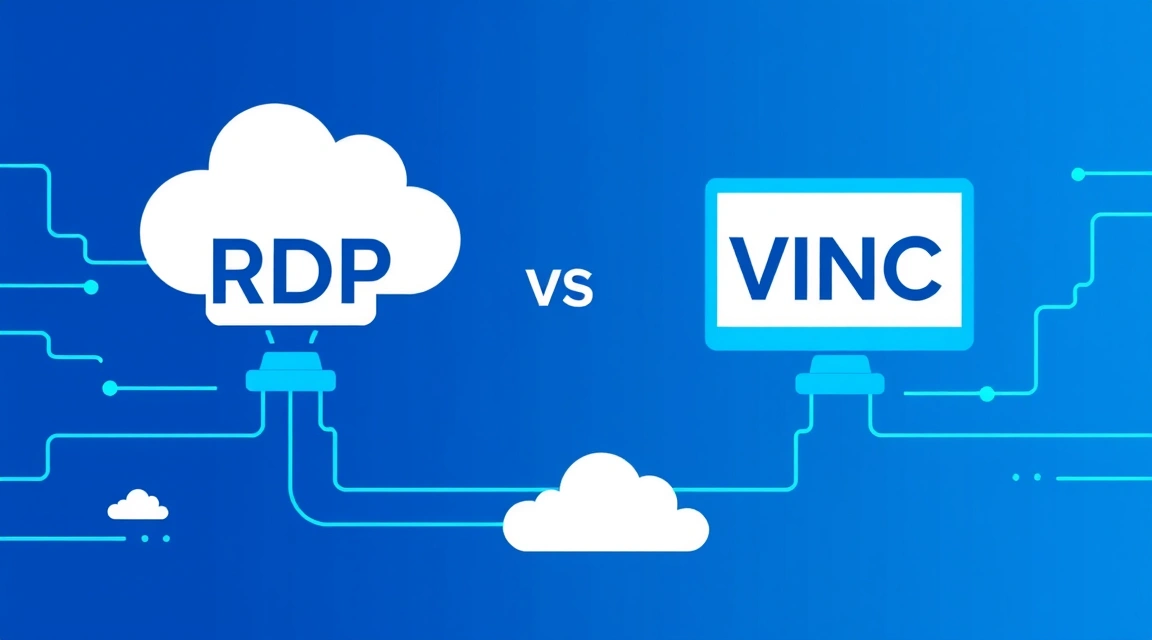
Choosing between RDP (Remote Desktop Protocol) and VNC (Virtual Network Computing) for remote server access typically depends on the operating system and required functionality: RDP, a Microsoft proprietary protocol, offers a rich user experience with sound, printer, and drive redirection for Windows servers, consuming on average 30-50% less bandwidth by transmitting graphical primitives, while VNC is ideal for cross-platform access, managing Linux without a GUI, or as an emergency console, transmitting screen pixel data.
In the realm of cloud computing and Virtual Private Servers (VPS), efficient and secure remote access to your machines is critically important. Whether you're managing a web server, deploying applications, or simply working remotely, selecting the right protocol is essential. In this article, we'll delve into the differences between VNC and RDP, examining their architecture, performance, security, and use cases to help you decide which is better for your specific tasks on a VPS.
What is RDP? Understanding Microsoft's Remote Desktop Protocol for Windows VPS
RDP (Remote Desktop Protocol) is a proprietary protocol developed by Microsoft that provides remote access to a desktop or applications on a Windows-based server. It is the de facto standard for remote administration of Windows servers and virtual machines. RDP doesn't just transmit screen images; it operates at a higher level of abstraction.
How RDP Works: Transmitting Graphical Primitives
Unlike VNC, which transmits a stream of pixels, RDP sends rendering commands for graphical primitives (lines, text, windows, buttons) and vector data to the client. When you open a window or type text on a remote RDP server, the server doesn't take a screenshot and send it entirely. Instead, it tells the client: "draw a window here," "display the text 'Hello, world!' in this area," "show a button with these parameters." The client machine, upon receiving these commands, renders the interface elements itself using its local resources. This significantly reduces the amount of information transmitted over the network, especially when working with text documents, spreadsheets, or typical applications.
Key principles of RDP operation:
- Traffic Optimization: Transmitting primitives instead of pixels. If only the mouse cursor changes on the screen, RDP will transmit only its new coordinates, not the entire screen fragment.
- Caching: The RDP client actively caches frequently used graphical elements (icons, fonts, background images) to avoid re-downloading them. This speeds up rendering and saves bandwidth.
- Data Compression: All data transmitted via RDP is compressed to further reduce network load.
- Multichannel Support: RDP supports multiple virtual channels for different types of traffic: one for graphics, another for audio, a third for the clipboard, and so on.
Thanks to this approach, RDP ensures high responsiveness even on relatively slow internet connections, making it an excellent choice for most everyday tasks on a Windows VPS.
Key RDP Features: What You Get Out of the Box
RDP offers a rich set of features that significantly enhance user experience and productivity:
- Audio Redirection: Sound from the remote server can be played on your local computer. This is especially useful for multimedia applications or notifications.
- Clipboard Redirection: You can copy text, files, and images between your local and remote computers using standard copy/paste functions.
- Local Drive Redirection: Allows you to access files and folders on your local computer directly from the remote RDP session, as if they were connected to the server.
- Printer Redirection: Documents from the remote server can be sent to print via a local printer connected to your computer.
- COM Port and USB Device Redirection: Enables the use of specialized hardware (e.g., scanners, POS terminals) through an RDP session.
- Performance Settings: Users can manually adjust graphics quality, disable animations, desktop backgrounds, and other elements to optimize performance on slow connections.
- Single Sign-On (SSO): In corporate environments, RDP can integrate with Active Directory for simplified authentication.
These features make RDP a powerful tool for remote work and administration, transforming a remote desktop into a full-fledged workstation. If you're looking for the cheapest Windows VPS for your tasks, ensure its specifications allow for comfortable RDP usage with all necessary features.
VNC: A Universal, Cross-Platform Solution (But Less Efficient?)
VNC (Virtual Network Computing) is a cross-platform remote desktop system that allows you to control a computer remotely by transmitting its screen image. VNC consists of two components: a VNC server, which runs on the remote machine and "captures" the screen image, and a VNC client (Viewer), which displays this image and sends mouse and keyboard commands back to the server.
How VNC Works: Pixel Transmission
The main difference between VNC and RDP lies in their operating principle. VNC is a protocol focused on transmitting raster images. This means the VNC server constantly takes "snapshots" of the remote machine's screen, compares them with previous ones, identifies changed pixels, and sends only these changes to the client. The client, in turn, assembles these pixels and displays them on its screen.
This approach has its advantages and disadvantages:
- Versatility: Since VNC simply transmits an image, it can work with virtually any operating system that can display a graphical interface. This makes it ideal for Linux, macOS, and other Unix-like systems.
- High Traffic: Pixel transmission, especially with active screen changes (video, animation, fast scrolling), generates significantly more network traffic compared to RDP. Even with compression and transmitting only changed areas, VNC typically requires a wider bandwidth.
- Bandwidth Dependency: The responsiveness of a VNC session heavily depends on your internet connection speed. On slow connections, the image may update with a delay, and mouse and keyboard movements will feel "laggy."
- Lack of "Smart" Features: By default, VNC does not support sound, printer, or drive redirection to the same extent as RDP. These features may be implemented through third-party extensions or additional protocols (e.g., for sound — via PulseAudio or SSH tunneling).
A VNC server can operate either by "capturing" an existing desktop (e.g., if someone is already working at the physical console) or by creating its own virtual desktop to which remote users can connect. The latter option is often used on Linux servers without a physical monitor.
VNC as an Emergency Server Console and Pre-OS Access
One of VNC's most valuable features, especially in the context of VPS and dedicated servers, is its ability to serve as an emergency console. Many hosting providers, including Valebyte.com, offer access to your server's VNC console regardless of the operating system's state.
- Pre-OS Boot Access: Via VNC, you can interact with BIOS/UEFI, the bootloader menu (GRUB, LILO), install an operating system from an ISO image, or troubleshoot issues preventing the OS from booting. This is critically important if, for example, you made a network configuration error and lost RDP or SSH access.
- Managing Linux Without a Desktop: While many Linux servers are managed via SSH, a graphical interface is sometimes required for specific tasks or debugging. VNC allows you to install a minimal graphical environment (e.g., XFCE, LXDE) and access it without needing a physical monitor.
- Troubleshooting Network Issues: If your server loses network connectivity or you've misconfigured the firewall, VNC access (usually via a separate, secure channel from the hoster) allows you to connect and fix these errors, restoring primary access.
In these scenarios, VNC is indispensable, as RDP requires a fully booted and functioning Windows system, and SSH requires a working network stack and SSH service. The server's VNC console operates at the hypervisor level or BMC (Baseboard Management Controller) for dedicated servers, providing "physical" access to the screen and keyboard.
Looking for a reliable server for your projects?
VPS from $10/month and dedicated servers from $9/month with NVMe, DDoS protection, and 24/7 support.
View Offers →RDP vs VNC: Protocol Differences, Features, and Performance
Understanding the fundamental differences between RDP and VNC is critical for choosing the optimal tool. Let's break down the main aspects where these protocols diverge significantly.
Architecture and Data Transmission: Primitives vs. Pixels
This is the key distinction that determines most other characteristics:
- RDP (Remote Desktop Protocol): Operates at the level of graphical primitives and objects. When a change occurs on the server (e.g., a new window is drawn, text changes, a button's color changes), the RDP server sends the client not a raster image of these changes, but commands describing what exactly needs to be drawn. For example, "draw a rectangle with these coordinates and color," "display the text 'Welcome' in Arial 12pt font." The RDP client, using its local resources (fonts, graphics engine), renders these elements itself. This is very efficient, as the volume of data describing primitives is significantly less than the volume of data describing each pixel.
- VNC (Virtual Network Computing): Operates at the pixel level. The VNC server continuously "captures" the screen image, compares the current frame with the previous one, identifies changed areas (delta changes), and sends only these changed pixel blocks to the client. The client then "stitches" these blocks together, updating its local screen image. This approach is simple to implement and universal but much more demanding on network bandwidth, especially with significant screen changes (video, games, animation).
Performance and Responsiveness: Speed and Bandwidth Usage
Differences in architecture lead directly to differences in performance:
- RDP:
- Bandwidth Usage: Significantly lower. When working with office applications, text editors, or a browser (without active multimedia), RDP can consume only a few tens of kilobytes per second.
- Responsiveness: High. Thanks to primitive transmission and aggressive caching, RDP provides smooth operation even on connections with moderate latency (ping) and limited bandwidth (e.g., 1-2 Mbps). The user experience is close to working on a local computer.
- Client Load: Relatively low, as the client only renders primitives.
- VNC:
- Bandwidth Usage: Significantly higher. Even with optimization and compression, VNC can easily consume hundreds of kilobytes or even megabytes per second if active changes occur on the screen.
- Responsiveness: Depends on bandwidth. On fast connections (10 Mbps or more), VNC can be quite responsive, but on slow channels or with high latency (ping > 100 ms), a noticeable "lag" will be felt, with delays in rendering and control.
- Client Load: Can be higher, as the client needs to process and display pixel streams.
For everyday work with a Windows VPS, especially if you plan to use it as a remote desktop for multiple users, RDP is objectively superior in terms of speed and bandwidth usage.
OS Support and Cross-Platform Compatibility
- RDP: Primarily designed for Windows. The RDP server is built into Windows Server and Windows Pro/Enterprise editions. RDP clients are available for Windows, macOS, Linux, Android, iOS. However, the RDP server-side for Linux only exists in the form of third-party, less functional implementations (e.g., xrdp).
- VNC: Truly cross-platform. VNC servers and clients are available for Windows, macOS, Linux, Unix, Android, iOS, and even web browsers. This makes VNC a universal solution for accessing any system with a graphical interface.
Additional Features: Sound, Clipboard, Device Redirection
- RDP: By default, it supports full sound redirection, clipboard (text, files), local drives, printers, COM ports, and USB devices. This significantly expands remote work capabilities.
- VNC: The basic VNC protocol does not include these features. Clipboard redirection for text is usually supported, but not for files. Sound, printers, and drives require additional configurations, third-party tools, or tunneling (e.g., via SSH), which complicates setup and usage.
Security and Encryption: RDP or VNC?
The question of security is critically important when accessing a server remotely. Both protocols have their characteristics and require proper configuration.
RDP: Built-in Encryption and Authentication
RDP by default uses encryption to protect transmitted data. Modern versions of RDP (starting with Windows Server 2003 SP1 and Windows XP SP2) use TLS (Transport Layer Security) to ensure data confidentiality and integrity. This means all traffic between the client and server is encrypted, preventing data interception by attackers.
Key aspects of RDP security:
- TLS/SSL: RDP supports the use of SSL/TLS certificates for connection encryption. In domain environments, certificates from a corporate certificate authority can be used, and for individual servers, self-signed certificates or Let's Encrypt certificates.
- Network Level Authentication (NLA): NLA is a security feature that requires user authentication before establishing a full RDP session. This helps prevent denial-of-service (DoS) attacks and reduces the risk of brute-force password attacks, as an attacker cannot see the login screen until valid credentials are provided. Enabling NLA is highly recommended.
- Firewall: By default, RDP uses TCP port 3389. It is crucial to restrict access to this port only from trusted IP addresses using the Windows Firewall or VPS firewall. Opening port 3389 to the entire world is a common configuration error that makes the server vulnerable to automated attacks.
- Strong Passwords and Two-Factor Authentication: Using complex, unique passwords and, if possible, two-factor authentication (2FA) for accounts with RDP access is mandatory.
To further enhance RDP security, it is also recommended to change the standard port 3389 to a non-standard one (e.g., 33890), although this is not a panacea, but merely a minor hindrance for port scanners.
VNC: Default Security and Common Configuration Errors
The basic VNC protocol historically lacked strong built-in security mechanisms. Many early VNC implementations transmitted data without encryption or used very weak encryption methods, making them vulnerable to interception.
Modern VNC servers and clients offer improved security features, but these often need to be configured manually:
- Built-in Encryption: Some VNC implementations (e.g., RealVNC, TightVNC with plugins) offer encryption options (e.g., AES), but this is not always standard and may require specific clients.
- SSH Tunneling: The most secure and recommended way to use VNC is to tunnel VNC traffic through an SSH connection. SSH provides strong encryption and authentication, protecting the VNC session.
ssh -L 5901:localhost:5901 user@your_vps_ipThis command redirects traffic from local port 5901 to remote server port 5901 through an encrypted SSH tunnel. You can then connect with a VNC client to
localhost:5901. - Strong Passwords: VNC servers typically use passwords for authentication. As with RDP, it is extremely important to use complex and unique passwords.
- Firewall: VNC servers typically use ports 5900+N (where N is the display number). For example, display :0 uses port 5900, display :1 uses port 5901. These ports should be closed to external access if you are not using SSH tunneling. Opening a VNC port directly to the internet without encryption and strict firewall rules is a serious vulnerability.
Common VNC configuration errors include using simple passwords, lack of encryption, and opening the VNC port directly to the internet. Always use SSH tunneling when possible and configure strict firewall rules.

When to Use VNC vs RDP: Best Use Cases and Scenarios
The choice between RDP and VNC is often dictated by specific tasks, the server's operating system, and security and performance requirements.
Scenarios Where VNC is Indispensable (Emergency Console, Headless Linux)
Despite its drawbacks in everyday use, VNC has several unique advantages that make it indispensable in certain situations:
- Access to the Server's VNC Console Before OS Boot: This is arguably the most important advantage of VNC on VPS and dedicated servers. If the operating system fails to boot, network services (like RDP or SSH) are unavailable, or you've locked yourself out with a firewall, the VNC console provided by your hosting provider (e.g., Valebyte.com) allows access to the BIOS, OS bootloader, recovery menu, or installation process. It's a lifeline for server recovery.
- Managing Linux Servers with a GUI: For system administrators accustomed to graphical interfaces, or for tasks that require visualization (e.g., debugging graphical applications, using specific GUI software), VNC allows access to a Linux desktop (Xfce, GNOME, KDE) without the need for a physical monitor. This is relevant for VPS for Kazakhstan, where specific configuration or testing might be required.
- Cross-Platform Compatibility: If you need a single tool for remote access to servers running different OSes (Windows, Linux, macOS), VNC is a universal solution.
- Shared Access: Some VNC servers allow multiple users to connect to the same desktop simultaneously, which is convenient for demonstrations or collaborative work (though RDP also has this feature in Windows Server).
When RDP is Objectively Better (Everyday Windows Work)
For most tasks involving remote management and work on Windows-based servers, RDP is the clear leader:
- Everyday Work on a Windows VPS: If your VPS is used as a remote desktop for working with office applications, browsers, CRM systems, or other Windows software, RDP will provide a much more comfortable and productive experience due to its high speed, low latency, and rich feature set (sound, clipboard, drive redirection). This is especially important for RDP VPS for digital agencies, where stability and speed are crucial.
- Multi-User Sessions: Windows Server allows RDP to be configured for multiple concurrent users (with appropriate CAL licenses). Each user gets their own isolated session.
- Low Network Bandwidth: If you have a slow or unstable internet connection, RDP will handle it significantly better than VNC, minimizing lag and delays.
- Integration with Domain Services: In corporate environments, RDP easily integrates with Active Directory, Group Policies, and other Windows management tools.
Thus, if you have a Windows server and your primary task is remote work or administration via a graphical interface, choose RDP. If you work with Linux, need emergency access, or a universal cross-platform solution, VNC will be more suitable.
RDP vs VNC Comparison Table
For clarity, let's summarize the main differences between the protocols in a single table.
| Characteristic | RDP (Remote Desktop Protocol) | VNC (Virtual Network Computing) |
|---|---|---|
| Operating Systems | Built into Windows Server/Pro/Enterprise. Clients for all OS. | Cross-platform (Windows, Linux, macOS, Unix). |
| Operating Mechanism | Transmits graphical primitives and vector data. | Transmits pixels (raster images). |
| Bandwidth Usage | Low (especially with text/graphics). | High (depends on screen changes). |
| Responsiveness | High, even on slow connections. | Depends on bandwidth, can be slow. |
| Encryption | Built-in (TLS/SSL) and enabled by default. | Not always by default, often requires SSH tunneling. |
| Authentication | Robust (NLA, Kerberos, SAM). | Password (can be weak without additional measures). |
| Audio Redirection | Yes, full support. | No (requires third-party solutions). |
| Clipboard Redirection | Yes (text, files, images). | Partial (text only, sometimes files). |
| Drive/Printer Redirection | Yes, full support. | No (requires third-party solutions). |
| Pre-OS Boot Access | No (requires booted OS). | Yes (via hosting provider's console). |
| Use Cases | Everyday Windows work, remote offices. | Linux administration, emergency console, cross-platform access. |
For 50 concurrent users working with office applications via RDP, 8 vCPU, 16 GB RAM, and a 200 GB NVMe disk are generally sufficient.
| Users (RDP/VNC) | vCPU | RAM (GB) | Disk | Port | Price (approx. $/month) |
|---|---|---|---|---|---|
| 1-5 (light load) | 2 | 4 | 80 GB NVMe | 1 Gbps | $15 - $25 |
| 5-15 (medium load) | 4 | 8 | 160 GB NVMe | 1 Gbps | $30 - $50 |
| 15-30 (active work) | 6 | 12 | 240 GB NVMe | 1 Gbps | $55 - $80 |
| 30-50 (intensive load) | 8 | 16 | 320 GB NVMe | 1 Gbps | $85 - $120 |
| >50 (requires Dedicated Server) | 16+ | 32+ | 500+ GB NVMe | 1-10 Gbps | From $150 (Dedicated) |
Note that these figures are approximate. Actual requirements may vary depending on the software used, user work intensity, and server optimization. For a deeper understanding of pricing, we recommend reading the article What Determines the Price of a Dedicated Server.
How to Set Up RDP and VNC on Your Valebyte.com VPS
Setting up both protocols on a VPS is a standard procedure, but there are nuances to keep in mind.
Setting Up RDP on Windows Server (e.g., Windows Server 2022)
- Enable RDP:
On Windows Server, RDP is enabled by default, but ensure it's active. Open "Server Manager" -> "Local Server" and find "Remote Desktop." If disabled, enable it. Alternatively, go through "System Properties" -> "Remote."
Ensure "Allow remote connections to this computer" is selected and "Allow connections only from computers running Remote Desktop with Network Level Authentication (recommended)" is checked.
- Configure Firewall:
Windows Firewall by default allows incoming RDP connections on TCP port 3389. However, to enhance security, it is recommended to:
- Restrict Access by IP: In "Windows Defender Firewall with Advanced Security," create a rule allowing incoming connections on port 3389 only from your static IP address.
- Change the Standard Port: Open "Registry Editor" (
regedit), navigate toHKEY_LOCAL_MACHINE\SYSTEM\CurrentControlSet\Control\Terminal Server\WinStations\RDP-Tcp, find thePortNumberkey, and change it to a non-standard port (e.g., 33890). Remember to update the firewall rule for the new port.
- Manage Users:
Ensure that users requiring RDP access are members of the "Remote Desktop Users" or "Administrators" group.
net localgroup "Remote Desktop Users" username /add - Connect: Use the standard "Remote Desktop Connection" client (mstsc.exe) on your local computer. Enter your VPS's IP address and, if changed, the non-standard port.
Valebyte.com provides Windows VPS with RDP already configured, but it's always wise to check security settings.
Setting Up VNC on Linux VPS (e.g., Ubuntu Server 22.04 LTS)
For VNC on a Linux VPS, you typically need to install a VNC server and a graphical desktop environment if one isn't already present.
- Install a Graphical Desktop Environment (if not present):
For a minimal but functional environment: XFCE.
sudo apt update
sudo apt install xfce4 xfce4-goodies -y
For an even lighter option: LXDE.
sudo apt install lxde -y - Install a VNC Server (e.g., TightVNC Server):
sudo apt install tightvncserver -y - Configure VNC Server:
Run the VNC server for the first time to create configuration files and set a password:
vncserverYou will be prompted to set a password for VNC access. Choose a strong password. You can also set a "view-only" password.
- Configure VNC Server for Autostart and Desktop Environment:
Stop the current VNC server:
vncserver -kill :1Edit the
~/.vnc/xstartupfile. Make a backup first:mv ~/.vnc/xstartup ~/.vnc/xstartup.bak nano ~/.vnc/xstartupAdd the following content for XFCE:
#!/bin/bash
xrdb $HOME/.Xresources
startxfce4 &
Make the file executable:
chmod +x ~/.vnc/xstartup - Start VNC Server:
vncserver -geometry 1280x800 -depth 24 :1Here,
:1refers to display number 1 (port 5901).-geometrysets the resolution,-depthsets the color depth. - Configure Firewall (UFW):
It is crucial not to open the VNC port (5901) directly to the internet. Use SSH tunneling instead.
Ensure SSH is allowed:
sudo ufw allow sshDeny VNC port from external access (if it was somehow open):
sudo ufw deny 5901Enable the firewall:
sudo ufw enable - Connect via SSH Tunnel:
On your local computer, open an SSH tunnel:
ssh -L 5901:localhost:5901 user@your_vps_ipThen use a VNC client (e.g., RealVNC Viewer, TightVNC Viewer) and connect to
localhost:5901.
To automatically start the VNC server on system boot, you can create a systemd service.
Frequently Asked Questions
Here we answer popular questions that arise when choosing and configuring remote access protocols.
Can RDP be used to access a Linux server?
Yes, it can, but not directly. RDP is a proprietary Microsoft protocol, so for Linux servers, you need to install a third-party RDP server, such as xrdp. xrdp allows you to connect to a Linux graphical environment via an RDP client. However, the functionality of such a connection (e.g., sound or printer redirection) may be limited compared to native RDP on Windows.
Which protocol is more secure by default: RDP or VNC?
RDP is generally considered more secure by default due to its built-in support for TLS/SSL encryption and Network Level Authentication (NLA). VNC in its basic implementation often transmits data without encryption or uses weak methods. For secure VNC usage, it is highly recommended to tunnel traffic through an SSH connection, which provides robust encryption and authentication.
Why is a VNC server console indispensable for a VPS?
A VNC console is indispensable because it provides access to the server at the hypervisor or BMC level, before the operating system boots. This allows interaction with the BIOS, bootloader menu (GRUB), installing an OS from an ISO image, or troubleshooting issues that prevent network access (e.g., incorrect firewall configuration, network service failure). RDP and SSH only work after the OS and network stack have fully loaded.
Can VNC be used for remote work with office applications?
Yes, VNC can be used for remote work with office applications, but its performance will be significantly lower than RDP, especially on connections with limited bandwidth or high latency. VNC transmits pixels, which requires more traffic. For comfortable work with office applications via VNC, a stable internet connection of 10 Mbps or higher is recommended, along with the absence of active multimedia tasks.
Conclusion
The choice between RDP and VNC for remote server access should be based on the operating system type, required functionality, and security priorities. For Windows servers and everyday work, RDP offers superior performance, a rich feature set, and built-in security. For Linux servers, emergency access, or cross-platform compatibility, VNC is an indispensable tool, requiring careful security configuration, particularly through SSH tunneling. Valebyte.com provides reliable VPS that allow flexible use of both protocols depending on your tasks.
NVMe VPS with 60-second activation: full root access, 20+ locations, card or crypto payments.
Choose a plan