Can a VPS be used as a NAS?
Yes, using VPS hosting as a Network Attached Storage (NAS) is technically possible, but it's not a universal solution and comes with its nuances. For many tasks requiring remote file access, centralized storage, and a certain level of control, a VPS can be a flexible and powerful alternative to a traditional hardware NAS. However, before diving into setup, it's crucial to weigh all the pros and cons, and assess your technical skills and specific needs.
Today, we, fellow sysadmins and server enthusiasts, will thoroughly dissect this topic. We'll look at when a VPS can truly replace a NAS, what challenges lie ahead, and how to approach the implementation correctly.
What is a NAS in the traditional sense?
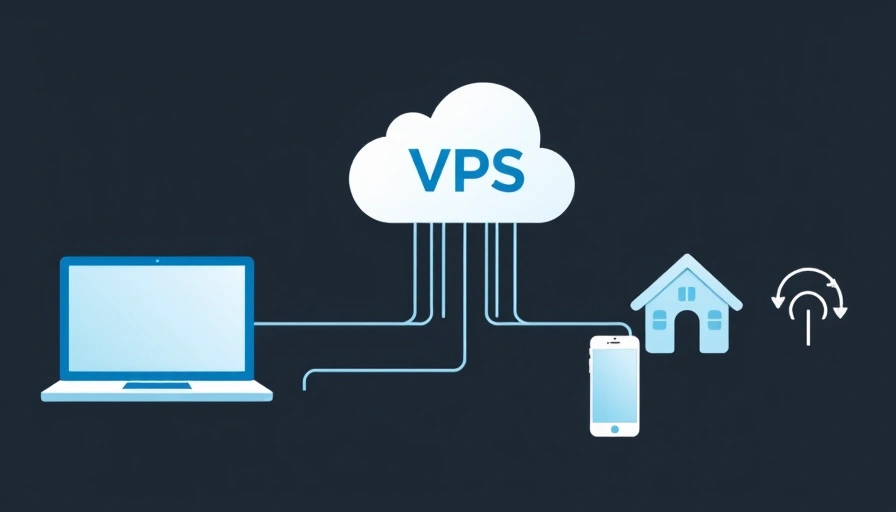
Before talking about replacements, let's recall what NAS (Network Attached Storage) is in its classic form. It's a specialized device, essentially a mini-server, optimized for storing and providing access to files over a network. A typical NAS from Synology, QNAP, or Asustor offers:
- Centralized storage: All files in one place, accessible to all devices on the local network.
- Backup: Built-in functions for creating backups from computers and mobile devices.
- RAID arrays: Data protection against the failure of one or more drives.
- Multimedia capabilities: Streaming video and music, organizing photo galleries.
- Ease of use: A convenient web interface for setup and management.
- Low power consumption: Compared to a full-fledged server.
The main advantage of a traditional NAS is its autonomy and operation within your local network, ensuring high-speed data access without reliance on an external internet channel.
Why does the idea of using a VPS as a NAS arise?
The idea of using a VPS instead of a dedicated NAS is not accidental. It's driven by several considerations:
Ready to Build Your VPS-Powered NAS?
Start with powerful and flexible VPS hosting. The ideal solution for your storage needs. — from €4.49/mo.
Explore VPS Plans →- Global access: A VPS is always online and accessible from anywhere in the world with internet. This is ideal for remote work, sharing files with colleagues or family when you are away from home or the office.
- Hardware savings: No need to purchase expensive NAS hardware. You only pay for resource rental, which can be more cost-effective, especially for smaller data volumes.
- Flexibility and control: You get full root access to the operating system. This allows you to install any software, configure any services and protocols you need, without the limitations of commercial NAS firmware.
- Scalability: VPS resources (CPU, RAM, disk space, network bandwidth) can be easily scaled as needs grow, often without downtime.
- Reduced physical presence: No additional device in your rack or on your shelf, no noise, no heat, and, importantly, no electricity consumption in your premises.
Key aspects and limitations when using a VPS as a NAS
Before rushing into action, let's soberly assess what you'll face.
1. I/O and network performance
This is perhaps the most critical factor. Disk subsystem performance on a VPS can vary. At Valebyte, for example, we use fast NVMe drives, which significantly improves the situation. However, the network bandwidth of your home or office internet connection will also play a role. If you have a gigabit connection and the VPS provider has 100 Mbps, or vice versa, a bottleneck will occur.
Quote: "Speed is not just about the server, but also about your connection. Don't forget about ping and latency to the data center, especially if it's far away."
2. Data storage volume and cost
VPS typically come with a relatively small amount of disk space compared to what can be achieved in a traditional NAS (where it's easy to install several terabyte drives). Large storage volumes on a VPS can be expensive, especially when it comes to high-performance SSD/NVMe drives. Some providers offer additional block storage, which can be more economical, but their performance may differ.
3. Security
Your VPS will be accessible from the internet. This means it will be a potential target for attacks. Proper firewall configuration, use of SSH keys, regular software updates, strong passwords, and possibly two-factor authentication are not options, but mandatory requirements.
4. Backup and fault tolerance
Although data centers typically have highly resilient infrastructure, responsibility for the data on your VPS lies with you. Make sure you set up regular backups of important files. This can be synchronization with another VPS, cloud storage, or even a local drive.
5. Technical skills
Setting up a VPS as a NAS requires solid knowledge of Linux systems, working with the command line, understanding network protocols (SMB, NFS, SFTP, WebDAV), and security fundamentals. If you're not prepared to dig into configuration files, a ready-made NAS solution might be more suitable.
How to set up a VPS as a NAS: main components
Suppose you've assessed the risks and are ready to proceed. Here are the main steps and software solutions:
1. Operating system selection
For creating a NAS on a VPS, Linux distributions such as:
- Ubuntu Server: Popular, extensive documentation, active community.
- Debian: Stable, reliable, good for production environments.
- Rocky Linux / AlmaLinux: Free CentOS alternatives if you're accustomed to RHEL-like systems.
We recommend using a minimalistic installation without a graphical interface to save resources.
2. File access software
Depending on your needs, you can install one or more of the following solutions:
a) Nextcloud (or similar: Pydio, Seafile)
This is a full-fledged platform for file synchronization and sharing with a wide range of additional features (calendars, contacts, notes, video calls, etc.). Nextcloud provides a web interface, desktop, and mobile clients, making it very convenient for remote access.
Nextcloud installation example (briefly):
    sudo apt update && sudo apt upgrade
    sudo apt install apache2 mariadb-server php libapache2-mod-php php-gd php-mysql php-curl php-intl php-mbstring php-xml php-zip php-apcu php-imagick
    # MariaDB database setup
    sudo mysql_secure_installation
    # Create database and user for Nextcloud
    # Download Nextcloud
    wget https://download.nextcloud.com/server/releases/nextcloud-XX.Y.Z.zip
    unzip nextcloud-XX.Y.Z.zip -d /var/www/html/
    # Configure permissions and Apache
    sudo chown -R www-data:www-data /var/www/html/nextcloud/
    sudo a2enmod rewrite headers env dir mime
    # Create VirtualHost for Nextcloud
This is just the tip of the iceberg; a full installation includes SSL (Let's Encrypt) setup, Cron jobs, and PHP tuning.
b) Samba (SMB/CIFS)
If you need file access from Windows or macOS clients, Samba is the de facto standard. It allows you to create network folders that will appear as regular network drives.
    sudo apt install samba samba-common-bin
    sudo nano /etc/samba/smb.conf
In smb.conf, add a section for your share:
    [share]
        comment = My Share
        path = /path/to/your/files
        browseable = yes
        writeable = yes
        valid users = your_samba_user
        create mask = 0644
        directory mask = 0755
        read only = no
Create a Samba user:
    sudo smbpasswd -a your_samba_user
    sudo systemctl restart smbd nmbd
c) NFS (Network File System)
For file sharing between Linux/Unix systems, NFS will be a more native and performant solution.
    sudo apt install nfs-kernel-server
    sudo nano /etc/exports
In /etc/exports, add:
/path/to/your/files client_IP_address(rw,sync,no_subtree_check)
Then:
    sudo exportfs -a
    sudo systemctl restart nfs-kernel-server
d) SFTP (SSH File Transfer Protocol)
For simple and secure file exchange over SSH, SFTP is an excellent option. It's already built into most SSH servers.
    # Ensure SSH server is installed
    sudo apt install openssh-server
    # Create a user and configure chroot to restrict access
    sudo adduser sftpuser
    sudo mkdir -p /var/sftp/uploads
    sudo chown root:root /var/sftp
    sudo chmod 755 /var/sftp
    sudo chown sftpuser:sftpuser /var/sftp/uploads
    # Configure sshd_config for chroot
    sudo nano /etc/ssh/sshd_config
Add to the end of sshd_config:
    Match User sftpuser
        ChrootDirectory /var/sftp
        ForceCommand internal-sftp
        AllowTcpForwarding no
        X11Forwarding no
        PasswordAuthentication yes # Or no, if using keys
Restart SSH:
sudo systemctl restart ssh
3. Firewall (UFW/firewalld)
Be sure to configure a firewall to restrict access only to necessary ports (SSH, HTTP/HTTPS, Samba, NFS, if used). UFW (Uncomplicated Firewall) for Debian/Ubuntu is an excellent choice.
    sudo ufw allow ssh
    sudo ufw allow http
    sudo ufw allow https
    sudo ufw enable
4. SSL/TLS (Let's Encrypt)
For web interfaces (Nextcloud), always use HTTPS. Let's Encrypt provides free SSL certificates that are easily integrated with Apache or Nginx.
    sudo apt install certbot python3-certbot-apache
    sudo certbot --apache -d yourdomain.com -d www.yourdomain.com
When is a VPS as a NAS a good choice?
- Remote access to personal files: You need access to documents, photos, or music from any device while on the go.
- File sharing with a small team: Several users need to collaborate on files, and cloud services are not suitable due to security policies or cost.
- Private cloud: You want to have full control over your data, not entrusting it to large cloud providers.
- Off-site backup: A VPS can serve as an excellent remote storage for backups from local machines or other servers.
- Specific applications: If you need to host a photo gallery (e.g., PhotoPrism), a document management system, or something similar that requires a server backend.
When is a traditional NAS or another solution better?
- High local network performance: If you need fast access to large files (e.g., for 4K video editing) within your local network, a traditional NAS with gigabit/10-gigabit Ethernet will be incomparably faster.
- Large data volumes (terabytes): The cost of storing large volumes on a VPS can quickly become astronomical.
- Regular local backups: For example, for Time Machine with macOS or a full Windows system image, a NAS on the local network will be more efficient and faster.
- Lack of technical skills: If you are not prepared to learn Linux and the command line, setting up a VPS will be a challenge.
- Multimedia center: If you plan to actively stream media files to multiple devices in your home (via Plex, Jellyfin, etc.), a local NAS often has hardware transcoding and provides better performance.
Conclusion
Using a VPS as a NAS is a perfectly viable solution for many scenarios, especially when global access, flexibility, and full data control are paramount. It's an excellent choice for those willing to dive into the world of Linux and configure a server to their needs. You get a powerful tool that can be adapted to the most specific tasks, without being limited by the functionality of ready-made firmware.
However, it's important to remember the potential limitations: reliance on the internet connection, the cost of large storage volumes, and the need to pay attention to security. For tasks requiring maximum performance on a local network or working with very large data volumes without deep technical knowledge, a traditional NAS or specialized cloud storage might be a more suitable option.
At Valebyte, we provide powerful VPS with fast NVMe drives and wide bandwidths, making them an excellent foundation for implementing your own "cloud NAS." If you're ready to experiment and want full control over your storage, a VPS is your way to go!
Need More Power and Control for Your NAS?
For ultimate performance and complete control over your storage, explore our dedicated servers.
Find Your Server →